Need to see if your shared folder is taking up space on your dropbox 👨💻? Find out how to check here.
Camera uploads
5 TopicsWhat’s the one tip you’d give yourself starting out as a photographer?
There’s nothing quite like the power of hindsight, especially when it comes to some of those golden life tips you pick up along the way that would made your everyday a lot easier if you had known them when you were younger. While we don’t have the ability to travel back in time and give ourselves the helping hand that could have made all the difference, we do have the power to pass on these little nuggets of brilliance to people who are following a similar path to yours. So, here’s your chance to help and give some advice that could benefit someone who is just starting out as a photographer and allow them to take the next steps in their journey. Now, as I’ve said before, I am not in any way, shape, or form a professional photographer, but I have taken a lot of photographs over the years and made my fair share of mistakes along the way. When I first started to take photographs, I was using an analogue camera, with actual film in it, and I can’t tell you the amount of times I took a photo that didn’t turn out anything like I thought it would. So for me, the one tip that I would give myself now, would be to take more than one photo. This is, of course, a lot easier to do now than it was back then. Digital cameras and smart phones are awesome and being able to instantly see your photo and not being restricted to the amount of shots you can take because you’re running out of film is a huge plus for making sure you get awesome shots. I say, get totally snap happy, and when you think you’ve got enough photos, take some more, even if you think you’ve already got the ultimate shot, because you’ll never know if the next one will turn out better, unless you take it. I also pretty much exclusively use my phone for taking photos, and thanks to Camera uploads I can keep my phone memory relatively clear and make sure I never accidentally delete the best photo of the bunch. So, now over to you, if there was one tip you would give yourself when you were starting out as a photographer, what would if be?12KViews9likes8CommentsOrganize and share Christmas photos with Dropbox
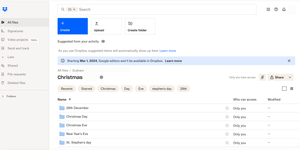
Christmas is definitely a time of year that I find myself taking more pictures than normal. Meeting up with family and friends and wanting to capture special moments means that I have my camera on more than I don’t. If you’re anything like me, you’ll want to be able to share all of these photos with those closest to you. Social media can be a good way to share photos, but there are definitely times when we might want to keep these photos within a private group of people, especially when family are involved, Dropbox makes it easy to share with exactly who you want. To start with, I’ll always make sure that my camera uploads are turned on. You’ve probably heard me talking about this a few times here in the Photographers group before, but I’ll stand by my words again because I love this feature, it saves me time, space on my phone and makes sure I never lose any photos, so it’s a no brainer for me. If you don’t know how to turn on Camera uploads you can find all the information you need right here. Now that all my photos will be automatically added to my Dropbox account, I’ll figure out a way to organize all of the photos I take at Christmas into folders. Generally speaking, I’ll be meeting up with a lot of different groups of people on different days, so I’ll only want to share photos with the people that are in them, so I’ll start by making a Christmas folder, then inside that I’ll make folders for Christas Eve, Christmas Day, Stephen’s Day, New Years Eve and any other days I might be out and about. Then, dependent on what I’m doing, I might make different folders within these daily folders, for example I might do Christmas morning swim and Christmas Dinner, or Stephen’s Day lunch and Stephen’s Day drinks. Once I’ve got my folders created and all my photos put in the right place, it makes it really easy to share with all of the other people who I was with. To do this, all I need to do is create a view-only shared link to the folder I want to share, and share it with everyone who I was with when I took those photos, or anyone else I want to see them. This link will allow anyone with access to it to view and download the photos inside that folder. If you’re not sure how to create shared links, you can find out everything you need to know here. Now, if your friends and family are anything like mine, you’ll know there are 2 types of people, those who take photos and those don’t. When I want to add photos that friends or family took to my collection, I use file request. This allows them to simply add their photos, which then go directly to my Dropbox account, allowing me to easily add them to the folder they belong in. You can find out more about using file request here. When it comes to using Dropbox for organizing photographs, there are literally hundreds of things you can do, and everyone uses it a little different to everyone else. Check out how our very own Sheena used Dropbox to help create a Christmas Family Calendar for another awesome example. We’d really love to hear how you plan on using Dropbox to organize your photos this Christmas, let us know in a comment below.3.6KViews1like0CommentsBoost your Photography Game with Dropbox in 2025
Creating a photography dream board is like crafting your own roadmap to creative success! 🗺️📷 It’s a visual way to collect your ideas, inspirations, and big ambitions - all in one place. With it, you can dream big, set clear goals, and envision the amazing artist and photographer you’re destined to become. At Dropbox, we’ve got your back every step of the way. 🚀 To help you get started, here are some thought-provoking questions to spark your creativity, plus a few expert tips from us to really get the ball rolling. We hope this resource reignites your passion for photography and fuels your creative fire 🔥. Who knows where your camera lens will take you next? And hey, we’d love to hear from you 💬✨. What tips and strategies have helped you grow your photography business online? 📸 How do you use social media platforms to sell your photos or share your passion for photography. Let us know, and let’s continue to inspire one another! 🚀🙌178Views2likes0CommentsHow to turn on Mobile Camera Uploads
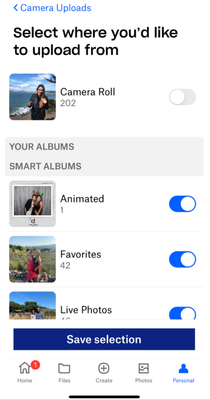
With the Dropbox mobile app, there's an awesome feature that automatically syncs your photos to Dropbox as soon as you take them. This means every time you snap a picture of your beautifully decorated Christmas tree, a cozy family gathering, or that adorable moment with your pets in their holiday outfits, it’s instantly backed up to your Dropbox account, safe and sound. No more worrying about losing your precious holiday memories if your phone goes missing or malfunctions. Plus, you can easily access them from any device, making it simple to share your joyous moments with family and friends near and far. Here’s how to set it up on your device. How to turn on Mobile Camera Uploads for Android Want to make sure all your photos are backed up safely to Dropbox from your Android? Follow these quick and easy steps: Open the Dropbox app. Tap on Account at the bottom of the screen. Head to Settings and scroll down to Features - we’re getting closer. Tap Camera uploads. Hit Back up my photos, and voilà, your camera roll is now Dropbox-bound. If you’re asked, just tap Allow to give Dropbox the green light. You're all set! And just like that, your memories are safe in the cloud! How to turn on Mobile Camera Uploads for iOS (iPhone/iPad) Are you ready to backup your iPhone photos to Dropbox like a pro? Let’s go: Open the Dropbox app on your iPhone. Tap the little person icon at the bottom. Find Camera uploads and give it a tap. Tap Upload from and then Settings to let Dropbox access your amazing pics and vids. Don't worry, they're in good hands! In the Dropbox app, choose what you'd like to back up (You can choose between different folders in your Photos App) and decide whether to use your mobile or cell data or save it for Wi-Fi. Finally, tap Turn on camera uploads, and just like that, your photos are off to their new home in the cloud! Woo! Your camera roll is backed up and safe with Dropbox. Please note: Live Photos from iOS are saved as normal photos on your Dropbox account. And voila! That’s how easy it is to send your photos straight from your phone to your Dropbox account. If you would like more information about Dropbox’s photo-syncing magic, check out all the details here. Your future self will thank you (and so will your camera roll)!146Views1like0CommentsCreative Ways to Use Dropbox Paper for Photo Shoot Planning and Notes 📸
Hey photographers! With only small windows of opportunity on certain shoots, it helps when everyone is on the same page when it comes to organisation 🌅. Have you ever used Dropbox Paper? 📝✨ It can be a really versatile tool that can enhance your photo shoot planning and note-taking, it also streamlines the correspondence with your client or models by keeping it all within the Dropbox tool. Here are some cool ways to utilise Dropbox Paper to smooth sail through your shoot 🎬🚀. Link a Calendar Event 📆 First things first, integrate your photo shoot schedule by linking calendar events directly within your Dropbox Paper doc. This gives everyone easy access to your schedule and keeps timing clear. An extra tip - if you sync your Google Calendar with ReclaimAI, it can even notify you of the weather, sunrise, sunset, and moonrise… handy for natural light shoots or golden hour planning . Organise Ideas and Inspo ✨ Use Paper as your mood board for inspiration images and notes. You can easily drag and drop images and text to create a visually appealing layout that captures the essence of your future shoot. Best part is, anyone on the doc can get involved 💫. During the shoot, use Dropbox Paper to take notes and document the process. This can include lighting setups, camera settings and any adjustments made on the fly. Having this info recorded can be really valuable for future projects 📓. Make sure you create the checklist for equipment, wardrobe, and to double check waivers are signed etc. You can also assign to-do’s to people on the Paper doc. This ensures nothing is overlooked on the day of the shoot! 📋 Collab in Real Time 🔗 To get everyone on the project to get involved, you can invite people onto the doc and work on it in real time. Think quick... this feature allows instantaneous feedback and adjustments, making it easier to refine and define plans as a team 🖼️. Share with Clients 🌏 After the shoot, share the doc with your clients to provide them with insights into the planning process and the shoots itself. This transparency can enhance client relationships and really show the amount of work that goes into just one photo 🔗 👇👇 Check out below to see a paper photoshoot tasklist in action 📸 So there you have it, hopefully these tips will ensure your photo shoot goes smoothly. 🌟📷 Got your own quirky way of using Paper for planning? 💡 Or is there a question we didn’t cover? 💬 Drop it in the comments!75Views1like0Comments