We’re Still Here to Help (Even Over the Holidays!) - find out more here.
dropbox family
4 Topics
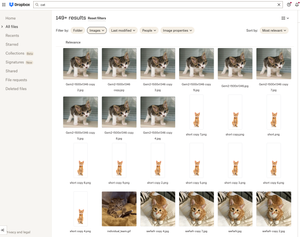
Did you know... you can search for images using just text?
Hello Dropbox Community! My name is Lainie and I'm a Product Manager at Dropbox. Every now and again, I am going to post a "Did you know..." to 1) keep you informed of all of the cool technology that exists at Dropbox and 2) gather your feedback on how the features are performing. In today's, "Did you know..." I'll be talking about Image Search! Image search is allows you to use the Search Bar to search for the contents of the image using words to describe the image. For example, if you search for "cat" your search results will show files that 1) contain the word "cat" in the file name or body, AND 2) files that contain images of cat. No mention of the word "cat" is necessary! Pretty cool! If you haven't yet, I recommend that you check it out. Please respond to this thread and let me know... A) Did you know this feature existed? Do you use it? B) How can we make this even more useful for you? Have a great day! Lainie For more information, check out our Help Center Article on Image Search!9.4KViews9likes3CommentsGet ready for school with Dropbox
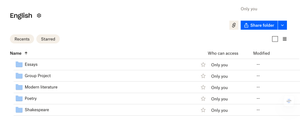
Going to school is a really exciting time, whether you’re starting a brand new course, returning after a break, or taking your first steps in a new career, there’s so much to be enthusiastic about, but also a lot of preparations to make. So, if you’re heading back to school this year, take a moment to read our guide to hitting the ground running with Dropbox. Here’s what’s included; Get organized Access your files when and where you need Collaborate on team projects Get familiar with Dropbox Dash Never miss a beat with Dropbox Capture Save time with Dropbox Replay Get organized If you’re taking classes this fall, or even if you’re teaching them, the best thing you could do is get yourself organized before you start. With Dropbox, this is really simple. First things first, you’re going to have a lot of files to manage so you’ll need to create some sort of folder system. You could start by creating a folder for each class, then in that folder create another subfolder for each topic. Then you can sort things by file type, day of the week, priority or by whatever way makes the most sense to you. This will help you be super organized and able to find all of your important documents at the drop of a mortarboard. Have your files where you need them, when you need them With Dropbox, you can have access to all of your important files wherever and whenever you need them. So, if you’re doing a bit of last-minute cramming on the bus or find yourself needing to make some quick edits to an essay, you can do it all easily with Dropbox. All you need to do, is make all of your most important files online-only and you’ll be able to access them at the touch of a button. This will also mean that these files won’t take up space on your hard drive. Collaborate on team projects Team projects are always a challenge, especially when some members of the team are a little less enthusiastic than others (there’s always at least one). With Dropbox, you can share all of those important files with everyone in your group, so nobody has any excuses for not getting all of the materials they need. You can also use a shared Paper doc, which allows you to create to-do lists with deadlines, meaning everyone always knows exactly what they have to do and when they have to do it. As if all of that wasn’t already enough to keep everyone in line, you can also see everyone's name beside their work and you can check the document’s history to dispel any fears of phantom deletions. You can read more on becoming a Paper pro here. Get familiar with Dropbox Dash There’s a lot to keep track of when you’re studying. With everything from classes and lectures to remembering where you saved your latest set of notes, you could be forgiven for feeling like you need your very own personal assistant. Well, now thanks to Dropbox Dash, our AI powered universal search tool, it’s easier than ever to keep track of everything you’ve got going on. Dash connects with the apps and tools you are using, meaning you can search all of your surfaces from one single place. You can even ask Dash questions and it'll give you answers with information summarized from your relevant files. You’ll also be able to create Stacks, which are bundles of information. These can include emails, files, articles, presentations, and things that folders or bookmarks normally can’t group together. Never miss a beat with Dropbox Capture Dropbox Capture allows you to record your screen, camera, and microphone. This can be really helpful if you need to create video messages for group projects or any sort of collaborative work. You can also use it the record online lectures or seminars, which you’ll be able to edit, watch back, and easily share with classmates. You can watch the video below to find out more about Capture. You can find out more about Capture here. Save time with Dropbox Replay If you’re studying media or video production, or even if you’ve got some video based projects to work on, Dropbox Replay could seriously help you up your game. If you’re not familiar with Replay, it’s our video, image and audio review tool that allows you to mark up, comment on, and finalize projects with your tutors or classmates, completely streamlining the entire review and approval process. But that’s not all, Replay does so much more, find out more about some of our favorite features. Will you be using Dropbox for school? What’s the one thing that slows you down the most when it comes to assignments, group projects, or organizing your studies? Let us know by leaving a comment below and we’ll see if we can help!4.8KViews3likes1CommentManaging your Dropbox subscription
The time may come when you want to change your Dropbox subscription and whether you need more or less from Dropbox, we want to make sure that you have all the information you need to do just that. Need more space? Why not move to a plan with more storage? If you’re changing plans because you need more space, you can check out the plan types here, but to give you a quick summary of space: Basic plan: 2 GB of space Plus plan: 2 TB of space Family plan: Shared 2 TB of space (up to 6 users) Professional plan: 3 TB of space If you’re maxing out the space in your account, you could try some space saving tips here, or it could be time to upgrade your dropbox account. Learn more about the plan that suits you best and make your choice. What happens when I cancel my Dropbox subscription or trial? So, you’ve decided to leave… we’ll try not to take it personally 😢 All joking aside, here are some of know when you decide to cancel your Dropbox subscription. Well, the first thing is that this doesn’t actually have to be goodbye, your account will downgrade to a Dropbox Basic account at the end of your billing cycle or trial. So that means; You’ll still have access to all of your files and folders Dropbox keeps deleted versions of your files for 30 days, in case you change your mind If you’re over your downgraded storage quota, Dropbox will stop syncing your files Changing your Dropbox plan to Basic is not the same as deleting your Dropbox account. Canceling or downgrading a Dropbox subscription Depending on how you subscribed to Dropbox, there are different ways to change or cancel your subscription. If you subscribed on mobile - you will need to unsubscribe on mobile too, through iTunes or Google Play, depending on your device type. Learn how to cancel a Dropbox subscription purchased on your computer. How to cancel a Dropbox subscription or trial on an iPhone or iPad On your iPhone or iPad, tap Settings and then your name. Tap Subscriptions (about midway through the screen) and find Dropbox in the list. Tap Cancel Subscription or Cancel Trial and confirm. Your account will downgrade to Dropbox Basic (free) at the end of your billing cycle. How to cancel a Dropbox subscription or trial on Android If you purchased Dropbox from an Android device, you can cancel a Dropbox subscription or free trial by following these steps: Open the Dropbox mobile app and head to the Account tab in the bottom right corner. Tap Manage your subscription and then How to cancel. Tap Cancel plan at the bottom of the screen. This will take you to your subscription in Google Play. Tap Cancel subscription. You’ll receive an email to your Google account to confirm your cancellation, and your account will downgrade to Dropbox Basic (free) at the end of your billing cycle. Cancel an individual Dropbox plan on desktop If you manage your Dropbox plan on desktop then here are some easy steps to follow to cancel your subscription on desktop. Follow the steps below, and you can update your plan to match your needs. Sign in to dropbox.com. Click your avatar (profile picture or initials) in the top-right corner. Click Settings. Click Plan. Click Cancel plan at the bottom of the page. Note: If you don’t see Cancel plan, you may have purchased Dropbox on your mobile device. If so, you’ll need to cancel your plan from the app store on your device. Select a reason for canceling. Click Continue canceling. You’ll receive an email confirmation that your subscription has been canceled. So, there you have it. Whether you want to change the features you have access to, or the amount of space you need, you can manage your Dropbox account to fit your needs. If you have any questions about managing your plan, drop them in the comments below and we can get you answers!12KViews1like2Comments