We’re Still Here to Help (Even Over the Holidays!) - find out more here.
sync and upload
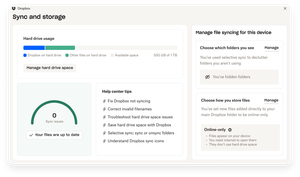
5 TopicsExciting news — we’ve launched the new Sync & Storage Dashboard in the Dropbox desktop app!
This dashboard makes it easier than ever to keep your files organized and your computer running smoothly. With just a click, you can: Get a real-time view of your sync status Quickly spot and resolve any syncing issues Monitor and manage how much disk space your Dropbox files are using Adjust your selective sync and storage preferences To open the dashboard, click the Dropbox icon in your taskbar (Windows) or menu bar (Mac), then select your avatar and choose Sync & storage. We’re excited for you to try it out! Please let us know your thoughts and how we can make it even better!4.9KViews6likes11CommentsHow I Use Dropbox as a Community Manager 👩💻
Hi everyone, it’s Theresa here, and I’m sure you’ve seen me bopping around the Community. I am one of the Community Managers here at Dropbox, and I’d love to share how I use Dropbox on a daily basis. Now, I’m not just saying this… I have relied on Dropbox long before I worked here, but more about that later. Here are some of the ways I use Dropbox to do my job. One of my favourite tools is, of course, Dropbox Paper. It’s amazing for pulling together documents in real time. Whether I’m creating content or helping choose our Community Member of the Month, it’s truly one of the best tools for collaboration. I can easily invite teammates to jump in, edit, and leave comments directly in the document. My favourite feature has to be the ability to tag and create new documents right within the one I’m working on. As a creative, ideas can come to me suddenly - and just as quickly disappear. By simply typing “+” and adding my idea, a new document link is created instantly, so I can capture the thought and return to flesh it out later. The built-in Dropbox Screenshot tool is an absolute lifesaver for sharing visuals. I use it all the time to grab screenshots of Community feedback, social media buzz, or highlights from recent events. It adds a real spark to my reports and presentations, making it much easier for everyone to see the impact of what we’re doing. And because I share them straight from Dropbox, there’s no messing about with endless email threads or bulky attachments. Setting it up is so so easy: just head to your Dropbox preferences, go to the Backups tab, and tick the option to “Save screenshots to your Dropbox.” From then on, every time you press Command + Shift + 4 (or Print Screen on Windows), your screenshot will be saved and ready to share in seconds. Outside of work, I'm a musician. I have been using Dropbox to keep my music projects organised for so many years, it is second nature. So, I am based in Ireland, but the rest of my band are over in the Netherlands, so having a shared space where we can all work together is a massive help. I keep a folder for each song with everything we need - lyrics, demo recordings, MIDI files, staging images, and notes on the music. It means we’re all on the same page, even from different countries. By the time we get to rehearsals, we’ve already done most of the groundwork, so we can hit the ground running. The fact that we can leave comments directly on files by opening a file in Dropbox and clicking the speech bubble icon is an amazing way to keep the conversation, give feedback, or suggest changes in the one place rather than going back in forth in emails/messages. (Handy when the group chat is mostly GIFs and Memes). I hope this inspires others on using Dropbox in their work life (and also their outside work life). It for sure relieves some stress to keep that life/work balance in check.125Views0likes0CommentsHow to Use Dropbox for a Perfect Valentine’s Day
Valentine’s Day is all about showing appreciation for the special people in your life - a partner, a close friend, or a family member 🤗. Whether you’re celebrating together or from a distance, Dropbox can help you make the day a tiny bit more special. Here are some fun ways to share the love 😻. ❤️ Create a Shared Photo Album Gather all those adorable (and maybe slightly embarrassing) photos and videos from throughout the year into a shared Dropbox folder. Organise them into a digital scrapbook so you can relive your greatest moments 💞. 💌 Plan a Virtual Date If you are in a long distance relationship or perhaps have pals who live far away, Dropbox can help you organise a virtual hang out. Share a playlist , a movie file or even a special dinner recipe so you can enjoy the same experience together, whether it’s a romantic date or a fun night with your besties 🤗. 🎶 Create a Romantic Rewind Playlist Music sets the mood, so why not create the ultimate playlist that reflects your relationship? You can link your favourite songs on Paper and relive the moments you heard them. Whether it's slow ballads, your favorite road trip tunes, or that one song that always makes you both laugh, it’ll be a soundtrack to remember 💗. 🎥 Gift a Personalized Slideshow Make your favourite memories shine by creating a slideshow of your best moments together. Add music, captions, and maybe even some inside jokes, because nothing makes you laugh or brings you closer than a perfectly timed meme in the middle of your sentimental montage 🤓. This Valentine’s Day, use Dropbox to share love, laughter, and and a little extra joy (or romance) with the people who matter most to you. ❤️ Do you have any fun or creative ways to use Dropbox for Valentine’s Day? Let us know below 💬126Views0likes0CommentsLearn all about camera uploads with Dropbox
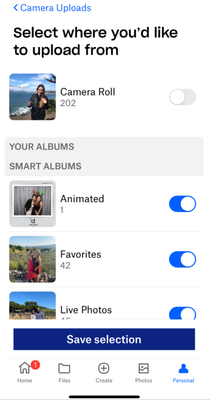
Creating memories is so important, and backing those memories up is just as important! It might not be as exciting to store your photos as it is to create those memories, but it means that you can look back on your photos and relive those moments for years to come. Well, we’re here to make sure you know all about camera uploads so you never lose a photo again! How do I back up my mobile photos? What is camera uploads? Camera uploads is an optional feature that automatically uploads photos from your mobile device to Dropbox. Once you enable camera uploads, your photos will upload to the Camera Uploads folder in your Dropbox account. You can move them wherever you want from that folder once they’re safely uploaded too 😀 How to back up your photos with camera uploads To back up directly from your mobile device, you can do so by tapping in to the Dropbox app, tap ‘settings’ or ‘account’ and there you will see the camera uploads option. Tap that and follow the next step which will be either allow or upload. And hey presto your photos are uploaded to you Dropbox account. If you want to back up all of your photos while on desktop, you simply have to plug a camera, or your mobile device, into a computer with the Dropbox desktop app installed. You’ll see a prompt asking if you’d like to enable camera uploads for that device. Once you accept, that device will automatically upload your camera roll each time the device is plugged in to that computer. iOS updates Any Apple fan knows that HEIC photo files can be a hassle, so now, for new camera uploads users, the setting to transcode HEIC to JPG will be on by default. For existing camera upload users, you will need to manually turn that on. Don’t want to back up your entire camera roll? Go to “Upload from” in Settings and select which albums you want automatically backed up to Dropbox. If you only want to upload your ‘Favorites’ for example, simply toggle on your “Favorites” album. Background uploading Want an even easier way to back up your photos on an apple device? It’s simple, just enable background uploading. Background uploading allows Dropbox to upload photos even when the Dropbox app is closed. Why aren’t my photos backing up? If you notice that your photos aren’t uploading at a certain point, make sure you have the most recent version of the Dropbox app installed. It’s also worth noting that camera uploads won’t work if your mobile device battery is too low. If you’re still having upload issues, check out this troubleshooting guide. Gone are the days of losing or breaking a phone and worrying about whether the photos can be recovered. Now you can look back on all of your photos, whether they’re selfies, that one wild festival, family memories or even just avocado toast. Do you organise your photos in a specific way or leave them all in one big folder?7.5KViews0likes0Comments