Your workflow is unique 👨💻 - tell us how you use Dropbox here.
Forum Discussion

Mostafa Ezzat
3 years agoExplorer | Level 4
Issue in generating access token
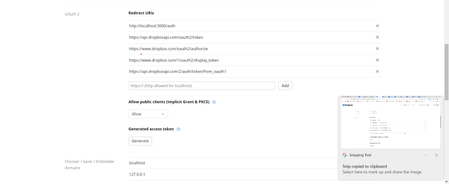
Hello, I faced many issues in generating access token
First, I have here access code generated <REDACTED> Second trying to execute this curl :
curl https://api.dropbox.com/oauth2/token...
- 3 years ago
Hi Mostafa Ezzat,
Let's try some authentication process step by step. 🙂 It may succeed.
At the beginning make sure you have your App key and App secret at hand from App Console page. Select desired application there and once got there in and scroll to field "App key" and "App secret" (for the secret "Show" should be used) keep the browser window accessible, so would be able take a look there when needed.
Next, open a new browser window and put into address line following:
https://www.dropbox.com/oauth2/authorize?token_access_type=offline&response_type=code&client_id=<App key>Where "<App key>" is the one from you previous browser window. Next the confirmation you will get a code (alphanumeric sequence). The same could be received automatic when redirect URL is in use (either direct or PKCE code flow), but here we will perform it in such a way for clarity.
Next step will be to "materialize" the received code. In a terminal window execute following curl command:
curl https://api.dropbox.com/oauth2/token -d code=<received code> -d grant_type=authorization_code -u <App key>:<App secret>
Where "<received code>" is the code shown up in the second browser window after confirmation. "<App key>" and "<App secret>" come from the first browser window. As a result you will get in your terminal something like:
{"access_token": "sl.abcdefg123456789AbCdEf-GHijKLmn0U", "token_type": "bearer", "expires_in": 14400, "refresh_token": "oDfT54975DfGh12345KlMnOpQrSt01a", "scope": "account_info.read files.content.read etc.", "uid": "123456789", "account_id": "dbid:ABCDEF5g8HijklMNopQ2Rs5tUV_wxy5z_YO4"}Of course, you will receive different values filling the pattern. Here "sl.abcdefg123456789AbCdEf-GHijKLmn0U" is access token you can use in every regular API call for "14400" second since current moment until expires. "oDfT54975DfGh12345KlMnOpQrSt01a" is your refresh token. The one that will never expire (or till revoke).
When currently received access token expires, you can perform following curl call:
curl https://api.dropbox.com/oauth2/token -d grant_type=refresh_token -d refresh_token=oDfT54975DfGh12345KlMnOpQrSt01a -u <App key>:<App secret>
Where "oDfT54975DfGh12345KlMnOpQrSt01a" is the refresh token "materialized" from code at the beginning. "<App key>" and "<App secret>" come again from the first browser window. As a result you will get in your terminal something like:
{"access_token": "sl.abcdefg123456789AbCdEf-OPqrSTuv1W", "token_type": "bearer", "expires_in": 14400}Again "sl.abcdefg123456789AbCdEf-OPqrSTuv1W" is an access token usable in regular API calls for "14400" seconds (i.e. 4 hours). The last call need to be used every time you need valid access token and the previous one got expired. For the test here you don't have to wait 4 hours. You can call it immediately. 😉 Completes everything successfully?
Every time you do receive access token, it can be use for as many seconds as denoted in "expires_in" field. The access token itself is a ASCII chars sequence and you should be ready to process such a sequence as presented (including different length).
Hope this gives direction and clarifies matter with the step by step processing.

Здравко
3 years agoLegendary | Level 20
Hi Mostafa Ezzat,
Let's try some authentication process step by step. 🙂 It may succeed.
At the beginning make sure you have your App key and App secret at hand from App Console page. Select desired application there and once got there in and scroll to field "App key" and "App secret" (for the secret "Show" should be used) keep the browser window accessible, so would be able take a look there when needed.
Next, open a new browser window and put into address line following:
https://www.dropbox.com/oauth2/authorize?token_access_type=offline&response_type=code&client_id=<App key>Where "<App key>" is the one from you previous browser window. Next the confirmation you will get a code (alphanumeric sequence). The same could be received automatic when redirect URL is in use (either direct or PKCE code flow), but here we will perform it in such a way for clarity.
Next step will be to "materialize" the received code. In a terminal window execute following curl command:
curl https://api.dropbox.com/oauth2/token -d code=<received code> -d grant_type=authorization_code -u <App key>:<App secret>
Where "<received code>" is the code shown up in the second browser window after confirmation. "<App key>" and "<App secret>" come from the first browser window. As a result you will get in your terminal something like:
{"access_token": "sl.abcdefg123456789AbCdEf-GHijKLmn0U", "token_type": "bearer", "expires_in": 14400, "refresh_token": "oDfT54975DfGh12345KlMnOpQrSt01a", "scope": "account_info.read files.content.read etc.", "uid": "123456789", "account_id": "dbid:ABCDEF5g8HijklMNopQ2Rs5tUV_wxy5z_YO4"}Of course, you will receive different values filling the pattern. Here "sl.abcdefg123456789AbCdEf-GHijKLmn0U" is access token you can use in every regular API call for "14400" second since current moment until expires. "oDfT54975DfGh12345KlMnOpQrSt01a" is your refresh token. The one that will never expire (or till revoke).
When currently received access token expires, you can perform following curl call:
curl https://api.dropbox.com/oauth2/token -d grant_type=refresh_token -d refresh_token=oDfT54975DfGh12345KlMnOpQrSt01a -u <App key>:<App secret>
Where "oDfT54975DfGh12345KlMnOpQrSt01a" is the refresh token "materialized" from code at the beginning. "<App key>" and "<App secret>" come again from the first browser window. As a result you will get in your terminal something like:
{"access_token": "sl.abcdefg123456789AbCdEf-OPqrSTuv1W", "token_type": "bearer", "expires_in": 14400}Again "sl.abcdefg123456789AbCdEf-OPqrSTuv1W" is an access token usable in regular API calls for "14400" seconds (i.e. 4 hours). The last call need to be used every time you need valid access token and the previous one got expired. For the test here you don't have to wait 4 hours. You can call it immediately. 😉 Completes everything successfully?
Every time you do receive access token, it can be use for as many seconds as denoted in "expires_in" field. The access token itself is a ASCII chars sequence and you should be ready to process such a sequence as presented (including different length).
Hope this gives direction and clarifies matter with the step by step processing.

Kloss
3 years agoNew member | Level 2
I was able to get my access code generated.
Then i open terminal as admin - and do the curl command replacing the app key and app secrete and inserting the access code.
Red XXXXX below are my account codes but replaced with xxxxx's
However I get a red error in Terminal. it says
Invoke-WebRequest : Parameter cannot be processed because the parameter name 'u' is ambiguous. Possible matches include: -UseBasicParsing -Uri -UseDefaultCredentials -UserAgent.
At line:1 char:128
+ ... xxxxxxxxxxxxxxxxxxxx -d grant_type=authorization_code -u xxxxxxx ...
+ ~~
+ CategoryInfo : InvalidArgument: (:) [Invoke-WebRequest], ParameterBindingException
+ FullyQualifiedErrorId : AmbiguousParameter,Microsoft.PowerShell.Commands.InvokeWebRequestCommand
:EDIT:I googled and found article to do the following command inside Terminal to fix this issue. - That seemed to work so I'll paste it here for anyone else who runs into this issue on Windows 11.
Remove-item alias:curl
Now I'm stuck at the message
"Enter host password for user 'xxxxxxxxxxxxxxxxxxxxxxxxx':
I've Typed password - I've copy pasted but the error I keep getting is
{"error": "invalid_client: Invalid client_id or client_secret"}
I know my app key and app secret is correct. And the host password I assume is my dropbox password to get into my account.
any thoughts on this?
- Greg-DB3 years ago
Dropbox Community Moderator
Kloss The original "-u" option shown earlier in this thread is an option for curl for specifying the Basic credentials (which in this case should be the app key and secret). It looks like in your environment it was getting sent to Invoke-WebRequest, where "-u" is ambiguous. I'm glad to hear you already sorted that out.
For this /oauth2/token call, you would specify the app key and secret, but not your account password. The "-u" option is a way to specify the app key and secret, in place of what would be the username and password in other contexts. So, to specify the app key and secret, you could use it like "-u <appkey>:<appsecret>", where <appkey> is your app key, and <appsecret> is your app secret; do not enter your account password.
- Здравко3 years agoLegendary | Level 20
Kloss wrote:...
I know my app key and app secret is correct. And the host password I assume is my dropbox password to get into my account.
...Kloss, your account id (email) or password have nothing to do here! The only thing you need to authenticate is your application, nothing more. Check your shell syntax (might be some typing error, for instance). You account identification has already been performed in your browser. 😉
Good luck.

About Dropbox API Support & Feedback

Find help with the Dropbox API from other developers.
The Dropbox Community team is active from Monday to Friday. We try to respond to you as soon as we can, usually within 2 hours.
If you need more help you can view your support options (expected response time for an email or ticket is 24 hours), or contact us on X, Facebook or Instagram.
For more info on available support options for your Dropbox plan, see this article.
If you found the answer to your question in this Community thread, please 'like' the post to say thanks and to let us know it was useful!


