We’re Still Here to Help (Even Over the Holidays!) - find out more here.
Forum Discussion

mm-nyc
6 years agoHelpful | Level 5
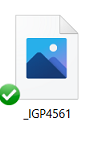
Image thumbnail not showing up, only generic icon when i goto 'camera uploads' to try to attach imag
hi, i just had to reinstall my pc, reinstall dropbox, etc.. all good.
but in outlook i goto attahc an image, i goto my 'dropbox\camera uploads\ folder, and all i see are generic blue icons , not...

gotogordon
5 years agoNew member | Level 2
Same issue here on a clean install of Win 10. I did not have this issue before the clean install. I'm not using smart sync, all files are local. It only happens with folders within dropbox. If I move the folder to downloads or some other location outside of dropbox the thumbnails show.
I have deleted thumbs via disk cleanup and command prompt. I checked and unchecked the "show icon" button. Nothing worked.
On small folder switching to online then back works but I do not want to do that for my main pictures folder as it's 125+ gb. This is obviously a bug!

colourmepurple
5 years agoHelpful | Level 5
I have the same problem. Double clicking the file to open it does not resolve the issue, the files are synced locally. For me its happening in the folder Dropbx > Screenshots. Its not happening to every file in that folder, only some of them, but a large percentage
 daxaeterna5 years agoNew member | Level 2
I am using the file explorer on my Win10 desktop and am only seeing the icons. I don't want to sync every single file locally with smart sync. I want to be able to see the thumbnail so that I can select the correct file to sync locally. How can I do this? What is the way to fix this? I wish you had posted the answer publicly instead of having to email people individually. Please assist.
 ambenisar5 years agoHelpful | Level 6
There is apparently no permanent solution to this problem and Dropbox seems unwilling to address the issue.
- madmick5 years agoExplorer | Level 4
I am pretty well an ignoramus with computers but I may have stumbled and fumbled my way to a solution to this problem.
I found that several of my folders had random images showing only the place marker with a grey X and no thumbnail. I back up all my photos onto an external hard drive so when I found a file which was badly corrupted this way I simply deleted it then replaced it from the external hard drive and right clicked to set all the files to "local".
Another hack for individual images was to right click them, make them "Online Only" then right click again and make them "Local".
About Delete, edit, and organize
Solve issues with deleting, editing, and organizing files and folders in your Dropbox account with support from the Dropbox Community.
The Dropbox Community team is active from Monday to Friday. We try to respond to you as soon as we can, usually within 2 hours.
If you need more help you can view your support options (expected response time for an email or ticket is 24 hours), or contact us on X, Facebook or Instagram.
For more info on available support options for your Dropbox plan, see this article.
If you found the answer to your question in this Community thread, please 'like' the post to say thanks and to let us know it was useful!


