2025 sparked some incredible conversations across our community 👩💻. Discover the highlights and see what’s ahead in 2026.
Mac
1686 Topics
I reinstalled the Dropbox desktop app on my macOS Tahoe and have two questions.
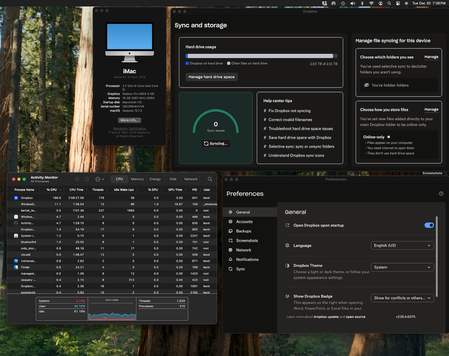
Device iMac (M1, 2021) Operating System/Browser (if using the web) MacOS Tahoe Dropbox App Version (if using the app) 238.4.6305 Question or Issue My Dropbox folder is on an external 4 TB SSD. Yesterday I deleted the Desktop app and erased and reformatted the external drive. I reinstalled the Desktop app and reinitiated the sync via the web portal. Everything seemed to progress well. All of my folders appeared on the drive. and after indexing my files populated the folders. I have access to all of my files from the external drive. I have 2 questions. Prior to yesterday's reinstallation my files occupied 2.76 TB on the external drive. As of this morning they occupy .33 TB. What could account for the size discrepancy? Are my file really on the external drive? I completed the reinstallation, and all files were present on the external drive, at noon yesterday. Since that time the Desktop app has been updating. My sense is that something is wrong. It shouldn't take this long to update the files. I have purposely stayed away from making any changes to the files. Should it take this long to update? ThanksSolved49Views0likes11Comments
I can't see any syncing icons or right-click Dropbox menu options on my macOS Sonoma.
App: Dropbox (latest version) 239.4.8301 Devide: MAC book PRO 14 inch, 2023 Operating system: Sonoma 14.7.5 I can't see both syncing icons and right-click menu options on my laptop. This happens after remove an old account and sign-in into a new profile (part of Dropbox Teams) I try everything that was suggested, like re-installing, restart, log-out etc.etc. Currently the only way to sync file on dekstop is to open them and this make me lose a tremendous amount of time (link packages of indesign with more than 500 files, just to make an example). Can you help me with that? Thanks37Views0likes5Comments
My macOS desktop app crashes each time I try to install or open it.
Application Affected Dropbox App Device Mac Studio (Apple M1 Max) Operating System/Browser (if using the web) macOS Tahoe Version 26.2 Dropbox App Version (if using the app) Tried multiple versions, including the most recent offline installer. Question or Issue I am trying to install the Desktop application for Dropbox. However, each time I try and install or open the application, it simply crashes. In order to get it to stop, I have to open Activity Monitor and force quit. The issue is the same when using the offline installer. The only difference is that the actual application icon does not make it to my Applications folder.14Views0likes1Comment
AI Assistant to understand contents and organize Dropbox files
I’m a personal plan user and would like to request an AI assistant that can actively organize my Dropbox, not just search it. What I’m looking for is a chat-based AI that can understand the contents of my files and folders and: - Execute direct instructions (e.g. “Rename these files using this pattern”) - Propose organization actions and apply them after confirmation Examples of actions: - Renaming files based on their content and a given naming pattern - Moving and grouping related files into appropriate folders - Identifying duplicates, similar, or outdated files and deleting or archiving them Dropbox Dash is a great step for discovery, but I’m looking for AI that can turn intent (“this belongs with that”) into actual file operations inside Dropbox.21Views0likes1CommentDropbox is stuck syncing 60K files or 118GB and taking ~200% CPU
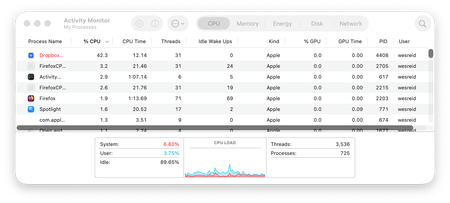
Device iMac 2019 27-inch Retina 5K Operating System/Browser (if using the web) Sequoia 15.7.2 Dropbox App Version (if using the app) v238.4.6075 Syncing Status "Syncing 60,850 files " Question or Issue I recently updated my mac OS to Sequoia 15.7.2. Since that update my dropbox has been stuck at syncing thousands of files and has severely slowed my computer to the point that I can't use it (painfully slow and chugging along for a simple task). As you can see in the screenshots, it's no wonder since it is taking up so much CPU power (180-200%). For the first few days I've tried to let it run but the number of files had jumped up to double what it is with nothing actually going down. Important things to note: 1. new files are getting synched despite it syncing all these other files. I can see the updates in my other computer. 2. at around the same time I updated I attempted to have dropbox backup my photos as well which is the largest files and it could also be related to this slowing. I did this right after I updated my OS. As a result, I changed the dropbox settings and turned photo backup and syncing off (I had never synced my photos to Dropbox before). I also deleted any previous backups just to be sure and paused backups entirely. Please help!! My iMac is unusable and I need it for work. I almost attempted to delete everything and do a fresh sync but I'm worried it will just aggravate the issue and cause a full file sync even larger than what it is now. I can't tell if this is in some stuck problematic state or if it is in fact synching so many files because of some recent change (FYI I did not update that many files on dropbox that would warrant that large sync) .49Views0likes5CommentsHow do I re-link the File Provider Dropbox folder?
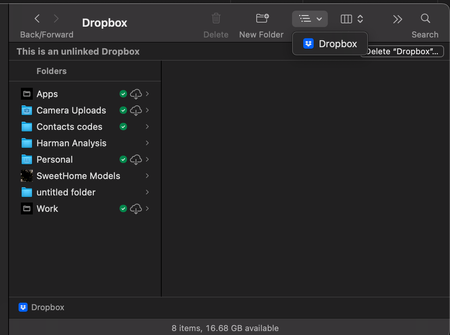
Hi, I upgraded to the new file provider dropbox a few months ago. In the last few weeks, dropbox didn't seem to be syncing, even after I clicked move to online only and my hard-drive suddenly filled up leading to mac warning signs. So I logged out then back in. When I logged back in, I found that dropbox had "unlinked" my file provider folder. It had forgotten that I had done the file provider update and made a new blank old-style dropbox folder, which it is trying to start resyncing everything. The trouble is, I don't have enough hard-drive space to enable it to fully resync, and I'm worried that there might be data in the file-provider folder that never actually synced to dropbox online, so I can't delete anything. And it won't let me re-update to file provider until everything is synced. Which it can't because of the lack of harddrive space. Finally, the nature of my work means that I have more than 500,000 files and so I had all my settings setup to avoid that trap, but dropbox also seems to have forgotten that. And I can't edit them until it's synced. Given that 10 minutes ago, everything seemed to be working fine (or maybe not given the potential lack of syncing), I'm pretty frustrated. How can I simply re-link my file provider folder so that I don't lose anything or have to resync 500Gb? Or any other suggestions to get me out of this catch 22? Any advice would be very welcome. Many thanks, Helen74Views0likes4CommentsMy macOS desktop app has been stuck syncing 10MB for 3 days.
Application Affected Dropbox Device MacBook Air Operating System/Browser (if using the web) OS 15.7.3 Dropbox App Version (if using the app) 238.4.6305 Question or Issue Three days ago I noticed an error message at the top of the finder window which was open to my Dropbox folder (stored in "locations"). The message said something to the effect that my Dropbox app couldn't be found. I thought that was strange, because Dropbox was open. So I quit the app and then reopened it, and that's when things really started getting strange. Now, day three, Dropbox is constantly in sync mode. The icon up in the task bar shows the circle of arrows, and when I click on it says syncing down at the bottom. But for most of the last two days there was no progress bar and no information about what was syncing. Now I'm getting "syncing [x number of files]." When I first looked this morning it was at 500+ 10 MB. Now it's down to 444 files, 9 MB. Progress! The thing is, I only use Dropbox for syncing one particular application, Scrivener. My entire storage on Dropbox is only 275 MB. It usually takes seconds to sync the updated files. The other strange thing is that on the activity monitor Dropbox never rises above 4% CPU. It's been going for more than 48 hours at a snail's pace to sync relatively tiny files. Possibly relevant, or just coincidental: about two weeks ago I cleared the data from the MacBook and reinstalled everything. After that, everything appeared to be in place and working just fine. This problem appeared after I returned from about 10 days travel over the holidays in which I was rarely on the computer. I've quit and reopened Dropbox multiples times. I've restarted the computer. None of it has helped.33Views0likes3CommentsDropbox Finder Extension doesn't work and I have no Dropbox context menu items on new installation
I just installed to Mac OS Tahoe. I no longer have the "Make Available Offline" Feature available to me when I right click on a folder. All of the Dropbox list items are now gone. There's no way to push any folder to sync. When I go into system settings - general - login items & extensions - extensions - Dropbox, the "Dropbox Finder Extension" button seems to automatically turn off after I turn it on.638Views1like23CommentsMy macOS desktop app gives me an incorrect low disk space error message.
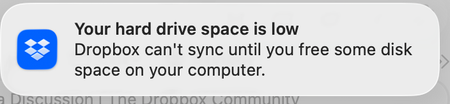
Dropbox Plan Professional Device M1 iMac Operating System/Browser (if using the web) MacOS Tahoe Dropbox App Version (if using the app) 238.4.6305 Question or Issue My Deskto App is showing that I'm using 4 TB of 4 TB. My online account shows that I'm using 2.76 TB of 4 TB. The online info is correct. The info from the desktop is wrong. I am getting Low Disk Space messages and my files aren't syncing and I think it's because the desktop app thinks I have no space available. Any idea how I can fix this? Thanks65Views0likes6Comments