2025 sparked some incredible conversations across our community 👩💻. Discover the highlights and see what’s ahead in 2026.
Sync
4496 Topics
Why is Dropbox indexing on every restart of my computer?
Using a M3 Ultra Mac Studio, Sequoia 15.5, with Dropbox v239.4.8301 running on an external drive. This issue has been an issue since last June, and I have been lucky to avoid any major issues until today. Whenever I restart/shut off and turn my computer back on, Dropbox always has to go through the process of re-indexing everything. I work off of dropbox directly, and use shared folders to send files back and forth with collaborators/clients/etc. After I did a necessary restart for an unrelated software issue (Pro Tools for the work I do), and naturally the indexing process had begun. However, it's been going on for the past 5+ hours, and the work I completed this morning can't be sent until dropbox is done indexing, and my collaborator can't access any of my work until dropbox has completed the indexing process. We are under tight deadlines, and we have lost half a day due to this issue. Is there anyway to stop dropbox from re-indexing everything on startup? This was never an issue in the past, and I would rather not have to change my workflow, but I desperately need this to be resolved.7Views0likes1CommentUnable to swap Dropbox to a USB drive
I'm using Dropbox on a Windows 11 Dell laptop with v239.4.8.301, but I can't move the Dropbox folder to a new Sandisk 1Tb USB. The Sandisk is recognised on my PC as drive 'D:' I'm currently running out of disk space (1Tb on my hard drive), hence the need to switch to the Sandisk. I have tried changing the Dropbox to the new USB drive by: Clicking on Dropbox. Selecting my avatar. Selecting 'Preferences' then 'Sync'. Selecting the new drive. I get an error message: 'Error with selected folder. This folder is on removable media.' Does anyone know how to switch Dropbox to a USB drive?Solved33Views0likes6Comments
I can't see any syncing icons or right-click Dropbox menu options on my macOS Sonoma.
App: Dropbox (latest version) 239.4.8301 Devide: MAC book PRO 14 inch, 2023 Operating system: Sonoma 14.7.5 I can't see both syncing icons and right-click menu options on my laptop. This happens after remove an old account and sign-in into a new profile (part of Dropbox Teams) I try everything that was suggested, like re-installing, restart, log-out etc.etc. Currently the only way to sync file on dekstop is to open them and this make me lose a tremendous amount of time (link packages of indesign with more than 500 files, just to make an example). Can you help me with that? Thanks54Views0likes6Comments
Dropbox Backup will NOT restore or download (+ no option to copy Dropbox Backup to regular Dropbox)
SUMMARY: Dropbox Backup will NOT "restore" OR "download" the backup, and will not even allow a single file to be downloaded, with NO ability to "copy" the backup from Dropbox Backup to regular Dropbox storage either. The files inside the backup are only viewable in a web browser, with NO ability to download any file to a computer or other device. WARNING FOR OTHERS: *** First, a warning to others *** From my own experience, Dropbox Backup has currently been a USELESS option/method for backup or storage, as I can't access any of my files via a Restore or Download to any new computer or device. I urge you to NOT use or rely on "Dropbox Backup" and to only use Dropbox's regular Dropbox storage, as now that my old Mac has crashed and I'm trying to restore/download the contents of the last backup that is within Dropbox Backup, I cannot restore (sync) the backup, I cannot download the backup, and I cannot even download a single file at a time (which obviously no one would want to have to download one file at a time anyway -- but I'm merely pointing out that I also cannot even download a single individual file or a single individual folder at a time either). Further, there is no option to copy the backup to be in a folder in Dropbox's regular Dropbox storage either. To make matters worse, there doesn't seem to be any way of contacting Dropbox Customer Support (no option for email, online chat, or submitting an online ticket -- although Dropbox advertises these as being available options with my Dropbox Plus membership. I can see a file inside a web browser when I log into Dropbox and then click More and then click Dropbox Backup, I can then see a couple of different backups including the backup from a few days ago (1-7-26) of my Mac that crashed on 1-8-26, and so I can open a given file from that backup while in the web browser, but I CANNOT download even one single file at a time. It REFUSES to let even one file at a time be downloaded. What a horrible "backup" system, when you can no longer download or restore (sync) any file whatsoever to a new computer or external hard drive. Heed my warning and ONLY use Dropbox's regular Dropbox storage and NOT their "Dropbox Backup" option, given that Dropbox has clearly not yet worked out the bugs for their Dropbox Backup to actually be usable. (Dropbox Support, please HELP. This problem renders Dropbox Backup as a *useless* backup or storage option until Dropbox fixes this major bug.) - - - - - - - - Note: The below info I'm providing for "Device, Operating System / Browser, and Dropbox App Version / Browser Version" is the Device, Operating System / Browser, etc. for the temporary Mac I am using to try to restore and/or download my Dropbox Backup of my Mac that crashed a few days ago. (It crashed on 1-8-26. The last backup I have inside Dropbox Backup of that Mac is from 1-7-26). I am now using a different temporary Mac (where I created a brand new user account on the temporary Mac) and am using it to try to restore (sync) and/or download the Dropbox Backup of the old Mac, to no avail. Info for the new temporary Mac I'm currently using: Device: MacBook Pro, 16-inch, Nov. 2024, Chip: Apple M4 Pro; Memory: 24 GB; Startup disk: Macintosh HD; Operating System: macOS: Sequoia 15.5 Browser: The download errors occur whether using Safari or Google Chrome. Dropbox App Version: Unsure of what "Dropbox App Version" but I just downloaded Dropbox to be on this new user account on this temporary Mac 2 days ago (on 1-8-26), so it has to be an updated version. Also, the issue I'm dealing with has to do with Dropbox Backup (rather than the regular Dropbox storage). Unable to contact Dropbox Support (no option to email, chat, or submit a support ticket, despite Dropbox advertising these as available support options with my Dropbox Plus membership). First, a note about inability to contact Dropbox Support (cannot email them and cannot submit any sort of a support ticket or chat with anyone online, despite Dropbox saying my current Dropbox plan offers this): My current plan is the Plus plan, and when I am logged into Dropbox via a web browser and I go to www.dropbox.com/get_help it tells me the following: "Your support options: Your Plus plan includes access to our Help Center, Community, Chatbot, Email and Chat." However, there is no email address provided to actually be able to email Dropbox, and when I ask the DropBot chat feature (Dropbox's AI chat feature) within the webpage www.dropbox.com/get_help it tells me that there is no Dropbox email address for Customer Support (or any other Dropbox email address), even though on that very same page, it states that my Plus plan includes Email support. The http://www.dropbox.com/get_help also shows "You have no active requests" and when I click "View All" I can see a request I'd apparently made back in 2021, but it does not show any button whatsoever to be able to submit a new request or a new ticket. How does one submit a new ticket when there is no button or link or anything to do so? There is also no option to chat with a representative (even though the support options listed for my plan also mentions that Chat is an available option to me). VARIOUS ISSUES WITH DROPBOX BACKUP, OUTLINED IN DETAIL Question or Issue The email I drafted to Dropbox Customer Support (but have been unable to send to them due to them not sharing any Customer Support email address with customers, despite advertising within the Plan that I purchased that email support is available...) The information below outlines all of the different problems I have had with their Dropbox Backup, and what I'm requesting for them to do: Side-note: Because I was unable to send the email I drafted to Dropbox Customer Support (due to there being no email address for Dropbox), I am copy & pasting the content of the email I drafted to Dropbox's Customer Support -- although for the purpose of posting inside this online forum, I am modifying the actual names of the backup, etc. so that it does not include my name. I'll simply replace it with NAME instead of including what the actual name is within the backup. Subject: Urgent: Dropbox Backup inaccessible — restore and download attempts all fail (request copy/duplication to regular Dropbox) Hello Dropbox Support, I am requesting assistance with a Dropbox Backup that is fully visible in the web interface but cannot be restored, downloaded, or copied in any way, despite extensive troubleshooting. This backup is currently my only full backup of a Mac that died recently, and I want to be very clear up front: • I do NOT authorize moving or detaching the existing backup in a way that removes it from Dropbox Backup. (Likewise, I certainly do NOT authorize anyone to delete the backup from Dropbox Backup.) • I am ONLY requesting that you create a COPY / DUPLICATE of the backup contents into regular Dropbox storage. Please do not move, delete, or otherwise alter the original backup. Background / Timeline • My original Mac stopped working on January 8, 2026 • The last successful backup of that Mac was January 7, 2026 • Backup size: 214.82 GB • The backup is fully visible via dropbox.com → Backups, and all files/folders appear intact when viewed in the browser • The backup inside "Dropbox Backup" that I'd like copied/duplicated to my regular Dropbox is named: Mac (NAME's MacBook Pro purchased in 2022) ◦ Downloads ◦ Documents ◦ Desktop ◦ It is exactly 214.82 GB ◦ Inside it are 3 folders: ◦ These folders have subfolders (particularly the Desktop folder has many subfolders and files). • When you copy/duplicate this content into my regular Dropbox account, I would like this backup (named inside Dropbox Backup as: "Mac (NAME's MacBook Pro purchased in 2022)" that you're copying into my regular Dropbox to all be put inside a folder named: ◦ BACKUP from 1-7-26 of NAME's MacBook Pro purchased in 2022 • That is, I will then see a folder inside my regular Dropbox account labeled: BACKUP from 1-7-26 of NAME'sMacBook Pro purchased in 2022 ◦ And inside the folder labeled "BACKUP from 1-7-26 of NAME's MacBook Pro purchased in 2022" will then be the 3 subfolders of Downloads, Documents, and Desktop, with all their respective subfolders and files inside those folders. Below I am going to detail below the many problems that have occured when trying to restore and/or download any/all files from the backup inside Dropbox Backup that is named: "Mac (NAME's MacBook Pro purchased in 2022)." Please read the below details before proceeding, and please forward these details on to your IT / development team, because they need to know that the way Dropbox Backup currently operates, it is currently impossible for any user to restore or download even a single file from the "Dropbox Backup." (This is not the case with regular Dropbox, but it is a MAJOR problem with Dropbox Backup. I would have NEVER have used Dropbox Backup as my method of backing up files had I known it would be impossible to restore OR download not just the entire backup but even impossible to restore or download even a single file at a time.) Issue 1: Downloading the backup via the web does not work When I attempt to download the entire backup via the Dropbox web interface: • I click Download • Dropbox immediately returns the error: “Attempted to zip too many files” No download is initiated. (This is the case whether I try using Safari or Google Chrome.) Issue 2: Downloading individual folders or files does not work I also attempted to download smaller subsets, including: • A single individual subfolder within Desktop • A single individual file (Word doc) that is within a subfolder within Desktop What happens: • Safari creates a placeholder file ending in.zip.download • The file icon appears (Safari icon with “DOWNLOAD”) • No actual ZIP data is ever received When I double-click the file, Safari displays: “Safari can’t resume this download. The file ‘[filename].zip.download’ doesn’t appear to be a valid download file.” This occurs even for a single folder or single file. Issue 3: Dropbox Backup restore via the desktop app does not work I installed the Dropbox desktop app on a temporary Mac and attempted to restore the backup twice. First restore attempt: • Restore appeared to start, but no files or folders ever materialized • Disk space appeared reserved, but Finder remained empty • Restore never progressed beyond initialization Actions taken between first and second restore attempts: • Between the first and second restore attempts, through online research I was instructed to change settings to remove restore blockers. Specifically: • I confirmed Dropbox had Full Disk Access enabled in macOS System Settings • I ensured Dropbox background items were allowed • I identified that Restore was blocked, as the Dropbox Backup said: "We can't restore to this computer since it's already backing up." • I then deleted the temporary Mac's Dropbox Backup entry (from within the Dropbox app on the temporary Mac laptop, as directed by what Dropbox Backup said when viewing Dropbox Backup from a web browser), because that new account on that MAc had no real data of its own and was preventing restore. (I had only creating this new account on this temporary Mac for the sole purpose of trying to restore and/or download my old Mac's backup from Dropbox Backup, so that I can put all of its contents on an external harddrive.) • After deleting the backup of the temporary Mac (which didn't have anything saved to it yet, since I'd only just created the new account on the temporary Mac with the sole purpose of trying to restore/or download my old Mac's backup from Dropbox Backup), the Dropbox menu bar icon temporarily disappeared and then reappeared once Dropbox was manually relaunched. • After deleting the temporary Mac's backup entry and before attempting the second restore, I waited a brief period to ensure everything had time to fully complete, and then fully restarted the computer, logged back into macOS via my account on this temporary Mac laptop, and confirmed the Dropbox desktop app was running again before initiating the second restore attempt. Second restore attempt: • I then once again tried to restore the Dropbox Backup labeled Mac (NAME's MacBook Pro purchased in 2022) • Restore again appeared to start • I allowed it to run over 17 hours • This time, from the time that this restore attempt started until over 17 hours later when it was clear nothing was materializing or working, the Dropbox menu bar status endlessly alternated between: • “Updating 2 files” • “Updating 3 files” • “Updating .dbxignore” • • No folders or files ever appeared on disk Eventually: • Restore is now greyed out for both the original Mac backup and the temporary Mac entry's "backup" • There is no Stop / Pause / Cancel restore option • Restore cannot be re-initiated Issue 4: Duplicate backup entries with identical size Currently, in the Dropbox web interface: • I see two device backups • Both show a size of 214.82 GB • One corresponds to the original Mac (last backup 1-7-26) • The other corresponds to the temporary Mac (where within the web browser, it seems like the backup of the old Mac is now on the temporary Mac -- however, in reality, no files or folders whatsoever from the backup of the old Mac are actually on the new temporary Mac). Despite this, no files from the (supposed) temporary Mac backup exist locally — the content only appears in the web interface. Issue 5: Additional limitations - No option to Copy files or folders out of Dropbox Backup into regular Dropbox storage • There is no optionin the web interface to Copy files or folders out of Dropbox Backup (including not being able to "Copy" or duplicate the backup or any of the backup's folders to copy to my regular Dropbox) • Only Download and Delete are available • Download fails as described above. • As mentioned above: ◦ If attempting to download the entire backup of my old Mac -- which was last backed up on 1-7-26, then Dropbox Backup's error message is where it immediately says: “Attempted to zip too many files” and therefore doesn't proceed to even attempt any download. ◦ Meanwhile, if attempting to download an individual subfolder that is inside the Desktop folder, or even an individual file (an individual Word doc) that is within a subfolder iinside the Desktop folder, I then run into a different issue where a download with the file icon appears (Safari icon with “DOWNLOAD”) and the file name for it is something where Safari creates a placeholder file ending in .zip.download, but no actual ZIP data is ever received as when I double-click the file, a pop-up window says: “Safari can’t resume this download. The file ‘[filename].zip.download’ doesn’t appear to be a valid download file.” • Therefore, I cannot restore/sync, download, copy, or in any other way extract any file or folder onto a physical computer (or to an external harddrive). What I am requesting (very specific) Because: • The backup is visible when looking at Dropbox Backup inside a web browser, but is inaccessible to me, the client, as: • Restore is blocked • Download is impossible (whether trying to Download the entire backup, or an individual folder or individual file) • Copy is not available I am requesting that Dropbox Support: Create a COPY / DUPLICATE of the backup contents inside the Dropbox Backup labeled "Mac (NAME'sMacBook Pro purchased in 2022)" into my regular Dropbox storage (outside of the Backup container), while leaving the original Dropbox Backup completely intact and visible in the Backups section. Do not "Move" or "Delete" the Dropbox Backup. I am merely wanting the backup copied (that is, duplicated) to my regular Dropbox storage, given that regular Dropbox storage is the only aspect of Dropbox that actually works for a customer to be able to download/access their files as normal on a computer. I do not authorize anyone at Dropbox to delete any of the backups listed within Dropbox Backup. I do not want any existing backup moved, detached, or removed. I only want a duplicate of "Mac (NAME's MacBookPro purchased in 2022)" created so that: • The desktop app can sync files normally, and • I can copy files to an external drive • When you copy/duplicate this content into my regular Dropbox account, I would like this backup (named inside Dropbox Backup as: "Mac (NAME's MacBook Pro purchased in 2022)" that you're copying into my regular Dropbox storage to all be put inside a folder named: ◦ BACKUP from 1-7-26 of NAME's MacBook Pro purchased in 2022 ▪ (Side-note: I want the Backup to be named where my first name is in place of where it says NAMEabove ... I only inserted NAME as a placeholder for my first name since I'm having to paste what I drafted originally to send to Dropbox Customer Support into this online public Dropbox forum, due to Dropbox advertising that they offer email support even though they actually don't (they provide no email address for customers to be able to contact them, despite claiming that they offer email support with the level of Dropbox account that I currently has.) • That is, I will then see a folder inside my regular Dropbox account labeled: BACKUP from 1-7-26 of NAME's MacBook Pro purchased in 2022 ◦ And inside the folder labeled "BACKUP from 1-7-26 of NAME's MacBook Pro purchased in 2022" will then be the 3 subfolders of Downloads, Documents, and Desktop, with all their respective subfolders and files inside those folders. Summary At present: • I can see my files in Dropbox Backup when logged into Dropbox via a web browser (and then clicking the "More" icon and then selecting "Backup" so that Dropbox Backup opens inside the web browser). • I cannot restore, download, or copy even a single file • This backup inside Dropbox Backup is my only copy of this data If you'd like, I am happy to also provide photos of the various error messages and other issues that arose with each of the various methods I tried to attempt to restore and to download my backup (which I already detailed/outlined above, within this email). Thank you for your help in resolving this. Thank you, [NAME] - - - - - - - Thank you in advance if anyone inside The Dropbox Community's public forum is able to help me with this Dropbox Backup malfunction. I hope even if no one in the community is able to help, that: • a) someone who works at Dropbox sees this so that they fix this MAJOR issue with Dropbox Backup that renders the whole thing as a useless backup/storage option until Dropbox manages to fix this bug, and • b) hopefully this information I've posted about my own troubles will be helpful information for other Dropbox users to know, as at the moment Dropbox Backup is NOT a reliable or useful form of backup or storage...because if heaven forbid something happens to your computer, you currently CANNOT restore or download the backup to any new device, and furthermore, you currently cannot even download even a single file at a time. At the moment, onlyDropbox's regular Dropbox storage is reliable for a customer to be able to access and download their files. I hope others are able to avoid such devastating troubles, time lost, etc., by NOT using or relying on Dropbox Backup given it currently has too many bugs to even function. Thank you, Liberty1991 P.S. / Yet another side-note: I originally had this formatted beautifully where it was easy to read, with some aspects bold, the headers in a larger font, etc. -- all of which were available options within the formatting menu bar within the space to create a new post within this online forum. However, when I clicked "Publish" it claims the following in an error message "Content Not Published: Your post contains invalid HTML. Remove the following invalid tags before publishing: p, p (aria-controls), p (aria-expanded), p (aria-label), p (aria-multiline), p (aria-owns), span". ..... so I had to strip everything of any formatting ... and will now try to push Publish again. One problem after another every step of the way, when it comes to trying to get any support or help from Dropbox. What a waste of time.16Views0likes0Comments
Search inside Comments + Jump to Timestamp in Audio - Please Help us Audio Professional teams!
Comments on audio files which allow for time stamped notes are incredibly powerful for audio engineers, musicians, voice talent, authors, and associated producers and editors who, if anything like me, have literally over a thousand hours of improvisational recordings / sketches / works in progress in my Dropbox, and that's just stereo mix-downs that I bounce down after each session and immediately upload to Dropbox as I head out for a walk to drive to skip through / review - sometimes up to 3-4 hours of material each day - and when I hear those magic moments, I add a comment! Sadly, as it stands, not only do I have to remember which file had which comments, but I have to sift through the comments individually to see details. Some ability to keyword search inside comments, or a custom Tagging ability to at least bring me to the correct file, would be incredibly helpful. To reduce UI disruption or clutter, perhaps searching for keywords inside comments via the iOS App (where I access my hours of daily Dropbox use) could simply be ignored unless enabled by selecting a newly added 'Comments' category in the File Type dropdown! The results could be anything from just a list of files with comments matching the query (that alone would be immensely helpful) to more of a list of the query highlighted among the comments context, or some other format of result. To make it invaluable for audio professionals - add the ability to click on the result to start playback of the audio at the Timestamp OF the comment! I'd gladly add RePlay to my account if similar features were added there, but crucially I'm interested in adding notes not from the editing platform, but from the simple, regular Dropbox App / player - in addition to my personal primary desire for such a feature, consider the advantage of being able to reliably receive and importantly find input from the NON-PROFESSIONALS in this new media market - a simple tap to add / search to find / scroll or filter to browse commenting system can easily manage that - something dead simple for the non-technical author's request / 'big idea' producer's note (which was previously done in sharpie; not in sophisticated software) / editor's last minute tweak/publisher's quirky demand / etc. - a timestamped comment is all a professional really needs - the important part is lowering the barrier so that non-technical contributors MAKE the comment. With the skyrocketing volume of Podcast and Audiobook content involving teams of professionals (Talent / Authors / Editors / Audio Engineers / Producers / Publishers / etc), just a little love in order to flesh out the Comments feature a bit could have a lot of professional applications and appeal! Alternatives exist, but I enjoy Dropbox. I've been a pro user for 17+ years, and I truly rely on it, and on the 3TB+ of audio files I'm constantly scrubbing through in the App. But as our libraries grow, so too must search and organizational tools! I can attest that being unable to track down a comment you just made the day before is definitely not fun! Anyway, thank you for the trusty and reliable service all these years, and for reading this long to anybody that has! : ) - jesse9Views0likes0Comments
How do I quit the Dropbox app?
Issue: What happened to the button that allowed us to quit Dropbox? The button was definitely there in Dec 2025, but now it's gone. I need it because I'm working with large files that can only reliably sync over my work/home wifi network. Device: Desktop & Laptop Operating System: Windows 10/11 Dropbox App Version/Browser Version: Latest as of 9 January 2026Solved46Views0likes2CommentsI reinstalled the Dropbox desktop app on my macOS Tahoe and have two questions.
Device iMac (M1, 2021) Operating System/Browser (if using the web) MacOS Tahoe Dropbox App Version (if using the app) 238.4.6305 Question or Issue My Dropbox folder is on an external 4 TB SSD. Yesterday I deleted the Desktop app and erased and reformatted the external drive. I reinstalled the Desktop app and reinitiated the sync via the web portal. Everything seemed to progress well. All of my folders appeared on the drive. and after indexing my files populated the folders. I have access to all of my files from the external drive. I have 2 questions. Prior to yesterday's reinstallation my files occupied 2.76 TB on the external drive. As of this morning they occupy .33 TB. What could account for the size discrepancy? Are my file really on the external drive? I completed the reinstallation, and all files were present on the external drive, at noon yesterday. Since that time the Desktop app has been updating. My sense is that something is wrong. It shouldn't take this long to update the files. I have purposely stayed away from making any changes to the files. Should it take this long to update? ThanksSolved56Views0likes11Comments
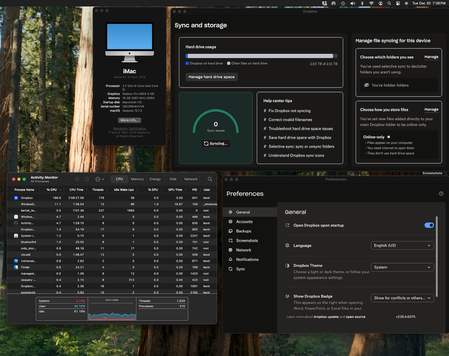
Dropbox is stuck syncing 60K files or 118GB and taking ~200% CPU
Device iMac 2019 27-inch Retina 5K Operating System/Browser (if using the web) Sequoia 15.7.2 Dropbox App Version (if using the app) v238.4.6075 Syncing Status "Syncing 60,850 files " Question or Issue I recently updated my mac OS to Sequoia 15.7.2. Since that update my dropbox has been stuck at syncing thousands of files and has severely slowed my computer to the point that I can't use it (painfully slow and chugging along for a simple task). As you can see in the screenshots, it's no wonder since it is taking up so much CPU power (180-200%). For the first few days I've tried to let it run but the number of files had jumped up to double what it is with nothing actually going down. Important things to note: 1. new files are getting synched despite it syncing all these other files. I can see the updates in my other computer. 2. at around the same time I updated I attempted to have dropbox backup my photos as well which is the largest files and it could also be related to this slowing. I did this right after I updated my OS. As a result, I changed the dropbox settings and turned photo backup and syncing off (I had never synced my photos to Dropbox before). I also deleted any previous backups just to be sure and paused backups entirely. Please help!! My iMac is unusable and I need it for work. I almost attempted to delete everything and do a fresh sync but I'm worried it will just aggravate the issue and cause a full file sync even larger than what it is now. I can't tell if this is in some stuck problematic state or if it is in fact synching so many files because of some recent change (FYI I did not update that many files on dropbox that would warrant that large sync) .49Views0likes5CommentsLarger folder refuse to become available offline on my PC.
Hi all, I have a Dropbox Plus account and wish to save files for offline access. I can do this by toggling Offline Access in Preferences with some folders but for the larger folders Dropbox refuses to let the files download and all is only available online. There is plenty of storage on my PC or external drives that I have tried with. Does Dropbox have a limit on folder size that it will sync like this? Any tips as to what I am doing wrong? /steve52Views0likes4Comments