Our Community is in read-only mode until April 8th, learn more here. You can still search existing threads or get help via Dropbox Support, the Dropbox Help Center, or Learn.
Sync
3273 Topics
The upload speed on my macOS 26.4 desktop app is very slow.
Device Mac Mini M4 Operating System/Browser (if using the web) MacOS 26.4 Dropbox App Version (if using the app) Syncing Status Very slow! Question or Issue I am have very slow upload speeds. It is taking 50 minutes to upload a 2.2 gig file. My upload speed is 490. I thought it was my computer, so I purchased a new one. Went from M2 to M4. No change at all.58Views0likes1Comment
Latest update created several problems with cache and syncing
Device iMac 2021 Operating System/Browser (if using the web) MAC OS 15.7.4 Dropbox App Version/Browser Version APP version, cannot locate version # Question or Issue After a recent update I got error messages about the Finder and Dropbox started defaulting to saving my documents in the Dropbox cache, ".dropbox" (which I did not know existed). I then deleted the cache. This morning I was required to log in to Dropbox and go through the process of resyncing everything. And then even though I did not ask that the files be offloaded to the cloud, every one of my folders and files has the cloud icon next to it (on my desktop). I am a little anxious about what awaits me with my office iMac which is significantly older and slower.198Views0likes9Comments
My Mac desktop app is unable to sync a file, even though I've removed the invalid character.
Operating System macOS11.7.10 Dropbox App Version (if using the app) 244.4.6580 Syncing Status 1 file is unable to sync Issue While organising and renaming files in Finder, I accidentally typed the \ character in one of the file names. I corrected it almost immediately, but not before Dropbox had registered it as a file that it couldn't upload. Now I'm getting a constant message about how "1 file is unable to sync" and telling me to remove the special character. But that file effectively doesn't exist anymore (at least not with the faulty name). I therefore can't "view" it or "fix" it. And there doesn't appear to be a way of getting Dropbox to drop the matter. How can I get Dropbox to dismiss this now non-existent issue? (The file with the corrected name is syncing just fine, I can view it on Dropbox[dot]com, etc.)62Views0likes1Comment
"Updating 42 files" on Dropbox icon for over a year and two Dropbox folders in Library
Application Affected Dropbox Mac: Device MiniMacM4, 2024 Operating System/Browser (if using the web) MacOS 26.3.4 Dropbox App Version (if using the app) 244.4.6580 Question or Issue I’ve had the same “Updating 42 files” on my monitor tab icon for over a year. after syncing new addition, it reverts to this notice. There is nowhere I can find what or where these 42 files are to be found. With the disaster of the mixed main filer location since it was moved into the Library, where I now have two folders residing, Things are getting more complicated and less reliable, a situation that seems to go hand in hand everywhere I encounter ‘more complicated.’ In Preferences>Sync>Dropbox folder updates “You are using Dropbox on File Provider. To opt out ... 1st question: how to get rid of “Updating 42 files 2nd question; how to have a single Library folder? Do I have to compare the two folders, file at a time? Cuz that would be a real PIA and I could lose data as several people in this forum have already experienced. files copied with zero info. 3rd question. Does anybody try these new systems out in real world situations? Jay [removed per the Community Guidelines], Kenwood CA59Views0likes1Comment
Trying to upload a file and it's taking up space even though I set my preferences to "online-only"
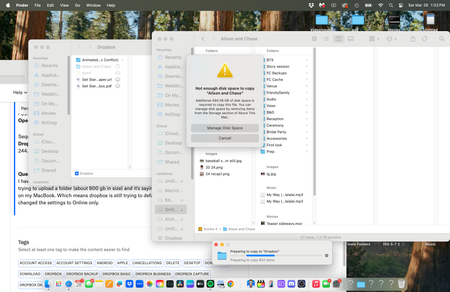
Dropbox Plan Plus Device Apple M1 pro Operating System/Browser (if using the web) Sequoia 15.7.3 Dropbox App Version (if using the app) 244.4.6580 Question or Issue I have set my preferences within dropbox to "Online only" for file location moving forward. Im trying to upload a folder (about 800 gb in size) and it's saying I need to clear up local storage still on my MacBook. Which means dropbox is still trying to default to Offline access for files even tho I changed the settings to Online only.43Views0likes1CommentI need a guide on how to operate and sync with the Dropbox app - my files are not syncing
I have dropbox on phone, i pad and desktop which is the main source of use and work on original files on desktop but they dont update on others and dont update in dropbox.com. Help is a misnomer because all too often it tells what you can do without telling you HOW TO I need a dummies guide, at nearly 80 my brain does not see the obvious, I need help on HOW to do things, but mostly to keep my files updates everywhere. Sele3ct a tag it says - but how and where, please stop assuming a level of knowledge from your users, we are not all tech savvy.123Views0likes3Comments
Dropbox is trying to download my offline files and I can't move my Dropbox folder to another drive.
Device (Dell PC) Operating System/Browser (if using the web) (Windows 11) Question or Issue I have been trying to change the location of my Dropbox folder using the Change location tab in the preferences......sync part of my app, from am almost full C: drive to my virtually empty D: drive. The process begins, and although all of my files are stored offline, the program begins to download them, and ultimately the process stops since my original C: Dropbox folder is out of storage. Is there a fix for this problem? Thanks108Views0likes6CommentsLinks/syncing stopped working for InDesign files in Dropbox, after Adobe InDesign crashed.
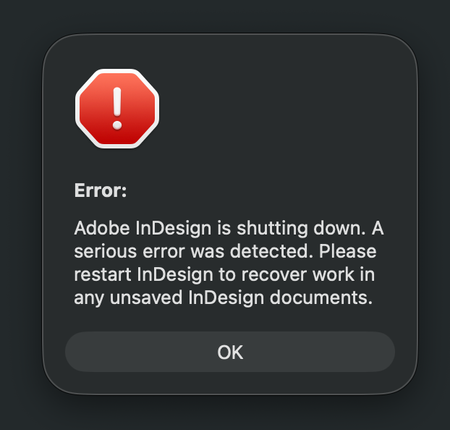
Application Affected Dropbox and Adobe InDesign Device iMac M3 - 2023 Operating System/Browser (if using the web) MacOS Tahoe 26.3.1 (a) Dropbox App Version (if using the app) 244.4.6580 In advanced, I'm sorry for my long text and spelling errors) I have a shared Dropbox with my colleges, and I work from home. Earlier this week I was working in InDesign, and it crashed while I was working. A message said it was a serious error, but no info what the error was about. (I have attached several screenshots below) Anyway, I started InDesign again, but the document I was working on could not be opened, because it was damaged. I work as a freelance book designer, but luckily for me I was only working on a book cover, and not the inside of the book. It was annoying, but not the end of the world. This was just the beginning. Now every single time I open an InDesign document from Dropbox, all the links is just shown as blank, like there is nothing there. It's just like a white new document, with nothing there, only the text. Nothing is linked anymore, and I have to link every singe images again. Let's say I have 50 images in a folder, it doesn't link everything at once, which is crazy annoying and extremely time consuming. Sometimes when I open a document in InDesign it seems fine for one second, but then all the images shows up like "crazy art" (screenshot 2) After I link an image, it seems to be okay the next time I open the document, luckily. But I have a lot of book projects and it's a crazy amount of time fixing everything manually. I also get weird messages when opening a document (the bottom screenshots) It also seems to be a problem when I have a document open, and want to edit a picture. I choose to open the picture in Photoshop, and edit there. When saving the document, it usually update the file in InDesign automatically, but not now. I guess it's just a part of the same problem. I have no idea what to do to fix the problem. All Indesign documents on my computer is fine, so the problem is only between Dropbox and Indesign, and not InDesign alone. I always work with the documents/folders (available offline) and I have never had a problem with this before the crash. I have already contacted Dropbox customer service. After a lot of back and forth, they said the problem is with Adobe. Then I contacted Adobe (which has terrible customer service) and they told me the problem is Dropbox. So here I am, with no clue on how to fix the problem. I have restarted Indsign and Dropbox, but nothing changed. I don't know what will happen with new documents placed in dropbox yet, but fingers crossed the issue will not effect new work. Time will show after the Holiday. Happy Stressfull Easter to me I guess :P116Views0likes4Comments
The desktop app (Windows 11) is still trying to index files that are set to be ignored.
Application Affected (Dropbox) Device (Macbook Pro 16 2019) Operating System/Browser (if using the web) (Windows 11) Dropbox App Version (if using the app) (246.3.3430) Question or Issue I am trying to use the new ignore rules file to ignore things like "node_modules" using rule "node_modules/". It seems to correctly ignore and not upload the node_modules directory, but it still spends a lot of time indexing them. This is not what I would expect. If it matches an ignore rule, why waste time and CPU indexing it? Thanks, D132Views1like6Comments
Dropbox is unnecessarily updating 40,000 files
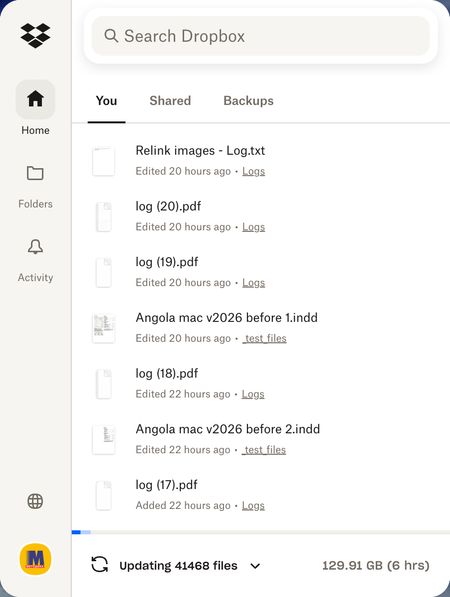
Device iMac, 3,3 GHz 6-Core Intel Core i5, 8 GB 2667 MHz DDR4, Operating System/Browser (if using the web) Tahoe 26.3.1 Dropbox App Version The latest Problem Just out of a sudden, with no obvious reason, Dropbox decided that 40,000 files needed updating! Though in reality they are not. I just worked on a few text files. My working day is ruined because I can't wait till they are synced!64Views0likes3Comments