Your workflow is unique 👨💻 - tell us how you use Dropbox here.
Camera uploads
3 TopicsTell Us How You Use Dropbox
No two people use Dropbox in exactly the same way. Some of you rely on it every day for work, others for school, creative projects, or keeping life organized - and we love that. We’d love to hear how you’re using Dropbox today - is it something you use once in a while, is it part of your day to day, are there any features you can’t live without? What workflows have you built that save time or reduce friction? And where do you see opportunities for us to do better? Your tips, ideas, and honest feedback really help us to make sure we can share useful tips, and they help other community members discover new ways to get more out of Dropbox too. Share your experience, favorite features, or suggestions in the comments below. Your voice truly helps shape the future of the Dropbox community 😁 The Dropbox Community Team3.8KViews4likes14CommentsHow to get started with Selective Sync
Welcome to the Dropbox Community forum! We're thrilled to have you on board, and we want to make sure you get the most out of your Dropbox experience right from the start. Today, we're going to talk about Selective Sync. What is Selective Sync? Well, selective sync is a feature in the Dropbox desktop app that allows you to remove specific Dropbox folders from your hard drive so you can save space on your computer. You can remove the Dropbox folders from your computer without deleting files; the folders you remove from your hard drive remain stored in your account on dropbox.com How to use selective sync Note: To use selective sync, you’ll need to have the Dropbox desktop app installed on your device. To choose which Dropbox folders to store on or remove from your computer’s hard drive: Open your Dropbox desktop app preferences. Click the Dropbox icon in your taskbar. Click your avatar (profile picture or initials) in the top-right corner. Click Preferences. Click the Sync tab. Under Selective Sync (Windows), click Modify or Select folders to sync to this Mac (Mac), click Modify. Check the folders you’d like saved on your hard drive. Uncheck the folders you’d like removed. Click Update. What is the difference between selective sync and online-only? Making your files and folders online-only also helps save hard drive space. These files and folders will still be visible from your computer, but are stored in your Dropbox account online. Based on how you use certain files and folders, they can automatically be set to online-only. That's it! Now you can save valuable space for things that matter most to you, and learn how other Dropbox features can improve your day too! So, what do you want to see from us? Let us know!10KViews7likes18CommentsWhat you need to know about storing and backing up your photos with Dropbox
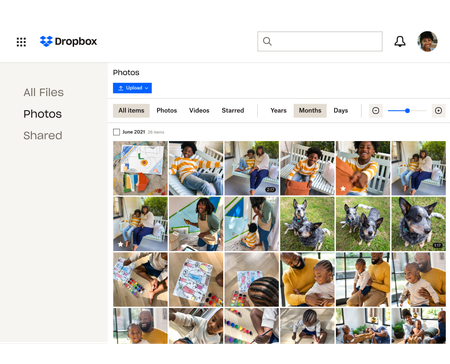
We see a lot of questions about storing, sharing and backing up your photos on Dropbox so here are some tips to make that as easy as possible! Back up photos automatically to your Dropbox account You know we love an automatic process, so whether it’s your camera roll photos, your screenshots or your document scans, your cloud photos are some of the most important files you have. In fact our own Emmet told us about a time when he almost lost his photos due to a tech malfunction - “One of my old hard drives of photos got corrupted several years ago. This was almost a year of photos. Thankfully, lot of these had been saved to my Dropbox account automatically, and this was important as a couple who I was friends with wanted a high definition photo of them from the first night they went out together, and I was only able to share it on their wedding day because it was saved on Dropbox.“ Keeping full-resolution copies backed up with online photo storage means you can access them anytime, and you know there is a safe and secure copy in the cloud. Here are just a few ways Dropbox can keep your photos safe: Camera uploads: Once you turn this on, photos from your phone or tablet will be automatically backed up to Dropbox. Or in our desktop app, photos will be copied from cameras, memory cards, or mobile devices whenever you connect one to your computer. Screenshot backups: You can set up our desktop app to automatically move screenshot images to your Dropbox, or have mobile device screenshots backed up using camera uploads. Document scanning: The native/built-in scan functionality in the Dropbox mobile app lets you use your phone’s camera to scan and make digital backups of receipts, whiteboards, and paper documents. Share your photos with links, shared folders and control access Storing your photos is great, but chances are you will want to share some - whether it’s with family members, teammates or the expense team at work. There are a few ways you can do that, and you can manage the access with a few clicks as well. Shared links: You can easily create a link to share any file or folder in your Dropbox. Copy and paste your link into an email, text message, or chat, to share with anyone—even if they don’t have a Dropbox account. Access control: Keep your photos in the right hands by adding password protection, expiration dates, and sign-in requirements to your shared links. Shared folders: Want to collect your photos and someone else’s in the same place? Share files back and forth by inviting other people to sync a folder between your account and theirs. Organize your photos: Saving and sharing your photos can be great but it’s no use if you can’t find the one your looking for, so organizing and viewing your photos is essential too! Here are some tips on how to do that, and if that’s not enough you can see how our own Eliene organizes her photos. Photo browsing: View and browse all of your photos and videos from the Photos tab in our mobile app or on the web. Image previews: View over 35 image file types from dropbox.com or our mobile app. You can preview common files like JPEG, PNG, TIFF, and GIF; app-specific types like Photoshop and Illustrator; raw formats like CR2, DCR, and DNG; and even iOS HEIC photos. Best of all, there’s no need for special photo software. Image tagging: Find your photos fast by adding searchable hashtags to individual photos or an entire folder. How do you manage your photos with Dropbox? Share your tips in the comments below, or if you have any questions you, we can answer those too!4.9KViews1like2Comments