We’re Still Here to Help (Even Over the Holidays!) - find out more here.
Dropbox Passwords
7 Topics
Reminder: Dropbox Passwords shutting down on October 28
Hi everyone, A quick reminder that Dropbox Passwords is going away on October 28, 2025. After that date, you’ll no longer be able to access passwords, usernames, or other information stored in Dropbox Passwords. Shortly after, all data stored in Dropbox Passwords will be securely deleted from our servers. ❗ If you haven’t yet, please export your saved information and move it to another password manager before October 28. ❗ You can find detailed instructions and resources in our Help Center. Thank you for being a valued Dropbox Passwords user.82Views0likes0CommentsWhat’s new this spring
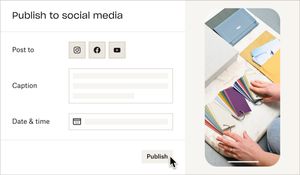
I don’t know about you, but I’m absolutely delighted to finally see spring taking it’s hold. If you’re anything like us Irish, this time of year marks a turning point, as the dark winter months are replaced by longer, brighter and warmer days. Flowers start to blossom, bees are buzzing, the birds are singing, and it nearly seems like the whole country’s mood lifts. It’s just a blooming great time of year! We’ve also got a lot to be happy about with Dropbox, too. So, here’s what’s new this spring. Publishing content to social media We’re currently in the process of rolling out a feature that will allow you to publish content straight to social media from your Dropbox account. If you’ve been using Dropbox for your social media content, you’ll know that downloading - and re-uploading - videos and images can take up quite a bit of time so you’ll be delighted to hear that you will no longer need to do this as you can now publish posts on Facebook and Instagram directly from your Dropbox account. We’re also currently working on a function that will allow you to schedule posts directly from your Dropbox account and the ability to publish content to YouTube. You’ll need an Instagram for Business account and a linked Facebook account to be able to use these features. As this is currently being rolled out, this feature is not yet available to everyone. You’ll know if you can do it if you can see the “Publish” button. If you can’t see it, have a look at this thread to find out how to opt-in. Unlimited passwords Having somewhere to track and manage passwords these days is an integral part of life, otherwise you’re left trying to remember an ever growing and ever changing list of random words, not to mention the really hard bit of trying to remember which random word fits for which random account. With Dropbox Passwords, you don’t need to worry about any of that, it will keep all your passwords, logins and card details up to date and fully synced across three devices. It will even autofill your passwords so they are as safe and securer as possible, but that’s not even the best thing about Dropbox Passwords. So, what is the best thing about Dropbox Passwords? Well, that would be the fact that it is completely free and available to all Dropbox Basic account holders. So to boost your password security game and put your mind at ease, get started with Passwords now! Mobile search improvements If you’ve been using the Dropbox mobile app, you’ve probably noticed some improvements to our search functionality recently. If you haven’t, and you’re interested in learning more, here’s a very quick run down of what’s new. To start with, we’ve made the thumbnails that appear in your search results bigger, which makes it easier to identify the things that you’re looking for and means you don’t need to strain your eyes looking at those tiny tiles anymore. We’ve also added a number of new parameters and filters to help you find what you’re looking for quicker. Your search results will now include ‘Modified Dates’ and ‘File Sizes’. We’ve introduced ‘Snippets’ for keyword matches within files and there’s also the ability to filter your search based on ‘File Type’ or ‘Modified Date’ and you can now view search results in order of newest to oldest. You can find out more or leave some feedback on these changes on this thread. And finally We’d also like to give an honorary mention to one other thing that isn’t really Dropbox related but will have a huge impact on our lives over the coming weeks and months. That is, the sun. For those of you who don’t know it, it’s the huge golden ball burning in the sky. We haven’t seen much of it around these parts recently and we’re looking forward to seeing a lot more of it in the near future. We hope you’ll also get to enjoy it and soak up some lovely vitamin-D! Just don’t forget your sunscreen. If there’s something else that you’re happy about now that spring is in the air, or just in general, we’d love to hear from you. So please let us know what you’re grateful for by leaving us a comment below!6.6KViews2likes4CommentsHow to import your passwords to Dropbox Passwords from other password managers
You might have heard about Dropbox Passwords, (and if you haven’t, you can learn all about it here) but what if you already use a password management tool? We have good news, it’s simple to import your passwords from another tool. Follow the steps below to import your already saved passwords from LastPass, Dashlane, 1Password and other password tools. Import from LastPass Sign into LastPass.com or LastPass browser extension Click Advanced Options on the sidebar Select Export under Manage Your Account Enter your LastPass master password If you’ve signed into LastPass.com on web, you will see your passwords data on a new Tab. Copy the content and save it to a file. You can name it <name>.csv If you’ve signed into the browser extension, you will see a lastpass_export.csv automatically downloaded From your Dropbox Passwords app, click Add button under your avatar, select Import from…, select Passwords Manager and select the csv file from step 4 Delete the file from step 4 for safety reasons Import from Dashlane Launch Dashlane and log in to your account Select File > Export > Unsecured archive (readable) in CSV format Enter your Master Password (if required) Save the file in a safe place From your Dropbox Passwords app, click Add button under your avatar, select Import from…, select Passwords Manager and select the csv file from step 4 Delete the file from step 4 for safety reasons Import from 1Password Open and unlock 1Password. Select the vault you want to export. It’s not possible to export from “All Vaults”, so you’ll need to switch to a specific vault. Choose File > Export > All Items. If you belong to a team account, there may be some vaults where you don’t have the “Export items” permission. Ask your team administrator. Enter your Master Password. Choose a location to save your export to (such as your desktop), choose File format: “Comma Delimited Text (.CSV)” , “All Fields” , “Include Column Labels”, Click “Save” From your Dropbox Passwords app, click Add button under your avatar, select Import from…, select Passwords Manager and select the csv file from step 5 Delete the file from step 5 for safety reasons Import from other Password Managers find the option from other Passwords managers to export items to a CSV From your Dropbox Passwords app, click Add button under your avatar, select Import from…, select Passwords Manager and select the csv file from step 1 Delete the file from step 1 for safety reasons Now that you can transfer your passwords over with just a few clicks, it’s the perfect time to get set up with Dropbox Passwords and leave the dreaded ‘forgot password?’ button in the past.23KViews4likes3CommentsWhat’s new: Unlimited Passwords and video updates
We love to tell you the good news when there are new product features and updates, and here are some fun ones for you! Let us know what you think of these updates in the comments below! Unlimited passwords for everyone You have heard us talking about how useful Dropbox Passwords is, and the only thing better than than not having to think about your ever evolving password combos, is not having to worry about the ever growing list of them too. Now Dropbox Basic users can securely store and sync unlimited passwords and payment cards across three devices. Now you can autofill passwords, credit cards, and debit cards from your web browsers and mobile apps with Dropbox Passwords. You can even share passwords so you can give friends and family secure access, whether or not your streaming service wants you to… You can even add notes to your passwords, so if they ask for a date of birth you have that too. And any updates you make will sync with everyone so they never get locked out of shared accounts. Get started with Passwords now! When it comes to password security, you can leave the dark web monitoring to us with always-on monitoring, alerts, and notifications that tell you when to take action on password breaches. Respond quickly with easy-to-understand instructions from Dropbox. Keep your accounts secure with zero-knowledge encryption—ensuring only you can access your login info—plus strength ratings and unique suggestions for your passwords. Watch this: Enjoy enhanced video loading and playback Buffering can be frustrating, we get it, so now when you’re working with video on dropbox.com, you’ll notice faster loading for videos and less buffering mid-stream. Plus, the preview duration limit has been increased, so you and recipients can see more of the videos without having to download entire files. You can also preview videos with larger file sizes, take advantage of fast forward and rewind controls, turn on closed captioning, and read transcriptions. Plus, we’ve added transcription and closed captioning for video previews on dropbox.com. There are also some updates on the controls for skipping, repeating, and playback speed for video and audio. Plus, there are new scrubbing features to help you quickly locate a specific point in your files. Learn how to use our new video enhancements now.7.9KViews0likes5CommentsDropbox Basic: quick solutions to common issues
Your Dropbox Basic account allows you to organize your files and folders, you might have heard us mention it once or twice. Check out this post, where I discuss how to best utilize your Dropbox Basic account. Dropbox has become one of my favorite tools to keep me organized and maintain my virtual workspace. Since it’s so important to me, I try to stay on top of my account by avoiding issues such as forgetting my password, getting locked out my account or not being able to sync my files. As part of my Dropbox journey, I have used several solutions to help me alleviate problems that I come across. Even people that work inside Dropbox can stumble or come up against an issue, but don’t worry, we can get you back up and running in no time. Here's some of the inside scoop on a few quick solutions. I forgot my Dropbox password If you forget your password, do not panic. I have so many passwords that I occasionally forget my Dropbox password. Here are 5 quick steps of how to change your password. Go to dropbox.com. Click Sign in. Click Forgot your password? under the Sign in button. Enter the email address you used to create the account. Dropbox will send a password reset link to that address. Click the link in the email to create a new password. Once you are back into your Dropbox account you can use Dropbox Passwords and never lose access to your accounts again. Dropbox Passwords is a mobile and desktop app that syncs your passwords across devices and lets you seamlessly sign in to websites and apps. Read more about how to troubleshoot password challenges. My files won't sync Have you ever began working on a project and your document is not syncing to your Dropbox account? This problem is often an external issue, meaning your internet connection may not be strong or you may have to restart your computer. Here are a few tips and tricks on how to solve the problem of files that won't sync. Internet connection: Your Dropbox account on the desktop will only sync files when your computer is connected to the internet. Check the connection and reconnect if necessary. Once connected, your files should sync. Restart: If the internet connection is good to go, but you still do not have access to your Dropbox account, it will be helpful to restart Dropbox and restart your computer. Space: You may have used too much space and the new file you are working to upload cannot fit into your Dropbox account. Check that you have not used all your space if this new file is not syncing. Connected accounts: Remember, you can connect 3 different devices with your Dropbox Basic account. If you are logged into your Dropbox account on 4 or more devices, chances are your information may not sync. Double check that you are only logged on to 3 devices and sign out of your 4th device if necessary. I received an error message An error message popped up on your screen when you tried to share one of your files. This likely happened because the file you tried to share isn’t in your Dropbox account anymore. This can occur if the file was deleted or removed from Dropbox, by you or another member of the folder. To restore deleted files or folders: Sign in to dropbox.com. Click Deleted files in the left sidebar. Click on the name of the deleted file or folder you want to recover. You can select multiple files or folders at once by clicking the checkbox icon Click Restore. Restorations can take time if you’re restoring a large number of files. I can’t find my files Have you ever gone into your Dropbox account and thought you had a case of the missing files? Believe me your files are not missing, so you don’t need to start calling the Files and Folders police. Dropbox always logs the move of a file as both a deletion and an addition. If you moved or renamed files, you will receive a deleted files message. Here’s 2 methods that has worked for me to retrieve my files. Use the Search Bar Sign in to your Dropbox account on the website Locate the search bar at the top of the page Type in some keywords related to the missing files. Locate the log entry for the deletion of your files or folder Next click the three dots beside your missing files > Then click the Restore button. Use the Events Page Sign into your Dropbox account on the website and Navigate to dropbox.com/events. Scanning the page and looking for the deletions that relate to the missing file or folder. Click the Restore button to get them back. If you are reading this, chances are you have a Dropbox Basic account. You have learned how to use differentapplications, tips and tricks through engaging in the Dropbox Basic series. Remember the Dropbox Community is yours and a very relatable and resourceful place to collaborate and connect with other Dropbox users. Visit the Dropbox Community to guide you through any other issues or questions you may have about your Dropbox Basic Account. If you have a question about your Dropbox Basic account, reply to this post.3.2KViews1like0CommentsDropbox Basic: work within the box
Maximize your Dropbox account and work within the box. Dropbox transforms your folders into connected workspaces. Working within Dropbox allows you to keep your account tidy as well as navigate your virtual files. Dropbox is now my personal toolkit where I keep my files tidy and use features provided by Dropbox to make my virtual workspace functional. This saves me time daily. Find files faster You can spend less time searching for files and more time completing task with your Dropbox Basic Account. Think of your Dropbox folder as your own personal file library. You create the organization system for the files and folders, making locating files the least of your worries. Create a folder hierarchy For my Dropbox file library I create a folder hierarchy by giving every file a designated home. When giving every file a home, I group folders and subfolders into categories that are useful to me. The hierarchy is created when I add fewer folders at the top level, then add more towards the bottom. Depending on the files, I also use intelligent filters and visual browsing to quickly find the content I need to streamline my workflow. Naming conventions Establishing a naming convention that helps with grouping the folders has saved me time and energy when looking for files. I save several files for different parts of my workflow such as personal life, vacation life and family life, so using naming conventions is my saving grace. Some naming conventions that I’ve found helpful are listed below. Alphabetical order Chronological order (YYYY-MM-DD) Numerical order By group (i.e., client, location, file type) Adding tags Adding tags to files and folders is also another way to keep tabs on your work. Using tags allows you to quickly search for a document or file that is tagged. Some tags you can use include, #family, #work, #school. Creating tags is just another technique you can use to locate files and folders quickly. Here’s how: Click the checkbox to the left of the file or folder you want to tag. Type your tag in the # Add a tag box in the right-side panel. Press Return (Mac) or Enter (Windows). To search by tag, use the search bar at the top of your screen. You can also remove tags from a selected file or folder by clicking the X to the right of the tag. Dropbox features Working within Dropbox has allowed me to explore the additional features that Dropbox provides with the Basic Account. Some of these features include Dropbox Capture, Dropbox Replay and Dropbox Shop to name a few. DropBox Capture: The pandemic has pushed us to make the best out of our new reality through virtual communication, and Dropbox Capture adds to that convenience. Dropbox Capture allows you to get your message across with screenshots, GIFs, or simple videos recorded right on your screen. I’ve previously used Dropbox Capture to create video tutorials for my students and they found it fun and easy to follow. You can use Dropbox Capture to send video emails, tutorials, and much more. Dropbox Replay: Dropbox Replay on the other hand allows you to easily edit videos collaboratively. Do you sometimes need feedback from your best friend and get frustrated with trying to explain what part of the video you need help with? If you are a videographer, avid Tik Toker or create reels as a hobby, this Dropbox feature will make your video editing so much simpler. Dropbox Replay makes it easy to consolidate comments, take action on feedback, and finalize your video and audio projects in one place. And, when it's that easy, everyone loves it. Dropbox Shop: My best friend who makes T-shirts uses Dropbox Shop as a virtual store. She easily set up her online storefront with pictures directly from her Dropbox account. You can setup your first listing in 3 clicks, customize your online storefront, and sell directly to your customers with products that you have available in your Dropbox Account. Dropbox Password: Dropbox Passwords allows you to sync and store your passwords, generate new random passwords, and automatically capture and fill passwords on the web and in apps. You won't forget another password with this feature. Working within Dropbox has allowed me to explore creative ways to stay organized and virtually connected. Exploring Dropbox has opened up doors for my friends and has truly served as a way for me to stay on top of my personal life. Learn more about how to work within the box by accessing Learn the Fundamentals course on Dropbox Learn.2.3KViews0likes0CommentsGet summer ready with Dropbox Basic
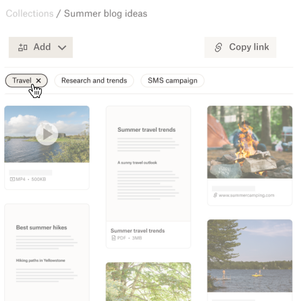
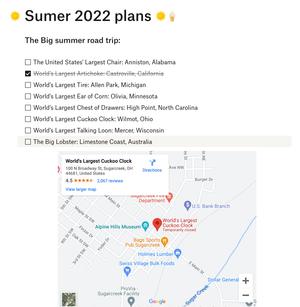
It’s getting a little warmer, there are flowers blooming and buds on the trees, and as nice as spring is, it means summer is just around the corner. We all know that summer is as good as you make it, so putting the work in now means you can enjoy every minute. We’re not talking about putting in hours at the gym, we’re talking about getting organized so you can relax and enjoy. Your Dropbox Basic account might be more powerful than you think for making your summer unforgettable. Use Dropbox for your Travel documents: If you are travelling this summer, one thing we know that can help take the stress out of planning is having digital copies of all of your documents. Whether it’s your passport, your booking confirmation for a car or hotel, tickets to events - your info can be as mobile as you are. Check out how to use Dropbox on your mobile devices here. And don’t worry, if you don’t have a digital copy you can use the Dropbox Scanner App to copy in your physical copies too. Create To-do lists with Dropbox Paper: Dropbox Paper files take up very minimal space in your Dropbox Basic account, so make Paper work for you. If you have a list of attractions, places or events you want to get to this summer, make a to-do list with links and info in advance. And if you’re really organized, you can even link the maps to some of those spots too. And, don’t forget, Paper is a collaborative tool so you can make joint planning docs for you and your friends - so you don’t have to be in charge of every details, but you know things will get done. Make the most of Dropbox Passwords: We’re here to sing the praises of Dropbox Passwords once again, because nothing is more annoying than setting up a movie night with friends and forgetting the logins for all your streaming services. Dropbox Passwords allows you to seamlessly sign in to websites and apps by storing your passwords securely. It safely stores your usernames and passwords on all your devices — so you don’t have to keep them all in your head. Everything is seamless with Dropbox Passwords: Create secure, strong passwords that sync across your devices Lock the Passwords app automatically after inactivity or whenever your device is locked Unlock the Passwords app with Face ID or Touch ID on your iOS devices or fingerprint scanner on your Android device Summer project progress photos: It’s easy to get so busy that you can lose track of time, and forget to take a moment to appreciate your work. So if you’re planning some summer projects, why not take a weekly photo and upload it to a Dropbox folder to track your progress? ConF2_0, a Community member mentioned here that she used Dropbox to save photos of her garden to track how well her plants and crops were growing, which I now do myself! So, whether it’s a DIY project, a garden, or even a new pet that’s growing rapidly, you can track the progress, remember the early days and see how far you’ve come. So - how are you going to use Dropbox to make your summer amazing?9.7KViews3likes0Comments