We're making some changes to the Dropbox Community 👩💻 - Find out more here.
Get Started
5 TopicsA Year of Conversations: 2025 Community Wrap-Up
Hey everyone! What a year! I’ve loved chatting with you all throughout 2025 - hearing your favourite Dropbox features, clever hacks and the all the ways you use Dropbox to keep life running smoothly. This community is really pure magic. Every week, you jumped in to help each other, share tips and celebrate wins. We had loads of Community Members of the Month, plenty of Mighty Answer badges and so many “aha!” moments. And the stories! From photographers sharing galleries, to coders syncing across Windows and Linux, to the person who who said syncing across threes computers and two homes was “beautiful” - you all really kept the forums lively, helpful and fun! One iPhone user was especially happy with the 2025 Live Photos update, which finally let them migrate their whole collection smoothly. It was made even sweeter knowing the feature came directly from an idea shared right here in the community. And, I adored hearing how Dropbox helps in everyday life, like the member who said: We’ve had our fair share of community adventures this year, but we made it through together and every time I got to say “I am glad to see your issue was resolved”, it honestly made my day. Last year we gave the Community a fresh new look and glow-up, and we really appreciate everyone’s patience with the changes throughout 2025. It’s amazing to see how far we’ve come, and we’re even more excited for what’s ahead. There are some fab new updates and improvements coming in 2026… so stay tuned! A huge, heartfelt thank you to everyone who got involved in conversations this year. Those who asked questions, those who answered them, and those who felt comfortable sharing ideas, frustrations, clever workarounds, and even honest feelings about Dropbox. And of course, a special shout-out to our amazing Super Users …you’re absolute stars and this community wouldn’t be the same without you. So that’s it from us for 2025! Have a safe and happy time over the holiday period, and I’ll see you all in 2026858Views3likes0CommentsCommunity Member of the Month - October 2025
The leaves are turning, the air is crisp, and it’s time to celebrate another shining star in the Dropbox Community! 🍂⭐ Say hello to our October Community Member of the Month… ccjc4sub This month, ccjc4sub stood out for their incredibly detailed and thoughtful response in the discussion about Dropbox icon overlays in File Explorer. Their explanation was so clear and easy to follow that it’s sure to help countless users in the future who come across the same issue. What really makes ccjc4sub a true community champion is their dedication - they didn’t just find a solution; they came back to share that their issue was resolved, ensuring others could benefit from the full story. That’s the kind of generosity and follow-through that keeps our Community thriving! Thank you, ccjc4sub for your time, clarity, and commitment to helping others. You make the Dropbox Community a better, more supportive space for everyone. We’ve got a little surprise for you! Just reply to this message and we’ll make sure your well-earned token of appreciation is on its way 🎁��. Think someone else deserves the spotlight next month? Drop their name in the comments below 💬 Want to be our next Community Member of the Month? Get involved, share what you know, start a convo, and spread the love with likes and comments ❤️ You never know... you could be next! 😎68Views2likes0CommentsCommunity Member of the Month - July 2025
We blinked and July was over! 🎉 But before we get too far into August, it’s time to celebrate someone who’s been making waves in the Dropbox Community. 🌟 Say hello to our Community Member of the Month for July … Shelladmin 👋 This month, Shelladmin stood out in a big way. As only a new member, they’ve set the bar high with their thoughtful and clear use of our brand new thread templates (you may have seen them when you are going to post something within our Help section). ✨ Their super helpful thread How can I see every folder in my Dropbox account in my macOS Finder? really grabbed our attention. Not only did they break down a tricky issue with clarity and care, but I know this thread will for sure help a bunch of future users tackle the same challenge with confidence. 💡📂 Thank you, Shelladmin! 😁 We’ve got a little surprise for you! Just reply to this message and we’ll make sure your well-earned token of appreciation is on its way 🎁🚀. Think someone else deserves the spotlight next month? Drop their name in the comments below 💬 Want to be our next Community Member of the Month? Get involved, share what you know, start a convo, and spread the love with likes and comments ❤️ You never know... you could be next! 😎116Views0likes0CommentsCommunity Member of The Month - March 2025
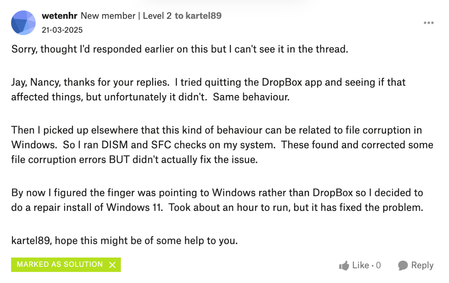
Wow how are we 3 months into 2025 already? Here (in Ireland), March brought longer days, the first hints of spring and of course, St. Patrick’s Day celebrations. While the weather might still be unpredictable, one minute sunshine, the next a sudden downpour, one thing that remains constant is the kindness and support within our Community. This month, we are especially excited as we introduce our very first Community Member of the Month for 2025! And that honour goes to wetenhr Despite only joining last month, wetenhr has already embraced the true spirit of the Community. A perfect example of this was when they returned to a thread to update another user who had the same issue, letting them know that while it might take some time depending on their device, it worked for them. Their genuine enthusiasm and helpful nature embody what makes this Community so special, and we are incredibly grateful for all the support they have provided . By providing a solution on the Community, they have not only helped others but demonstrated their passion for Dropbox. Congratulations, wetenhr thank you for making our Community a better place. We have got a special surprise just for you! Simply reply to this message and we will make sure your token of appreciation is on its way to you ASAP. Think someone else deserves to be next month’s Community Member of the Month? Let us know in the comments below. And if you want to snag the spotlight yourself, jump into the fun, share your knowledge, start conversations and spread the love by liking and commenting. You could be the next to shine!332Views4likes3Comments