Your workflow is unique 👨💻 - tell us how you use Dropbox here.
Try something new
26 TopicsEdit Photos and PDFs with Dropbox
Want to hear about one of the handiest Dropbox features I use regularly? Check out how easy it is to upload, edit, send, and sign PDFs in one place. No technical wizardry, no back-and-forth file conversions, and no additional software to install. PDF editing features let you add text and more Not all PDFs are ready to go, there's usually some info you need to add or edit, and now, editing them is as easy as click, click, click. There are tools on our PDF editing feature so you can do more without changing programs. Within Dropbox, you can: Add text to documents: Insert descriptions, dates, notes etc., anywhere on a PDF and modify text font, color, size, and emphasis Page zoom: Adjust the page view for easier navigation These features are useful for managing work-related and personal documents. Our own team makes the most of editing PDFs to organize and consolidate receipts at home. Learn how to get started editing PDFs now. Edit PDFs on-the-go Need to make changes when you'er away from your desk? No worries, you can edit PDFs directly on your iPhone or Android device. Edit PDFs on iOS: Add text or a signature to PDFs on your iPhone with the Dropbox mobile app. Edit PDFs on Android: The Dropbox smartphone app makes it easy to edit PDFs on your Samsung Galaxy, Google Pixel, or any other Android device. Work from wherever you are, without needing to switch between devices or apps to get things done. Automatically add watermarks to multiple files No one likes to have their work passed off as someone else’s - and now you can make sure it doesn’t happen to you with a few simple steps. Save time, ensure confidentiality, and protect your brand by applying a watermark automation to a new or existing folder. Then, every PDF and image added to the folder will be automatically watermarked. We’re big fans of automations that truly make life easier, and this one makes us very happy! To create an automation and learn more about watermarking, visit our automations page. I’d love to know how you make the most of these PDF editing features - tell us below!36KViews7likes0CommentsHow to import your passwords to Dropbox Passwords from other password managers
You might have heard about Dropbox Passwords, (and if you haven’t, you can learn all about it here) but what if you already use a password management tool? We have good news, it’s simple to import your passwords from another tool. Follow the steps below to import your already saved passwords from LastPass, Dashlane, 1Password and other password tools. Import from LastPass Sign into LastPass.com or LastPass browser extension Click Advanced Options on the sidebar Select Export under Manage Your Account Enter your LastPass master password If you’ve signed into LastPass.com on web, you will see your passwords data on a new Tab. Copy the content and save it to a file. You can name it <name>.csv If you’ve signed into the browser extension, you will see a lastpass_export.csv automatically downloaded From your Dropbox Passwords app, click Add button under your avatar, select Import from…, select Passwords Manager and select the csv file from step 4 Delete the file from step 4 for safety reasons Import from Dashlane Launch Dashlane and log in to your account Select File > Export > Unsecured archive (readable) in CSV format Enter your Master Password (if required) Save the file in a safe place From your Dropbox Passwords app, click Add button under your avatar, select Import from…, select Passwords Manager and select the csv file from step 4 Delete the file from step 4 for safety reasons Import from 1Password Open and unlock 1Password. Select the vault you want to export. It’s not possible to export from “All Vaults”, so you’ll need to switch to a specific vault. Choose File > Export > All Items. If you belong to a team account, there may be some vaults where you don’t have the “Export items” permission. Ask your team administrator. Enter your Master Password. Choose a location to save your export to (such as your desktop), choose File format: “Comma Delimited Text (.CSV)” , “All Fields” , “Include Column Labels”, Click “Save” From your Dropbox Passwords app, click Add button under your avatar, select Import from…, select Passwords Manager and select the csv file from step 5 Delete the file from step 5 for safety reasons Import from other Password Managers find the option from other Passwords managers to export items to a CSV From your Dropbox Passwords app, click Add button under your avatar, select Import from…, select Passwords Manager and select the csv file from step 1 Delete the file from step 1 for safety reasons Now that you can transfer your passwords over with just a few clicks, it’s the perfect time to get set up with Dropbox Passwords and leave the dreaded ‘forgot password?’ button in the past.23KViews4likes3CommentsTell us how you use Dropbox!
We have shared a lot of stories about how we use Dropbox, from using Dropbox to plan a wedding to organizing and planning a project, and now we want to focus on you and how you use it! So, to start, we would love to hear about how, and why, you started to use Dropbox. Whether it was to make sure your photos were safe, or to scan and save your receipts, or to work on a group project, we want to hear about it! Leave your stories in the comments, we want to learn from you - the more we know about how you use Dropbox, the more we can share tips and tricks that make sense for you. Looking forward to seeing your comments below!19KViews11likes35CommentsHow we use Dropbox: Project management
When we hear about how other people use Dropbox, I have to say we scan for tips and advice that we can carry through to our own workflows and projects, from planning a wedding to organizing family photos. With that in mind, we loved hearing about how Project Manager extraordinaire, Libby, uses Dropbox to keep her projects, and more importably, the team, on track. Check it out below and let us know if you will take some of these tips forward 😁 The key to a successful project is good planning and organization. Duh, but here is what I do to start off on the right foot there. Step 1: Create a shell of folders to start a project I create all of the folders to help manage the different stages of a project, which include: Ideation Planning Execution and closure And to go even deeper, within these folders we can have sub folders for different levels of approval. At this stage, I add everyone involved in the projects - and I BEG them to create their documentation within these folders. There is nothing worse than people creating rogue docs and forgetting to link it back so starting off in the right place makes it easy to keep us all in contact. Step 2: Create a Project plan I then create a Project Plan Paper doc, and this outlines the goals of the project, and this outlines the goals of the project, milestones, results and more. Now, this can seem daunting to begin with but luckily, we have a template to get you started right here. Within this doc, I can also tag people, create and add to-dos, link to other docs and of course, adding tables and images seamlessly. The perfect one pager, if you ask me. Step 3: Track the progress In theory, now everyone can get to work on their own sections of the project, and I get to observe, check in and remove any blockers. So I get notified when changes are made, I get tagged, I receive Capture updates. Whatever works for the team works for me! Step 4: Reporting and sharing wider Once the project has finished, and undoubtedly been a resounding success, it’s time to report back. So the results folder can contain Exel sheets of data, screenshots, and docs summarising the impact of the project. It’s great because everyone can contribute to this section as the results often come from varying sources. Once docs are ready for sharing wider, there are executive one pagers that can get workshopped internally and then a shared folder is created for the wider team. I enjoy how logical this process is, and as someone who can feel daunted about documentation, this seems really achievable. I also asked Libby for her best project management tip and this was her sage advice: Be flexible and work how your project team works. What works for one team won’t work for another. How do you manage projects? Do you have a different process you want to share?14KViews3likes1Comment
How to access your Dropbox through TV devices.
Dear Dropbox community, I would like to share my latest project with you, namely Dropbox MSX. Dropbox MSX is a service that allows you to access your Dropbox files (i.e. videos, audio files, and images) through TV devices. It uses the Media Station X application for visualization and the latest Dropbox API to browse and access files. I hope you enjoy using it and I would be very happy to receive feedback and ideas for improvement. For screenshots and more information, please see the showcase Dropbox MSX on this page: http://msx.benzac.de/info/?tab=Showcases Alternatively, please have a look at this YouTube video: https://www.youtube.com/watch?v=8T5XjKig6Jw Best regards, benzac13KViews0likes1CommentHow we use Dropbox: Sheena
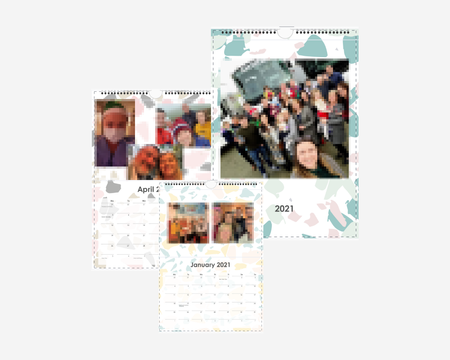
We’re back again with another dive into how we, Dropboxers, use Dropbox. This time we have the ever wonderful, social media master, code queen, Sheena! And we can add family file manager to this ever-growing list! I’m from a large Irish family, which means I have tons of cousins, aunts and uncles, and of course my wonderful grandparents. As the eldest cousin on my mother’s side, it generally falls to me to keep the cousins in line, and to gather the best gossip for my Grandmother! About 6 years ago my Grandmother mentioned that she felt she was missing out, as all of her grandchildren would share their best photos on social media, and she didn’t get to see them. That year I created the first Christmas Family Calendar. It was created using simple calendar creation websites, of which there are tons. I first got the pictures by looking at the family’s Facebook profiles and choosing lovely pics from holidays, parties and events throughout the year that my Grandparents would not have seen. Throughout the years, many of us have stopped updating Facebook as often, and some have stopped using social media altogether, so I needed a new way to gather the photos. This is when Dropbox came in! Three years ago, I created a File Request for the calendar photos, sent the link to the whole family… and that’s it. The photo’s simply rolled in throughout the year. Every so often I would send a reminder to add their best pics using the file request. By the end of the year I had more than enough photos, many that were never seen before as they were just stored in one of our phones until that point. This year, since we hadn’t been able to see each other as much as usual, I created the Christmas Family Calendar for my Grandparents as normal, and then as a special bonus I was able to send the full collection of photos to the whole family as a digital memory book for the year. Family pixelated to protect identities. Group photos taken prior to Covid-19 restrictions. Thanks Sheena! I might have to steal this for myself… How do you use Dropbox to share family memories?11KViews13likes1CommentLearn how to manage your research with Dropbox
We try to make sure that Dropbox works the way our customers want it to, and a big part of that is research! We are really lucky to have some champion researchers on our team, and I picked her brain about how she uses Dropbox to keep all her research and results in order. But, I want to point out that you guys are also the experts, so if you want to add to our research, let us know in the comments below. How to organize research with Dropbox folder management: Share folders with the right people early on so they all have access to the content Add relevant tags to folders Include a clear naming hierarchy so content is easy to find When it comes to research management, folder management has to be on point - it’s never just for me to view. The documentation has to make sense to anyone picking it up. That means it has to be findable, accessible and clear. That means from day one on a project, I have to ensure that I am sharing with the right people, I tag my folders, my naming hierarchy is clear. There is a user experience in even sharing the research. This also makes it easy to keep documentation - research plan, discussion guide, research report - is all organised and logically laid out. This ensures that I am never a roadblock - for a while I was just directing people to docs, as opposed to spending my time really getting into the research and interrogating the results and actions. When I joined, there was a big new project taking off and I could start the new folder hierarchy but I think we all know that people will still want to be spoon fed the results a little bit, so there are a few ways to make sure people get into the right docs and see those results. From sharing updates in emails, tagging relevant people into the right sections of the documents or even adding to-dos for people. Saving recordings from research is much easier on Dropbox, we use a research tool that saves the videos down, so being able to download these makes it possible for whole teams to access the files, not just those with accounts on that tool. Let’s do some research Let’s imagine that Kim was doing some research about the Dropbox Community. Now, step one would be to ask you lovely people to answer these questions in the comments below (which we would love for you to do!) but for the sake of the hypothetical, let’s imagine that Kim created a survey to find out: What industries Dropbox Community members work in? Which Dropbox features do you use the most often? Why are you active on the Dropbox Community right now? What other tools do you use alongside Dropbox? What kind of content would you like to see us share on the Community forums? In this scenario Kim gathers all of the info from the surveys, and then adds the results to a folder that is clearly labelled, working with a naming hierarchy that works with the Community team, so something like: Community research survey 2023. She tags the folder with Community, industry, features, and support. Then she sends an invite link to our team, and even goes one step further and tags each of us in the relevant sections to our projects. The team then comes back with notes, thoughts and comments, and this can totally open up new ideas and discussions and it means that the results are not just a static thing in a doc, we figure out how we can take that research and do something good with it. I might be a little bit of a data nerd but I love this. I have been surprised by research sometimes and had it change how we think about the Dropbox Community, and I love that we can make changes to reflect how you, our Community members, actually want to access the forums. And again, the easiest way of doing research is to ask a question and get an answer so you: is there anything you would like us to look into with some research eyes right now? Tell us below and we will keep Kim posted!10KViews6likes0CommentsGet summer ready with Dropbox Basic
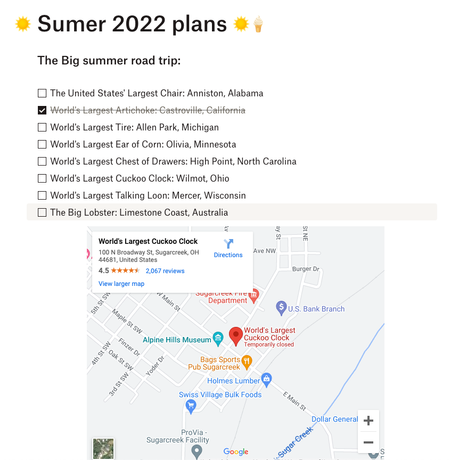
It’s getting a little warmer, there are flowers blooming and buds on the trees, and as nice as spring is, it means summer is just around the corner. We all know that summer is as good as you make it, so putting the work in now means you can enjoy every minute. We’re not talking about putting in hours at the gym, we’re talking about getting organized so you can relax and enjoy. Your Dropbox Basic account might be more powerful than you think for making your summer unforgettable. Use Dropbox for your Travel documents: If you are travelling this summer, one thing we know that can help take the stress out of planning is having digital copies of all of your documents. Whether it’s your passport, your booking confirmation for a car or hotel, tickets to events - your info can be as mobile as you are. Check out how to use Dropbox on your mobile devices here. And don’t worry, if you don’t have a digital copy you can use the Dropbox Scanner App to copy in your physical copies too. Create To-do lists with Dropbox Paper: Dropbox Paper files take up very minimal space in your Dropbox Basic account, so make Paper work for you. If you have a list of attractions, places or events you want to get to this summer, make a to-do list with links and info in advance. And if you’re really organized, you can even link the maps to some of those spots too. And, don’t forget, Paper is a collaborative tool so you can make joint planning docs for you and your friends - so you don’t have to be in charge of every details, but you know things will get done. Make the most of Dropbox Passwords: We’re here to sing the praises of Dropbox Passwords once again, because nothing is more annoying than setting up a movie night with friends and forgetting the logins for all your streaming services. Dropbox Passwords allows you to seamlessly sign in to websites and apps by storing your passwords securely. It safely stores your usernames and passwords on all your devices — so you don’t have to keep them all in your head. Everything is seamless with Dropbox Passwords: Create secure, strong passwords that sync across your devices Lock the Passwords app automatically after inactivity or whenever your device is locked Unlock the Passwords app with Face ID or Touch ID on your iOS devices or fingerprint scanner on your Android device Summer project progress photos: It’s easy to get so busy that you can lose track of time, and forget to take a moment to appreciate your work. So if you’re planning some summer projects, why not take a weekly photo and upload it to a Dropbox folder to track your progress? ConF2_0, a Community member mentioned here that she used Dropbox to save photos of her garden to track how well her plants and crops were growing, which I now do myself! So, whether it’s a DIY project, a garden, or even a new pet that’s growing rapidly, you can track the progress, remember the early days and see how far you’ve come. So - how are you going to use Dropbox to make your summer amazing?9.7KViews3likes0CommentsWhat’s new: Unlimited Passwords and video updates
We love to tell you the good news when there are new product features and updates, and here are some fun ones for you! Let us know what you think of these updates in the comments below! Unlimited passwords for everyone You have heard us talking about how useful Dropbox Passwords is, and the only thing better than than not having to think about your ever evolving password combos, is not having to worry about the ever growing list of them too. Now Dropbox Basic users can securely store and sync unlimited passwords and payment cards across three devices. Now you can autofill passwords, credit cards, and debit cards from your web browsers and mobile apps with Dropbox Passwords. You can even share passwords so you can give friends and family secure access, whether or not your streaming service wants you to… You can even add notes to your passwords, so if they ask for a date of birth you have that too. And any updates you make will sync with everyone so they never get locked out of shared accounts. Get started with Passwords now! When it comes to password security, you can leave the dark web monitoring to us with always-on monitoring, alerts, and notifications that tell you when to take action on password breaches. Respond quickly with easy-to-understand instructions from Dropbox. Keep your accounts secure with zero-knowledge encryption—ensuring only you can access your login info—plus strength ratings and unique suggestions for your passwords. Watch this: Enjoy enhanced video loading and playback Buffering can be frustrating, we get it, so now when you’re working with video on dropbox.com, you’ll notice faster loading for videos and less buffering mid-stream. Plus, the preview duration limit has been increased, so you and recipients can see more of the videos without having to download entire files. You can also preview videos with larger file sizes, take advantage of fast forward and rewind controls, turn on closed captioning, and read transcriptions. Plus, we’ve added transcription and closed captioning for video previews on dropbox.com. There are also some updates on the controls for skipping, repeating, and playback speed for video and audio. Plus, there are new scrubbing features to help you quickly locate a specific point in your files. Learn how to use our new video enhancements now.7.9KViews0likes5CommentsExciting news — we’ve launched the new Sync & Storage Dashboard in the Dropbox desktop app!
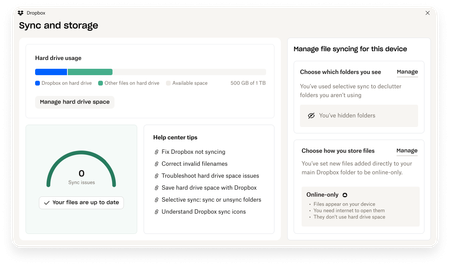
This dashboard makes it easier than ever to keep your files organized and your computer running smoothly. With just a click, you can: Get a real-time view of your sync status Quickly spot and resolve any syncing issues Monitor and manage how much disk space your Dropbox files are using Adjust your selective sync and storage preferences To open the dashboard, click the Dropbox icon in your taskbar (Windows) or menu bar (Mac), then select your avatar and choose Sync & storage. We’re excited for you to try it out! Please let us know your thoughts and how we can make it even better!7.7KViews6likes14Comments