2025 sparked some incredible conversations across our community 👩💻. Discover the highlights and see what’s ahead in 2026.
organize
698 Topics
Search inside Comments + Jump to Timestamp in Audio - Please Help us Audio Professional teams!
Comments on audio files which allow for time stamped notes are incredibly powerful for audio engineers, musicians, voice talent, authors, and associated producers and editors who, if anything like me, have literally over a thousand hours of improvisational recordings / sketches / works in progress in my Dropbox, and that's just stereo mix-downs that I bounce down after each session and immediately upload to Dropbox as I head out for a walk to drive to skip through / review - sometimes up to 3-4 hours of material each day - and when I hear those magic moments, I add a comment! Sadly, as it stands, not only do I have to remember which file had which comments, but I have to sift through the comments individually to see details. Some ability to keyword search inside comments, or a custom Tagging ability to at least bring me to the correct file, would be incredibly helpful. To reduce UI disruption or clutter, perhaps searching for keywords inside comments via the iOS App (where I access my hours of daily Dropbox use) could simply be ignored unless enabled by selecting a newly added 'Comments' category in the File Type dropdown! The results could be anything from just a list of files with comments matching the query (that alone would be immensely helpful) to more of a list of the query highlighted among the comments context, or some other format of result. To make it invaluable for audio professionals - add the ability to click on the result to start playback of the audio at the Timestamp OF the comment! I'd gladly add RePlay to my account if similar features were added there, but crucially I'm interested in adding notes not from the editing platform, but from the simple, regular Dropbox App / player - in addition to my personal primary desire for such a feature, consider the advantage of being able to reliably receive and importantly find input from the NON-PROFESSIONALS in this new media market - a simple tap to add / search to find / scroll or filter to browse commenting system can easily manage that - something dead simple for the non-technical author's request / 'big idea' producer's note (which was previously done in sharpie; not in sophisticated software) / editor's last minute tweak/publisher's quirky demand / etc. - a timestamped comment is all a professional really needs - the important part is lowering the barrier so that non-technical contributors MAKE the comment. With the skyrocketing volume of Podcast and Audiobook content involving teams of professionals (Talent / Authors / Editors / Audio Engineers / Producers / Publishers / etc), just a little love in order to flesh out the Comments feature a bit could have a lot of professional applications and appeal! Alternatives exist, but I enjoy Dropbox. I've been a pro user for 17+ years, and I truly rely on it, and on the 3TB+ of audio files I'm constantly scrubbing through in the App. But as our libraries grow, so too must search and organizational tools! I can attest that being unable to track down a comment you just made the day before is definitely not fun! Anyway, thank you for the trusty and reliable service all these years, and for reading this long to anybody that has! : ) - jesse9Views0likes0Comments
AI Assistant to understand contents and organize Dropbox files
I’m a personal plan user and would like to request an AI assistant that can actively organize my Dropbox, not just search it. What I’m looking for is a chat-based AI that can understand the contents of my files and folders and: - Execute direct instructions (e.g. “Rename these files using this pattern”) - Propose organization actions and apply them after confirmation Examples of actions: - Renaming files based on their content and a given naming pattern - Moving and grouping related files into appropriate folders - Identifying duplicates, similar, or outdated files and deleting or archiving them Dropbox Dash is a great step for discovery, but I’m looking for AI that can turn intent (“this belongs with that”) into actual file operations inside Dropbox.27Views1like1Comment
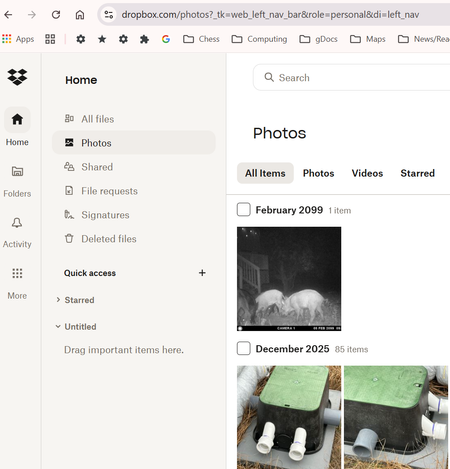
Photos tab in Dropbox online contains bookoo pics from way back.
I was surprised to find that the Photos tab in Dropbox online (i.e. at Dropbox.com) contains bookoo pics from wayyyy back. I've always deleted pics from the iPhone after naming and saving the ones I want to keep on my PC (in Dropbox folders of my own (conscious) creation). In Dropbox it says, "Camera uploads is turned off." Don't believe I've ever intentionally told Dropbox to save all photos.29Views0likes2Comments
Allow us to hide certain folders from the Photos tab.
Sería muy útil contar con la opción de seleccionar qué directorios incluir o excluir en el apartado "Fotos". Muchas veces almacenamos imágenes o capturas de pantalla en carpetas específicas, y estas terminan mezclándose con nuestras fotos principales, generando desorden visual. Poder limitar la visualización únicamente a los directorios que realmente contienen fotos ayudaría a mantener una experiencia más organizada y enfocada. ------------------------ It would be very helpful to have the option to select which directories to include or exclude in the "Photos" section. We often store images or screenshots in specific folders, and these end up mixed in with our main photos, creating visual clutter. Being able to limit the display to only the directories that actually contain photos would help maintain a more organized and focused experience. [translated with an online translation tool]1.1KViews20likes24Comments
"Selective sync from search" feature on the Dropbox desktop app
"Selective Sync from Search" feature would allow users to easily initiate selective sync for files or folders discovered through the search function. This would streamline the process of managing synced files, especially for users with large Dropbox accounts and complex folder structures. Currently, users need to navigate through the Dropbox preferences and the folder structure to manage selective sync, which can be time-consuming. Here's why this feature would be useful and how it could work: Problem: Time-consuming navigation: Finding specific folders or files within a large Dropbox account to manage their sync status can be tedious. Difficulty managing large accounts: Users with many files and folders often need to selectively sync to manage storage space and optimize performance. Potential for errors: Users might accidentally sync or unsync the wrong files or folders due to the complex navigation. Solution: Integrate selective sync into search: Allow users to right-click on files or folders discovered through the Dropbox search and initiate selective sync directly from the search results. Simplified workflow: This would eliminate the need to navigate through the Dropbox preferences and locate the specific item within the folder structure. Improved user experience: A more intuitive and efficient way to manage synced files, especially for users with large Dropbox accounts. How it could work: Search for a file or folder: Use the Dropbox search bar to find the desired item. Right-click the search result: A context menu would appear. Select "Selective Sync": Choose this option from the context menu. Toggle sync settings: A panel would appear, allowing users to easily check or uncheck the sync status for that specific item. Apply changes: The changes would be applied immediately, syncing or unsyncing the item as requested. Benefits: Increased efficiency: Users can quickly manage sync settings for files found through search. Improved organization: Users can easily tailor their Dropbox experience to their specific needs. Reduced storage consumption: Users can selectively sync files and folders to optimize storage space. Enhanced user satisfaction: A more streamlined and user-friendly experience. This feature would be a valuable addition to Dropbox, making it easier for users to manage their files and optimize their storage space.237Views1like4Comments
Deleting multiple duplicated in a single operation
I often find duplicate photos in several folders using the 'Find duplicates' feature. Currently, I have to delete selected photos from each duplicate set one by one. It would be helpful if I could select all the photos I want to delete across multiple sets and remove them in a single operation. This would make managing duplicates much faster and more efficient.80Views2likes2Comments
Exportable & Editable Folder Map
As Dropbox accounts grow over time, folder structures become complex, deeply nested, and hard to manage. Currently, I can view their folder hierarchy in the web UI, but I cannot export it, nor can I reorganize folders at scale without manually dragging items one by one. This makes large-scale cleanup, restructuring, and collaboration planning unnecessarily time-consuming and error-prone. Introduce a Folder Map feature that allows users to: Download a full folder map: Export the entire Dropbox folder hierarchy (folders only, optional files) maybe like a visual map (mind-map style) Edit the folder map in-app: Reorganize folders by: drag & drop, bulk move / rename, nesting or flattening structures(no files are moved yet: this is a planning layer) Apply changes in bulk: Once confirmed, Dropbox executes the reorganization safely: Shows a preview of changes, highlights conflicts or permissions issues, allows rollback40Views0likes1CommentDropbox new organized photo experience
I already use Dropbox as my main place to store and back up all of my photos. I intentionally don’t keep photos on my phone to avoid using device storage, so everything lives in Dropbox. The challenge is that my photos are now scattered across many folders, because folders are currently the only way to organize them. While this works for storage, it makes it hard to browse, rediscover, and enjoy my photos the way I can in a native Photos app. What I would love is a dedicated Photos section inside Dropbox that treats photos as photos, not just files in folders. What this Photos experience could include: A Photos tab (separate from folders) Automatically surfaces all photos stored anywhere in Dropbox Folder structure stays intact in Files, but Photos are unified in one view (or maybe we can select which folders will be part of the photo section Date-based browsing View photos by date taken, not upload date or folder location Easily see: All photos from a specific year, Months, days, or events This would let me access all photos from one year in one place, without photos from other years mixed in Map view If photos include GPS metadata, show them on a map Ability to zoom into countries or cities and see photos taken there This would make travel photos especially easy and enjoyable to explore Filters and smart views Filter by: Date range, Location, Media type (photos vs videos), Smart groupings like: “All photos this year” “Travel” “Favorites” Gallery-style experience Clean grid view with zoomable thumbnails, Date headers, Album creation without needing to reorganize folders This would allow me to keep using Dropbox as my primary photo storage solution, while also having a modern, intuitive photo browsing experience, similar to native phone photo apps, without relying on phone storage. Since many users already store large photo libraries in Dropbox, a native Photos experience would unlock much more value from content that’s already there48Views1like1CommentOption to convert 'Available' to 'Available Offline'
Dropbox makes the distinction between Available Offline (local copy might be deleted to save space) and Always Available Offline (local copy will never be deleted by Dropbox). The former has the white icon with green border and checkmark, the latter the green icon with white checkmark. I want to be able to change files and folders from Available Offline (AO), to Always Available offline (AAO). Currently, Dropbox does not offer that possibility directly. The only way to achieve this effect is to convert the AO files/folders to Online Only (OO) first, and then select Make available offline. This is a time-consuming process, as Dropbox removes the local copies when converting to OO, and then re-downloads all the content. Unnecessarily, I might add, since all the content had local copies to begin with. Since the conversion from AO to AAO should be nothing more than changing some kind of flag on the files and folders, it should be a simple matter to provide a command for that purpose. And the opposite conversion (from AAO to AO) should also be available. (Currently, for AAO content, the only option is OO as well.) This is relevant for user who use the option to automatically save space. They want control over which files are and aren't candidates for removal of their local copies. But this is also relevant for people who currently do not use that option. When they decide to turn that option on, they do not want to run the risk of seeing their local copies vanish into the cloud without any control over which files are thus OO'ed. So, two additional commands in the context menu for Dropbox folders and files: On AO files and folders, something like Always keep this item on this device. On AAO files and folders, something like This item may be made OO to save space. (On OO files and folders, the Make available offline command is already in place for the conversion to AAO.)132Views1like3Comments
Is there a way to see the number of files in a folder?
Good day fellow Drop Boxers :) I have a unique situation - I have let's call it a two sided folder collection - one side is used for Prospective Clients and the other Active clients, I have some subfolders that are called "Random Things" to be Filed, there are 6 of them, on the prospect side similar folders with Client names. I then injected a "Short cut" into said folders so once they are done and can be placed in the Active side of things they simply add to short cut and it comes into my sub-folders. What I am wondering very similar to text or emails - can a folder show how many files are within it at a glance or some kind of indicator? Does that make sense, just don't want to waste time over the day wondering if something is in any of these sub-folders to take action on. Thanks in advance for your input - Pat35Views0likes1Comment