Our Community is in read-only mode until April 8th, learn more here. You can still search existing threads or get help via Dropbox Support, the Dropbox Help Center, or Learn.
Forum Discussion

2ndMile
2 years agoNew member | Level 2
Duplicated Files Cannot Be Renamed - Ventura 13.4.1
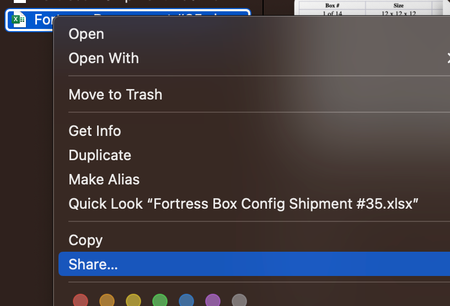
Hello, Since upgrading to Ventura I have noticed several weird bugs with DropBox. The most recent is that I can't rename a duplicated file. Pressing "Enter" gives the "error" chime. Right-cl...

2ndMile
2 years agoNew member | Level 2
Reinstalled.
Everything was re-indexed.
No joy.

Hannah Dropbox Community Moderator
2 years agoDropbox Community ModeratorHey 2ndMile, sorry to jump in here.
Do you get the same behavior if you close the Dropbox app before duplicating a file?
- 2ndMile2 years agoNew member | Level 2
Hello Hannah... the more the merrier!
Yes, the same behavior exists if I close the Dropbox app before duplicating the file.
A couple more odd behaviors:
This behavior only exists in folders "managed" by Dropbox with or without the Dropbox app running. For example, I duplicated a file within a Dropbox managed folder and the duplicate file exhibited the same behavior described previously. If I move the original file to the "Pictures" folder, which Dropbox does not manage, and then duplicate the file, I am able to rename as expected. I want to point out that when I drag and drop that file into the Pictures folder I am presented with a dialog to confirm that I am moving the file outside of Dropbox. I point this out because of the next odd behavior.
(Restarting with original file and no duplicate) If I duplicate the original file inside of a Dropbox managed folder as before, I can't move that file by dragging and dropping. The cursor icon has a circle with a line through it. HOWEVER, if I Command+C the duplicated file and then Command+V into a folder that is NOT managed by Dropbox (Pictures folder), I am asked to enter my Admin password. If I click "Cancel", the file is still pasted but I can't rename the file as before. If I authenticate, the file is pasted and I CAN rename the file.
IMHO, this is all pointing to a permissions issue between Dropbox and Ventura. Almost as if Dropbox is not letting me act as "Admin" within Dropbox folders. This is further backed up by something I experienced early on. This is a fairly new computer (1 month old) and when I first received it, I installed Dropbox as one of the first programs. When I downloaded a DMG to install a program, I could not run it from the Downloads folder (managed by Dropbox). I had to run it from a non-Dropbox managed folder.
Is there a way, possibly using Terminal, to check or reset the permissions on Dropbox managed folders?
- Hannah2 years ago
I appreciate the additional info here, 2ndMile.
Can you check if Dropbox has full disk access on the computer? Perhaps that's the culprit here.
 raDB2 years agoNew member | Level 2
I'm having the same problem, started on Ventura, is still present on Sonoma. Very easy to replicate: copy a file that's already in dropbox and paste it anywhere else in Dropbox, or just use "duplicate" (which will create a copy in the same location). The copy cannot be renamed. Owner and permissions look exactly the same on both files. Workaround is to paste it somewhere outside Dropbox, then drag it into whatever Dropbox folder you want it in. Granting full disk access did not help.
- Megan2 years ago
Hey there raDB, sorry to hear you're having issues with this.
Could you clarify the desktop app's status and version as shown in your menu bar at the moment and also let us know your Dropbox folder's location as shown in the app's preferences under the sync tab?
Can you please let us know if this persists when you close the Dropbox app completely?Keep me posted!
- raDB2 years agoNew member | Level 2
I'm not sure what you mean by status, but there are no red icons or anything on the Dropbox icon. Version is 184.4.6543. Folder is /Users/[username]/Library/CloudStorage/Dropbox.
That's very strange--to test, I tried navigating directly to the the folder from Locations > Dropbox on the left pane of the Finder window and making and renaming copies worked fine. Previously, I had been arriving there via Spotlight search with Cmd-Return to open the containing folder of the file--and that's when I would not be able to modify the names of copies. And now, even that's working.
I'm not sure what's going on but it seems to be working fine now, suddenly (despite having had this problem for months). I want to say the problem had something to do with the linked-nature of the new location (how the folder appears to be in my user folder despite actually living in Library/CloudStorage). Maybe Spotlight "learned" the better location? It's also possible the full disk access helped, even though I've since revoked it? I can no longer replicate the problem so have no more info to give. I'll come back if I can replicate it again and am happy to answer more questions.
- briansp2 years agoNew member | Level 2
I'm having the *exact* same problem. Dropbox v185.4.6054. MacOS Sonoma 14.0. I've had this problem before and notice it again with the recent Sonoma upgrade.
In my Dropbox-managed folder I have a file. I can rename it and all of the right-click Finder actions are available. If I right-click on the file and click Duplicate, I get a new file called <oldfilename> copy.docx (or whatever). The "copy" file only has a limited set of Finder actions shown, and Rename is not available.
I can rename the file via 'mv' command in Terminal but I shouldn't have to do this and it really interrupts my workflow.
I gave Dropbox.app full disk access and restarted Dropbox but it is still not permitting me to rename duplicated file that I duplicate from Finder.
 paulcartwright2 years agoExplorer | Level 4
I too am on Sonoma. Dropbox v187.3.5654 and have the same behaviour on renaming duplicated files that are within the Dropbox folder. If I drag duplicate the file to the desktop I can then rename the file as usual.
Curiously, if I duplicate a file (within Dropbox) and then attempt to drag it to my desktop I am not able to (the cursor changing to a 'no entry' symbol).
- Megan2 years ago
Hi paulcartwright, welcome to our Community!
It sounds like you're using our Beta version -v187.3.5654- instead of our stable one -v186.4.6207-.
As a first step, and to make sure this isn't the issue, can you try downgrading from the Beta version? You can do this by switching off Early releases in this page, and then re-downloading and installing the desktop app.
Can you give this a go?
Keep me posted, and we'll take it from there!
- paulcartwright2 years agoExplorer | Level 4
Hello Megan,
Have done as you suggest and currently re-indexing. The behavious still continues, but I'll let it finish and then re-start.
🙂 - Megan2 years ago
Take your time, and let me know more paulcartwright! 😎
- paulcartwright2 years agoExplorer | Level 4
Morning.
OK. After a restart the behaviour is exactly the same.
Any thoughts?
- Megan2 years ago
Thanks for checking paulcartwright!
Does that happen with all of your files? Also, if you try uninstalling, and re-installing the app do you get the same results?
- paulcartwright2 years agoExplorer | Level 4
Hmm...odd behaviour. If I have a specific project folder open in its own window and duplicate a file, I can't rename the duplicate.
If I open the folder that contains all of my project folders and drop down to open the specific folder, the file duplicates and CAN then be renamed. If I then go back and open the specific project folder in its own window everything works again.
It's not fixed in any way, but certainly something odd going on. Will keep any eye on it. - Megan2 years ago
That is indeed odd paulcartwright!
In any case, you can always reach out to our Support and report this, or if you wish, we can open a ticket and have a closer look into this there.

About Delete, Edit, and Organize
Solve issues with deleting, editing, and organizing files and folders in your Dropbox account.
The Dropbox Community team is active from Monday to Friday. We try to respond to you as soon as we can, usually within 2 hours.
If you need more help you can view your support options (expected response time for an email or ticket is 24 hours), or contact us on X, Facebook or Instagram.
For more info on available support options for your Dropbox plan, see this article.
If you found the answer to your question in this Community thread, please 'like' the post to say thanks and to let us know it was useful!


