Need to see if your shared folder is taking up space on your dropbox 👨💻? Find out how to check here.
Forum Discussion

jonsymbolgoodman
3 years agoExplorer | Level 3
Mystery Photos on my account
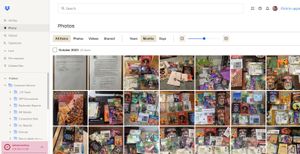
Long story short: I have to free up space and these photos are mysterious in origin -- and I don't know what to call that 'menu item' on the left edge to be able to search for it in help in order to ...

jonsymbolgoodman
3 years agoExplorer | Level 3
So there are a number of terms here that I'm unclear on... we have a number of folders that we use for work, I don't know if there is a collective term for that shared matter or not...
I am thoroughly unclear on why a document that's on the cloud takes up space in multiple accounts, if that's what you're saying. My initial understanding when it was all set up was that the files existed for the company (in some sense) and that those of us who need them could access them as needed and our changes would be saved in the 'master file' so the next person could see them (or indeed, we could see that two of us were working on them simultaneously, as a couple times has been the case). Why this would impact my account, I don't understand.
When things were working, all of the files in the app had a little cloud-and-arrow icon next to them, as if to say, "this is on the cloud, download it if you need it". Then if I accessed a file, I'd have to click it and get a menu with an option to "make online-only", which I would do, presumably so that there would only be one unified version existing solely on the cloud again.
The Photos section seen in my screen grab is not part of the usual work space. I didn't even know it was there until I opened the browser version of the account, having used the desktop app version exclusively at first. So I don't know where it comes from.
I did recently stumble into a section of the account where there was a breakdown of what was in it, and it only added up to something like 1.6 GB or so... wish I'd gotten a screen grab of that, since I can't find that breakdown again right now... but it would be interesting to know what that mean, and why I'm told the account has 2.1 GB in it.
And I do appreciate all the input and help -- thank you!

Rich Super User II
3 years agoSuper User II
jonsymbolgoodman wrote:
I am thoroughly unclear on why a document that's on the cloud takes up space in multiple accounts ...
Every member of a shared folder has their own copy of the folder in their account, and that copy syncs with all other members. You're not all accessing one master copy of the folder. It's also a method used to prevent people from stacking multiple accounts for unlimited space.
https://help.dropbox.com/storage-space/shared-folder-count-against-storage
... the files existed for the company ... and that those of us who need them could access them as needed and our changes would be saved in the 'master file' ...
If you're a member of a Business team account then yes, the storage available to the team is used by all members, but that's not the case if individual accounts and shared folders are in use. If you're just using shared folders, each member has their own individual account and anything in the account, including shared folders they join, takes up space in the account.
... we could see that two of us were working on them simultaneously ...
Some file types allow for simultaneous editing if you use the Dropbox website to open the file online. This isn't the case when opening the file from your computer or other device.
A good example of how each member has their own copy of the files is you each go into the Dropbox folder on your computer and open the same file, make a change and save it, you'll see two things; you're not able to simultaneously edit the file as you've each opened a different copy, and if multiple people make a change and save, you'll end up creating conflicted copies with each person's changes in a different copy.
... I'd have to click it and get a menu with an option to "make online-only", which I would do, presumably so that there would only be one unified version existing solely on the cloud again.
That's not what online-only means or how it works. When you have a file marked as online-only, it means that the file as you see it on your computer is just a placeholder so you can see the file in your account. It doesn't actually exist on your computer. If you open the file, it's downloaded to your computer and opened as it normally would. As soon as you make changes and save, Dropbox syncs those changes with your account online and with anyone else that has access. You don't need to mark the file as online-only for that to happen.
Available offline and online-only refers to the state of the files on your local drive, that's all. Available offline means the file is on your computer taking up local drive space. Online-only means the file isn't loaded to your local drive but it still exists in your account.
The Photos section seen in my screen grab is not part of the usual work space. ... So I don't know where it comes from.
The Photos page is a special page that shows all of the photos and videos from every folder in your account, including shared folder. It's not an actual folder within your Dropbox.
I did recently stumble into a section of the account where there was a breakdown of what was in it ... wish I'd gotten a screen grab of that, since I can't find that breakdown again right now...
You can find the breakdown of usage in your account on your Plan page.
About Delete, edit, and organize
Solve issues with deleting, editing, and organizing files and folders in your Dropbox account with support from the Dropbox Community.
The Dropbox Community team is active from Monday to Friday. We try to respond to you as soon as we can, usually within 2 hours.
If you need more help you can view your support options (expected response time for an email or ticket is 24 hours), or contact us on X, Facebook or Instagram.
For more info on available support options for your Dropbox plan, see this article.
If you found the answer to your question in this Community thread, please 'like' the post to say thanks and to let us know it was useful!


