Your workflow is unique 👨💻 - tell us how you use Dropbox here.
Forum Discussion

LoveMyslf
7 years agoHelpful | Level 5
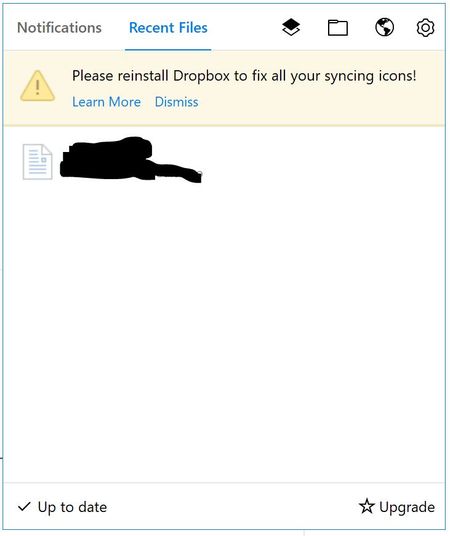
Please reinstall Dropbox to fix all your syncing icons!
This has been an issue for a while now. It's an issue on both my Windows 10 devices. I have tried different solutions from this forum, without luck. I'm running version 50.4.71, from the offline inst...
 7 years ago
Hey, I'm good now! The problem was the ShellIconOverlayIdentifiers as you describe it here: https://help.dropbox.com/syncing-uploads/icon-overlays-not-appearing
I hadn't seen the "dropdown" for Windows when I was first reading that page. Windows must have updated something or whatever Dropbox ended up on rank 16 ...
That's really annoying digging around in the registry. :(
Anyway, they are back.
karnerkreativ
7 years agoHelpful | Level 6
Hey, I'm good now! The problem was the ShellIconOverlayIdentifiers as you describe it here: https://help.dropbox.com/syncing-uploads/icon-overlays-not-appearing
I hadn't seen the "dropdown" for Windows when I was first reading that page. Windows must have updated something or whatever Dropbox ended up on rank 16 ...
That's really annoying digging around in the registry. :(
Anyway, they are back.

Tavo31
6 years agoNew member | Level 2
eI have the same issue; I try go to the solution in this post but the link is not open! Could you please help me.
- karnerkreativ6 years agoHelpful | Level 6Hi,
https://help.dropbox.com/syncing-uploads/icon-overlays-not-appearing#files
Open the 'Windows' drop down.
There you will find this text (if the link should change in the future):
>>Windows has a limit of 15 overlay icons that Windows Explorer can load, and the operating system reserves four for its own use. To find out how many overlays you have registered, you can check the registry:
Press the Windows key + R and enter regedit.
Navigate to the following registry key with this path:
HKEY_LOCAL_MACHINE\SOFTWARE\Microsoft\Windows\CurrentVersion\Explorer\ShellIconOverlayIdentifiers
Scroll right for complete command line.
If the Dropbox overlays are in the first 15 positions, they will display; otherwise you'll need to make room for them. Please note that this requires you to delete or deprioritize other applications' overlays, so only proceed if you’re sure about what you'll affect.
If you decide to proceed, you can select individual keys and delete them by right-clicking on the desired key. If you don’t want to delete them, you can rename them and place a Z at the beginning to send them to the end of the alphabetically sorted list.
Quit explorer.exe and launch again from the Task Manager, or restart your computer.
Launch Dropbox, and the sync icons should re-appear.
About Apps and Installations
Have a question about a Dropbox app or installation? Reach out to the Dropbox Community and get solutions, help, and advice from members.
The Dropbox Community team is active from Monday to Friday. We try to respond to you as soon as we can, usually within 2 hours.
If you need more help you can view your support options (expected response time for an email or ticket is 24 hours), or contact us on X, Facebook or Instagram.
For more info on available support options for your Dropbox plan, see this article.
If you found the answer to your question in this Community thread, please 'like' the post to say thanks and to let us know it was useful!


