Your workflow is unique 👨💻 - tell us how you use Dropbox here.
Computer Backup
38 Topics
Why can I only back up specific folders?
I just started using the back up feature in Dropbox but it seems to only back up 3 folders: DOWNLOADS, DESKTOP & DOCUMENTS. I don't keep important stuff in any of these. How do I select my 2 most important folders? It doesn't seem to let me choose.4.4KViews7likes10Comments
No dialog box when connecting external HD?
I want to back up my external HD to my Dropbox account. What should happen: When I connect the external drive, I should get a popup that asks if I want to back up the external drive, I select it, then set it up. What does happen: Nothing. I don't get a popup when I connect the external drive. In Preferences/Backups, the "Hide all setup notifications when new external drives are plugged-in" is NOT selected and never has been. The only instructions Support could provide are "You get a pop up window saying back up this external hard drive and you select it and then you click on set up." I don't get the popup, so I can't do this. I don't see another way to set the external drive to back up. I know this is a relatively new feature, but it isn't working at all for me and I haven't seen any other threads with this problem. How can I find a way to do this? Thanks for your help.6.5KViews5likes51Comments
How can I stop Dropbox from trying to backup external drives?
Hi guys, I've been trying for some time now to stop dropbox from: - asking me to backup every external drive I plug in - littering said drives with .dropbox.device files I've tried everything. Is there a way to turn this annoying unrequested feature off once and for all? Please no answers on the line of "never for this device". Thanks in advance for any thoughts on the matter. pgSolved8.7KViews4likes10Comments
My Documents folder has been moved to Dropbox somehow even after uninstalling it. Can you help?
Original objective seemed trivial. Wanted to download a copy of my old files from the Dropbox cloud down to a different computer. After several attempts and a lot of time, I was unable to do that from the browser. (That included posting here. No useful answer but much lower expectations now.) So I finally gave up on that approach and downloaded the standalone version. That worked as I remembered it, allowing me to copy the files out of the Dropbox directory. Having accomplished my objective, I decided to uninstall Dropbox. No error messages during installation or uninstallation. However, after it was uninstalled I discovered that my computer was extremely seriously messed up. Now the Documents folder has been moved down into a subdirectory of Dropbox. The new directory structure looks like this: file:///C:/Users/<my user name>/Dropbox/My%20PC%20(<my computer id>)/Documents/TargetDays.html That "Dropbox" in the middle is screwing everything up. Massively. Apparently this was created in the installation process and left behind after it was uninstalled. I want to use much stronger language, but what I can definitely say is that I will NEVER trust Dropbox again. I have a couple of theories about what went wrong, but I don't care much about figuring out such incompetence.6KViews4likes8Comments
Backup software errors with cache placeholder reparse points.
Hi all-- One of my Windows machines has started throwing errors on every backup. The error is: 19-Mar-2024 01:07:07 -05:00 Error: C:\Users\<user>\Documents\My Dropbox\.dropbox.cache\qebcobkqbgpbzfynfuwbof\placeholder.zip: Unexpected reparse-point type: 00000044 And it throws the same reparse-point error for each of the 90 files in the oddly-named directory. All the files in that directory are “placeholder.xxx” with different file extensions. It just started doing this on March 15, so I’m guessing there was an auto-update of Dropbox that changed something. Any ideas on how to clear the error other than simply removing the directory from the backup set? Thanks!1.1KViews1like3Comments
Update asks me to disable Dropbox Backup & wants to download files locally.
I'm literally so confused because Dropbox all of a sudden wants me to update Dropbox Backup and prompted me to disable backup in order to update and then proceed to try to download OVER 1TB of data onto my 512 GB Macbook. Why in the WORLD do I need to disable backup in order to update. Maybe I'm not understanding properly, but the entire reason why I use Dropbox is so that I can use my computer since I have files that take up a lot of space. Is there any workaround for this? Now im concerned that my backup files have been deleted from dropbox .......2.4KViews1like6Comments
Access Dropbox Backup on Mobile?
New Dropbox customer here. I've signed up for Dropbox backup, and looking to use it to fully replace my Backblaze account. Is it possible yet (or planned) to access the Dropbox backup files from the mobile? Or should I just put everything into the Dropbox folder if I prefer that? Thanks784Views1like3CommentsHow do I stop the Dropbox from moving my Downloads, Documents and Desktop folders into the app?
How do I stop the Dropbox app from moving my Downloads, Documents and Desktop folders into the Dropbox folder ? When I updated the Mac app it moved the dropbox folder into 'locations' set up links for Downloads, Desktop etc and moved all my Mac folders into the dropbox folder. Can undo that function so that my usual mac system folders remain where they are and dropbox goes back to being a drive on my MacBook? (PS I do not have backup set up no do I plan to)2.1KViews1like10CommentsCan't backup a folder because it's not in default location (it is, I think)
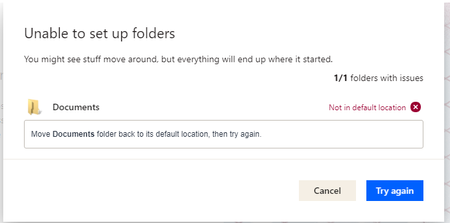
I had used Dropbox before, worked great. I had to reinstall it to today because of reasons. When I wanted to set it up again, I checked to backup the Documents folder but got the message below. Also, in my File Explorer, the option to "Backup to Dropbox" is no longer there.2.6KViews1like10Comments
Macbook Pro Update Moved My Files and now I can't locate my Documents.
Hello, I recently updated Dropbox on my MacBook Pro and instantly regretted it. For whatever reason, Dropbox decided all of my files needed to be moved upon the newest update. Unfortunately, not all of my files wound up where/how I expected. When the update was complete, my Documents folder appeared empty, and I was very confused. However, upon closer inspection, I looked in my Documents folder with Terminal, and my files are actually there, but they are not appearing in Finder. Unfortunately, I don't believe it's as simple as Hidden vs Not Hidden because I have Finder set to show Hidden Files, and they are still not appearing there. Here's how my file structure works (I have a feeling this has something to do with it, and this may well be extremely suboptimal by Dropbox's new standards): Like most MacBook users, I work out of three main folders: Documents, Downloads, and Desktop. Right now, the Downloads and Desktop folders in my MacBook user folder are synced with folders of the same name located in "My Mac([Computer name].local)". I can make changes in the user folders and see them reflected in Dropbox folders. That's how I've worked with it for many years, and I suspect that the latest update doesn't like that very much because the update said something about separating Backups from Sync entirely. It's possible I've misinterpreted something here, so please let me know if you know better, but that was my understanding of the reason for moving files with the update. So, here are my questions: How can I make these files/folders visible again? More importantly, is there a downside to working with Backups in this way? I'm not totally against changing the way these work (I can accomplish similar workflows with shortcuts after all), but I want to make sure my Backups are maintained. Please let me know if I can provide any further information to help diagnose this problem. Thanks, Brandon5.2KViews1like16Comments