2025 sparked some incredible conversations across our community 👩💻. Discover the highlights and see what’s ahead in 2026.
File requests
2 TopicsOrganize and share Christmas photos with Dropbox
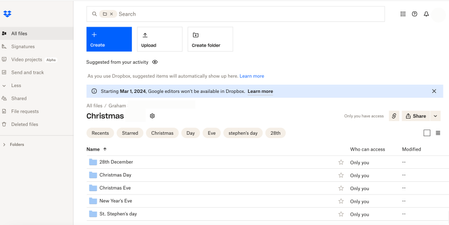
Christmas is definitely a time of year that I find myself taking more pictures than normal. Meeting up with family and friends and wanting to capture special moments means that I have my camera on more than I don’t. If you’re anything like me, you’ll want to be able to share all of these photos with those closest to you. Social media can be a good way to share photos, but there are definitely times when we might want to keep these photos within a private group of people, especially when family are involved, Dropbox makes it easy to share with exactly who you want. To start with, I’ll always make sure that my camera uploads are turned on. You’ve probably heard me talking about this a few times before, but I’ll stand by my words again because I love this feature, it saves me time, space on my phone and makes sure I never lose any photos, so it’s a no brainer for me. If you don’t know how to turn on Camera uploads you can find all the information you need right here. Now that all my photos will be automatically added to my Dropbox account, I’ll figure out a way to organize all of the photos I take at Christmas into folders. Generally speaking, I’ll be meeting up with a lot of different groups of people on different days, so I’ll only want to share photos with the people that are in them, so I’ll start by making a Christmas folder, then inside that I’ll make folders for Christas Eve, Christmas Day, Stephen’s Day, New Years Eve and any other days I might be out and about. Then, dependent on what I’m doing, I might make different folders within these daily folders, for example I might do Christmas morning swim and Christmas Dinner, or Stephen’s Day lunch and Stephen’s Day drinks. Once I’ve got my folders created and all my photos put in the right place, it makes it really easy to share with all of the other people who I was with. To do this, all I need to do is create a view-only shared link to the folder I want to share, and share it with everyone who I was with when I took those photos, or anyone else I want to see them. This link will allow anyone with access to it to view and download the photos inside that folder. If you’re not sure how to create shared links, you can find out everything you need to know here. Now, if your friends and family are anything like mine, you’ll know there are 2 types of people, those who take photos and those don’t. When I want to add photos that friends or family took to my collection, I use file request. This allows them to simply add their photos, which then go directly to my Dropbox account, allowing me to easily add them to the folder they belong in. You can find out more about using file request here. When it comes to using Dropbox for organizing photographs, there are literally hundreds of things you can do, and everyone uses it a little different to everyone else. Check out how our very own Sheena used Dropbox to help create a Christmas Family Calendar for another awesome example. We’d really love to hear how you plan on using Dropbox to organize your photos this Christmas, let us know in a comment below.3.7KViews1like0CommentsSeamless Photo Collaboration with Dropbox
Working on projects with remote clients and endless file transfers? If you're a photographer, you know the joy of trying to send a stack of huge files across the world. Get ready to have your mind blown, I’m about to share some tips for remote collaboration on photography projects, whether it’s organizing shoots, sending revisions to clients, or just making teamwork a little smoother ⭐. Large Files, No Problem (Seriously) You’re ready to send those high-res photos or a full video project, but... oh wait, it’s the size of a small planet. Dropbox Transfer to the rescue! You can send files up to 250 GB - yes, that’s GB, not MB. Plus, you get to see who’s opened the file, so no more “Oh, I never got it!” excuses from clients 😉. And here’s the best part, they don’t even need a Dropbox account to access it. Just send the link, sit back, and wait for the compliments (or minor tweak requests, of course). Large Files, Tiny Downloads (Because Who Has All Day?) Let’s talk downloads. Sure, you love working with high-res photos, but do you love waiting for them to download while your coffee goes cold? Probably not. Dropbox lets you convert those enormous image files into smaller, preview-friendly versions 🤗. Got a RAW photo that’s the size of a small mountain? Bam.. it’s now a lightweight JPEG that won’t make your Wi-Fi cry. Perfect for quick previews or where your Wi-Fi is giving 1996. Don’t Worry About Large Files Remember when reviewing photos meant endless downloads and crossing your fingers that everyone had the right software to open those giant files? Well, worry no more! Dropbox’s preview game is 🔥. Clients and collaborators can check out your high-res shots without downloading a thing. Need to zoom in on those details or scroll through a whole series at once? Easy peasy, no extra apps needed. Just sit back, let them preview away, and enjoy the look of awe when they realize you’re a file-sharing wizard 💌. And there you go! Whether you’re wrapping up edits, collaborating with editors halfway around the world, or just trying to get files to your clients without a headache, Dropbox is here to help 💪. We’re all about making things easier, quicker, and way less stressful, so you can focus on what really matters 💫. Speaking of which, do you have any go-to online photography tips you use to streamline your process 🤔? Leave a comment below to share your remote photography experiences, and you might be highlighted in future photography threads.204Views0likes0Comments