Your workflow is unique 👨💻 - tell us how you use Dropbox here.
Folders
133 Topics
Un-syncing DELETED/MOVED folders instead of "un-syncing"!?!
I initiated a sync change on one our computers, un-syncing about 50% of various top level folders (and their contents) to that device. Then I noticed on our OTHER computers/devices those folders and MANY others were now missing!? Maybe Dropbox accidently "un-synced them everywhere" ... which it shouldn't have! I next logged into our Dropbox directly via browser and sure enough our entire directory structure was riddled with missing/incomplete/relocated folders I have opened a support case for this, #26124591. But to date, only partial restorations have been made. I have since requested that our ENTIRE directory structure be correctly restored prior to March 5th, as that's the only way to resolve this huge mess Dropbox made of our files and ensure we get ALL our data back. Does not instill confidence in Dropbox ... a caution to those of you un-syncing files/folders. Hope you have a recent backup of your own making at hand. If Dropbox can't restore your account folders/files accurately (or at all) your data be gone :-(102Views0likes9Comments
sort photos in folders by date taken
I have organized some of my photos into folders. Within those folders, the only option to sort by date is by the modified date, which appears to be when I uploaded the photos into the folder. However, if I look at the file info on the photo, I can see the date taken or date created, which appears to be when I took the photo. It would be very helpful to be able to sort all the photos in a folder by the date taken.37Views2likes2Comments
How safe is it to move my Dropbox folder to an external HDD drive?
Hi everyone, I am a video editor working with large RAW footage files through Dropbox and I'm trying to optimize my storage setup after adding a new drive. My setup is a newly purchased 10TB External HDD and a 2TB external SSD. The Dropbox folder is currently on the SSD because when I frist set everything up, the SSD was my only external drive. Now that I have the 10 TB drive, I am considering moving the main Dropbox folder there to free up space on the SSD. My proposed workflow is to move the dropbox folder to the 10TB HDD and let all synced files live there. When starting a project, I would manually copy the specific folder from the HDD to the SSD and edit directly from the SSD for performance. After finishing, I would move everything back to the HDD inside the dropbox folder for syncing. My questions are: Will it work? Is this a stable and safe setup long term? Are there risks if the external HDD disconnects while Dropbox is running? Does anyone here use a similar HDD and SSD setup for video editing? I am trying to balance performance and storage efficiency without creating sync conflicts or data loss risk. I appreciate any advice from people who have experience managing large media files with Dropbox. Thanks.Solved130Views0likes10Comments
Opening my Dropbox folder is causing Finder to beachball and then lock up
Application Affected (Dropbox and OS X Finder) Operating System/Browser (if using the web) OS X Sonoma Dropbox App Version (if using the app) 242.4.5815 Question or Issue On OS X Sonoma - when I click on the Dropbox folder in finder it beachballs - from ~15 - 30 seconds, sometimes a couple of times. I can't then access any other folders in finder i.e. it locks up all of finder. Tried a bunch of approaches clearign caches etc- does anyone have a potential verified fix for this issue?42Views0likes2CommentsRemoving Dropbox Context Menu Entries on Windows - Persistent Fix
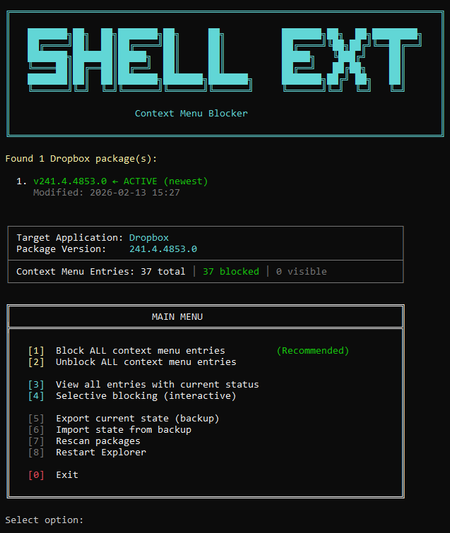
I've seen dozens of threads here from people trying to get rid of the Dropbox right-click context menu entries on Windows. There is no official toggle for this. The common advice involves manually editing registry keys, but people report those changes revert after Dropbox updates. Here is my solution: The linked script solves that differently. Instead of modifying Dropbox's own registry entries (which Dropbox overwrites on update), it uses Windows' built-in Shell Extensions Blocked mechanism — a per-user registry key (`HKCU:\...\Shell Extensions\Blocked`) that Windows itself respects. Dropbox updates don't touch this key because it's not theirs. What it does: Reads Dropbox's AppxManifest to find all context menu CLSIDs automatically Blocks them using Windows' own sanctioned blocking method Fully reversible — unblock everything with one click Interactive menu or silent command-line mode for automation Tested for 2+ months across three machines via PowerShell 7, through multiple Dropbox updates. The entries have never come back. The script is open, readable, and modifies nothing outside that single user-scoped registry key. If you want an independent safety assessment, paste it into any AI assistant and ask. Here is the script + AI safety assessment: https://grok.com/share/bGVnYWN5_e1f2cac5-5e0f-4731-bbbe-63fd72af7a7b146Views1like4Comments 58Views0likes3Comments
Windows Explorer hangs for 30 seconds
Application Affected (Dropbox Basic) Device Asus Z170-PRO custom build w/ Intel i7-6700K Operating System/Browser (if using the web) Windows 10 Dropbox App Version (if using the app) (242.4.5815) Question or Issue I open Windows Explorer and navigate to the Dropbox folder. When I double-click on a folder in the right panel of Explorer it hangs for 30 seconds. Then the contents are displayed. If I open the folder by using the left navigation bar Explorer does not hang. When I Quit the Dropbox app from the task bar, the hang still occurs. The Dropbox folder is the only one where this hang occurs. Note: I have two Windows user accounts with two separate Dropbox accounts.Solved56Views0likes4CommentsCan't access shared link. Getting an error that the link has been deleted.
I have been trying to open a dropbox link shared to me. This is a link that was sent by somebody to the person who sent it to me; they have just passed it on. They can access and use the files on the link, but I cannot. Originally I was sent a HTML file in which I can see the files and press the links to open the individual files, but then I get the following error: 'You don't have access. You can ask the person who shared the link to invite you directly.' I have now been passed on the exact link that was sent to the person who sent it to me, who again can open the files fine. I get the following error: 'This link has been deleted. The owner of this link has deleted or disabled this link. You cannot access it at this time.' I think is the more important error to consider as the html file may cause permission errors etc. I have tried everything on Safari, Firefox and Google Chrome and have logged into two different accounts and tried being logged out too. If I am not logged in, and I remove anything past 'rlkey' in the link, it tells me that I can sign up for free and that to keep the file secure it needs to confirm my identity, with the name of the folder included etc. I think possibly as well as being sent the link, the original person may have been added directly to the folder? However if I don’t have access, why does the link tell me it’s been deleted when the other person can still access it right now. They have told me this is all they have been sent. This link is being emailed to many people every month as it is a work resource for a tour. Any help is much appreciated182Views0likes2Comments