Your workflow is unique 👨💻 - tell us how you use Dropbox here.
Mobile
17 Topics
Android 14: Camera Uploads needs access to storage
Those of you who have this error: 1. In Android Settings, go to Apps. Select Dropbox. 2. Click "Force Stop". 3. Click "Permissions". 4. Click on "Photos and Videos". 5. Select "Don't Allow". 6. Restart Dropbox. Open Dropbox Settings. 7. Click on Camera Uploads. 8. Dropbox will ask you for permission again. Select "Allow All". 9. Done. It's fixed.Solved12KViews22likes16Comments
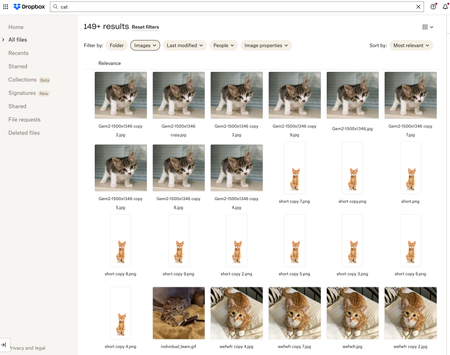
Did you know... you can search for images using just text?
Hello Dropbox Community! My name is Lainie and I'm a Product Manager at Dropbox. Every now and again, I am going to post a "Did you know..." to 1) keep you informed of all of the cool technology that exists at Dropbox and 2) gather your feedback on how the features are performing. In today's, "Did you know..." I'll be talking about Image Search! Image search is allows you to use the Search Bar to search for the contents of the image using words to describe the image. For example, if you search for "cat" your search results will show files that 1) contain the word "cat" in the file name or body, AND 2) files that contain images of cat. No mention of the word "cat" is necessary! Pretty cool! If you haven't yet, I recommend that you check it out. Please respond to this thread and let me know... A) Did you know this feature existed? Do you use it? B) How can we make this even more useful for you? Have a great day! Lainie For more information, check out our Help Center Article on Image Search!9.5KViews9likes3CommentsHow Connie, a member of the Community, uses Dropbox
We love hearing how you, the Community members use Dropbox. Everyone has their own favorite features and little hacks, so we want to share some with you! Up first, we have Connie (ConF2_0), a long time Dropbox Plus customer, member of the Dropbox Community, and avid Vault user. Connie sat down with Gavin, a member of our Dropbox team, and told him all about how she uses Dropbox and why she loves Vault. I am Connie and I currently live in Germany. I've lived here for two years now. I've been a speech language pathologist for more than 30 years and that's what brought me to Dropbox, actually. I worked in a school setting for years and I frequently needed to be able to take work home. I needed a way to do this without having to carry stuff and make copies. I could email my spreadsheets, and reports and things, but I kept thinking “I don't know, emailing doesn't really make me comfortable - it's supposed to be really secure, but I'm not sure." I honestly cannot remember how I stumbled on Dropbox but I thought, “Oh, this is perfect!”, so I set up my account and I've been a user ever since. I was able to start writing my notes and reports at school, and then put them in Dropbox and finish them up when I got home. I could work on my spreadsheets and lesson materials at home and have them back at school waiting for me the next day. My only concern was that as a health care provider, you need to be able to ensure security and privacy. Before Vault, I was using a third party app to encrypt my school files. I thought “there's got to be another way, Dropbox has got to be able to do this”. That third party app was sometimes cumbersome and I'd lock myself out of files. Now, it's so easy - anything that I need to have protected gets uploaded to the Vault - done. No extra passwords to remember, no extra copying and/or downloading! Thanks Connie! We love to hear stories like this and how we can make Dropbox better for all of you. How do you use Dropbox? Tell us in the comments below! Share your tips, tricks, the features you love and how you make the most of Dropbox, whether it’s at home, at work or at school!10KViews8likes4CommentsUsing your mobile device to stay in the loop while working from home
When you’re in the office, you may be used to working exclusively on a laptop or desktop computer. Now that you’re working from home you may want to change your habits, and make more use of your mobile devices. Learn how to make the most of your mobile access to Dropbox. Access your Dropbox files and folders anywhere by downloading the Dropbox app to your phone or tablet, it’s available on Android, iPhone, iPad, and Windows mobile. Once you download the app and sign in you can; Find all your Dropbox files and folders are right there and ready to use so you can check in easily, without booting up the computer Take photos and videos using your built-in camera and save them directly to your Dropbox, which is helpful if you’ve found yourself scribbling on physical paper lately Make important files available for offline access— Dropbox will automatically upload any changes once you’re back online Share your files with coworkers via links in an email, text messaging, or another app, so everyone is in the loop, even if they’re not at their desk right now. If you already have Dropbox on your phone for personal files, but you want to connect your Dropbox Business account to keep in touch with the team, don’t worry, they can both be logged in and kept separate, so you don’t upload secret family recipes to your team work space. Here are the instructions on how to connect your personal and work Dropbox accounts for simple but separate access. If you don’t want to download an app, you can also access your Dropbox files and folders from a mobile browser. Visit dropbox.com on your mobile device and we'll automatically redirect you to the mobile-optimized website. Have you been working differently when you’re not in the office?4.5KViews7likes0Comments
iPad Files app not showing Dropbox folders and how I managed to solve this.
In working with a new iPad, I discovered that the Files app was not correctly connecting with Dropbox. No Dropbox folders showed up either in the Files app or in any other app with an open feature that would normally have been able to access Dropbox files. Oddly, when I clicked “Dropbox” in the list, there were no folders but I could add a folder and that new folder showed up in Dropbox on other devices (and in the Dropbox app on the iPad)! So there was some connection but not much… This is not an issue I’m experiencing on any of my other Apple devices (Mac or iOS). In talking with Apple support they had me delete the Files app, reboot the iPad, then reinstall “Files.” I did that, but to no effect. They escalated me to a higher level of support but while I was waiting, I also deleted Dropbox and reinstalled it. That solved the problem! So, if you can’t access your Dropbox folders and files in Files or in any of your other iPad apps, just delete and reinstall Dropbox—problem solved (at least for me, this time!)6.4KViews4likes6CommentsBack to school - forget the lunchbox, organize everything else
It’s that classic back to school time of year, and whether you’re a student, a teacher, an administrator or have a friend or family member going back to school, here is a list of things to make your day easier! Create a folder system in Dropbox that makes sense Before you start classes (teaching, learning or organizing them), you should take the time to create a folder system that makes sense for you. Whether it’s by class, by file type, by how much you hate or love a subject is entirely up to you, but make sure there is a sensible place for your files to go, once they start flying in! Create a to do list that you update daily or weekly with Paper This is something my student-self should have done - but it’s something my work-self does and I cannot recommend it enough! Yes, we all have tools and emails and reminders but a humble to-do list can really create a clear headspace, where you can see what’s on your plate in as much or as little detail as you need. With Dropbox Paper, you get that satisfying tick sensation, without the actual paper waste. Create a project calendar, and link important dates to your to do list The start of term is heavy with dates - finals, papers, labs, whatever it is - get it in your calendar now. Dropbox integrates with both Google and and Outlook calendars, so you can link to the documents, the curriculum, whatever you think will be useful when you’re two days from the deadline. Create your group project folders ASAP If you know you have a group project coming up, create the work space asap with Dropbox Spaces, and add people as soon as you know who you’re working with. The earlier you’re all on the same page (literally), the better! Make the most of the Scanner app Now you can save, organize, and share important documents right from your phone with the Dropbox Scanner App. Scan in materials from classes or seminars for easy reference— they’re a lot less likely to get crumpled or torn in a digital setting! Zoom integrations There’s a high chance some of your back to school experience will be happening on Zoom, so make sure you have that integrated to save time. You can learn more about that here. These tips might make your day a little easier, but we want to know, what are your back to school Dropbox tips?2.5KViews4likes0CommentsTell Us How You Use Dropbox
No two people use Dropbox in exactly the same way. Some of you rely on it every day for work, others for school, creative projects, or keeping life organized - and we love that. We’d love to hear how you’re using Dropbox today - is it something you use once in a while, is it part of your day to day, are there any features you can’t live without? What workflows have you built that save time or reduce friction? And where do you see opportunities for us to do better? Your tips, ideas, and honest feedback really help us to make sure we can share useful tips, and they help other community members discover new ways to get more out of Dropbox too. Share your experience, favorite features, or suggestions in the comments below. Your voice truly helps shape the future of the Dropbox community 😁 The Dropbox Community Team2.4KViews3likes11CommentsHow to free up space with online and offline file options
Storing and saving your files is important, and making sure your files are available where you need them can help with that. So, let’s figure out if you need to have your files available online or offline. Why should I make my Dropbox files available offline? Whatever device you’re using with Dropbox, whether it’s a computer, tablet, or phone, you can make your files and folders available offline. This is similar to downloading your files, except it also keeps them in Dropbox. This way, your files are saved offline on your device as well as online in your Dropbox account. So, whether you’re on the move, or you have wifi that drops, you can make your files available offline and keep on working. While you’re offline, changes made to your offline files won’t “sync”. This means that the changes you make offline won’t sync between your offline device and everywhere else you access your files in Dropbox. Once you are back online, Dropbox will sync the changes you made to your offline files everywhere you access them in Dropbox. How do I make files available offline? The short version of it is, within your Dropbox folder in File Explorer (Windows) or Finder (Mac), find the file you’re looking for and right-click on it, and then simply choose Make available offline. Easy! For more info, you can head over here. What are Dropbox online-only files? As the name suggests, these files are available only when you’re online. Since this frees up space on your computer or your hard drive, it is the perfect option if your laptop is at capacity, but you still want to access your files. If you set a file or folder to online-only, you’ll still see the file or folder in the Dropbox folder on your computer, but it’s just a placeholder. You can only open it if you’re connected to internet. Dropbox removes it from your computer’s hard drive, so that it only takes up space in your Dropbox account online. How to make a file or folder online-only: To set a file or folder to online-only manually: Open File Explorer (Windows) or Finder (Mac). Open the Dropbox folder. Right-click the file or folder you’d like to set to online-only. Under Quick Actions, click Make online-only. If you’d like to save your file or folder back to your computer’s hard drive, repeat this step and click Make available offline. So, now you know the difference between online-only and offline files and when each one might suit better. So, why not look at your files and folders and see if you can free up some space? Do you separate your files depending on where and when you need them?9.1KViews3likes1CommentWhat’s included in my Dropbox plan? Plus edition
If you use Dropbox there are a ton of amazing features available to you, but different plans have different features so we want to make sure you know exactly what you have access to! This time, we’re going to focus on Dropbox Plus accounts - so listen up if you’re a Plus user. Here is a list of the features available to Plus users, that I’m sure most people are already aware of, or using regularly already, but it never hurts to be reminded! 2 TB (2,000 GB) of storage space. Shared folders and links - learn the ins and outs of links here. Dropbox Paper - this is a big one, so here’s a refresher on that. Anywhere access Integrated desktop experience Best-in-class sync technology Mobile offline folders Camera upload Send up to 2 GB per Transfer File requests Web previews and comments Viewer info Remote device wipe File recovery and version history - 30-day history Dropbox Rewind - 30-day history Full text search Plus button Web previews and comments Integrated cloud content 256-bit AES and SSL/TLS encryption So those are the ones you likely already know, but there are some new and exciting features for Dropbox Plus users this year as well, and now’s your chance to learn all about them. Dropbox Family The Dropbox Family plan has 2 TB of storage space that can be shared by up to 6 members, even grandparents or kids away at college. With Dropbox Family, you and your family can securely organize and share content, like photos, videos, and important documents. Dropbox Passwords: Dropbox Passwords lets you seamlessly sign in to websites and apps by storing your passwords. The Passwords app remembers your usernames and passwords on all your devices—so you don’t have to. Dropbox Vault: Dropbox Vault helps you secure and organize your most sensitive information in the cloud. Vault is a PIN-protected folder in your Dropbox account that you can access any time and on any device. There’s even more new features, including Computer Backup, Hellosign and the App Centre so you can get more details here. Support: If you need help with your Plus account, you have access to priority email support, the Help Centre, and of course the Dropbox Community is always here to help.38KViews3likes2CommentsHow to back up your computer with Dropbox
No more lost files, crashed computer disasters, or being out of sync on different devices. Let’s make sure 2021 is the year that everything important is backed up. Luckily, we have this covered for you, you just need to update your settings on Dropbox. Check out the video below to see how to backup your computer with the touch of a button. What Dropbox tips did you try out in 2020? 2KViews2likes0Comments