Your workflow is unique 👨💻 - tell us how you use Dropbox here.
Mobile
17 TopicsTell Us How You Use Dropbox
No two people use Dropbox in exactly the same way. Some of you rely on it every day for work, others for school, creative projects, or keeping life organized - and we love that. We’d love to hear how you’re using Dropbox today - is it something you use once in a while, is it part of your day to day, are there any features you can’t live without? What workflows have you built that save time or reduce friction? And where do you see opportunities for us to do better? Your tips, ideas, and honest feedback really help us to make sure we can share useful tips, and they help other community members discover new ways to get more out of Dropbox too. Share your experience, favorite features, or suggestions in the comments below. Your voice truly helps shape the future of the Dropbox community 😁 The Dropbox Community Team2.4KViews3likes11Comments
iPad Files app not showing Dropbox folders and how I managed to solve this.
In working with a new iPad, I discovered that the Files app was not correctly connecting with Dropbox. No Dropbox folders showed up either in the Files app or in any other app with an open feature that would normally have been able to access Dropbox files. Oddly, when I clicked “Dropbox” in the list, there were no folders but I could add a folder and that new folder showed up in Dropbox on other devices (and in the Dropbox app on the iPad)! So there was some connection but not much… This is not an issue I’m experiencing on any of my other Apple devices (Mac or iOS). In talking with Apple support they had me delete the Files app, reboot the iPad, then reinstall “Files.” I did that, but to no effect. They escalated me to a higher level of support but while I was waiting, I also deleted Dropbox and reinstalled it. That solved the problem! So, if you can’t access your Dropbox folders and files in Files or in any of your other iPad apps, just delete and reinstall Dropbox—problem solved (at least for me, this time!)6.4KViews4likes6Comments
Did you know... you can search for images using just text?
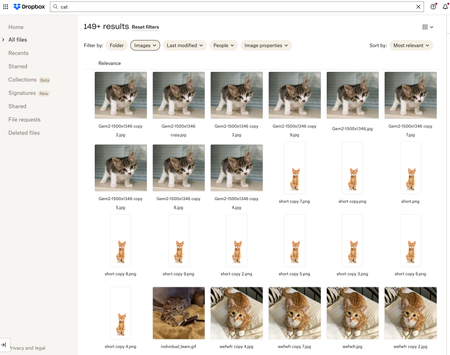
Hello Dropbox Community! My name is Lainie and I'm a Product Manager at Dropbox. Every now and again, I am going to post a "Did you know..." to 1) keep you informed of all of the cool technology that exists at Dropbox and 2) gather your feedback on how the features are performing. In today's, "Did you know..." I'll be talking about Image Search! Image search is allows you to use the Search Bar to search for the contents of the image using words to describe the image. For example, if you search for "cat" your search results will show files that 1) contain the word "cat" in the file name or body, AND 2) files that contain images of cat. No mention of the word "cat" is necessary! Pretty cool! If you haven't yet, I recommend that you check it out. Please respond to this thread and let me know... A) Did you know this feature existed? Do you use it? B) How can we make this even more useful for you? Have a great day! Lainie For more information, check out our Help Center Article on Image Search!9.5KViews9likes3Comments
How to easily create a file shortcut on Android using MS Word which works with Dropbox cloud files
Appears to work with any document that you can get to open in Android MS Word app (doc, docx, pdf, etc). I've also seen it work for at least one other program (maybe was One Drive) that had that same "back" left arrow. From my Dropbox app on my android phone, I open Word and PDF files in MS Word then use the FILE method below to create FILE (not folder) shortcuts to my Dropbox cloud files. So with one tap to the shortcut, I can quickly open the latest synced Dropbox file version. Android FILE shortcut creation: Open file in MS Word on an android phone. Tap the "Back" arrow. (The left pointing arrow in top left-hand corner of screen - NOT the "back" button in the navigation bar at the bottom ). This will take you to the "Recent" screen. Tap on the 3 vertical dots (vertical ellipsis) to the right of the file that was just opened. Select "Add to Home screen." Touch and hold the icon that is show or tap "Add" to add this shortcut to the Home screen. If no room on the home screen, it will be added to another screen. Sigh contentedly🙂 Android Dropbox FOLDER shortcut creation: Long press any empty space on the home screen. Select "Widgets." Scroll down to "Dropbox." Tap the expand down arrow Select the Dropbox icon Select "Add." Select the FOLDER that you want the shortcut to open (single files cannot be selected with this method) Select "Create Shortcut."1.8KViews0likes1CommentWhat you need to know about storing and backing up your photos with Dropbox
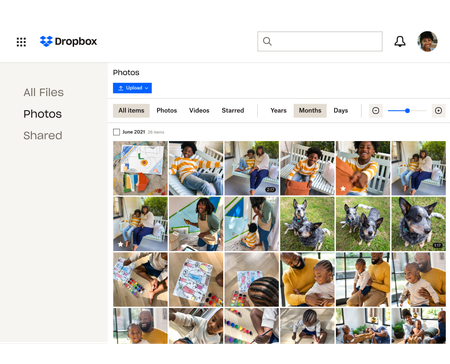
We see a lot of questions about storing, sharing and backing up your photos on Dropbox so here are some tips to make that as easy as possible! Back up photos automatically to your Dropbox account You know we love an automatic process, so whether it’s your camera roll photos, your screenshots or your document scans, your cloud photos are some of the most important files you have. In fact our own Emmet told us about a time when he almost lost his photos due to a tech malfunction - “One of my old hard drives of photos got corrupted several years ago. This was almost a year of photos. Thankfully, lot of these had been saved to my Dropbox account automatically, and this was important as a couple who I was friends with wanted a high definition photo of them from the first night they went out together, and I was only able to share it on their wedding day because it was saved on Dropbox.“ Keeping full-resolution copies backed up with online photo storage means you can access them anytime, and you know there is a safe and secure copy in the cloud. Here are just a few ways Dropbox can keep your photos safe: Camera uploads: Once you turn this on, photos from your phone or tablet will be automatically backed up to Dropbox. Or in our desktop app, photos will be copied from cameras, memory cards, or mobile devices whenever you connect one to your computer. Screenshot backups: You can set up our desktop app to automatically move screenshot images to your Dropbox, or have mobile device screenshots backed up using camera uploads. Document scanning: The native/built-in scan functionality in the Dropbox mobile app lets you use your phone’s camera to scan and make digital backups of receipts, whiteboards, and paper documents. Share your photos with links, shared folders and control access Storing your photos is great, but chances are you will want to share some - whether it’s with family members, teammates or the expense team at work. There are a few ways you can do that, and you can manage the access with a few clicks as well. Shared links: You can easily create a link to share any file or folder in your Dropbox. Copy and paste your link into an email, text message, or chat, to share with anyone—even if they don’t have a Dropbox account. Access control: Keep your photos in the right hands by adding password protection, expiration dates, and sign-in requirements to your shared links. Shared folders: Want to collect your photos and someone else’s in the same place? Share files back and forth by inviting other people to sync a folder between your account and theirs. Organize your photos: Saving and sharing your photos can be great but it’s no use if you can’t find the one your looking for, so organizing and viewing your photos is essential too! Here are some tips on how to do that, and if that’s not enough you can see how our own Eliene organizes her photos. Photo browsing: View and browse all of your photos and videos from the Photos tab in our mobile app or on the web. Image previews: View over 35 image file types from dropbox.com or our mobile app. You can preview common files like JPEG, PNG, TIFF, and GIF; app-specific types like Photoshop and Illustrator; raw formats like CR2, DCR, and DNG; and even iOS HEIC photos. Best of all, there’s no need for special photo software. Image tagging: Find your photos fast by adding searchable hashtags to individual photos or an entire folder. How do you manage your photos with Dropbox? Share your tips in the comments below, or if you have any questions you, we can answer those too!4.8KViews1like2Comments
Android 14: Camera Uploads needs access to storage
Those of you who have this error: 1. In Android Settings, go to Apps. Select Dropbox. 2. Click "Force Stop". 3. Click "Permissions". 4. Click on "Photos and Videos". 5. Select "Don't Allow". 6. Restart Dropbox. Open Dropbox Settings. 7. Click on Camera Uploads. 8. Dropbox will ask you for permission again. Select "Allow All". 9. Done. It's fixed.Solved12KViews22likes16CommentsHow to free up space with online and offline file options
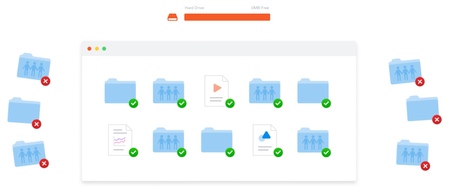
Storing and saving your files is important, and making sure your files are available where you need them can help with that. So, let’s figure out if you need to have your files available online or offline. Why should I make my Dropbox files available offline? Whatever device you’re using with Dropbox, whether it’s a computer, tablet, or phone, you can make your files and folders available offline. This is similar to downloading your files, except it also keeps them in Dropbox. This way, your files are saved offline on your device as well as online in your Dropbox account. So, whether you’re on the move, or you have wifi that drops, you can make your files available offline and keep on working. While you’re offline, changes made to your offline files won’t “sync”. This means that the changes you make offline won’t sync between your offline device and everywhere else you access your files in Dropbox. Once you are back online, Dropbox will sync the changes you made to your offline files everywhere you access them in Dropbox. How do I make files available offline? The short version of it is, within your Dropbox folder in File Explorer (Windows) or Finder (Mac), find the file you’re looking for and right-click on it, and then simply choose Make available offline. Easy! For more info, you can head over here. What are Dropbox online-only files? As the name suggests, these files are available only when you’re online. Since this frees up space on your computer or your hard drive, it is the perfect option if your laptop is at capacity, but you still want to access your files. If you set a file or folder to online-only, you’ll still see the file or folder in the Dropbox folder on your computer, but it’s just a placeholder. You can only open it if you’re connected to internet. Dropbox removes it from your computer’s hard drive, so that it only takes up space in your Dropbox account online. How to make a file or folder online-only: To set a file or folder to online-only manually: Open File Explorer (Windows) or Finder (Mac). Open the Dropbox folder. Right-click the file or folder you’d like to set to online-only. Under Quick Actions, click Make online-only. If you’d like to save your file or folder back to your computer’s hard drive, repeat this step and click Make available offline. So, now you know the difference between online-only and offline files and when each one might suit better. So, why not look at your files and folders and see if you can free up some space? Do you separate your files depending on where and when you need them?9.1KViews3likes1CommentWhy keeping an active email address can stop you getting locked out of Dropbox your account
*Note from Amy* Graham covers all of the most vital information here, but I just wanted to check in here as well, and ask if you have any experience with this issue? And to find out how best to share this info with new Dropbox Community members, to ensure that no one gets locked out of their account? Now, without further ado, on to Graham's wonderful piece. When you first signed up to Dropbox, you would have been asked to enter an email address to create your account. Whether it’s Basic, Plus, Family or any Dropbox plan we have ever offered, an active email address has, and always will be, a non-negotiable condition of membership. Therefore, it is important to ensure you’re using an active email address with your Dropbox account. Explore how to change your email address if you need to, and what to do if you’ve already lost access to your associated email address. Why is an email address important? There are a number of reasons why you need an active email address, most of them revolving around keeping your Dropbox account, and all of the files and folders you keep in it, safe. You can use it to sign in, to receive verification codes, and for changing your password, so it’s a pretty important element of your Dropbox account. That being said, it’s a very good idea to make sure you keep this email account active as long as you plan on using Dropbox. Look, we’ve all had an email account at some stage in our life that we no longer have access to. To be honest, for most of us, it’s probably more than one. Changing jobs, graduating from a school or university, or just changing email service provider, realising that your first email address (hotdude1999@hotmail.co.uk) isn’t really appropriate any more, there are any number of reasons why you might no longer have access to an email address, so it‘s important to be careful with the one you have associated with your Dropbox account, or you could risk losing access to you account and everything you have stored in it. To make sure this doesn’t happen, here are a few things you can do to make sure you’re never locked out in the cold when trying to sign in to your Dropbox account. How to change your Dropbox email address When it comes to making sure you don’t lose access to your email address, prevention is definitely the best course of defence. If the email address you used is one that is connected to a job or any form of institution and it is likely that you might lose it at some point in the future, you can simply change your email address to your personal email or one that you will always have access to. It’s a pretty easy process and you can do it by following these simple steps. Sign in to dropbox.com. Click your avatar (profile picture or initials) in the upper-right corner. Click Settings. Under the General tab, find your email address. Click Edit next to your email address. If you see Verify email instead of Edit, you’ll need to verify your email address before you can change it. If you see an info icon (i inside a circle) instead of Edit, you’ll need to contact your admin to change your email address. Enter your new e-mail, confirm e-mail, and Dropbox password. Click Update email. We’ll send a verification email to your new email address. Open the email, and click Verify your email. You can read more about changing the email address on your Dropbox account here . Stay logged in Depending on what Dropbox plan you are on, you are allowed to sign in to your account on a minimum of 3 different devices. You can choose from a phone, tablet, laptop, desktop or anything else that works for you. If you have a device that only you has access to and you’re happy enough to keep yourself signed in to Dropbox it’s probably a good idea to stay logged in. The reason for this is, even if you lose access to the email address associated with your account, once you’re logged in on another device, you will still be able access your settings and do things like change the associated email address or reset your password. If you’ve already lost access to your associated email address If you’ve already lost access to your account, there are still a few things you can try to get back into your account. If you still know the email address and your password, you can try login as normal. If you’ve been using your account regularly and you’re on a device that we recognize, this might work for you and if so you will be able to access your account settings to update your email address. If this does not work for you and you are asked to enter a code that was sent to your associated email address, the only way you will be able to get back into your Dropbox account is by entering this code. In this case, if your email account was with a former employer or school, you should contact them to see if they can reactivate your email address, otherwise you can contact your email service provider and try to regain access that way. We’re all about keeping accounts as safe as they can be, whether it’s using two-step verification or a password manager, if it helps keep things safe, we love it! We’d love to hear about the extra steps you take to help keep your account safe at all times. Let us know in the comments below.1.3KViews1like0CommentsHow to delete Dropbox files off of your mobile devices
As the weather gets warmer, no one wants to be stuck inside at a desk all day, so using Dropbox on your mobile devices can keep you in the loop, and in the sun. Access your files from anywhere with the Dropbox mobile app, and never miss a beat. One of the things that can help to keep your mobile device healthy, is to make sure you only keep the files you need to, and a little spring cleaning can help. Keep your files and folders neat, tidy and efficient. Leave the folders you don’t need to be a part of: We recently shared some info on leaving folders you don’t need to be in anymore, and you can check it out here but the main thing to know, is it’s easy and you can delete files temporarily too. But the main thing is to make sure that the files and folders in your Dropbox account are the ones you need access to, and that they are organized how you like. What’s in a name: If your screen is small, and you need to access a specific folder, you don’t want to be scrolling for what feels like hours, so it might make sense to star your favourite files, or to ensure you name the efficiently for what you need, especially while you’re using a mobile device. I personally name my files specifically for alphabetical ordering reasons. A big project might suddenly be renamed ‘Acorn agenda: Project plan’ to make sure I can find it fast, because otherwise I end up starring everything! And what about star power? And when it comes to starring files, it can be so handy for your top favorites but much like a highlighter, if you star everything, you’ve essentially starred nothing. Your starred files and folders appear in the Dropbox mobile app Home screen in the Starred tab, so star carefully and you can find files quickly every time 🙂 File size matters: If you really want to be cut throat about how to manage the space on your mobile devices, you can review your files by size and look at offloading some of the bigger ones. You can also switch some of those files to online-only, and free up some space on your mobile devices too 🙂 Check out how to manage your online-only files here. How to delete files from Dropbox Mobile: Well, once you’re sure you want a file gone, here are the steps to follow: Open the Dropbox mobile app. Tap the “⁝” (vertical ellipsis on Android) or “…” (ellipsis on iPhone/iPad) next to the file or folder you’d like to delete. Tap Delete. If you want to learn a few more tips on keeping your Dropbox Basic account running like a dream, we’ve got you covered.1.5KViews0likes0Comments