Our Community is in read-only mode until April 8th, learn more here. You can still search existing threads or get help via Dropbox Support, the Dropbox Help Center, or Learn.
Permissions
30 Topics
Dropbox folder missing from indexed locations for searching on Windows 10
Device HP Desktop Operating System/Browser (if using the web) Windows 10 Dropbox App Version (if using the app) 238.4.6075 Syncing Status Up To Date Question or Issue I've not been able to find documents using search in my dropbox folder for a few weeks. I went to indexing options to remove dropbox from indexing and re-add it hoping it would rebuild the index. IT'S NOT THERE TO SELECT AT ALL!! I have my dropbox as a fold in Documents. When I go to C Users Myname Documents, dropbox is not there. I've right clicked the folder and in properties, went to advanced, UNCHECKED allow this folder to have contents indexed and applied that. Then I went back and checked it so they could be indexed and applied that. Dropbox is still not in the indexing options list of folders.863Views1like31Comments
Questions about shared folders, storage space and permissions
Hi all, After cleaning up all the mess in my Dropbox account I would like you to comment on two questions I have: As an example. .I have a folder A, and a lot of subfolders within that folder, called 1, 2, 3 etc. In the subfolder A1 there are a few subfolders, called, A1a, A1b etc. I want to share the subfolders A1a, A1b etc. The person I want to share folders with has a free Dropbox account (2 GB). I give them permission for A1a. So the person opens Dropbox goes into my account until the level of A1, finds the subfolder A1a, opens that and does what this person wants to do. As long as the folder A1a is smaller than 2GB that's okay for this person to do. After editing files within A1a, the folder may be closed and removed from the free Dropbox account. In this way this person has always 2GB available. One or more shared folders may not exceed 2GB. Is this a way to use Dropbox and shared folders? A shared folder can be opened by another person as long as necessary until I remove the permission, right? Thanks in advance and with kindest regards, Leo.Solved106Views0likes2Comments
File edit access in view only folder
Dropbox Plan (Personal) Are you a Team Member or Admin? () Do you have access to the email linked to the account? (Yes) Are there any devices connected to your Dropbox account? (Phone.) Question or Issue I have shared a folder and set permissions to view only. I want to give edit access to a single file within the folder, but when i select Manage Permissions, the permissions for all users is ghosted and can not be changed. I am the folder and file owner. Is there a way for me to change edit permission of individual files?68Views0likes2Comments
External users cannot upload to a shared folder they have edit access to
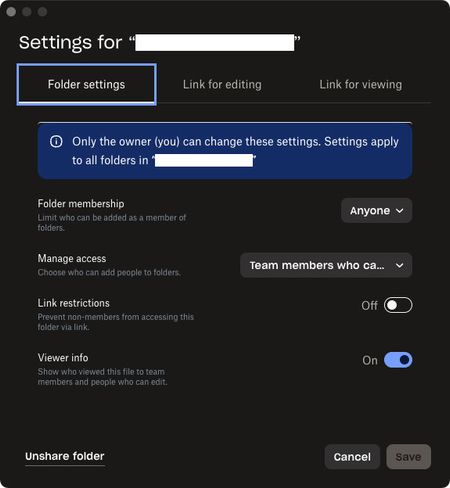
Been trying to get this to work for many years but always give up and use a different service. On my company’s team dropbox I want to create a folder with the purpose of collaborating with outside vendors. I can create invites, confirm access with edit permissions for the outside person, and they can join no problem, but they only ever have download permissions and can’t upload anything to our folder. Am I missing some permission setting? The other method of using a File Request for them to upload something does work but isn’t ideal. These are the settings used for the most recent attempt:290Views0likes5Comments
Questions about the "view-only" shared links
I read <https://learn.dropbox.com/self-guided-learning/dropbox-fundamentals-course/fundamentals-how-do-i-share-with-others#sharing-links,-your-way> I’ve set up a series of nested folders and a View-Only link. Q1: Is there any way that I can prevent one of my link-sent-to-visitors-view-only link from doing a Copy to Dropbox? To be clear, I want them to view it. I want them to download and enjoy what’s there. I know they will share some things. I just don’t want mass copy-everything-that’s-here, which is possible from the main folder I'm sharing. [I think they answer is that I can't stop it.] Q2: If a person I send my link to has their own Dropbox account and does a Copy to (their) Dropbox, can I know they did this? And please assure me that as it's copy not share, II will not be stuck having their folders/files and that I won’t see their stuff unless they specifically share their folders with me. Dropbox Plus Sharing via View-only link Not using a Dropbox folder on my Mac139Views0likes4Comments
I no longer see the "anyone with link to view" option for shared links on my Dropbox team.
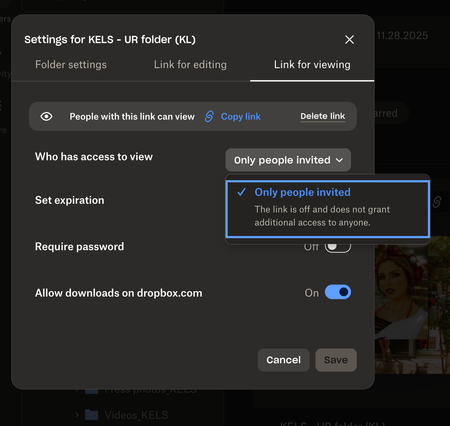
Help! I feel like I am going crazy trying to figure this out. I have a business account and recently have had trouble creating links so that anyone with the link can view. This is a new issue and one I haven't had before. It used to be so easy to create folders and links to share easily with colleagues but not no matter where I look, I am not seeing that option anyomore. It only gives me the option to invite individual people to view/edit the folders I am creating. Is there something I missing or a restriction I mistakenly added to my account? I'd rather "anyone with the link to view" be my default than it be protected as 90% of the time I want to create links that are easily shareable and viewable. See attached screenshot. Is anyone else having this issue as of late? Thanks in advance for any help you guys can provide!158Views0likes3Comments
The Dropbox desktop app on Mac keeps giving an error that 32 files are unable to sync
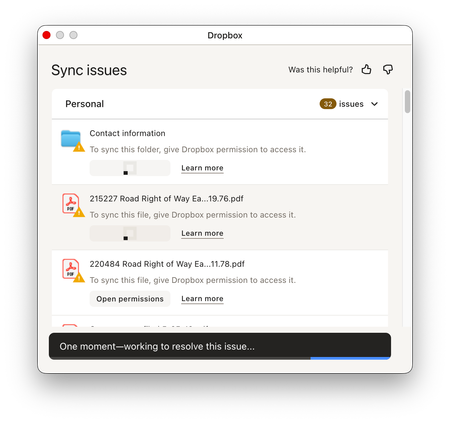
Dropbox Plan Plus Are you a Team Member or Admin? Admin Do you have access to the email linked to the account? Yes Are there any devices connected to your Dropbox account? Laptop Only Question or Issue Hi 32 files in my Dropbox folder refuse to sync. When I click See Issues it pops up a Sync Issues window that keeps flashing, reloading the list of sync issues every second or so. I was able to click the open permissions button next to the files before the screen refreshed to grant permissions but nothing ever happens. I have attached screenshots. I have already granted full disk access and accessibility permission to dropbox. I also deleted the dropbox and dropboxelectron folders from ~/Library/Application Support followed by an uninstall and reinstall. Any ideas what's going on? Also I have Malwarebytes Premium on this computer. Thanks.99Views0likes3Comments
Why does the Dropbox desktop app hijack my screenshots?
How to stop dropbox from taking my screenshots. The solutions privided do not work. There is no way to get the app to load on a mac. Opening the dropbox icon, which is supposed to open the app just opens the folder. The App never opens so the preferences section is never available to fix this screenshot hijacking issue. This is a known issue why is it not fixed?160Views0likes7Comments
"Disable downloads" feature not working on the desktop app
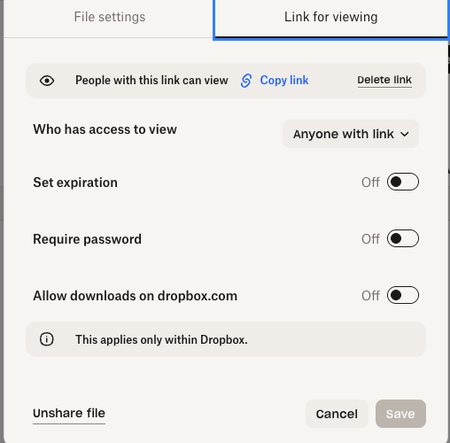
Hi, I have the essentials plan but I do not have the feature to disable downloads. I have the "allow downloads on dropbox.com" toggled off(see picture) but that doesn't work because someone can still download it. Can someone point to me where is this "disable download" feature that I see online? Does it even exist within my current plan? Any help would be greatly appreciated.206Views0likes5Comments