We’re Still Here to Help (Even Over the Holidays!) - find out more here.
Tips and Tricks
89 TopicsHow we use Dropbox: Sheena
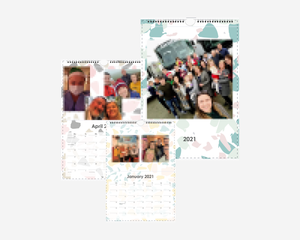
We’re back again with another dive into how we, Dropboxers, use Dropbox. This time we have the ever wonderful, social media master, code queen, Sheena! And we can add family file manager to this ever-growing list! I’m from a large Irish family, which means I have tons of cousins, aunts and uncles, and of course my wonderful grandparents. As the eldest cousin on my mother’s side, it generally falls to me to keep the cousins in line, and to gather the best gossip for my Grandmother! About 6 years ago my Grandmother mentioned that she felt she was missing out, as all of her grandchildren would share their best photos on social media, and she didn’t get to see them. That year I created the first Christmas Family Calendar. It was created using simple calendar creation websites, of which there are tons. I first got the pictures by looking at the family’s Facebook profiles and choosing lovely pics from holidays, parties and events throughout the year that my Grandparents would not have seen. Throughout the years, many of us have stopped updating Facebook as often, and some have stopped using social media altogether, so I needed a new way to gather the photos. This is when Dropbox came in! Three years ago, I created a File Request for the calendar photos, sent the link to the whole family… and that’s it. The photo’s simply rolled in throughout the year. Every so often I would send a reminder to add their best pics using the file request. By the end of the year I had more than enough photos, many that were never seen before as they were just stored in one of our phones until that point. This year, since we hadn’t been able to see each other as much as usual, I created the Christmas Family Calendar for my Grandparents as normal, and then as a special bonus I was able to send the full collection of photos to the whole family as a digital memory book for the year. Family pixelated to protect identities. Group photos taken prior to Covid-19 restrictions. Thanks Sheena! I might have to steal this for myself… How do you use Dropbox to share family memories?11KViews13likes1CommentTell us how you use Dropbox!
We have shared a lot of stories about how we use Dropbox, from using Dropbox to plan a wedding to organizing and planning a project, and now we want to focus on you and how you use it! So, to start, we would love to hear about how, and why, you started to use Dropbox. Whether it was to make sure your photos were safe, or to scan and save your receipts, or to work on a group project, we want to hear about it! Leave your stories in the comments, we want to learn from you - the more we know about how you use Dropbox, the more we can share tips and tricks that make sense for you. Looking forward to seeing your comments below!19KViews11likes35CommentsHow we use Dropbox: Alex
We’re back again to share how some Dropboxers actually use Dropbox in our real lives. This time it’s my turn - if you haven’t seen my name around before, I’m Alex, and I’m part of the Community team. I was one of those straight A kids in school. The obnoxious one who always thought she had the answer and would be upset if she didn’t get the highest grade (sorry….not sorry). I was always the organized nerd and thanks to that, I’ve been using Dropbox since my student days. It has been an essential tool for storing my files in the cloud and accessing all my docs wherever and whenever I need. The more docs I could upload, the more prepared I felt in class. As you can probably tell, my love for the Dropbox desktop app was triggered by a desire to over-achieve. Back then, I remember syncing docs between my devices so I could look at them on my mobile phone when I couldn’t get my computer to school (I had a very large, and heavy, Asus PC!) I also used Dropbox in University for projects with my peers. I would share files with my team members so we could all contribute to the main project doc. In the past, I had often ended up doing almost all of the work on group projects, rather than risk a bad grade. I think we all know the pain of a group project with a few less than enthusiastic teammates, but thankfully, with Dropbox, there was no excuse. They couldn’t pretend they didn’t have the files, their names were next to the work they did, and there was even document history so no amount of ‘I did it, but it’s not there now, someone must have deleted it’ could let them off the hook. Now, whether or not I tidied up the end product, I didn’t have to do 90% of the work on my own! Later in life, when I became a real grownup, I decided to upgrade to the Dropbox Plus so I could upload even more files. And then, at my first job, I convinced my manager to give me some budget for a Pro account. I would lie if I said that I wasn’t influenced by my early experience with Dropbox as a student. For me, Dropbox stuck with me when I was a poor and awkward kid, so I stuck with it in return, and now I actually work for them! So, tell me, who else here is a meticulously organised nerd like me?12KViews11likes7CommentsHow Connie, a member of the Community, uses Dropbox
We love hearing how you, the Community members use Dropbox. Everyone has their own favorite features and little hacks, so we want to share some with you! Up first, we have Connie (ConF2_0), a long time Dropbox Plus customer, member of the Dropbox Community, and avid Vault user. Connie sat down with Gavin, a member of our Dropbox team, and told him all about how she uses Dropbox and why she loves Vault. I am Connie and I currently live in Germany. I've lived here for two years now. I've been a speech language pathologist for more than 30 years and that's what brought me to Dropbox, actually. I worked in a school setting for years and I frequently needed to be able to take work home. I needed a way to do this without having to carry stuff and make copies. I could email my spreadsheets, and reports and things, but I kept thinking “I don't know, emailing doesn't really make me comfortable - it's supposed to be really secure, but I'm not sure." I honestly cannot remember how I stumbled on Dropbox but I thought, “Oh, this is perfect!”, so I set up my account and I've been a user ever since. I was able to start writing my notes and reports at school, and then put them in Dropbox and finish them up when I got home. I could work on my spreadsheets and lesson materials at home and have them back at school waiting for me the next day. My only concern was that as a health care provider, you need to be able to ensure security and privacy. Before Vault, I was using a third party app to encrypt my school files. I thought “there's got to be another way, Dropbox has got to be able to do this”. That third party app was sometimes cumbersome and I'd lock myself out of files. Now, it's so easy - anything that I need to have protected gets uploaded to the Vault - done. No extra passwords to remember, no extra copying and/or downloading! Thanks Connie! We love to hear stories like this and how we can make Dropbox better for all of you. How do you use Dropbox? Tell us in the comments below! Share your tips, tricks, the features you love and how you make the most of Dropbox, whether it’s at home, at work or at school!10KViews8likes4CommentsCommunity FAQs
Hi everyone, We’ve seen a lot of great questions and recurring issues here in the Dropbox Community, so we’ve pulled together a set of easy-to-follow, solution-focused FAQs to save you time and help you get answers quickly. You can find them all here: Apps and Installations FAQs Create, Upload, and Share FAQs Delete, Edit, and Organize FAQs Dropbox DocSend FAQs Dropbox Sign FAQs Integrations FAQs Plans and Subscriptions FAQs Security and Permissions FAQs Setting and Preferences FAQs Storage Space FAQs View, Download, and Export FAQs Each FAQ includes: A quick step-by-step guide Common causes to watch for Actionable fixes Links to official Help Center articles If your issue isn’t quite the same as what’s covered, feel free to post your own question — we’re here to help! Thanks for being part of the Community!440Views7likes0CommentsEdit Photos and PDFs with Dropbox
Want to hear about one of the handiest Dropbox features I use regularly? Check out how easy it is to upload, edit, send, and sign PDFs in one place. No technical wizardry, no back-and-forth file conversions, and no additional software to install. PDF editing features let you add text and more Not all PDFs are ready to go, there's usually some info you need to add or edit, and now, editing them is as easy as click, click, click. There are tools on our PDF editing feature so you can do more without changing programs. Within Dropbox, you can: Add text to documents: Insert descriptions, dates, notes etc., anywhere on a PDF and modify text font, color, size, and emphasis Page zoom: Adjust the page view for easier navigation These features are useful for managing work-related and personal documents. Our own team makes the most of editing PDFs to organize and consolidate receipts at home. Learn how to get started editing PDFs now. Edit PDFs on-the-go Need to make changes when you'er away from your desk? No worries, you can edit PDFs directly on your iPhone or Android device. Edit PDFs on iOS: Add text or a signature to PDFs on your iPhone with the Dropbox mobile app. Edit PDFs on Android: The Dropbox smartphone app makes it easy to edit PDFs on your Samsung Galaxy, Google Pixel, or any other Android device. Work from wherever you are, without needing to switch between devices or apps to get things done. Automatically add watermarks to multiple files No one likes to have their work passed off as someone else’s - and now you can make sure it doesn’t happen to you with a few simple steps. Save time, ensure confidentiality, and protect your brand by applying a watermark automation to a new or existing folder. Then, every PDF and image added to the folder will be automatically watermarked. We’re big fans of automations that truly make life easier, and this one makes us very happy! To create an automation and learn more about watermarking, visit our automations page. I’d love to know how you make the most of these PDF editing features - tell us below!35KViews7likes0CommentsExciting news — we’ve launched the new Sync & Storage Dashboard in the Dropbox desktop app!
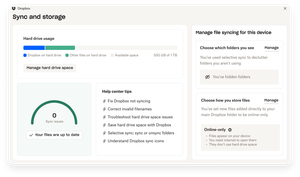
This dashboard makes it easier than ever to keep your files organized and your computer running smoothly. With just a click, you can: Get a real-time view of your sync status Quickly spot and resolve any syncing issues Monitor and manage how much disk space your Dropbox files are using Adjust your selective sync and storage preferences To open the dashboard, click the Dropbox icon in your taskbar (Windows) or menu bar (Mac), then select your avatar and choose Sync & storage. We’re excited for you to try it out! Please let us know your thoughts and how we can make it even better!4.7KViews6likes11CommentsOne Month into the New Year: How Are Your Resolutions Coming Along?
As we step into February, it’s a great time to reflect on our New Year’s resolutions and share our progress with the community. Whether you’re striving for personal growth or professional development, staying organized can make all the difference. Here are some resolutions that many of us are focusing on this year, and how Dropbox can help us succeed. Staying Organized with Dropbox One of the most common resolutions is to stay organized. With Dropbox, you can keep all your files in one secure place, making it easier to find what you need when you need it. Take advantage of folders, tags, and search functionalities to manage your documents efficiently. Using the Doc Scanner for Expenses If you’re looking to keep on top of your expenses, using the Dropbox doc scanner can be a game changer. Snap pictures of your receipts and upload them directly to your Dropbox account. This not only keeps your financial documents organized but also ensures that you have everything you need for tax season or budgeting. Leveraging Paper for Projects and Timelines While digital tools are essential, sometimes going back to basics can be beneficial. Using Paper to outline projects and timelines can enhance focus and creativity. Consider keeping a project journal where you outline goals, timelines, and tasks. You can then digitize these notes by uploading them to Dropbox for easy access later. Utilizing Integrations for a Smoother Workflow Integrations can take the pain out of work! Connect Dropbox with your favorite productivity tools like Google Docs, Zoom or Slack. This seamless integration allows for easier collaboration and helps ensure that everyone is on the same page, reducing stress and increasing productivity. Maintaining Work-Life Balance Lastly, one of the most crucial resolutions is to maintain a healthy work-life balance. Make sure to set boundaries for your work hours, and use Dropbox’s features to help you wind down. Organize your files so that when you log off for the day, everything is in its rightful place, allowing you to disconnect from work and enjoy your personal time. We’re still early on in the year, so don’t worry if you’re starting over with your resolutions - I’m a big believer in progress over perfection. Besides the tips above, the best habit I’m trying to get back on track with is “Don’t put it down, put it away” and it’s improved my January already. Do you have any productivity tips, work tricks or handy little tidbits to share? We want to hear them!2.9KViews6likes1CommentHow we use Dropbox: Youcef Captures the moment
We love to share stories of how our Dropboxer colleagues use Dropbox. Whether you’re using Dropbox for project management or to organize photos, it’s always handy to share tips and advice. We all have slightly different roles, and everybody has different preferences when it comes to workflows. You might have seen YoucefDropbox on the Dropbox Community before, but we’re his biggest fans and he is a Dropbox Capture expert so I asked him to share some info on how he uses Dropbox. How I use Dropbox Capture in my day to day work I use Dropbox Capture often to explain things quickly to my team and ensure everyone is on the same page. Capture has many useful features, like creating GIFs in no time or adding markup while recording a video. But there is one that I particularly love that many don't know about yet, so check out my capture below to discover it. We love to hear about useful little tips like this, they so easily become part of our daily routines and save a lot of busy work. Do you have any of those helpful little tips to share? Leave it in the comments below! And if you’re new to the tool, discover how to get started with Dropbox Capture in our simple guide.7.4KViews6likes5CommentsLearn how to manage your research with Dropbox
We try to make sure that Dropbox works the way our customers want it to, and a big part of that is research! We are really lucky to have some champion researchers on our team, and I picked her brain about how she uses Dropbox to keep all her research and results in order. But, I want to point out that you guys are also the experts, so if you want to add to our research, let us know in the comments below. How to organize research with Dropbox folder management: Share folders with the right people early on so they all have access to the content Add relevant tags to folders Include a clear naming hierarchy so content is easy to find When it comes to research management, folder management has to be on point - it’s never just for me to view. The documentation has to make sense to anyone picking it up. That means it has to be findable, accessible and clear. That means from day one on a project, I have to ensure that I am sharing with the right people, I tag my folders, my naming hierarchy is clear. There is a user experience in even sharing the research. This also makes it easy to keep documentation - research plan, discussion guide, research report - is all organised and logically laid out. This ensures that I am never a roadblock - for a while I was just directing people to docs, as opposed to spending my time really getting into the research and interrogating the results and actions. When I joined, there was a big new project taking off and I could start the new folder hierarchy but I think we all know that people will still want to be spoon fed the results a little bit, so there are a few ways to make sure people get into the right docs and see those results. From sharing updates in emails, tagging relevant people into the right sections of the documents or even adding to-dos for people. Saving recordings from research is much easier on Dropbox, we use a research tool that saves the videos down, so being able to download these makes it possible for whole teams to access the files, not just those with accounts on that tool. Let’s do some research Let’s imagine that Kim was doing some research about the Dropbox Community. Now, step one would be to ask you lovely people to answer these questions in the comments below (which we would love for you to do!) but for the sake of the hypothetical, let’s imagine that Kim created a survey to find out: What industries Dropbox Community members work in? Which Dropbox features do you use the most often? Why are you active on the Dropbox Community right now? What other tools do you use alongside Dropbox? What kind of content would you like to see us share on the Community forums? In this scenario Kim gathers all of the info from the surveys, and then adds the results to a folder that is clearly labelled, working with a naming hierarchy that works with the Community team, so something like: Community research survey 2023. She tags the folder with Community, industry, features, and support. Then she sends an invite link to our team, and even goes one step further and tags each of us in the relevant sections to our projects. The team then comes back with notes, thoughts and comments, and this can totally open up new ideas and discussions and it means that the results are not just a static thing in a doc, we figure out how we can take that research and do something good with it. I might be a little bit of a data nerd but I love this. I have been surprised by research sometimes and had it change how we think about the Dropbox Community, and I love that we can make changes to reflect how you, our Community members, actually want to access the forums. And again, the easiest way of doing research is to ask a question and get an answer so you: is there anything you would like us to look into with some research eyes right now? Tell us below and we will keep Kim posted!10KViews6likes0Comments