We're making some changes to the Dropbox Community 👩💻 - Find out more here.
Tips and Tricks
106 TopicsTell Us How You Use Dropbox
No two people use Dropbox in exactly the same way. Some of you rely on it every day for work, others for school, creative projects, or keeping life organized - and we love that. We’d love to hear how you’re using Dropbox today - is it something you use once in a while, is it part of your day to day, are there any features you can’t live without? What workflows have you built that save time or reduce friction? And where do you see opportunities for us to do better? Your tips, ideas, and honest feedback really help us to make sure we can share useful tips, and they help other community members discover new ways to get more out of Dropbox too. Share your experience, favorite features, or suggestions in the comments below. Your voice truly helps shape the future of the Dropbox community 😁 The Dropbox Community Team3.9KViews4likes14CommentsHow we use Dropbox: Project management
When we hear about how other people use Dropbox, I have to say we scan for tips and advice that we can carry through to our own workflows and projects, from planning a wedding to organizing family photos. With that in mind, we loved hearing about how Project Manager extraordinaire, Libby, uses Dropbox to keep her projects, and more importably, the team, on track. Check it out below and let us know if you will take some of these tips forward 😁 The key to a successful project is good planning and organization. Duh, but here is what I do to start off on the right foot there. Step 1: Create a shell of folders to start a project I create all of the folders to help manage the different stages of a project, which include: Ideation Planning Execution and closure And to go even deeper, within these folders we can have sub folders for different levels of approval. At this stage, I add everyone involved in the projects - and I BEG them to create their documentation within these folders. There is nothing worse than people creating rogue docs and forgetting to link it back so starting off in the right place makes it easy to keep us all in contact. Step 2: Create a Project plan I then create a Project Plan Paper doc, and this outlines the goals of the project, and this outlines the goals of the project, milestones, results and more. Now, this can seem daunting to begin with but luckily, we have a template to get you started right here. Within this doc, I can also tag people, create and add to-dos, link to other docs and of course, adding tables and images seamlessly. The perfect one pager, if you ask me. Step 3: Track the progress In theory, now everyone can get to work on their own sections of the project, and I get to observe, check in and remove any blockers. So I get notified when changes are made, I get tagged, I receive Capture updates. Whatever works for the team works for me! Step 4: Reporting and sharing wider Once the project has finished, and undoubtedly been a resounding success, it’s time to report back. So the results folder can contain Exel sheets of data, screenshots, and docs summarising the impact of the project. It’s great because everyone can contribute to this section as the results often come from varying sources. Once docs are ready for sharing wider, there are executive one pagers that can get workshopped internally and then a shared folder is created for the wider team. I enjoy how logical this process is, and as someone who can feel daunted about documentation, this seems really achievable. I also asked Libby for her best project management tip and this was her sage advice: Be flexible and work how your project team works. What works for one team won’t work for another. How do you manage projects? Do you have a different process you want to share?14KViews3likes1Comment
Dropbox Desktop vs CloudMounter, Cyberduck, Mountain Duck for Multiple Accounts - which is better?
Hey, I just joined the Dropbox Forum and need some advice from experienced users. I really hope someone has some tips. I’ve got two Dropbox accounts (personal + work) and I’m thinking whether to stick with the native Dropbox client or switch to a cloud manager, since I might add Google Drive later. I want everything to show up like normal folders in Finder/Explorer, avoid syncing the entire cloud to my disk, survive sleep/reconnects, and not lose share permissions when moving files between accounts. If you’ve done this, is it smarter to keep the Dropbox app if you only use Dropbox, or go with a manager from the start? Curious about real-world differences in speed, caching, stability and security — short tips or quick examples would be much appreciated.328Views0likes4CommentsExciting news — we’ve launched the new Sync & Storage Dashboard in the Dropbox desktop app!
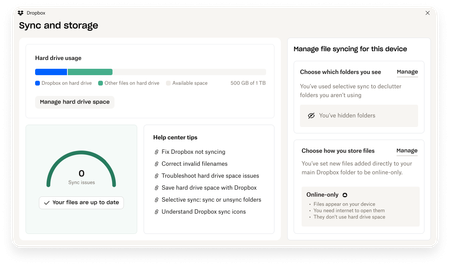
This dashboard makes it easier than ever to keep your files organized and your computer running smoothly. With just a click, you can: Get a real-time view of your sync status Quickly spot and resolve any syncing issues Monitor and manage how much disk space your Dropbox files are using Adjust your selective sync and storage preferences To open the dashboard, click the Dropbox icon in your taskbar (Windows) or menu bar (Mac), then select your avatar and choose Sync & storage. We’re excited for you to try it out! Please let us know your thoughts and how we can make it even better!8.9KViews6likes14CommentsA Year of Conversations: 2025 Community Wrap-Up
Hey everyone! What a year! I’ve loved chatting with you all throughout 2025 - hearing your favourite Dropbox features, clever hacks and the all the ways you use Dropbox to keep life running smoothly. This community is really pure magic. Every week, you jumped in to help each other, share tips and celebrate wins. We had loads of Community Members of the Month, plenty of Mighty Answer badges and so many “aha!” moments. And the stories! From photographers sharing galleries, to coders syncing across Windows and Linux, to the person who who said syncing across threes computers and two homes was “beautiful” - you all really kept the forums lively, helpful and fun! One iPhone user was especially happy with the 2025 Live Photos update, which finally let them migrate their whole collection smoothly. It was made even sweeter knowing the feature came directly from an idea shared right here in the community. And, I adored hearing how Dropbox helps in everyday life, like the member who said: We’ve had our fair share of community adventures this year, but we made it through together and every time I got to say “I am glad to see your issue was resolved”, it honestly made my day. Last year we gave the Community a fresh new look and glow-up, and we really appreciate everyone’s patience with the changes throughout 2025. It’s amazing to see how far we’ve come, and we’re even more excited for what’s ahead. There are some fab new updates and improvements coming in 2026… so stay tuned! A huge, heartfelt thank you to everyone who got involved in conversations this year. Those who asked questions, those who answered them, and those who felt comfortable sharing ideas, frustrations, clever workarounds, and even honest feelings about Dropbox. And of course, a special shout-out to our amazing Super Users …you’re absolute stars and this community wouldn’t be the same without you. So that’s it from us for 2025! Have a safe and happy time over the holiday period, and I’ll see you all in 2026855Views3likes0Comments
How to access your Dropbox through TV devices.
Dear Dropbox community, I would like to share my latest project with you, namely Dropbox MSX. Dropbox MSX is a service that allows you to access your Dropbox files (i.e. videos, audio files, and images) through TV devices. It uses the Media Station X application for visualization and the latest Dropbox API to browse and access files. I hope you enjoy using it and I would be very happy to receive feedback and ideas for improvement. For screenshots and more information, please see the showcase Dropbox MSX on this page: http://msx.benzac.de/info/?tab=Showcases Alternatively, please have a look at this YouTube video: https://www.youtube.com/watch?v=8T5XjKig6Jw Best regards, benzac13KViews0likes1Comment
iPad Files app not showing Dropbox folders and how I managed to solve this.
In working with a new iPad, I discovered that the Files app was not correctly connecting with Dropbox. No Dropbox folders showed up either in the Files app or in any other app with an open feature that would normally have been able to access Dropbox files. Oddly, when I clicked “Dropbox” in the list, there were no folders but I could add a folder and that new folder showed up in Dropbox on other devices (and in the Dropbox app on the iPad)! So there was some connection but not much… This is not an issue I’m experiencing on any of my other Apple devices (Mac or iOS). In talking with Apple support they had me delete the Files app, reboot the iPad, then reinstall “Files.” I did that, but to no effect. They escalated me to a higher level of support but while I was waiting, I also deleted Dropbox and reinstalled it. That solved the problem! So, if you can’t access your Dropbox folders and files in Files or in any of your other iPad apps, just delete and reinstall Dropbox—problem solved (at least for me, this time!)6.5KViews4likes6Comments
Small tip if you want to print a list of files in a Dropbox folder!
I've been trying to figure out if there is a way to print a list of files in a Dropbox folder. Turns out there is no such printing option. However, if you select all files with Ctrl + A, all subfolders and files will be selected. Then using Ctrl + C, copy to the clipboard. Next open a new blank Word document and paste (Ctrl +V) to the Word page. All text should appear from the Dropbox webpage. Delete whatever text is not relevant and you'll be left with a list of folders and files.12KViews2likes12CommentsEdit Photos and PDFs with Dropbox
Want to hear about one of the handiest Dropbox features I use regularly? Check out how easy it is to upload, edit, send, and sign PDFs in one place. No technical wizardry, no back-and-forth file conversions, and no additional software to install. PDF editing features let you add text and more Not all PDFs are ready to go, there's usually some info you need to add or edit, and now, editing them is as easy as click, click, click. There are tools on our PDF editing feature so you can do more without changing programs. Within Dropbox, you can: Add text to documents: Insert descriptions, dates, notes etc., anywhere on a PDF and modify text font, color, size, and emphasis Page zoom: Adjust the page view for easier navigation These features are useful for managing work-related and personal documents. Our own team makes the most of editing PDFs to organize and consolidate receipts at home. Learn how to get started editing PDFs now. Edit PDFs on-the-go Need to make changes when you'er away from your desk? No worries, you can edit PDFs directly on your iPhone or Android device. Edit PDFs on iOS: Add text or a signature to PDFs on your iPhone with the Dropbox mobile app. Edit PDFs on Android: The Dropbox smartphone app makes it easy to edit PDFs on your Samsung Galaxy, Google Pixel, or any other Android device. Work from wherever you are, without needing to switch between devices or apps to get things done. Automatically add watermarks to multiple files No one likes to have their work passed off as someone else’s - and now you can make sure it doesn’t happen to you with a few simple steps. Save time, ensure confidentiality, and protect your brand by applying a watermark automation to a new or existing folder. Then, every PDF and image added to the folder will be automatically watermarked. We’re big fans of automations that truly make life easier, and this one makes us very happy! To create an automation and learn more about watermarking, visit our automations page. I’d love to know how you make the most of these PDF editing features - tell us below!36KViews7likes0CommentsDropbox Basic: Work Outside the Box
If you work with more than one person, you more than likely have needed to share a document or file to work simultaneously or receive feedback. With your Dropbox Basic account, you collaborate with friends and family and work outside of the box. Even if they do not have an account, you can still collaborate with them! Dropbox has made it easy to share files with friends and collaborate on projects. Share files with friends and family I recently learned that you can share files from Dropbox with friends or family that do not have an account. When you share a file or folder using Dropbox, the recipient receives an email with a link to the file or folder. The recipient does not need a Dropbox account to view or edit it though. Just this past week, I shared a Paper document with my sorority sister, and she was able to view and edit the file without any issue. On the file was a to-do list for the both of us and we worked together on the document. Learn more about how to add to-do list to your paper document. You can also control whether people can edit or view your files and folders when you share them and even after you share them. Edits and comments that’s made to a shared file or folder are updated live for everyone they’ve been shared with. This allows for any changes to projects to be implemented right away and ensures everyone is on the same page. Ways to Collaborate Sharing files is usually top priority when working with others. With Dropbox apps and integrations, sharing, syncing and collaboration is made easy. Whether you are sharing a school project, presentation, bachelor trip details, or planning your 30th birthday party, it is likely that you will pass the file along to someone else for their input. As sad as this may seem, Summer vacation for students and teachers will be ending in about 1 month. The time will come during the school year where you will have to participate in the good ol’ school project. The conversation of how you will collaborate to ensure everyone is working together always comes up, and you can suggest using Dropbox. With your Dropbox account, you can collaborate with your school project team members that do not have a Dropbox account. You can use word processing applications such as G-Suite and Microsoft Office Online. Learn more about how to use these integrations. This will allow for an automatic sync after each team member contributes to the project. Your Dropbox account allows you to collaborate with multiple team members from multiple locations at one time. It’s a big year for celebrating! Gathering in large groups has finally become a norm since 2020. People have planned large parties and events to celebrate weddings and birthdays. To do this, you will likely collaborate with friends and family virtually. Don’t forget that you can use Dropbox Paper to create a guest-list, or a to-do list where you can tag the other party hosts. You can even create the invites with Dropbox’s Canva integration. The beauty of using your Dropbox account for tasks like this is that you can use 3 different applications and all users can access files in one place. Things to know when collaborating When collaborating on a file, Dropbox has features that allows the file to be shared and protected when multiple people are editing. Dropbox has collaboration tools for sharing work, and guards old documents by locking the file or creating a conflicted copy. Here are some tips and tricks you can use to collaborate. Create link: Create a link with Dropbox that allows you to easily share the files with friends and teammates. To create a link: Open the Dropbox folder in File Explorer (Windows) or Finder (Mac). Right-click or command-click the file or folder you'd like to share. Click Share…. If a link hasn't been created, click Create link. The link is copied to your clipboard. Create a to-do list: When saving, sharing and collaborating on files and folders, you can add a checkbox that becomes tasks for the people you are working with. When you or someone else with permission click a checkbox, the line of text next to it is crossed out with a strikethrough. Mention someone: To notify collaborators, click the @ icon. This allows you to insert the email address or name of someone in your Dropbox contacts. The person is notified by email and their Dropbox account shows that they have been tagged in a folder. This is a helpful and easy way to communicate asynchronously. Your Dropbox Basic account is a great way to work with family and friends. Leave a comment and tell us how you use Dropbox to collaborate with family and friends!2.5KViews0likes0Comments