We're making some changes to the Dropbox Community 👩💻 - Find out more here.
Tips and Tricks
106 TopicsWhat’s included in my Dropbox plan? Plus edition
If you use Dropbox there are a ton of amazing features available to you, but different plans have different features so we want to make sure you know exactly what you have access to! This time, we’re going to focus on Dropbox Plus accounts - so listen up if you’re a Plus user. Here is a list of the features available to Plus users, that I’m sure most people are already aware of, or using regularly already, but it never hurts to be reminded! 2 TB (2,000 GB) of storage space. Shared folders and links - learn the ins and outs of links here. Dropbox Paper - this is a big one, so here’s a refresher on that. Anywhere access Integrated desktop experience Best-in-class sync technology Mobile offline folders Camera upload Send up to 2 GB per Transfer File requests Web previews and comments Viewer info Remote device wipe File recovery and version history - 30-day history Dropbox Rewind - 30-day history Full text search Plus button Web previews and comments Integrated cloud content 256-bit AES and SSL/TLS encryption So those are the ones you likely already know, but there are some new and exciting features for Dropbox Plus users this year as well, and now’s your chance to learn all about them. Dropbox Family The Dropbox Family plan has 2 TB of storage space that can be shared by up to 6 members, even grandparents or kids away at college. With Dropbox Family, you and your family can securely organize and share content, like photos, videos, and important documents. Dropbox Passwords: Dropbox Passwords lets you seamlessly sign in to websites and apps by storing your passwords. The Passwords app remembers your usernames and passwords on all your devices—so you don’t have to. Dropbox Vault: Dropbox Vault helps you secure and organize your most sensitive information in the cloud. Vault is a PIN-protected folder in your Dropbox account that you can access any time and on any device. There’s even more new features, including Computer Backup, Hellosign and the App Centre so you can get more details here. Support: If you need help with your Plus account, you have access to priority email support, the Help Centre, and of course the Dropbox Community is always here to help.38KViews3likes2CommentsEdit Photos and PDFs with Dropbox
Want to hear about one of the handiest Dropbox features I use regularly? Check out how easy it is to upload, edit, send, and sign PDFs in one place. No technical wizardry, no back-and-forth file conversions, and no additional software to install. PDF editing features let you add text and more Not all PDFs are ready to go, there's usually some info you need to add or edit, and now, editing them is as easy as click, click, click. There are tools on our PDF editing feature so you can do more without changing programs. Within Dropbox, you can: Add text to documents: Insert descriptions, dates, notes etc., anywhere on a PDF and modify text font, color, size, and emphasis Page zoom: Adjust the page view for easier navigation These features are useful for managing work-related and personal documents. Our own team makes the most of editing PDFs to organize and consolidate receipts at home. Learn how to get started editing PDFs now. Edit PDFs on-the-go Need to make changes when you'er away from your desk? No worries, you can edit PDFs directly on your iPhone or Android device. Edit PDFs on iOS: Add text or a signature to PDFs on your iPhone with the Dropbox mobile app. Edit PDFs on Android: The Dropbox smartphone app makes it easy to edit PDFs on your Samsung Galaxy, Google Pixel, or any other Android device. Work from wherever you are, without needing to switch between devices or apps to get things done. Automatically add watermarks to multiple files No one likes to have their work passed off as someone else’s - and now you can make sure it doesn’t happen to you with a few simple steps. Save time, ensure confidentiality, and protect your brand by applying a watermark automation to a new or existing folder. Then, every PDF and image added to the folder will be automatically watermarked. We’re big fans of automations that truly make life easier, and this one makes us very happy! To create an automation and learn more about watermarking, visit our automations page. I’d love to know how you make the most of these PDF editing features - tell us below!36KViews7likes0CommentsWe want to hear from you
Whether it’s for personal use, education or work, there are a lot of people who use Dropbox differently. We want to know more about how you get the most from Dropbox, and how you make it work for you. We would love to see any tips, tricks or Dropbox features that make your life easier in the comments, to help other Dropbox members. Join the conversation and share your insights below Thank you - from the entire Community team26KViews15likes51CommentsHow to import your passwords to Dropbox Passwords from other password managers
You might have heard about Dropbox Passwords, (and if you haven’t, you can learn all about it here) but what if you already use a password management tool? We have good news, it’s simple to import your passwords from another tool. Follow the steps below to import your already saved passwords from LastPass, Dashlane, 1Password and other password tools. Import from LastPass Sign into LastPass.com or LastPass browser extension Click Advanced Options on the sidebar Select Export under Manage Your Account Enter your LastPass master password If you’ve signed into LastPass.com on web, you will see your passwords data on a new Tab. Copy the content and save it to a file. You can name it <name>.csv If you’ve signed into the browser extension, you will see a lastpass_export.csv automatically downloaded From your Dropbox Passwords app, click Add button under your avatar, select Import from…, select Passwords Manager and select the csv file from step 4 Delete the file from step 4 for safety reasons Import from Dashlane Launch Dashlane and log in to your account Select File > Export > Unsecured archive (readable) in CSV format Enter your Master Password (if required) Save the file in a safe place From your Dropbox Passwords app, click Add button under your avatar, select Import from…, select Passwords Manager and select the csv file from step 4 Delete the file from step 4 for safety reasons Import from 1Password Open and unlock 1Password. Select the vault you want to export. It’s not possible to export from “All Vaults”, so you’ll need to switch to a specific vault. Choose File > Export > All Items. If you belong to a team account, there may be some vaults where you don’t have the “Export items” permission. Ask your team administrator. Enter your Master Password. Choose a location to save your export to (such as your desktop), choose File format: “Comma Delimited Text (.CSV)” , “All Fields” , “Include Column Labels”, Click “Save” From your Dropbox Passwords app, click Add button under your avatar, select Import from…, select Passwords Manager and select the csv file from step 5 Delete the file from step 5 for safety reasons Import from other Password Managers find the option from other Passwords managers to export items to a CSV From your Dropbox Passwords app, click Add button under your avatar, select Import from…, select Passwords Manager and select the csv file from step 1 Delete the file from step 1 for safety reasons Now that you can transfer your passwords over with just a few clicks, it’s the perfect time to get set up with Dropbox Passwords and leave the dreaded ‘forgot password?’ button in the past.23KViews4likes3CommentsDropbox “connect a computer” feature explained
What is Dropbox connect a computer? One of the easiest ways to get set up on Dropbox on your computer, is to use the aptly named ‘Connect a computer’ feature. Using this feature, you can use your mobile device to connect your computer, by simply following a QR code. When and how to use Dropbox connect a computer? You can use this feature when you want to connect a new computer to your Dropbox account, and have a signed in mobile device nearby. To get started, you can; Open the Dropbox app on your mobile device. Tap the icon of a person at the bottom right. (On iOS, if you connected a work and personal account, tap Personal.) Tap connect a computer. The app will ask if you're near the computer—if you are, tap Yes. Open a web browser on your computer, and navigate to dropbox.com/connect. You should see a QR code shaped like the Dropbox logo Use the Dropbox mobile app to scan this QR code. The app will tell your computer's browser to begin downloading the Dropbox installer Install the app. If you're not able to scan the QR code, you can instead complete the install directly on your computer. Don’t forget, if you have a question, you can always ask the Dropbox Community or check out the Tips and Tricks section too. Are there any other refreshers you would like to see?21KViews2likes3CommentsTell us how you use Dropbox!
We have shared a lot of stories about how we use Dropbox, from using Dropbox to plan a wedding to organizing and planning a project, and now we want to focus on you and how you use it! So, to start, we would love to hear about how, and why, you started to use Dropbox. Whether it was to make sure your photos were safe, or to scan and save your receipts, or to work on a group project, we want to hear about it! Leave your stories in the comments, we want to learn from you - the more we know about how you use Dropbox, the more we can share tips and tricks that make sense for you. Looking forward to seeing your comments below!20KViews11likes35CommentsMake the most of Movebot and Dropbox
If you do any kind of business online, chances are you use an online storage platform and sometimes, your needs change and you need to move your files. But don’t worry - moving from cloud storage platforms, or on-premise file servers to Dropbox couldn't be easier. The Data Migration Add-On, powered by Movebot, makes it simple, secure and affordable, without the need for software deployment or complex processes. Whether you are transferring a single drive, a team or an entire organization, Movebot's cloud migration tool has been built to make your Dropbox migration simple. Not only can you quickly and securely migrate files, you can also copy over all of the associated permissions from on-premise file servers and existing cloud storage solutions to Dropbox. So, what can I do with Movebot? Well, first of all, you can: Migrate home directories, folders, and personal shares to Dropbox Transfer sharing permissions from cloud and on-premises sources to Dropbox Monitor file transfer jobs in real-time with reporting, visualization, and event-logging Automate and expedite migrations with parallel loading, Dropbox API call optimization, and Movebot’s managed scalable technology Schedule migration jobs in advance — to run once or on a repeating schedule. But you don’t just have to take our word for it, Jack is a senior designer on the team over at Graphicks, a creative agency, who recently used Movebot to transfer their files over to Dropbox, and he said: Movebot and Dropbox have made our lives so much easier. We used Movebot to migrate around 2TB of data from a different cloud service to Dropbox and the process was very smooth. We work with a wide range of file formats and both platforms supported our every need. We deal with large design files on a daily basis, which makes the different sync options available on Dropbox vital to our workflow. Being able to collaborate easily as a team from different parts of the country is essential. As a creative agency we needed a more collaborative and cost-effective solution to managing our files. Dropbox was an easy choice as other solutions have fewer features and don’t handle larger files formats as well. The unlimited storage that Dropbox offers means that we can continue to grow as a team without the worry that we will run out of storage – something that our previous platform would constantly remind us of! Have you ever needed to transfer a large amount of files from one platform to Dropbox? Check out how the Dropbox Data Migration Add-On, powered by Movebot can benefit your business or talk to our team about using Movebot today.17KViews3likes5CommentsWhat’s new: Dropbox Shop, editing PDFs, and Dropbox Backup
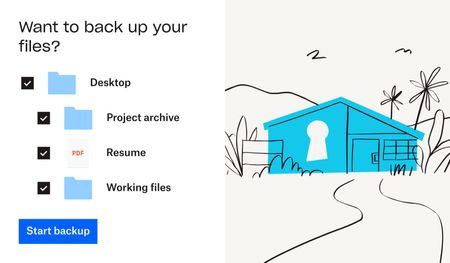
This is a big month for product updates, so keep reading to get all the details about Dropbox Shop, Dropbox Backup and PDF editing. Trust us when we say there are some seriously useful updates here, whether it’s to do with day-to-day file management, security or an online shopfront - exciting times! Secure your digital life with Dropbox Backup—here’s what’s new: Backing up your files, as you know, is super important and if you need a simple and secure backup solution to protect the most important parts of your digital life - Dropbox Backup is for you. Whether you have family photos, graduation videos, or tax forms on your computer—you can keep it all safe and quickly recover with Dropbox Backup. If you’re a member of the Dropbox Community, chances are you’ve heard of Computer Backup before, so what’s the new news? Based on feedback from customers and our Community members, the team have made improvements to Computer Backup - building on our popular backup functionality, we’re now introducing Dropbox Backup. Backup has been upgraded with new features our users have been asking for, including a new restoration flow, settings to manage your backups on your computer, and more. Simplify your backup experience- Manage everything from your desktop—one place to check progress, view history, and prioritize specific files. Be prepared with an automated safety net- Keep backed up files separate from your shared files, so you won’t have to worry about overwriting your emergency backups. Rely on fast recovery if things go wrong- Start recovery with just a few clicks, and your files will be automatically restored from cloud backup. Dropbox Shop is here, and ready for you to try: You might have heard us mention Dropbox Shop before, but now you can join the Public Beta and check it out for yourself! (If you are outside of the U.S. or are part of a team and want to sign up, click here). Dropbox Shop is a new platform that allows creators (like you, maybe) to easily sell content—from e-books and recipes to prints and workout videos—directly to customers, so you can spend more doing what you love: creating. With Dropbox Shop you can: Easily create product listings in three clicks: Add content directly from Dropbox or your computer, set a custom image, audio, or video preview, and determine your price, and now, tipping is also enabled. Customize your storefront: Set your seller profile up with a name, picture, and description that lets customers know exactly who you are and what you’re doing! And if you want to update it later, you can simply edit the items and your storefront too. Make the connection: Establish your brand and maintain your relationship with customers through a custom storefront, not a cluttered marketplace of sellers. Add content directly from Dropbox: No need to upload your files all over again. Sell any type of content: With the ability to upload multiple files, of any type, up to 50GB per file for Plus/Pro users and 2GB for Basic users See what works (and what doesn’t): View key analytics to help learn what’s working and what can be better for your business. Share directly with customers: There’s no middleman here. You control how you interact with customers - you can share a listing directly with them wherever you interact with them already, whether it’s on email, social media and even newsletters. Enable secure payment processing: Don’t worry about managing payments, it’s covered through our partnership with Stripe and Paypal and multiple payment options for customers. Automatically deliver content upon payment: That allows you to save time facilitating sales, and keep on creating. Simplify transactions for you and your customers: Buyers don’t need a Dropbox account to make a purchase, they can access their files via email verification and download it within 28 days. Those with a Dropbox account can access everything they’ve purchased when logged in. Work conveniently from your desktop, tablet, or mobile Why not take the first brave step and put your work out there for sale? As we said, you can set up your first content listing in 3 easy clicks, so get started here. Save time and edit PDFs in Dropbox PDFs are incredibly handy files, but sometimes they need to be updated, and now, you can edit them without leaving Dropbox. Well, just exactly how much editing can you do? Within Dropbox you can: Rearrange PDF pages Insert, rotate, and delete PDF pages Fill interactive forms Manage multiple versions: save PDFs as a copy or replace original These features are available to a select few in Beta now, and will roll out to more people in coming weeks. Sounds like a time saver to us! Will you use this feature? Now you can keep your files safe with just a few clicks, sell your digital content, and edit PDFs in no time, which sounds good to us! But wait, there are even more updates you can check out here. Will you be using these new products and features?16KViews3likes5CommentsHow we use Dropbox: Project management
When we hear about how other people use Dropbox, I have to say we scan for tips and advice that we can carry through to our own workflows and projects, from planning a wedding to organizing family photos. With that in mind, we loved hearing about how Project Manager extraordinaire, Libby, uses Dropbox to keep her projects, and more importably, the team, on track. Check it out below and let us know if you will take some of these tips forward 😁 The key to a successful project is good planning and organization. Duh, but here is what I do to start off on the right foot there. Step 1: Create a shell of folders to start a project I create all of the folders to help manage the different stages of a project, which include: Ideation Planning Execution and closure And to go even deeper, within these folders we can have sub folders for different levels of approval. At this stage, I add everyone involved in the projects - and I BEG them to create their documentation within these folders. There is nothing worse than people creating rogue docs and forgetting to link it back so starting off in the right place makes it easy to keep us all in contact. Step 2: Create a Project plan I then create a Project Plan Paper doc, and this outlines the goals of the project, and this outlines the goals of the project, milestones, results and more. Now, this can seem daunting to begin with but luckily, we have a template to get you started right here. Within this doc, I can also tag people, create and add to-dos, link to other docs and of course, adding tables and images seamlessly. The perfect one pager, if you ask me. Step 3: Track the progress In theory, now everyone can get to work on their own sections of the project, and I get to observe, check in and remove any blockers. So I get notified when changes are made, I get tagged, I receive Capture updates. Whatever works for the team works for me! Step 4: Reporting and sharing wider Once the project has finished, and undoubtedly been a resounding success, it’s time to report back. So the results folder can contain Exel sheets of data, screenshots, and docs summarising the impact of the project. It’s great because everyone can contribute to this section as the results often come from varying sources. Once docs are ready for sharing wider, there are executive one pagers that can get workshopped internally and then a shared folder is created for the wider team. I enjoy how logical this process is, and as someone who can feel daunted about documentation, this seems really achievable. I also asked Libby for her best project management tip and this was her sage advice: Be flexible and work how your project team works. What works for one team won’t work for another. How do you manage projects? Do you have a different process you want to share?14KViews3likes1Comment
How to access your Dropbox through TV devices.
Dear Dropbox community, I would like to share my latest project with you, namely Dropbox MSX. Dropbox MSX is a service that allows you to access your Dropbox files (i.e. videos, audio files, and images) through TV devices. It uses the Media Station X application for visualization and the latest Dropbox API to browse and access files. I hope you enjoy using it and I would be very happy to receive feedback and ideas for improvement. For screenshots and more information, please see the showcase Dropbox MSX on this page: http://msx.benzac.de/info/?tab=Showcases Alternatively, please have a look at this YouTube video: https://www.youtube.com/watch?v=8T5XjKig6Jw Best regards, benzac13KViews0likes1Comment