Your workflow is unique 👨💻 - tell us how you use Dropbox here.
sync
3300 Topics
600K Files and a $500 Drive: How Apple's API Broke Dropbox
I've been a Dropbox user for nearly 20 years. I'm writing this after days of troubleshooting, a brand new 24TB external drive I had to buy for $500, and a workflow that is still not fully restored. How it started It began with a routine reorganization — moving files across some large directories. Dropbox simply stopped syncing. It froze. No error message, no clear indication of what went wrong. I contacted Dropbox support. We exchanged multiple messages. Despite their good intentions, they were unable to help me resolve it. So I went down the path of solving it myself. What I tried After exhausting every troubleshooting option I could find, I made the decision to do a full Dropbox removal. I bought a 24TB external drive, moved all my files there as a safety net, and did a clean reinstall of Dropbox from scratch. The new installation runs on the File Provider API. That's when the real problem started. The File Provider trap After the clean install, Finder no longer recognized the Dropbox folder as a proper Dropbox directory. No Online Only / Local controls. No sync icons. Just a folder full of zero-byte files I couldn't open or work with. The reason: I have over 600,000 files. The File Provider migration requires under 300,000 files to grant eligibility. So I'm permanently stuck in legacy mode — which has no mechanism to force-download folders in bulk. Every file only downloads when opened individually. For a software engineer trying to work with a project containing 22,000 files, that's completely unusable. I tried everything: Full uninstall and clean reinstall multiple times Clearing all CloudStorage domains via Terminal touch, cat, cp to /dev/null, brctl download — none work in legacy mode Killing conflicting File Provider extensions from OneDrive and Google Drive helpers Multiple Selective Sync configurations Each test took hours because of the file volume The double failure This is a failure on two fronts. Apple forced every cloud storage provider onto the File Provider API without adequate consideration for power users with large libraries. The 300,000-file eligibility cap is arbitrary and punishes exactly the users who rely on Dropbox most. brctl download — the only CLI tool to force file downloads — only works inside /Library/CloudStorage, making bulk downloads impossible in legacy mode. Dropbox had years to prepare its users for this transition. There was no clear communication that users with large libraries would lose core functionality. No migration path for people with 500K+ files. No bulk download tool. No fallback. Just a quiet "you are not eligible" message that leads to a dead end. Where I am now I'm currently downloading my active project folders locally and moving them to an external drive. My plan is to do a serious cleanup — get below 300,000 files — and see if that finally makes the File Provider work properly. If it does, great. If not, I'll migrate to Google Drive. Not because it's better, but because at least there's no expectation gap. If anyone has gone through this and found a way out, I'd love to hear it. I'm a software engineer. I've tried everything I can think of. And I'm genuinely stuck. To other users with large libraries If you have more than 300,000 files and are seeing the "not eligible" message, the only viable path right now is Selective Sync to reduce your active file count. There is no CLI workaround. There is no bulk download tool in legacy mode. Plan for hours of sync time per attempt. I hope this saves someone the days I lost.7Views0likes0Comments
How can I set up my new computer to show all my folders in my Dropbox folder?
Device Macbook Pro M5 Operating System/Browser (if using the web) Tahoe 26.0 Dropbox App Version/Browser Version 243.4.6956 Question or Issue I have an existing Dropbox account, linked to a phone, my old computer, now my new computer. Due to limited hard drive space, I specified only a few folders and files be available offline when I installed Dropbox. But I had made the default for the app "online only". Or perhaps for the account. In any case, what I expected was similar to how my phone operates -- the device shows all the folders and contents, but the files must be edited on line or specified as "offline". Instead, it only shows the folders I specified as offline available when I was installing Dropbox onto the new computer. I would like to be able to set the computer up to work like my phone. But also, I have decided to move my Dropbox folder to an external drive and make the files/folders all available offline. At present, at the new location on the external drive, only those few file/folders are visible. How do I get the whole Dropbox directory to be visible, and load those files onto my external drive (where the new Dropbox folder is).Solved63Views0likes5Comments
Switching to legacy mode and Dropbox icon next to search bar on Finder
Is there a way for me to switch from file provider to legacy mode and also get the dropbox icon to appear next to the search bar on the finder. My co-worker is saying this is important to our workflow but we can't figure out how to set this up.12Views0likes1Comment
User Account Control pop up asking if I want to allow this app to make changes to my device.
I am constantly getting User Account Control question popping up asking if I want to allow this app to make changes to my device. Dropbox Update and the publisher's certificate shows that i was issued by DigCert Trusted G4 Code Signing RSA-4096 and that it was valid from 1/24/2024 to 2/13/2026 (which makes this expired). how can I get this updated and get a current certificate?60Views1like5CommentsThe Dropbox desktop app doesn't load after restarting my computer on Windows 11.
Application Affected DROPBOX Windows APP Device Gigabyte i5 Computer Operating System/Browser (if using the web) Windows 11 Pro, Firefox browser Dropbox App Version (if using the app) Dropbox 243.4.6956 Question or Issue Upon restart, the Dropbox app does not load, I've put the startup link in the User Startup folder and the System startup folder, doesn't work either place. I can manually start Dropbox and it works properly, it just doesn't start with Windows for some reason. This worked in the past, don't know why it suddenly stopped functioning. I did reinstall the latest version, that didn't change anything.83Views0likes4Comments
Un-syncing DELETED/MOVED folders instead of "un-syncing"!?!
I initiated a sync change on one our computers, un-syncing about 50% of various top level folders (and their contents) to that device. Then I noticed on our OTHER computers/devices those folders and MANY others were now missing!? Maybe Dropbox accidently "un-synced them everywhere" ... which it shouldn't have! I next logged into our Dropbox directly via browser and sure enough our entire directory structure was riddled with missing/incomplete/relocated folders I have opened a support case for this, #26124591. But to date, only partial restorations have been made. I have since requested that our ENTIRE directory structure be correctly restored prior to March 5th, as that's the only way to resolve this huge mess Dropbox made of our files and ensure we get ALL our data back. Does not instill confidence in Dropbox ... a caution to those of you un-syncing files/folders. Hope you have a recent backup of your own making at hand. If Dropbox can't restore your account folders/files accurately (or at all) your data be gone :-(102Views0likes9CommentsTwo Dropbox folders on Mac, both syncing and filling disk
I am using Dropbox 244.3.6525 on macOS Tahoe 26.3. My Dropbox folder is in Users/Username/Dropbox, and this is what is set in the Dropbox sync preferences. However, it seems that an application looking for something using the path ~/Library/CloudStorage/Dropbox has created another Dropbox folder there, which is now syncing in addition to my other Dropbox folder, filling up my disk. I can't tell it to stop, as Dropbox app still considers Users/Username/Dropbox to be the Dropbox folder, so only there can I set things to "online only". Meanwhile ~/Library/CloudStorage/Dropbox is filling up and I can't stop it. I found other references to multiple Dropbox folders on the forum, but they all seemed to have just one of them syncing. I have both syncing and can only stop one of them. What should I do?45Views0likes3Comments
Is there a dynamic algorithm to keep files local?
I use Dropbox across two desktops, one laptop and an Android phone, primarily for synching, less for sharing. On the laptop, I would like to store all files locally that were opened in the last 12 months, on any connected device. Is that possible?21Views0likes1Comment
The Dropbox ignore feature isn't working
Operating System Windows 11 Dropbox App Version (if using the app) 244.3.6525 Issue I am a developer and created a rules.dropboxignore file configured to ignore the **/build folder. When the folder is created, it does not sync. However, sometimes when I start the Dropbox app (or VSCode, I cannot identify what triggers it), Dropbox syncs my build folder along with all project files inside it. To fix this, I have to delete the build folder and rebuild my project so it stops syncing, but the next day the build folder gets synced again. Something is intermittently causing the ignore rules to stop working for a short period of time, which is quite disruptive to my workflow.85Views0likes4CommentsCannot sync due to permissions on macOS Sonoma
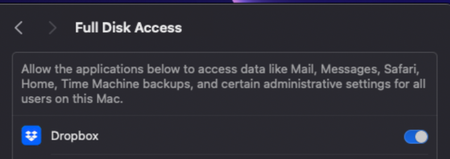
Device Mac Mini M2Operating System/Browser (if using the web) MacOS Sonoma 14.3.1 Dropbox App Version (if using the app) 242.4.5815 Syncing Status Files are unable to Sync Question or Issue Files won't sync on Mac OS. I have tried this on windows PC on the same network, and it works fine. I think this is a MacOS Bug with multiple versions of MacOS and dropbox that needs to be fixed. As you can see, has full disk access and no firewall issues, but won't sync. I have tried to "fix Hardlinks, etc". Fixing hardlinks only resolves it temporarily - when more files arrive in the folder, the issue persists. My dropbox storage is not full, neither is my computer. I have seen other troubleshooting steps to move images out then back in, but that is not a solution to me. Quitting, then relaunching does not solve. Dropbox Folder location: /Users/andrewwevers/Library/CloudStorage/Dropbox I have tried a reinstall as well. I have done this https://www.dropboxforum.com/discussions/101001014/syncing-problem-on-sonoma-14-1/733803 and this https://www.dropboxforum.com/discussions/101001014/my-desktop-app-is-stuck-at-syncing-and-i-need-help-with-the-buttons-to-fix-hardl/405492#M34944Solved102Views0likes6Comments