Your workflow is unique 👨💻 - tell us how you use Dropbox here.
sync
3963 Topics
Cannot sync due to permissions on macOS Sonoma
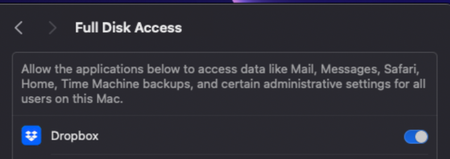
Device Mac Mini M2Operating System/Browser (if using the web) MacOS Sonoma 14.3.1 Dropbox App Version (if using the app) 242.4.5815 Syncing Status Files are unable to Sync Question or Issue Files won't sync on Mac OS. I have tried this on windows PC on the same network, and it works fine. I think this is a MacOS Bug with multiple versions of MacOS and dropbox that needs to be fixed. As you can see, has full disk access and no firewall issues, but won't sync. I have tried to "fix Hardlinks, etc". Fixing hardlinks only resolves it temporarily - when more files arrive in the folder, the issue persists. My dropbox storage is not full, neither is my computer. I have seen other troubleshooting steps to move images out then back in, but that is not a solution to me. Quitting, then relaunching does not solve. Dropbox Folder location: /Users/andrewwevers/Library/CloudStorage/Dropbox I have tried a reinstall as well. I have done this https://www.dropboxforum.com/discussions/101001014/syncing-problem-on-sonoma-14-1/733803 and this https://www.dropboxforum.com/discussions/101001014/my-desktop-app-is-stuck-at-syncing-and-i-need-help-with-the-buttons-to-fix-hardl/405492#M3494443Views0likes3Comments
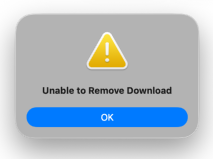
We're getting a "Unable to remove download" error when selecting the online-only option.
Device (Macbook Pro M2) Operating System/Browser (if using the web) (macOS 26.3) Dropbox App Version/Browser Version (243.3.6933) Issue We are using Dropbox via File Provider on macOS 26. The message appears when a local file is made online-only. We see this with Pages, Numbers, and Microsoft Office files. Strangely, it does not happen all the time, but it can be disruptive when we are trying to free up space on the system. Does anyone recognize this, and is this message coming from Dropbox or from macOS?45Views0likes4Comments
How to sync to an external Thunderbolt 3 SSD Drive on Mac?
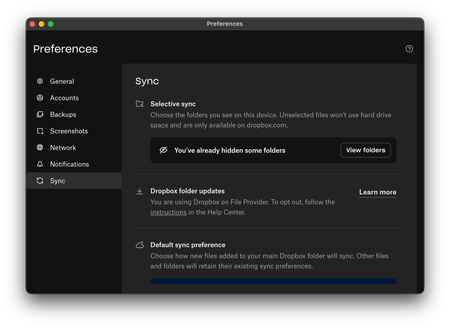
Device Mac Studio M1 Max Operating System/Browser (if using the web) macOS Tahoe 26.2 Dropbox App Version (if using the app) (240.4.8609) Dropbox Plan (Plus) Question or Issue I have purchased a 2TB Thunderbolt 3 SSD to use as an external drive for Dropbox as I am running out of space on my 1TB drive in the Mac Studio. For the life of me, I cannot figure out a way in Preferences to point it to the external TB3 SSD drive. It says I am using Dropbox on File Provider and I cannot see the option that will allow me to point it to the external drive. I had previously done so in the past with no problems, till the update to macOS Tahoe when suddenly the link to the external USB-C drive was severed. It worked for a while as I have sufficient space on my 1TB and I did selective sync. Now, I am running out of storage space, I appreciate guidance.113Views0likes8Comments
I seem to have two Dropbox folders after updating to File Provider
Yesterday the desktop app was saying that my files were up to date, but they weren't. My Dropbox folder had sync icons, but if I right-clicked on one I got a message that "Your device couldn't connect to the server. There may be a problem with the server or network." Conversation with bot about this: #26110456 Today the app is syncing, but my Dropbox folder has no sync icons. I have tried reinstalling the app and restarting the Mac. I recently tried updating to File Provider, but it screwed things up and I went back to legacy. My other Mac, on the same network, has no problem. That one is using File Provider. This one is a 2020 iMac, Sequoia 15.7.4, Dropbox v.242.4.5815 Sorry about the formatting, I don't know how to correct it.68Views0likes11Comments
bulk file rename in "automation option"
Hi, We have been working with a lot of image-sequence-based files recently. When it came to the point when we had to rename about 60.000 files at once, we faced the following problem: In Finder of MacOs (Tahoe) it is easy to bulk rename multiple files at once using the "search & replace" option. But when we do so, the sync process is started and it takes a lot of time until the files are synced online. As we are co-working on our projects, this procedure has become the bottleneck in our workflow. Then we tried to apply the automation option where there also is a renaming function. But unfortunately, it is only possible to add prefix or suffix. Wouldn't it be great to have there the function 2search & replace" to rename multiple files as required? This would be a great idea and function to implement. Thanks and best Juhn19Views0likes0Comments
How safe is it to move my Dropbox folder to an external HDD drive?
Hi everyone, I am a video editor working with large RAW footage files through Dropbox and I'm trying to optimize my storage setup after adding a new drive. My setup is a newly purchased 10TB External HDD and a 2TB external SSD. The Dropbox folder is currently on the SSD because when I frist set everything up, the SSD was my only external drive. Now that I have the 10 TB drive, I am considering moving the main Dropbox folder there to free up space on the SSD. My proposed workflow is to move the dropbox folder to the 10TB HDD and let all synced files live there. When starting a project, I would manually copy the specific folder from the HDD to the SSD and edit directly from the SSD for performance. After finishing, I would move everything back to the HDD inside the dropbox folder for syncing. My questions are: Will it work? Is this a stable and safe setup long term? Are there risks if the external HDD disconnects while Dropbox is running? Does anyone here use a similar HDD and SSD setup for video editing? I am trying to balance performance and storage efficiency without creating sync conflicts or data loss risk. I appreciate any advice from people who have experience managing large media files with Dropbox. Thanks.45Views0likes5Comments
Syncing does not proceed on my fast W10 PC
I have DB 241.4.4853 on Win10 PC. Dropbox keeps Uploading 203,163 files and downloading 5 files, but no progress for days. I do not see any updated DB content on my laptop (my other computer, W11) Dropbox folders. I have very fast PC and light fiber connection 500 MB up and down. What may be the problem and solution? I have >700 MB on Dropbox, ca. 130 locally on my PC.65Views0likes8CommentsWhy is Dropbox indexing on every restart of my computer?
Using a M3 Ultra Mac Studio, Sequoia 15.5, with Dropbox v239.4.8301 running on an external drive. This issue has been an issue since last June, and I have been lucky to avoid any major issues until today. Whenever I restart/shut off and turn my computer back on, Dropbox always has to go through the process of re-indexing everything. I work off of dropbox directly, and use shared folders to send files back and forth with collaborators/clients/etc. After I did a necessary restart for an unrelated software issue (Pro Tools for the work I do), and naturally the indexing process had begun. However, it's been going on for the past 5+ hours, and the work I completed this morning can't be sent until dropbox is done indexing, and my collaborator can't access any of my work until dropbox has completed the indexing process. We are under tight deadlines, and we have lost half a day due to this issue. Is there anyway to stop dropbox from re-indexing everything on startup? This was never an issue in the past, and I would rather not have to change my workflow, but I desperately need this to be resolved.176Views0likes7Comments
Recovering files after a Mac-ScanSnap-Dropbox fumble
Device MacBook Pro i9 Operating System/Browser (if using the web) macOS Tahoe 26.3 Chrome v145.0.7632.77 Dropbox App Version v243.3.6895 Scanner Snap ix500 ScanSnap Home v2.23.1(2) Question or Issue Deep plumbing alert! I use a Fujitsu ScanSnap ix500 scanner with my MacBook Pro. It appears I may have made the mistake of changing a folder name via Finder when that folder happened to be the ScanSnap Home (SSH) folder, which is the destination folder for scanned documents. That folder is also within Dropbox. For example, the original SSH folder was [Users/me/Dropbox/My Inbox] and the [My Inbox] folder name was changed in Finder to [My Scans]. The name change was done recently, and with plenty of my recovery period remaining. There is no longer any record of files in the now-renamed [My Scans] folder in Dropbox (online or on my device) before the date of the folder name change. There is nothing in the deleted files folder (online or on my device), including a reference to the folder name change, so I am not able to view/restore as I normally would with deleted files. However, the files (or at least thumbnails of) can still be seen in the ScanSnap app but they cannot be accessed, as an error message comes up showing the doc with the old [My Inbox] path is not accessible. Maybe the question is, how can files (20k+ files) get removed from Dropbox without any trace or record of those files ever being there? Any help or insight would be appreciated.26Views0likes2CommentsSome folders are not available for syncing to my Dropbox folder in the sync options
Device Mac Operating System/Browser (if using the web) Sequoia 15.6.1 Dropbox App Version (if using the app) ?? Syncing Status "Up to date" Question or Issue My son's business uses Dropbox. I also use Dropbox personally. The business has shared many folders with me. When I go into my sync options, not all the folders shared with me by the business show up as options to be sync'd. Why would some folders be available for syncing and others are not?54Views0likes4Comments