Our Community is in read-only mode until April 8th, learn more here. You can still search existing threads or get help via Dropbox Support, the Dropbox Help Center, or Learn.
Forum Discussion

JK
8 months agoNew member | Level 2
"Do not sync" option on desktop not appearing? (Mac)
I have large folders I do not want to sync — from my computer to Dropbox — but when I right click, there is no option for "Do not sync". It appears sometimes when I re-install Dropbox or if I log out...

JK
8 months agoNew member | Level 2
Hi Nancy ,
Thanks for the reply.
I managed to upgrade to the File Provider version of Dropbox, however the right click is still the same, with an additional "Version history" selection.
The screenshot of my Terminal prompt is below:
Nothing happened to the x.pdf ...
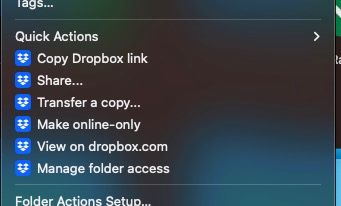
Here's the right click options available (notice only "Version history" is added to the menu options, still no "Do not sync"...!)
Ack... really don't know what the problem is!
- Nancy8 months ago
Dropbox Community Moderator
Glad to hear you managed to update your Dropbox app in the end!
Can you restart your computer, if you haven’t already, and let me know if the “Do Not Sync” option is still not there?
- JK8 months agoNew member | Level 2
Hi there,
Yes I restarted my computer twice and there's still no "Do Not Sync" option...
However, I realised now there is a new option — "Manage folder access".
- Hannah8 months ago
Hey JK, thanks for the update here.
Can you try these steps and let me know if they help?


About Create, Upload, and Share
Find help to solve issues with creating, uploading, and sharing files and folders with Dropbox.
The Dropbox Community team is active from Monday to Friday. We try to respond to you as soon as we can, usually within 2 hours.
If you need more help you can view your support options (expected response time for an email or ticket is 24 hours), or contact us on X, Facebook or Instagram.
For more info on available support options for your Dropbox plan, see this article.
If you found the answer to your question in this Community thread, please 'like' the post to say thanks and to let us know it was useful!


