Your workflow is unique 👨💻 - tell us how you use Dropbox here.
Forum Discussion

leoheck
3 years agoHelpful | Level 6
[Solved, Ubuntu 22.04] Dropbox is always "Connecting..."
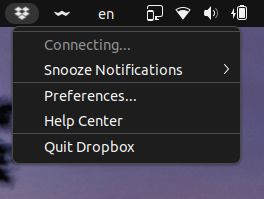
Hi, Dropbox tray icon says it is "Connecting..." forever. I cannot see the list of the latest modified files as it used to show or use the tray, actually. I am using Linux Ubuntu 22.04 ...
 3 years ago
Hey folks,
I found an extension that solves this issue for me. It worked immediately as soon as I installed the extension. No reboot or logout was required.
I just have to point out I am using Ubuntu 22.04.
https://extensions.gnome.org/extension/615/appindicator-support/
I was and still also using this extension to display old tray icons. Maybe it is also important.
https://extensions.gnome.org/extension/2890/tray-icons-reloaded/
Now I am happy again, here is the proof to make you happy too.
Mod note:
Please note that Dropbox is only supported on vanilla builds of Ubuntu 14.04 or later, or Fedora 21 or later.
We don't officially support forks or variants of these operating systems, or other flavors of Linux at this time.
You can learn more about our supported distros for Linux here.
leoheck
3 years agoHelpful | Level 6
Hey,
I was validating my solution here on a clean install of Ubuntu 22.04 for you.
In this setup, Dropbox works out of the box.
These are the steps I did, not all of them are required, but I am listing them here anyway.
1. [optional] Install Ubuntu 22.04 in a Virtualbox.
2. [optional] Install gcc and make `sudo apt install gcc make`
3. [optional] Install Guest Additions (to have better integration with my Host OS, and better screen resolution)
4. [optional] Update apt sources (sudo apt update)
5. [optional] Upgrade existing software (sudo apt upgrade)
6. Install Dropbox (64-bits)
cd ~ && wget -O - "https://www.dropbox.com/download?plat=lnx.x86_64" | tar xzf -
7. Launch Dropbox, manually.
~/.dropbox-dist/dropboxd
8. The tray may be visible now.
9. Click the tray and check if you can log in from there.
10. Login using your credentials.
11. There is this preference to start Dropbox with the computer, but it is just not working. Check this option, close the window, and open the Dropbox Preferences again, so you can check by yourself that this setting is not getting marked for some reason.
Dropbox tray > Preferences > Start Dropbox with the computer
12. Reboot the system, Dropbox may not start, then you can launch manually with step #9.
Dropbox looks working on a Fresh Install of Ubuntu.
Now, my system was not a Fresh Install, I have some Gnome apps installed too, so maybe they are doing something that prevents dropbox from starting.
Now, on my current working system, that setting to "Start Dropbox on system startup" is checked and working as you can see here.

le_avion
3 years agoCollaborator | Level 8
What do you mean it works out of the box?
When you click on the icon in the tray does is move on from Connecting...
Also, does it show you any statistics like the percentage used like below?
- leoheck3 years agoHelpful | Level 6
It works, as it is supposed to work dude.
Please, try it yourself. I've put all the required steps here. Don't be lazy like other people that you were complaining about before.
And Yes, it shows everything.
This is my host OS, Ubuntu 22.04, the one that I had to apply the fix the way I have indicated with the reply marked by me as the Solution. Everything is there, including the "Recently changed files". Here I had my ~/.Dropbox folder, and other dropbox-related folders in my home folder.
This is the run I tried on a Virtualbox, with a Fresh Clean Install of Ubuntu 22.04. Since this was a clean install, it did not have the default dropbox folders in my home directory. This is the 2nd time I am installing this Virtualbox to take this picture, I have deleted the previous one.
To have Nautilus integration, including the command line you have to install this:
sudo apt install nautilus-dropbox
If you run "dropbox" from the command line, you should see the deprecation warning of a function.
You can fix it with this command:
sudo sed -i "s/isSet/is_set/g" /usr/bin/dropbox
Then the Dropbox folder will gain the synchronization symbols like this one
And then files are going to be added with the speed of your network
After some time...
And after some time... (this is in Portuguese, unfortunately since I could not have time to put my system in English), but here it says that the Virtualbox image does not have enough space. I gave 20GB to the VirtualBox image, but my Dropbox folder needs a lot more.
Is it enough?
- le_avion3 years agoCollaborator | Level 8
First of all I am not your dude. You don't know me, you are not my friend, you didn't earn the right to call me dude.
Second, calling people having a problem with Dropbox lazy is impolite and arrogant, so learn some manners.
Third, the way you install Dropbox is convoluted and is not the standard way to install packages on Ubuntu or POP OS. You use deb or snap for Ubuntu and deb or flatpak in POP OS. Most users are not admins and don't want to be admins. They want the ability to install packages via the OS package manager.
Voce entende?
- leoheck3 years agoHelpful | Level 6
Well, if you don't have admin rights, then you should try to get help with your Admin.
Extra info for other users...
After a couple of reboots, Dropbox presented me with a window saying to finish the installation. Then, at this time, the checkbox to start Dropbox with the computer was checked and working.
About Create, Upload, and Share
Find help to solve issues with creating, uploading, and sharing files and folders with Dropbox.
The Dropbox Community team is active from Monday to Friday. We try to respond to you as soon as we can, usually within 2 hours.
If you need more help you can view your support options (expected response time for an email or ticket is 24 hours), or contact us on X, Facebook or Instagram.
For more info on available support options for your Dropbox plan, see this article.
If you found the answer to your question in this Community thread, please 'like' the post to say thanks and to let us know it was useful!


