Our Community is in read-only mode until April 8th, learn more here. You can still search existing threads or get help via Dropbox Support, the Dropbox Help Center, or Learn.
Forum Discussion

alexnasla
2 months agoExplorer | Level 4
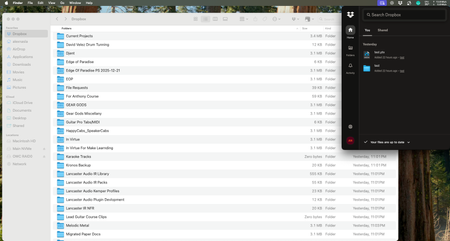
Finder integration broken on macOS 15.6 (no status icons, incorrect folder sizes)
Application Affected (Dropbox App, Finder Integration) Device (Mac Studio M4 Max) Operating System/Browser (if using the web) (macOS 15.6) Dropbox App Version (if using the app) (240.2.8086) ...

Hannah Dropbox Community Moderator
2 months agoDropbox Community ModeratorThanks for your post here, alexnasla and sorry to see you're having issues.
From what I can see from the info you provided, you're not using the stable version of the Dropbox desktop app.
As a first step, can you please switch to that, to see if it helps? To do so, first turn off the "early releases" option here and then reinstall the desktop app without uninstalling the previous version.
Keep me posted with the results.

alexnasla
2 months agoExplorer | Level 4
Hey Hannah,
Ok I did as you asked and it does not seem to have made any difference. All the same issues are still present.
- Hannah2 months ago
Thanks for the update, Alex.
Just to get some more context, can you check if syncing works as normal? Meaning, do files you add to your Dropbox folder sync to your account online?
Also, when you control/right-click on a file within your Dropbox folder, do you see any Dropbox context menu items?
- alexnasla2 months agoExplorer | Level 4
Yeah syncing seems to be working fine. And yes I do see Dropbox context menu items.
- Hannah2 months ago
Thanks for checking, Alex!
If you haven't already, can you also restart your computer, to see if it helps?
If not, try the following:
- Click on the Dropbox icon from your Desktop and quit the application
- Open your Activity Monitor from your Mac Utilities folder
- Force quit out of the instances of the Dropbox application that are running by searching for "Dropbox" in the search bar, then clicking on the "x" force quit icon on the top left
- Re-start Dropbox from the applications folder by double clicking on the Dropbox application
- Click on the Apple icon in the top left of your screen
- Click on "force quit"
- Relaunch Finder
About Apps and Installations
Have a question about a Dropbox app or installation? Reach out to the Dropbox Community and get solutions, help, and advice from members.
The Dropbox Community team is active from Monday to Friday. We try to respond to you as soon as we can, usually within 2 hours.
If you need more help you can view your support options (expected response time for an email or ticket is 24 hours), or contact us on X, Facebook or Instagram.
For more info on available support options for your Dropbox plan, see this article.
If you found the answer to your question in this Community thread, please 'like' the post to say thanks and to let us know it was useful!


