Your workflow is unique 👨💻 - tell us how you use Dropbox here.
Forum Discussion

ck9
4 years agoExplorer | Level 4
How to restore the Dropbox icon in the sidebar of Finder in macOS
As you see in this screenshot, I do have a shortcut for Dropbox in my Finder sidebar. But the folder icon is not Dropbox's original icon. I don't remember how this happened, but it has been like this...
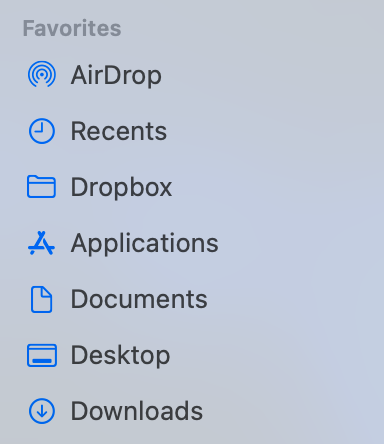
- 4 years agoYou can try following the first few steps of the advanced installation to uninstall the desktop app.
However, since it's still running on your computer, could you go through your preferences and check the location of the Dropbox folder?


Hannah Dropbox Community Moderator
3 years agoDropbox Community ModeratorHey phardy007, thanks for the nudge here.
Can you let us know which version of macOS you have?
And do you see the Dropbox shortcut in 'locations' now instead?

phardy007
3 years agoNew member | Level 2
Hi Hannah,
I have Monterey 12.3.1
I see a shortcut in my menu bar on the top of my screen. By "locations" do you mean the shortcut that drives me to "User" then yes.
- Jay3 years ago
Hi phardy007, if you open the preferences of the Dropbox desktop application, and view the Sync tab, can you let us know the exact location of the Dropbox folder?
 meadowmom3 years agoNew member | Level 2
I read all of this and could not get the icon to appear in the sidebar. So I went to the icon that shows at the top right of the screen. I clicked on it and opened files. This made the open blue box symbol appear in my bottom tray. I right-clicked on that and chose "show in finder." While that finder window was open, I looked at the file path at the bottom of the finder window. (It did not fill the screen. If yours does, you can click the green button to reduce the size, so that you can see the sidebar to the left of the finder window.) I clicked on the Dropbox folder and dragged it to the sidebar, waited until I saw a black line showing that I would drop it BETWEEN other folders, not INTO a folder, and then I let go when it was between the top two folders in the sidebar. It did not go to the place I wanted it (the top), so I just dragged the top item below it and that left it at the top as I wanted it to be. [Now that I have typed all of this out, I tried out the instructions. Right-clicking on the icon in the bottom tray took me to the app folder. I double-clicked on the app symbol in the finder path and that opened the Dropbox folder. THEN I could drag that folder symbol in the file path over to the sidebar. If a middle-aged female homemaker can figure that out, I'm sure you all can do it, too! The Lord bless your day. ~ Jamie]

About Apps and Installations
Have a question about a Dropbox app or installation? Reach out to the Dropbox Community and get solutions, help, and advice from members.
The Dropbox Community team is active from Monday to Friday. We try to respond to you as soon as we can, usually within 2 hours.
If you need more help you can view your support options (expected response time for an email or ticket is 24 hours), or contact us on X, Facebook or Instagram.
For more info on available support options for your Dropbox plan, see this article.
If you found the answer to your question in this Community thread, please 'like' the post to say thanks and to let us know it was useful!


