We’re Still Here to Help (Even Over the Holidays!) - find out more here.

Dropbox for Beginners
Group Content

How to change the email address connected to your Dropbox account
Hey there! If you’ve recently changed your email address or just want to keep things up-to-date, now's the perfect time to update it on your Dropbox account 😀. Don’t worry if you’re new to this - it’s a simple process, and we’re here to help! Keeping your email current ensures you’ll always get important updates and stay connected with your files . Okay, so lets change your email address! Log in to dropbox.com. Click your avatar (profile picture or initials) in the upper-right corner. Click Settings (You’re doing great!) Under the General tab, find your email address. Click Edit next to your email address. See Verify email instead of Edit? No worries! You’ll need to verify your email address first. If there’s an info icon (that little 'i' in a circle), your admin needs to give you a hand with this one. Please contact your admin to change your email address. Enter your new email, confirm email, and Dropbox password. Click Update email. We’ll send you a verification email (almost there!) 8. Check your inbox, click Verify your email, and you’re all set! If this doesn’t answer your question then take a look at our Help Center guide on how to change the email address on your Dropbox account. Is there anything else you'd like to learn? Let us know, and we'll be happy to create another step-by-step guide to help you out 🤗!15KViews4likes0CommentsHow to get started with Selective Sync
Welcome to the Dropbox Community forum! We're thrilled to have you on board, and we want to make sure you get the most out of your Dropbox experience right from the start. Today, we're going to talk about Selective Sync. What is Selective Sync? Well, selective sync is a feature in the Dropbox desktop app that allows you to remove specific Dropbox folders from your hard drive so you can save space on your computer. You can remove the Dropbox folders from your computer without deleting files; the folders you remove from your hard drive remain stored in your account on dropbox.com How to use selective sync Note: To use selective sync, you’ll need to have the Dropbox desktop app installed on your device. To choose which Dropbox folders to store on or remove from your computer’s hard drive: Open your Dropbox desktop app preferences. Click the Dropbox icon in your taskbar. Click your avatar (profile picture or initials) in the top-right corner. Click Preferences. Click the Sync tab. Under Selective Sync (Windows), click Modify or Select folders to sync to this Mac (Mac), click Modify. Check the folders you’d like saved on your hard drive. Uncheck the folders you’d like removed. Click Update. What is the difference between selective sync and online-only? Making your files and folders online-only also helps save hard drive space. These files and folders will still be visible from your computer, but are stored in your Dropbox account online. Based on how you use certain files and folders, they can automatically be set to online-only. That's it! Now you can save valuable space for things that matter most to you, and learn how other Dropbox features can improve your day too! So, what do you want to see from us? Let us know!9.8KViews7likes18CommentsGetting started with Dropbox
Welcome to the Dropbox Community! Hey there, new Dropbox users! If you're just starting your journey with Dropbox , we're thrilled to have you here. We would love to know why you started using Dropbox to begin with, so we can share tips and advice that works for you. To get us started, we’ll share some tips for getting started, and on some of the most popular and useful features of Dropbox to get you up to speed. Some of the top things we recommend to get up to speed and get the most out of Dropbox: Upload your first files: Enjoy the peace of mind that comes with starting at 3 TB of team storage and backup. Explore security features such as file recovery, password protection, watermarking, and viewer history to keep your data safe. To upload a file, you simply need to click the upload files button On dropbox.com, once you’re logged in, you just need to: Click Upload under the search bar at the top Then follow on and click Files Select as many files as you like and click Open. If you’re doing this on the Dropbox desktop app, you can take those files or folders you’d like to add, then drag and drop (or copy and paste) them into the open Dropbox folder. And you’re done! Share those files: Now that you have your files in the right place, you will probably want to share a file with someone else at some point, so let’s get into it. When you’re logged in to dropbox.com, you can hover over the file or folder you’d like to share and click the share icon (rectangle with an up arrow). Here you can type in the Email, or name of the person you’d like to share with, and click to select them from the results. Need to send it to multiple people? Perfect, you can do that here too. Select Can edit or Can view - it does what it says on the tin, but you can choose the permissions here to make sure you are in control of your file. Add a note if you’d like, and check the checkbox if you’d like to Post this note as a comment. (I usually use this to give someone context on why I’m sharing the file, or what they need to be aware of) Click Share file. That’s it! If you’re more of a visual learner, you can check out this great video here in the Learn video library. Now you can share photos, docs, basically files of almost any type with the people who matter to you. Whether you just want to share, or you’re working on something together, you can control access and be sure everyone has access to the same version. Edit those PDFs with ease No technical wizardry, no back-and-forth file conversions, and no additional software to install. Dropbox makes it easy to upload, edit, send, and sign PDFs in one place. Rather than explain it in too many words, check out this video here: That should cover your bases, but we want to emphasize that this is your Community too. Tell us what you want to see, start conversations, share ideas, and get involved. This is your space, so get the most out of it! Looking forward to seeing you around here! Let us know what you’d like to hear from us, or start a discussion 9.7KViews5likes0Comments
Getting started with Dropbox desktop and mobile apps
A beginners guide to Dropbox apps We’re delighted to be here with you as you take your first steps with Dropbox and our aim is to make them as simple and easy to take as possible. Today, we’re going to be talking about Dropbox apps. Here’s everything you need to know: What is the Dropbox desktop app? Downloading the Dropbox desktop app Getting started with the Dropbox desktop app What is the Dropbox mobile app? Downloading the Dropbox mobile app Getting started with the Dropbox Mobile app What is the Dropbox Desktop app? When you download the Dropbox Desktop app, you’re basically adding two things to your computer, the Dropbox folder, which you can find in File Explorer (Windows) or Finder (Mac). and the Dropbox icon, which will sit in your taskbar (Windows) or your menu bar (Mac). Having the Dropbox desktop app will allow you to access, view, save, edit and share all of the files in your Dropbox account, directly from your desktop. This means you won't need to waste time logging into various accounts to find your files and folders and you can even access them offline if you are out and about with no connection. Downloading the Dropbox desktop app Downloading the Dropbox desktop app, or Dropbox installer, is very simple and can be done by clicking this link. Once you click on it, the download will start automatically. Once the download is complete, you’ll see the Dropbox installer at the bottom of your browser, you’ll need to click on it to open it and then double click the Dropbox logo to begin the installation. Then, follow the onscreen prompts to complete the process. Getting started with the Dropbox desktop app Once you’ve got the Desktop app installed, you’ll be asked to either log in or create an account. When you’ve done one of these, you’ll be asked to select the folders you want to sync to your Dropbox account, this allows you to choose exactly what files and folders are added to your Dropbox account. Once your files are synced, you’re ready to start using the Dropbox Desktop app! If you click on the Dropbox icon in the taskbar (Windows) or menu bar (Mac), you’ll be able to search for your files, check your notifications, view your latest activity, keep up to date with your sync history and manage your account preferences. What is the Dropbox mobile app? The Dropbox mobile app allows you to manage your Dropbox account while on the go, through your phone or tablet. You’ll be able to access all of your files and folders and get work done where ever you are, you can even make files available offline so you don’t need to worry about losing internet access when you’re out and about! Downloading the Dropbox mobile app The Dropbox mobile device is available on both Android and iOS devices, to get it all you need to do is go to your preferred app store, or you can simply scan the QR code in the image below. Once you’ve found it, simply install the app and log-in and you’re good to go! Getting started with the Dropbox mobile app Now that you’ve got the Dropbox mobile app installed, you’re ready to start using all of it’s awesome features, but rather than us boring you with the finer details, here’s a quick video to let you know exactly what you can do. So that’s it, now that you’ve got both your desktop and mobile apps up and running, you’ll be able to stay completely on top of your work, no matter where you are, or if you’re online and off-line! We’d love to share more tips and guides to help you master any other Dropbox features you may be struggling with. So, if you have any questions at all, please do not hesitate to ask, we are here to help! We want to hear about how using the desktop or mobile apps has improved your workflow with Dropbox, so please leave a comment below and let us know.6.4KViews6likes0CommentsTell us why you got started with Dropbox
We really want to help make the start of your journey with Dropbox as simple and smooth as possible. To help us do this, we’d love to know why you started using Dropbox. You might have been organizing your photos, or maybe you wanted to share files with your friends or family, or you could have been working on a shared file for a project you’re involved in. Whatever the reason, we’d love to hear about it. Let us know by leaving a comment below, we might even be able to help out with some tips and tricks to help get you moving in the right direction.5.4KViews5likes12CommentsPhotos with friends, secret family recipes, pet videos, team projects - how are you using Dropbox?
There are many reasons why people create a Dropbox account, it could be any of the above, or you could be just looking to free up some space on your laptop. Whatever the reason, we’re glad you’re here! To help us get a better understanding of how you use your Dropbox account, it would be great to know if you’re planning on using your account for work, or your personal life. The more we know, the more we can help, so please leave a comment below and let us know!5.3KViews2likes4CommentsHow to share files and folders with Dropbox
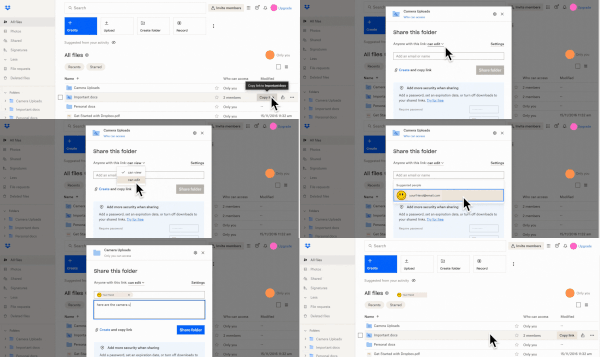
If you’re new to Dropbox and want to start sharing files and folders with people, you might be wondering where to start. Well, we’ve got you covered! This quick guide will walk you through everything you need to know about sharing files and folders. This guide will show you how to share files and folders with people who have a Dropbox account, as well as those who don’t. How to share files or folders with people who have a Dropbox account Sharing files or folders with people who have Dropbox accounts is really easy. Here’s how to do it. Login to dropbox.com Hover over the file or folder you want to share and click on the share icon You can select whether to make the file or folder can view or can edit Enter the name or email of the person you would like to share the files or folder with Click the Share file or Share folder button The person you have shared with will receive an email prompting them to add the file or folder to their Dropbox account The person you are sharing with will need to be logged in to be able to view or edit the files or folders you share with them. You can also do this very easily using the desktop app. Here’s how it’s done. Open the Dropbox folder in Finder (Mac) or File Explorer (Windows) Control click or right click on the file or folder you would like to share Under quick options select Share Then, just follow the same steps mentioned above How to share files and folders with people who don’t have a Dropbox account Just because someone doesn’t have a Dropbox account, doesn’t mean that you can’t still share content with them. To do this, you’ll need to create a link to the file or folder you would like to share. Here’s how to do it. Login to dropbox.com Hover over the file or folder you want to share and click on the share icon Make the file or folder can view Click on Create and copy link You will now have the link copied to your clipboard and you can share it through email, private message, text message, or any other way you like This can also be done just as easily using the desktop app. Here’s how to do it. Open the Dropbox folder in Finder (Mac) or File Explorer (Windows) Control click or right click on the file or folder you would like to share Under quick options select Share Then, just follow the same steps mentioned above We hope you found this guide helpful and you’re now ready to share to your heart’s content. Want to learn more about sharing? Read our guide on file sharing. Let us know what you’d like to learn next, we’re here to help.4.5KViews1like0CommentsHow to change your Dropbox account password
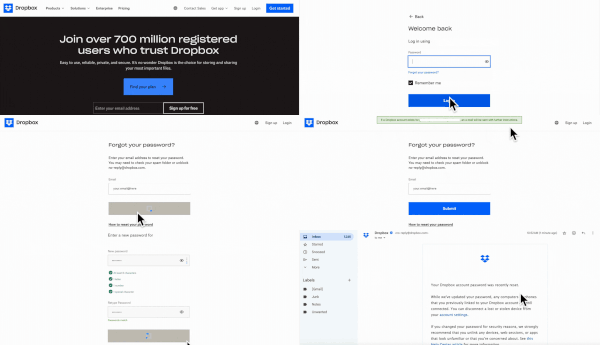
If you’re new to Dropbox, or still finding your feet with your Drobpox account, you might be wondering how to change the password associated with your account. Well, don’t worry, we’ve got you covered with our step-by-step guide to changing your password. We’ll be showing you how to change your Dropbox account password if; You’ve forgotten your password and you’re not logged in You’ve forgotten your password and you’re logged in You know your current password You’ve forgotten your password and you’re not logged in We’ve all forgotten a password at some stage, whether it’s because you’ve got so many of them or you just had a momentary brain lapse, but it’s not the end of the world. Even if you’re logged out, there are super-easy ways to reset it. So, here’s how to reset your password if you’re logged out of your Dropbox account. Go to dropbox.com and click where it says Login Enter your email address and hit Continue Instead of entering your password click on Forgot your password? Enter your email address and click Submit You will receive an email containing a Reset password link Follow the link and then enter your new password and click Submit You will receive an email to confirm your password has been reset You’ve forgotten your password and you’re logged in You may also find yourself in a situation where you are still logged into your Dropbox account and you can’t remember your password. Granted, this one happens a little less often, but believe me I have been here on numerous occasions. Rather than trying to make sure you never accidentally log yourself out, for the rest of your life, there are easier ways to get around this scenario. You can just change your password pretty easily. Here’s how to do it. Click on your avatar or initials in the top right hand corner of your screen and select Settings Click on the Security tab and then select Change password Click on Forgot password? Then enter your email address and hit Submit You will receive an email containing a Reset password link Follow the link and then enter your new password and click Submit (Make sure your password is secure and unique. Learn how to create a strong password) You will receive an email to confirm your password has been reset You know your current password There may also be times when you know your current password, but you still want to change it. You might be trying to be extra careful, using a shared device, or worried that someone else may have access to your Dropbox account. Here’s how to change your password if you know your current password. Click on your avatar or initials in the top right hand corner of your screen and select Settings Click on the Security tab and then select Change password Enter your new password and then click Change password You will receive an email to confirm your password has been reset We hope you found this step-by-step guide helpful, please let us know if you were able to change your password using one of these methods.3.9KViews2likes0CommentsHow to restore deleted files with Dropbox
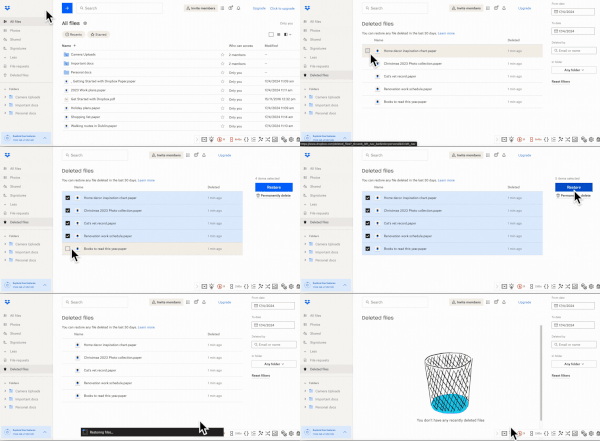
If you’re anything like me, you’ve probably accidentally deleted files at some point since you opened your Dropbox account (I do this way more than I care to admit). The most notable time was when I accidentally deleted my entire thesis, instead of of some notes I’d taken. Luckily, with Dropbox, you have at least 30 days to restore these files, and it’s really simple. Here’s how to do it. Login to dropbox.com Click on Deleted files from the left-hand side bar Select all of the files you would like to restore Click Restore Files will now be moved back to their previous location That’s it; it really is that simple! But remember, these files won’t stay in the Deleted files section forever, so if you do find yourself needing to Restore files don’t delay! If you're still a little unsure you can more about Restoring deleted files in Dropbox. Now that you’ve restored your files, what would you like to learn next? Let us know and we’ll see what we can do to help.3.9KViews1like0CommentsWelcome to our Dropbox for Beginners group
Welcome to Dropbox for Beginners, a brand new group on the Dropbox Community forum. If you’re new to Dropbox, or if you just want to learn more about your Dropbox account, this group will be the perfect place for you to come and get to grips with Dropbox. Who can join the Newcomers group? This group is for people who are new to Dropbox and keen to learn about the basics, get started using different product and features, or find out about new ways to work. With all that in mind, there is literally no barrier to entry for this group and it is open for every single Community member to join. We also have groups to share ideas and learn from others, like the Dropbox AI group or the Dropbox photography community. What can I post in the Dropbox for Beginners group? This place is somewhere that you can feel comfortable posting any question at all, regardless of your experience with Dropbox or your technical ability. There are no stupid questions in this group, so whatever you feel like asking, please just go ahead and ask it. You could even get started by responding to this post and tell us how you use Dropbox. We’ll also be posting here with regular guides and helpful information like our guides to getting started with selective sync or downloading the desktop and mobile apps. What if I'm not new to Dropbox? If you're not new to Dropbox, and you feel like you can help those who are, please feel free to share your knowledge and experience with others. If there's anything that you think might benefit others, we would love to see that, too. Tell us what you think We’d love to hear your thoughts on the Dropbox for Beginners group, so please let us know what you would like to see featured in the group.3.3KViews10likes0Comments



About Dropbox for Beginners

This is a space for beginners who are new to Dropbox and want to learn more about the basics of their Dropbox account. Connect with others, ask questions, discover new features and products, and find out about new ways to work with our beginners guides.Latest Activity: 10 days ago
Open Group
The Dropbox Community team is active Monday to Friday. We try to respond to you as quickly as we can, at least within a business day.
If your request is urgent, please be sure to Contact Support so our Customer Experience team can get started on your request.
This community group is for networking and collaboration, not contract discussions. Reach out to your account team for questions you need answered about your specific account and contract.