2025 sparked some incredible conversations across our community 👩💻. Discover the highlights and see what’s ahead in 2026.
Mac
1684 Topics
My macOS desktop app has been stuck syncing 10MB for 3 days.
Application Affected Dropbox Device MacBook Air Operating System/Browser (if using the web) OS 15.7.3 Dropbox App Version (if using the app) 238.4.6305 Question or Issue Three days ago I noticed an error message at the top of the finder window which was open to my Dropbox folder (stored in "locations"). The message said something to the effect that my Dropbox app couldn't be found. I thought that was strange, because Dropbox was open. So I quit the app and then reopened it, and that's when things really started getting strange. Now, day three, Dropbox is constantly in sync mode. The icon up in the task bar shows the circle of arrows, and when I click on it says syncing down at the bottom. But for most of the last two days there was no progress bar and no information about what was syncing. Now I'm getting "syncing [x number of files]." When I first looked this morning it was at 500+ 10 MB. Now it's down to 444 files, 9 MB. Progress! The thing is, I only use Dropbox for syncing one particular application, Scrivener. My entire storage on Dropbox is only 275 MB. It usually takes seconds to sync the updated files. The other strange thing is that on the activity monitor Dropbox never rises above 4% CPU. It's been going for more than 48 hours at a snail's pace to sync relatively tiny files. Possibly relevant, or just coincidental: about two weeks ago I cleared the data from the MacBook and reinstalled everything. After that, everything appeared to be in place and working just fine. This problem appeared after I returned from about 10 days travel over the holidays in which I was rarely on the computer. I've quit and reopened Dropbox multiples times. I've restarted the computer. None of it has helped.25Views0likes3CommentsDropbox Finder Extension doesn't work and I have no Dropbox context menu items on new installation
I just installed to Mac OS Tahoe. I no longer have the "Make Available Offline" Feature available to me when I right click on a folder. All of the Dropbox list items are now gone. There's no way to push any folder to sync. When I go into system settings - general - login items & extensions - extensions - Dropbox, the "Dropbox Finder Extension" button seems to automatically turn off after I turn it on.631Views1like23Comments
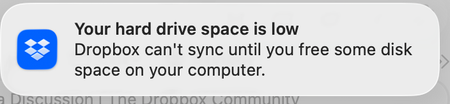
My macOS desktop app gives me an incorrect low disk space error message.
Dropbox Plan Professional Device M1 iMac Operating System/Browser (if using the web) MacOS Tahoe Dropbox App Version (if using the app) 238.4.6305 Question or Issue My Deskto App is showing that I'm using 4 TB of 4 TB. My online account shows that I'm using 2.76 TB of 4 TB. The online info is correct. The info from the desktop is wrong. I am getting Low Disk Space messages and my files aren't syncing and I think it's because the desktop app thinks I have no space available. Any idea how I can fix this? Thanks62Views0likes6Comments
Finder integration broken on macOS 15.6 (no status icons, incorrect folder sizes)
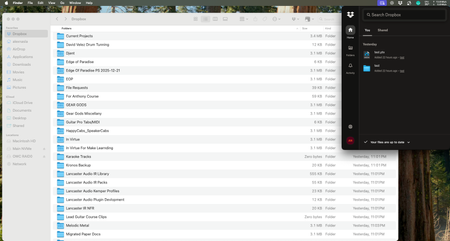
Application Affected (Dropbox App, Finder Integration) Device (Mac Studio M4 Max) Operating System/Browser (if using the web) (macOS 15.6) Dropbox App Version (if using the app) (240.2.8086) Question or Issue I’m having a Finder integration issue after installing Dropbox on a new Mac Studio running macOS 15.6. Setup details: Dropbox desktop app installed successfully Dropbox folder is located on an external 4TB NVMe drive Sync and indexing have fully completed (Dropbox reports everything is up to date) All files and folders are currently set to Online-Only Problems I’m seeing: Finder status icons are missing There are no cloud / checkmark / online-only icons shown in Finder anymore I cannot visually tell which folders or files are online-only vs available offline Folder sizes are incorrect in Finder Most folders show sizes like 3.1 MB, a few KB, or 0 bytes, regardless of their actual contents These folders contain large amounts of data (audio sessions, samples, etc.), so these sizes are clearly incorrect Previously, Dropbox would show the correct logical folder size even when content was online-only This persists even though syncing and indexing are finished Restarting Finder and confirming sync completion does not resolve the issue Expected behavior (based on previous Dropbox behavior): Finder should show: Status icons indicating online-only vs offline Correct logical folder sizes, even when files are online-only At the moment, Finder shows neither, which makes it difficult to manage storage and verify file states. Please let me know if this is a known issue with macOS 15.6 , external volumes, or Dropbox’s Finder extensions, and what steps are recommended to restore proper Finder integration. Thank you.59Views0likes7Comments
The Dropbox context menu isn't working on my Mac.
Application Affected Dropbox context menu Device Macbook Pro 2019 Operating System/Browser (if using the web) MacOS 15.7.3 (24G419) Dropbox App Version (if using the app) 238.4.6305 Question or Issue The Dropbox context menu is not working despite multiple attempts to resolve the issue. I have tried the following: Quitting Dropbox, deleting all files, and relinking the account Relaunching Finder Running Terminal commands Logging in with a different user profile Restarting the system and related services multiple times Update extensions Thank you!76Views0likes11CommentsError on switching back to available offline sync option
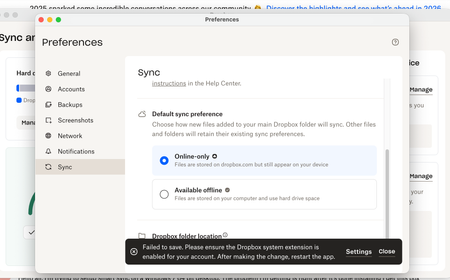
I am on MacbookPro M1 2020, running Tahoe 26.1. I have set the settings in Dropbox Admin to offline is enabled, my personal account is fine but my business account, for which I am admin will not let me switch and gives me "Failed to save. Please ensure the Dropbox system extension is enabled for your account." error.14Views0likes1CommentWhat are the differences between the legacy version of the Dropbox app and File Provider?
Operating System/Browser (if using the web) Mac OS 26.2 Question or Issue I use DB on my desktop and work with 3 other people, sharing and updating Word docs and videos from Zoom. We've been doing this since 2012 and I am sure we all use the Legacy version. Not even sure when DB started using File Provider. I have been having sync/permission/CPU issues. My computer has been slow and DB is a CPU hog. I spent money and a LOT of time with "Just Ask" while he diddled with Terminal and permissions, but this did not really solve the sync/permission issue and now each time I restart I have to enter my computer password: "Dropbox needs to change permissions for the Folder: /Users/betty/Dropbox" There also seems to be some kind of conflict with iCloud. I created a folder "Computer Issues" on my Desktop (doesn't sync with Dropbox) to track several problems. I named one folder within this folder "Dropbox." I realized yesterday (maybe after I updated the MacOS?) there were little clouds on and within this folder. I renamed the "Dropbox" folder "DB" and all the clouds disappeared! Explain that please! I am really a novice - I am just exploring and don't trust "Just Ask." In exploring solutions I learned of the File Provider version and am thinking this might just solve some of these problems. My question concerns the cons of updating to the File Provider version. And do you think this might solve my problem? I was not very impressed with "Just Ask!" Thank you for your help,Solved97Views0likes14Comments
Searching for files in Finder in the Dropbox folder isn't working on Mac OS
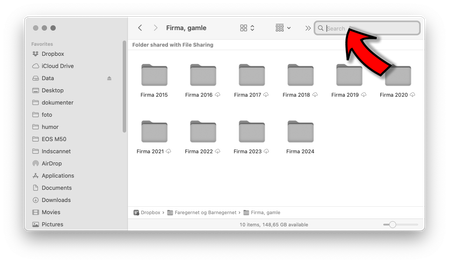
Hi everyone. Im using macOS Sequoia 15.3.2. When I'm in a Finder windows, in my dropbox folder – the filesearch don't work. The search doesn't find any results. If I'm in a regular folder on my SSD, everything works fine. Any syggestions? Best regards Søren316Views0likes13Comments
Having issues reinstalling Dropbox on Mac OS
I'm having issues reinstalling my Dropbox on my MacOS (15.7.1) desktop. I had it synced with Scrivener, but it was taking so long to sync that I deleted the app mid-sync and cleared out the CloudStorage folder of the Dropbox folder. Then I uninstalled the app, and deleted all trace of Dropbox from my computer. I just reinstalled it but then I was getting errors saying it wasn't able to load. This is the message I got saying I should share it with Support. Now I've unlinked my device from my account, and when I open the desktop app it just keeps saying it's not connected to the internet. I'm not quite sure what to do. Also when I try to attach my error message about "7 5 5 is not allowed in the community. Remove it and try again," so here's my pastebin of my error log.34Views0likes9Comments
Dropbox doesn't keep my selective sync settings when on OSX Sequoia 15.7.3
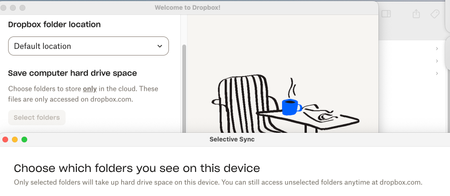
Application Affected Dropbox app and Selective Sync Device MBP 2.3 Intel, 16GB Memory, 1TB SSD Operating System/Browser (if using the web) Sequoia 15.7.3 Reference the screenshot below. This is a mess, which am I supposed to choose? At the top it says "Choose folders to store only in the cloud". (That used to mean you'll see all of your folders displayed and if you wish to download a file or folder, you right click and select "Keep on this device." That is what I want, but certainly not what I'm getting.) If I click the Select Folders button right underneath, as can be seen below, it says "Only selected folders will take up hard drive space on this device." If I choose the folders, the d*mn thing downloads them and fills up the hard drive if you walk away thinking it's setting up the online-only version. The worst part? If you select 1 or 2 folders to see what happens, and you see it start to down the files, you can go back into Selective Sync and uncheck them to stop them. Brilliant! Except the app reselects them for you before you can even close the window. I know you're going to say "well, it has to finish the initial sync". My response is, why doesn't your app respect the "Choose folders to store only in the cloud" and start downloading the files? If I let it finish the sync and delete the local copies and go back to the beginning and not select any folders, I get nothing. It's been "syncing", I don't know what, for the better part of an hour +. I say I don't what it's syncing because after they hour +, my local folder remains empty. I've been a long time user and this is the sloppiest setup interface I've ever seen.26Views0likes1Comment