Our Community is in read-only mode until April 8th, learn more here. You can still search existing threads or get help via Dropbox Support, the Dropbox Help Center, or Learn.
Admin Console
12 TopicsLinks - what you need to know
Hello, and welcome to the Dropbox Community if this is your first time here 😁 If you’re new here, and you have a question you want to ask, you can do that here, just click ‘Start a discussion’, and Community members and Dropbox staff can help you out. We see a lot of questions about copying and sharing links, so we wanted to make a definitive guide to using links with Dropbox. Whether it’s sharing access to a file in Dropbox, or sharing a link to a Paper doc, it never hurts to refresh on the different ways you can copy links, share access, or even pick up new tips and tricks to save you time. How to share a link from Dropbox If you want to share a link to a file or folder from Dropbox, and send it to someone else, just follow these steps. Sign in to dropbox.com, or open your Dropbox desktop app. Click All files in the left sidebar. Hover over the name of the file or folder you'd like to share and right click, and select Share. Click Copy link. The link will be copied to your clipboard. You can then paste it to an email, a message or saved for your own use later. A question we’ve gotten a few times is ‘where is the clipboard that a link is copied to?’ and the answer is - it’s invisible. Your link is waiting to be pasted, but isn’t visible until you paste it somewhere. How to share a link from your phone or tablet If you need to share a a link when you’re on the move, or working from a mobile device, it’s almost the same, just follow these steps. Navigate to the file or folder you want to share. Tap “…” (ellipsis). Tap Share. Tap Create a link. If a link was already shared to this file or folder, tap Share next to Anyone with the link can view. Select the way you'd like to share the link from the options. Copying and sharing a link to a Dropbox Paper document: 1. If you want to share a Paper document with someone, you can click the ‘Share’ button at the top of the screen, and copy the link there, or select the person you want to share the file with and they will be notified and given access. 2. To make it a little easier to share, you can also copy a link to a Paper document with one click, by pressing the little link symbol in the right hand corner of the document. If you paste this link to the paper document elsewhere in a Dropbox file, or an integrated app, it will appear in a neat format, with a + sign in front of it, rather than a huge url. 3. Like any link on the internet, you can right click on the url of a Paper document, and select copy like you do anywhere else, however this link is only usable for you (it’s based on your account), so you can save it elsewhere if you want to access it later. Now that you’re a links expert, if you want to get into more of the Dropbox Community, do you want to? Learn some tips and tricks about Dropbox? You can find those here. Know more about how other Community members are using Dropbox? You can check out this thread. Want to check out ideas from other Community members, or even submit your own? You can check out our ideas section. Want to know more about the Dropbox Community? You can check out this area, or just join the conversation and ask a question in the comments down below!1.9MViews7likes0Comments
We've updated the Admin Console!
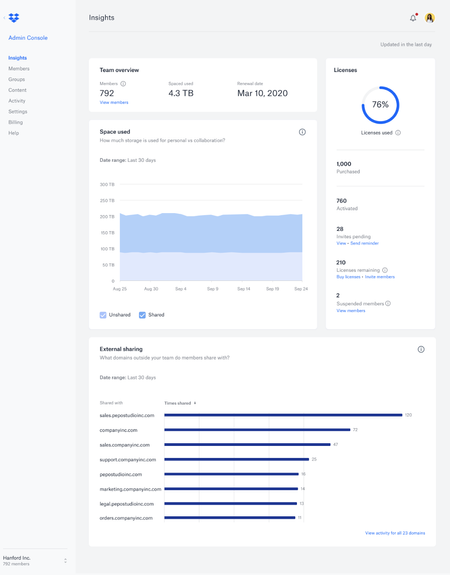
Hi folks, I’m Anastasia and I’m part of a team focused on delivering a better admin experience for teams. We are thrilled to announce that we’ve updated the admin console! Our team has been hard at work developing this based on feedback from our admins, and we can't wait for you to try it out and share some feedback with us. 🙂 The changes to the admin console make it easier for you to: Tackle to-dos on the Dashboard homepage Protect your team’s content, with enhanced monitoring and settings on the Security page Manage member access to folders and add-ons on the Members page Some changes you’ll want to know about: We’ve replaced the Insights page with a new Dashboard homepage Our activity logs are now all under Security (formerly in the Activity page) We hope you love it, but please share any and all feedback with us so that we can make the admin console the best it can be. Thank you for your continued support! Anastasia7.1KViews6likes11CommentsTell Us How You Use Dropbox
No two people use Dropbox in exactly the same way. Some of you rely on it every day for work, others for school, creative projects, or keeping life organized - and we love that. We’d love to hear how you’re using Dropbox today - is it something you use once in a while, is it part of your day to day, are there any features you can’t live without? What workflows have you built that save time or reduce friction? And where do you see opportunities for us to do better? Your tips, ideas, and honest feedback really help us to make sure we can share useful tips, and they help other community members discover new ways to get more out of Dropbox too. Share your experience, favorite features, or suggestions in the comments below. Your voice truly helps shape the future of the Dropbox community 😁 The Dropbox Community Team3.9KViews4likes14Comments
Introducing:: The updated Insights Dashboard
Overview The new Insights dashboard helps team admins navigate through large amounts of data by highlighting the most important and interesting stats about their team, and offering relevant drill down options. Accessed via the Insights tab on the left in the Admin console, the new dashboard provides a quick and easy way of understanding how Dropbox is being used and what’s its value to an organization. It surfaces key elements and facilitates further investigation of them through the new activity page, while also distilling large amounts of data into accessible and digestible charts. The new dashboard will provide admins better visibility in the areas of Control, Security and the overall state of their team. Audience All teams Coming Soon…. Stay tuned for further updates and inclusions to the dashboard very soon…3.3KViews6likes0CommentsIntroducing:: Data Governance Add-Ons
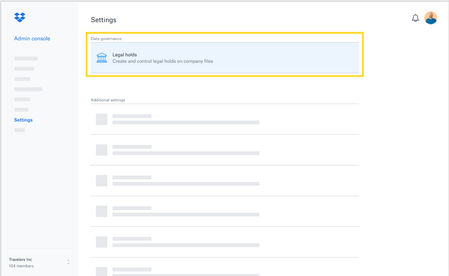
Overview 10 Year Extended Version History An account’s version history depends on the type of Dropbox account. Dropbox Business teams can purchase an extended version history add-on that allows them to recover any file/folder deleted or changed in the last 10 years. Legal Holds Legal Holds is a feature available to Dropbox business teams that have purchased the Data Governance add-on. Placing a legal hold on a team member or a number of team members allows team admins to hold all content a team member(s) views or modifies regardless of their actions on the content. Members affected by a legal hold will not be notified of the hold and will still maintain their permissions to create, edit, delete, and even permanently delete files. Audience All teams Currently, these add-ons can only be purchased through an Account Executive with Dropbox Sales. If you do not already have an account executive, you can contact the team via this form or call 1 855-237-6726.3.2KViews4likes0CommentsIntroducing:: On Team / Off Team viewer info
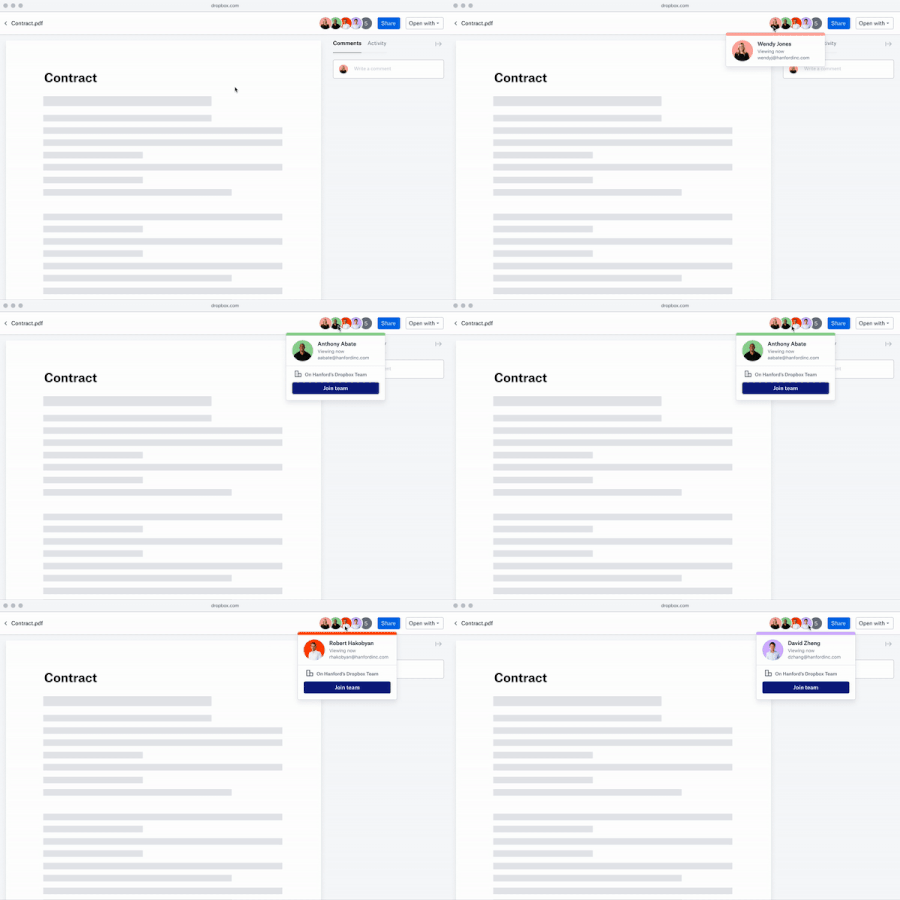
Overview Viewer info now shows whether a person who has viewed a file is a member of a Dropbox Business team or not. This allows Team Admins to invite people to join their team, regular team members to suggest people that should be invited to a team, and non-team members to request to join a team - all directly from a file they are viewing. Audience All teams For more details on viewer info see check out this article on Dropbox Help Center3.1KViews1like0CommentsIntroducing:: Smart Sync Auto-Evict
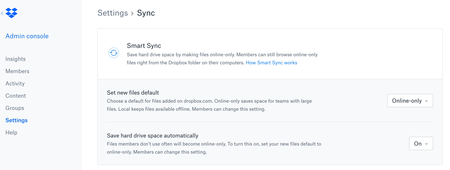
Overview Smart Sync Auto-Evict reduces manual effort and time for users by detecting content that hasn’t been modified in a while and evicting it automatically. Available via the “Settings” tab in the Admin console, under “Sync”, Admins can now enable this feature for their team. With this feature, business users have the content they actively work on at their fingertips and they can free up their device from content they’re unlikely to use. For those not already familiar with the original Smart Sync feature, please see the overview here: https://www.dropbox.com/smart-sync Audience All teams2.3KViews1like0CommentsIntroducing:: Team Invite Link
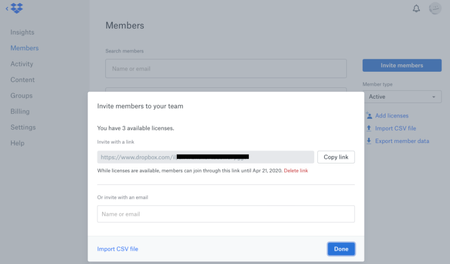
Overview All Dropbox Business admins can now use the Team Invite Link, which allows them to seamlessly expand their teams. Now, via the Invite Members Modal, admins can easily generate a link that they can share to multiple users through their preferred communication channels (Slack, Email, Messenger). Recipients of the link just need to click, and they’ll seamlessly be walked through joining the team! The admin who generated the link will also receive email notifications whenever a team member successfully signs up, or fails to join due to a lack of licenses. Audience All teams More ideas If you have more ideas on how we can improve our product then check out our Paper ideation board here, or our Dropbox Business ideation board here. Request improvements, suggest ideas, we’ll review them and try and improve our product.2.1KViews0likes0CommentsEmojis in filenames are finally here! 🥳
Hey everyone! We’ve got some exciting news - Dropbox now supports way more characters in filenames and folders! Emojis are now supported across all surfaces, and it’s available to everyone! That means support for emojis like 🚀, 🎵, 🏴☠️, plus rare scripts like 𩸽, اللهِ, and even mathematical symbols like 𝛑 or 𝔸. This long-requested update fixes the issue of files not syncing properly due to unsupported characters, so everything now works just as expected. Whether you’re jazzing up a folder name with a little ✨ flair ✨or using your native language to stay in flow, we hope this update brings a little extra delight to your day and the way you work. Give it a go and let us know what you think! And of course, thank you to Link1328 for the idea and everyone who contributed to the thread! Let us know what you think, share your feedback or any other requests for characters to support below 👇 Happy organizing!1.8KViews10likes15Comments