Our Community is in read-only mode until April 8th, learn more here. You can still search existing threads or get help via Dropbox Support, the Dropbox Help Center, or Learn.
Dropbox Basic
19 TopicsManaging your Dropbox subscription
The time may come when you want to change your Dropbox subscription and whether you need more or less from Dropbox, we want to make sure that you have all the information you need to do just that. Need more space? Why not move to a plan with more storage? If you’re changing plans because you need more space, you can check out the plan types here, but to give you a quick summary of space: Basic plan: 2 GB of space Plus plan: 2 TB of space Family plan: Shared 2 TB of space (up to 6 users) Professional plan: 3 TB of space If you’re maxing out the space in your account, you could try some space saving tips here, or it could be time to upgrade your dropbox account. Learn more about the plan that suits you best and make your choice. What happens when I cancel my Dropbox subscription or trial? So, you’ve decided to leave… we’ll try not to take it personally 😢 All joking aside, here are some of know when you decide to cancel your Dropbox subscription. Well, the first thing is that this doesn’t actually have to be goodbye, your account will downgrade to a Dropbox Basic account at the end of your billing cycle or trial. So that means; You’ll still have access to all of your files and folders Dropbox keeps deleted versions of your files for 30 days, in case you change your mind If you’re over your downgraded storage quota, Dropbox will stop syncing your files Changing your Dropbox plan to Basic is not the same as deleting your Dropbox account. Canceling or downgrading a Dropbox subscription Depending on how you subscribed to Dropbox, there are different ways to change or cancel your subscription. If you subscribed on mobile - you will need to unsubscribe on mobile too, through iTunes or Google Play, depending on your device type. Learn how to cancel a Dropbox subscription purchased on your computer. How to cancel a Dropbox subscription or trial on an iPhone or iPad On your iPhone or iPad, tap Settings and then your name. Tap Subscriptions (about midway through the screen) and find Dropbox in the list. Tap Cancel Subscription or Cancel Trial and confirm. Your account will downgrade to Dropbox Basic (free) at the end of your billing cycle. How to cancel a Dropbox subscription or trial on Android If you purchased Dropbox from an Android device, you can cancel a Dropbox subscription or free trial by following these steps: Open the Dropbox mobile app and head to the Account tab in the bottom right corner. Tap Manage your subscription and then How to cancel. Tap Cancel plan at the bottom of the screen. This will take you to your subscription in Google Play. Tap Cancel subscription. You’ll receive an email to your Google account to confirm your cancellation, and your account will downgrade to Dropbox Basic (free) at the end of your billing cycle. Cancel an individual Dropbox plan on desktop If you manage your Dropbox plan on desktop then here are some easy steps to follow to cancel your subscription on desktop. Follow the steps below, and you can update your plan to match your needs. Sign in to dropbox.com. Click your avatar (profile picture or initials) in the top-right corner. Click Settings. Click Plan. Click Cancel plan at the bottom of the page. Note: If you don’t see Cancel plan, you may have purchased Dropbox on your mobile device. If so, you’ll need to cancel your plan from the app store on your device. Select a reason for canceling. Click Continue canceling. You’ll receive an email confirmation that your subscription has been canceled. So, there you have it. Whether you want to change the features you have access to, or the amount of space you need, you can manage your Dropbox account to fit your needs. If you have any questions about managing your plan, drop them in the comments below and we can get you answers!13KViews1like2Comments
Did you know... you can search for images using just text?
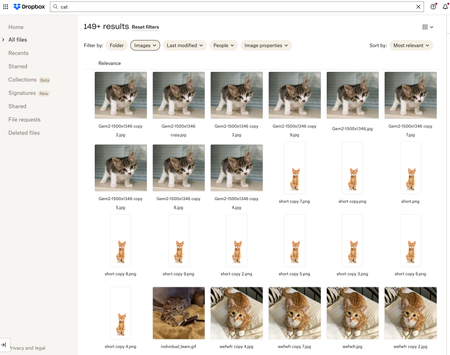
Hello Dropbox Community! My name is Lainie and I'm a Product Manager at Dropbox. Every now and again, I am going to post a "Did you know..." to 1) keep you informed of all of the cool technology that exists at Dropbox and 2) gather your feedback on how the features are performing. In today's, "Did you know..." I'll be talking about Image Search! Image search is allows you to use the Search Bar to search for the contents of the image using words to describe the image. For example, if you search for "cat" your search results will show files that 1) contain the word "cat" in the file name or body, AND 2) files that contain images of cat. No mention of the word "cat" is necessary! Pretty cool! If you haven't yet, I recommend that you check it out. Please respond to this thread and let me know... A) Did you know this feature existed? Do you use it? B) How can we make this even more useful for you? Have a great day! Lainie For more information, check out our Help Center Article on Image Search!9.5KViews9likes3CommentsDropbox Basic: Learn the Basics
If you are reading this, chances are you are new to Dropbox. Welcome! Many of us begin our Dropbox journey with a Basic Account, which has so many perks, and of course, it is free! The basics of your Basic account: Users and Space The Dropbox Basic account allows for 1 user. This means you are the only person that can use this account. But don’t worry, one user doesn’t just mean one device - you can have 3 different devices connected to your Dropbox account. I connected my dropbox account to my phone, tablet, and laptop. When I was in Ghana, I was able to access all of my files from my phone, and to upload some photos. Want to learn more about connecting your mobile devices? Discover how to make the most of your mobile access to Dropbox. Using your Dropbox Basic account: So to get started, you can upload almost any file type to your Dropbox account and keep your important files safe! Whether it’s music files, pictures, media, documents, simply upload and you can access your files anytime, anywhere! With a Dropbox Basic plan you have 2GB of space to use. And of course, we keep your files safe! Dropbox uses multi-factor authentication to ensure that all of your files are secure. Check out how Dropbox uses encryption to provide security for your files. When I received my first multi-factor message I said to myself, “Come on Safety”. Dropbox Basic tools you might not know about: The tools within Dropbox are the real secret sauce. Here are some Dropbox features and products you might not know about, check them out below and find out if they can help you to make plans, organize files and save time! Dropbox Paper is a collaboration tool with endless possibilities! Charts, headings and formatting is made easy with one click, LITERALLY. This program is great for creating proposals, project plans and just quickly taking notes. The best part of it is that it takes up very little space in your Dropbox account. Trust me, I make paper docs for all of my todo lists, to plan family trips and to organize any personal projects. Paper has truly become one of my favorite products to use. HelloSign allows you to send 3 documents for eSignature per month. In the digital world we live in, this is a perfect way to get a signature from someone you may not see in person. Explore HelloSign, a simple and easy way to get documents signed securely online. I recently needed a contractor to sign a document that I drafted to fix my home and the document was signed and sent back to me within minutes. And of course, the signed docs are safe and secure too! Dropbox Capture is a tool used to Capture the attention of the person you‘re chatting to. With Capture you can share your thoughts with screenshots, GIFs, or simple videos recorded right on your screen. The upside is that you can clearly say what you mean without scheduling another meeting. Learn more about how to use Dropbox Capture. Having a Dropbox Basic account is more than just a space to store your information. Use Dropbox to manage and organize your files, whether it’s for a project, sharing memories or connecting with others. 😁 Will you use these tips to make the most of your Dropbox Basic account?8.9KViews6likes1CommentDropbox Basic: Let's Maximize Space
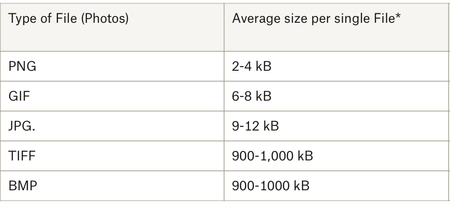
Try to think of your Dropbox cloud storage as a well organized bedroom. In order to maximize space, you want to be thoughtful about how you use each closet and section of the room. With your Dropbox Basic account you have 2 GB of storage. With this amount of storage its imperative that you are thoughtful about the files you save to your Dropbox account. If you know more about files sizes, you can make more informed decisions about which files you upload. In this article you will get a better understanding of how to maximize space with your Basic Dropbox account. What are the average file sizes of media we use daily? Images Many of use Dropbox to upload images, which come in several formats and sizes. These formats affect the amount of space the image may take up. Photos from our computers are usually in formats such as JPEG and PNG. This is great because these images often don’t take up as much space as larger format files. Image formatting (as in the space it takes up, not the dimensions of the photo itself) is based on resolution and quality of the pictures. I know this because I uploaded each type of image to my Dropbox Account and saw that the quality and difference in resolution affected the overall size. Larger pictures, such as raw camera footage (TIFF and BMP), should be converted to JPEG before uploading to your dropbox account. The rationale here is so that you save about 1000kB of space. Documents Documents overall take up the least amount of space. With your Basic account, you can save about 25,000 pages of word documents, depending on file size. If you use documents for planning and collaboration, I suggest you try using Dropbox Paper. Paper documents take up very little space on Dropbox. I would suggest placing homework assignments and projects that you may always need access to on your Dropbox account. I am currently working on creating my dissertation and have it saved on Dropbox - this document is super important to me and I need to ensure that I can access it from all of my devices. Media Files Video is the largest file format but that doesn’t mean you can’t store video files in your Dropbox Basic account. To make the video more compact you can use an online compressor, or, like I’ve done in the past, edit the videos to make them shorter. I have also experimented with changing the format of the video to reduce file size. Remember to treat your Dropbox like your well organized bedroom. You want to shrink larger items if you can and want to organize items that you know do not take up much space. I use my Dropbox account to hold my important documents, vacation photos and files from Dropbox Paper. Now that I know how much space each file takes up, I do my best to maximize my space. Let’s maximize our space by using the tips and tricks above - and if you have any other space saving tips, share them in the comments below!5.8KViews5likes0CommentsWhat you need to know about storing and backing up your photos with Dropbox
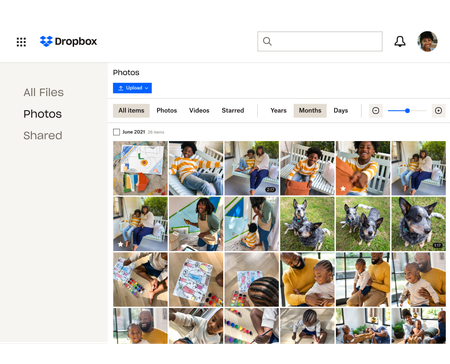
We see a lot of questions about storing, sharing and backing up your photos on Dropbox so here are some tips to make that as easy as possible! Back up photos automatically to your Dropbox account You know we love an automatic process, so whether it’s your camera roll photos, your screenshots or your document scans, your cloud photos are some of the most important files you have. In fact our own Emmet told us about a time when he almost lost his photos due to a tech malfunction - “One of my old hard drives of photos got corrupted several years ago. This was almost a year of photos. Thankfully, lot of these had been saved to my Dropbox account automatically, and this was important as a couple who I was friends with wanted a high definition photo of them from the first night they went out together, and I was only able to share it on their wedding day because it was saved on Dropbox.“ Keeping full-resolution copies backed up with online photo storage means you can access them anytime, and you know there is a safe and secure copy in the cloud. Here are just a few ways Dropbox can keep your photos safe: Camera uploads: Once you turn this on, photos from your phone or tablet will be automatically backed up to Dropbox. Or in our desktop app, photos will be copied from cameras, memory cards, or mobile devices whenever you connect one to your computer. Screenshot backups: You can set up our desktop app to automatically move screenshot images to your Dropbox, or have mobile device screenshots backed up using camera uploads. Document scanning: The native/built-in scan functionality in the Dropbox mobile app lets you use your phone’s camera to scan and make digital backups of receipts, whiteboards, and paper documents. Share your photos with links, shared folders and control access Storing your photos is great, but chances are you will want to share some - whether it’s with family members, teammates or the expense team at work. There are a few ways you can do that, and you can manage the access with a few clicks as well. Shared links: You can easily create a link to share any file or folder in your Dropbox. Copy and paste your link into an email, text message, or chat, to share with anyone—even if they don’t have a Dropbox account. Access control: Keep your photos in the right hands by adding password protection, expiration dates, and sign-in requirements to your shared links. Shared folders: Want to collect your photos and someone else’s in the same place? Share files back and forth by inviting other people to sync a folder between your account and theirs. Organize your photos: Saving and sharing your photos can be great but it’s no use if you can’t find the one your looking for, so organizing and viewing your photos is essential too! Here are some tips on how to do that, and if that’s not enough you can see how our own Eliene organizes her photos. Photo browsing: View and browse all of your photos and videos from the Photos tab in our mobile app or on the web. Image previews: View over 35 image file types from dropbox.com or our mobile app. You can preview common files like JPEG, PNG, TIFF, and GIF; app-specific types like Photoshop and Illustrator; raw formats like CR2, DCR, and DNG; and even iOS HEIC photos. Best of all, there’s no need for special photo software. Image tagging: Find your photos fast by adding searchable hashtags to individual photos or an entire folder. How do you manage your photos with Dropbox? Share your tips in the comments below, or if you have any questions you, we can answer those too!4.9KViews1like2CommentsTake Your Search Game to the Next Level with Dropbox Dash 🚀✨
Hi Everyone, Are you ready to take your search game to the next level with Dropbox Dash? Dash is designed to help you find what you need, faster. Whether it’s a doc 📄, a link 🔗 you just cannot seem to find, or a message buried in one of your (many) apps 📱, Dash really makes searching feel effortless. I am sure you will have some questions… So, what are you curious about? 🤔 What would you like to learn more about? 🤗 Drop your question in the comments and we will be happy to help 👩💻 😊.4.9KViews8likes10CommentsTell Us How You Use Dropbox
No two people use Dropbox in exactly the same way. Some of you rely on it every day for work, others for school, creative projects, or keeping life organized - and we love that. We’d love to hear how you’re using Dropbox today - is it something you use once in a while, is it part of your day to day, are there any features you can’t live without? What workflows have you built that save time or reduce friction? And where do you see opportunities for us to do better? Your tips, ideas, and honest feedback really help us to make sure we can share useful tips, and they help other community members discover new ways to get more out of Dropbox too. Share your experience, favorite features, or suggestions in the comments below. Your voice truly helps shape the future of the Dropbox community 😁 The Dropbox Community Team3.9KViews4likes14CommentsDropbox Basic: quick solutions to common issues
Your Dropbox Basic account allows you to organize your files and folders, you might have heard us mention it once or twice. Check out this post, where I discuss how to best utilize your Dropbox Basic account. Dropbox has become one of my favorite tools to keep me organized and maintain my virtual workspace. Since it’s so important to me, I try to stay on top of my account by avoiding issues such as forgetting my password, getting locked out my account or not being able to sync my files. As part of my Dropbox journey, I have used several solutions to help me alleviate problems that I come across. Even people that work inside Dropbox can stumble or come up against an issue, but don’t worry, we can get you back up and running in no time. Here's some of the inside scoop on a few quick solutions. I forgot my Dropbox password If you forget your password, do not panic. I have so many passwords that I occasionally forget my Dropbox password. Here are 5 quick steps of how to change your password. Go to dropbox.com. Click Sign in. Click Forgot your password? under the Sign in button. Enter the email address you used to create the account. Dropbox will send a password reset link to that address. Click the link in the email to create a new password. Once you are back into your Dropbox account you can use Dropbox Passwords and never lose access to your accounts again. Dropbox Passwords is a mobile and desktop app that syncs your passwords across devices and lets you seamlessly sign in to websites and apps. Read more about how to troubleshoot password challenges. My files won't sync Have you ever began working on a project and your document is not syncing to your Dropbox account? This problem is often an external issue, meaning your internet connection may not be strong or you may have to restart your computer. Here are a few tips and tricks on how to solve the problem of files that won't sync. Internet connection: Your Dropbox account on the desktop will only sync files when your computer is connected to the internet. Check the connection and reconnect if necessary. Once connected, your files should sync. Restart: If the internet connection is good to go, but you still do not have access to your Dropbox account, it will be helpful to restart Dropbox and restart your computer. Space: You may have used too much space and the new file you are working to upload cannot fit into your Dropbox account. Check that you have not used all your space if this new file is not syncing. Connected accounts: Remember, you can connect 3 different devices with your Dropbox Basic account. If you are logged into your Dropbox account on 4 or more devices, chances are your information may not sync. Double check that you are only logged on to 3 devices and sign out of your 4th device if necessary. I received an error message An error message popped up on your screen when you tried to share one of your files. This likely happened because the file you tried to share isn’t in your Dropbox account anymore. This can occur if the file was deleted or removed from Dropbox, by you or another member of the folder. To restore deleted files or folders: Sign in to dropbox.com. Click Deleted files in the left sidebar. Click on the name of the deleted file or folder you want to recover. You can select multiple files or folders at once by clicking the checkbox icon Click Restore. Restorations can take time if you’re restoring a large number of files. I can’t find my files Have you ever gone into your Dropbox account and thought you had a case of the missing files? Believe me your files are not missing, so you don’t need to start calling the Files and Folders police. Dropbox always logs the move of a file as both a deletion and an addition. If you moved or renamed files, you will receive a deleted files message. Here’s 2 methods that has worked for me to retrieve my files. Use the Search Bar Sign in to your Dropbox account on the website Locate the search bar at the top of the page Type in some keywords related to the missing files. Locate the log entry for the deletion of your files or folder Next click the three dots beside your missing files > Then click the Restore button. Use the Events Page Sign into your Dropbox account on the website and Navigate to dropbox.com/events. Scanning the page and looking for the deletions that relate to the missing file or folder. Click the Restore button to get them back. If you are reading this, chances are you have a Dropbox Basic account. You have learned how to use differentapplications, tips and tricks through engaging in the Dropbox Basic series. Remember the Dropbox Community is yours and a very relatable and resourceful place to collaborate and connect with other Dropbox users. Visit the Dropbox Community to guide you through any other issues or questions you may have about your Dropbox Basic Account. If you have a question about your Dropbox Basic account, reply to this post.3.3KViews1like0Comments
How To Use CData ODBC driver for Dropbox to import data in Excel with Microsoft Query
Hello, With this Power BI tool, I am trying to use the CData ODBC driver for Dropbox to import data in Microsoft Excel. I wanted to know how to use parameters with Microsoft Query so I get all the data at single platform. Thanks In Advance2.8KViews1like3CommentsDropbox Basic: Work Outside the Box
If you work with more than one person, you more than likely have needed to share a document or file to work simultaneously or receive feedback. With your Dropbox Basic account, you collaborate with friends and family and work outside of the box. Even if they do not have an account, you can still collaborate with them! Dropbox has made it easy to share files with friends and collaborate on projects. Share files with friends and family I recently learned that you can share files from Dropbox with friends or family that do not have an account. When you share a file or folder using Dropbox, the recipient receives an email with a link to the file or folder. The recipient does not need a Dropbox account to view or edit it though. Just this past week, I shared a Paper document with my sorority sister, and she was able to view and edit the file without any issue. On the file was a to-do list for the both of us and we worked together on the document. Learn more about how to add to-do list to your paper document. You can also control whether people can edit or view your files and folders when you share them and even after you share them. Edits and comments that’s made to a shared file or folder are updated live for everyone they’ve been shared with. This allows for any changes to projects to be implemented right away and ensures everyone is on the same page. Ways to Collaborate Sharing files is usually top priority when working with others. With Dropbox apps and integrations, sharing, syncing and collaboration is made easy. Whether you are sharing a school project, presentation, bachelor trip details, or planning your 30th birthday party, it is likely that you will pass the file along to someone else for their input. As sad as this may seem, Summer vacation for students and teachers will be ending in about 1 month. The time will come during the school year where you will have to participate in the good ol’ school project. The conversation of how you will collaborate to ensure everyone is working together always comes up, and you can suggest using Dropbox. With your Dropbox account, you can collaborate with your school project team members that do not have a Dropbox account. You can use word processing applications such as G-Suite and Microsoft Office Online. Learn more about how to use these integrations. This will allow for an automatic sync after each team member contributes to the project. Your Dropbox account allows you to collaborate with multiple team members from multiple locations at one time. It’s a big year for celebrating! Gathering in large groups has finally become a norm since 2020. People have planned large parties and events to celebrate weddings and birthdays. To do this, you will likely collaborate with friends and family virtually. Don’t forget that you can use Dropbox Paper to create a guest-list, or a to-do list where you can tag the other party hosts. You can even create the invites with Dropbox’s Canva integration. The beauty of using your Dropbox account for tasks like this is that you can use 3 different applications and all users can access files in one place. Things to know when collaborating When collaborating on a file, Dropbox has features that allows the file to be shared and protected when multiple people are editing. Dropbox has collaboration tools for sharing work, and guards old documents by locking the file or creating a conflicted copy. Here are some tips and tricks you can use to collaborate. Create link: Create a link with Dropbox that allows you to easily share the files with friends and teammates. To create a link: Open the Dropbox folder in File Explorer (Windows) or Finder (Mac). Right-click or command-click the file or folder you'd like to share. Click Share…. If a link hasn't been created, click Create link. The link is copied to your clipboard. Create a to-do list: When saving, sharing and collaborating on files and folders, you can add a checkbox that becomes tasks for the people you are working with. When you or someone else with permission click a checkbox, the line of text next to it is crossed out with a strikethrough. Mention someone: To notify collaborators, click the @ icon. This allows you to insert the email address or name of someone in your Dropbox contacts. The person is notified by email and their Dropbox account shows that they have been tagged in a folder. This is a helpful and easy way to communicate asynchronously. Your Dropbox Basic account is a great way to work with family and friends. Leave a comment and tell us how you use Dropbox to collaborate with family and friends!2.5KViews0likes0Comments