Our Community is in read-only mode until April 8th, learn more here. You can still search existing threads or get help via Dropbox Support, the Dropbox Help Center, or Learn.
Dropbox Paper
51 TopicsIntroducing note boxes: A quick way to add important notes to your Paper docs
Hi Paper pals 👋 I just wanted to pop in to let you know about a new shortcut we released in Dropbox Paper today. On a new line, type /note and press Enter. You’ll get a colored note box that you can use to add important notes in your doc. Here’s how it looks in action: You can use note boxes to create summaries at the top of your doc, insert examples into your documentation, or add important tips for your readers. You can even create different colored boxes by typing /note red, /note green, and so on. We hope you’ll give it a try, and if you have any feedback—good or bad, please feel free to post here anytime. Thanks! John (from the Paper Design team)6.8KViews12likes4Comments
Hanging punctuations in a Paper doc
In a Paper doc, if you start a line with a quotation mark, or a few other punctuation characters, you'll notice the character is outdented to the left of the margin. This is by design, and is called "hanging punctuation" or "optical character alignment", and ensures that the flow of the body of text isn't disrupted. You can read more about this concept here.4.1KViews9likes1CommentDropbox Basic: Learn the Basics
If you are reading this, chances are you are new to Dropbox. Welcome! Many of us begin our Dropbox journey with a Basic Account, which has so many perks, and of course, it is free! The basics of your Basic account: Users and Space The Dropbox Basic account allows for 1 user. This means you are the only person that can use this account. But don’t worry, one user doesn’t just mean one device - you can have 3 different devices connected to your Dropbox account. I connected my dropbox account to my phone, tablet, and laptop. When I was in Ghana, I was able to access all of my files from my phone, and to upload some photos. Want to learn more about connecting your mobile devices? Discover how to make the most of your mobile access to Dropbox. Using your Dropbox Basic account: So to get started, you can upload almost any file type to your Dropbox account and keep your important files safe! Whether it’s music files, pictures, media, documents, simply upload and you can access your files anytime, anywhere! With a Dropbox Basic plan you have 2GB of space to use. And of course, we keep your files safe! Dropbox uses multi-factor authentication to ensure that all of your files are secure. Check out how Dropbox uses encryption to provide security for your files. When I received my first multi-factor message I said to myself, “Come on Safety”. Dropbox Basic tools you might not know about: The tools within Dropbox are the real secret sauce. Here are some Dropbox features and products you might not know about, check them out below and find out if they can help you to make plans, organize files and save time! Dropbox Paper is a collaboration tool with endless possibilities! Charts, headings and formatting is made easy with one click, LITERALLY. This program is great for creating proposals, project plans and just quickly taking notes. The best part of it is that it takes up very little space in your Dropbox account. Trust me, I make paper docs for all of my todo lists, to plan family trips and to organize any personal projects. Paper has truly become one of my favorite products to use. HelloSign allows you to send 3 documents for eSignature per month. In the digital world we live in, this is a perfect way to get a signature from someone you may not see in person. Explore HelloSign, a simple and easy way to get documents signed securely online. I recently needed a contractor to sign a document that I drafted to fix my home and the document was signed and sent back to me within minutes. And of course, the signed docs are safe and secure too! Dropbox Capture is a tool used to Capture the attention of the person you‘re chatting to. With Capture you can share your thoughts with screenshots, GIFs, or simple videos recorded right on your screen. The upside is that you can clearly say what you mean without scheduling another meeting. Learn more about how to use Dropbox Capture. Having a Dropbox Basic account is more than just a space to store your information. Use Dropbox to manage and organize your files, whether it’s for a project, sharing memories or connecting with others. 😁 Will you use these tips to make the most of your Dropbox Basic account?8.9KViews6likes1Comment
"What's that?" - How my habits where translated company wide using Paper #Paperusecase
I've always had a habit of over-communicating. In fact, I think that's why I'm a UX designer. Over my progression from marketing, to graphic design, to web design, to front end dev and landing in UX, my takeaways would be the joy of explaining things visually and really being satisfied when things are understood. Actually, you could also go far the other side of that and say one of my greatest fears is being misunderstood. I've always worked in small teams, small for be being very small startups. I'm talking 1-20 people, and even then maybe 8 of those people I communicated with on a daily basis. 6 months ago I joined a fantastic company of 35+ wonderful individuals in the interior design industry. A young, successful business, looking for a UX/UI designer to help them on their journey to redefine their product and continue to progress as a digital first product. I'd be working on a brand new product team, as a UX team of one. I'd be working daily with every in house department, and by being the gate keeper to everything web; my communication would need to be excellent. I'd like to add here that the company and team I work with are fantastic pioneers of working freedom. While we might be expertly following processes to meet business needs, the company also encourages heavily the freedom to use any tools or methods that work best - I'm a huge advocate for this and it's one of the reasons I took the job. I remember Dropbox Paper releasing the timeline feature. I wasn't aware too much of the product, having been using Google Drive for file storage, I'd convinced myself not to worry to much about Dropbox as a service. I think I saw the timeline feature and 'Paper' be mentioned on Twitter first. At the time I was trying various tools to communicate a simple projects next steps and all I had at my fingertips were overcomplicated project management roadmaps that no one was ever going to glance at and I was about an hour away from thinking "Ugh, I'll just design my own in Sketch" which would have taken more time than it needed to in order to get the message across. I looked at Dropbox Paper and realised instantly that I could put not only my timeline in here, but I could drop the whole feature release notes and share this with the team. And then oh! Look! It integrates with InVision... I'll drop the prototype in h-Oh! Look, I can also put in GIFs and oh-the tables on here are amazing and OH-You get the idea. I shared the document with the Product Manager who didn't mention anything about the feature release notes, but instead she asked "what's this made in?". And from then onwards, what I can only explain as a 'ripple effect' happened with Paper in the entire company. As if that wasn't enough of a backstory, here are some of my take-aways: Natural communication Paper helped me to not worry too much about the structure or layout of a communication document. If anything, it encouraged me to write naturally. I've never had that with any other tool. That's not just me, either. In fact, internally we used to have pretty set structures on how documents were laid out in .docs - We had templates. They weren't inspirational to read or write. When the value of Paper dripped out company wide, we threw away templated docs and encouraged employees to use whatever they liked and in whatever order they wished, as long as the information was clearly communicated. Comments on documents are non-intrusive and in turn look constructive and helpful instead of intrusive and frustrating. Creativity .docs aren't creative. And although Paper helped me and the team move away from .docs as a communicator, I never really saw it as a replacement. It's something else. Feels like an extention to inspiration. Our Brand Manager used to use PSD files with basic designs in them in order to have his documentation understood in a creative environment. He doesn't do that anymore because the same feeling can be expressed in Paper. Built by listeners A couple of months ago I tweeted out at the team that a coloured highlighter tool would be useful - As the only choice for highlighted text was blue. Within an hour I had a tweet back from a member of the team (let me add here, not just a TRB Support account, but a real team member with a real heart and real fingers). They wanted to know more about my use-case and I told them that I'd love to be able to highlight levels of importance, e.g green for easy, red for hard. And right now I couldn't do that. Well... I'm pleased to say I now can. The team listened and that feature now allows me to choose from 5 colours. It's a godsend to be listened to. Do what you want I'm also a musician. I arrange and compose. I do this in a little book and I do it at home. I'd not used Paper outside of work but when I needed to rearrange and transpose a song of mine, which was a pain in the ass because it had all been written down physically, I thought "Paper!". I snapped photos of my book, pulled it all apart, arranged by pages and started writing out new chord structures in the document. I even used the code tool to separate my chords from everything else. It was a dream! Conclusion I'm going to wrap it up here, at the risk of going on and on. People say ‘tools’ transform how they work, if it’s a good tool. But really, I’d say it’s extended what I already and naturally wanted to do. And by that example, individuals have followed suit. When you see an example of something done well, you want to follow it, it sets the bar of what’s achievable. Paper does that in a positive way. I was at a UX conference in London last week when the person sat next to me leaned over and said “your notes are beautiful”.5.3KViews6likes2Comments
Dropbox Paper Use Case (after two years of using Paper)
My compnay is a custom, made to order, high-end ornamental architectural metals company. Two years ago, we needed a solution to allow our email interactions with potential clients, suppliers, architects, etc. to be available for everyone on our team. We needed the solution to be available both at our desktops in the office, and mobile-through iOS. We developed a format using Dropbox paper that we called "narratives". Each potential project got its own narrative, and an associated folder structure within the standard Dropbox structure which we linked together in Paper through the use of hyperlinks. We set up a few additional Dropbox Paper documents which were basically a series of lists to identify where in our workflow each narrative was (think Prospect, Bid, Job, Archived, etc.). These narratives were shared with our team members using the integrated permissions rules within Paper. Each team member was then trained to update their narratives as they had any type of interaction with the outside contacts. Updates were also made relative to internal discussions and progress. In this way, anyone within our team that was interested, and had the appropriate permissions could come up-to-speed on any narrative with relative ease. As time went on, we learned include images, video, comments, contact information, etc, all linked to specific documents in our standard Dropbox folder structure. AND Paper itself was made better and better, allowing addtional formatting, linking, etc. We also learned to make "Client Facing" versions of our narratives to share with our clients. Within our organization, we update these client-facing documents inline with progress on their particular job. We include links to documents, invoices, pictures, videos, progress statements, etc. as we complete the work. The client can, whenever they want to follow the progress of their work, ask questions, make comments, etc. They absolutely love it. Recently, we expanded our use of Paper to include taking the meeting minutes for the partners of our company. Each week's minutes are contained in their own Paper documents, and other paper documenent that detail certain sections of our business are maintained by those that have the rights to do so. In this way, any partner can check in on whichever part of the business that they want to whenever they want, be it in the office or in the field. We also use Paper to plan our social media presence. The timeline feature of Paper is particularly helpful for this as it is easy to see that all aspects of our business that we want to cover are represented frequently. Each social media post has its own development page within Paper, and the Social Media manager can review each post's stub and offer comments and guidance as the Social media developer gets each post ready to publish. There are seamingly countless ways that we use Paper, and I'm sure to have missed some of the highlights here...but at least this is a start for others to see how truely powerful the tool is. Feel free to ask me if you have any questions on how we use Paper. Cheers. #Paperusecase8.4KViews6likes5CommentsDropbox Basic: Let's Maximize Space
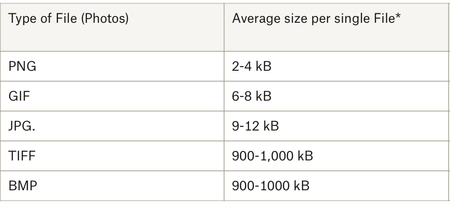
Try to think of your Dropbox cloud storage as a well organized bedroom. In order to maximize space, you want to be thoughtful about how you use each closet and section of the room. With your Dropbox Basic account you have 2 GB of storage. With this amount of storage its imperative that you are thoughtful about the files you save to your Dropbox account. If you know more about files sizes, you can make more informed decisions about which files you upload. In this article you will get a better understanding of how to maximize space with your Basic Dropbox account. What are the average file sizes of media we use daily? Images Many of use Dropbox to upload images, which come in several formats and sizes. These formats affect the amount of space the image may take up. Photos from our computers are usually in formats such as JPEG and PNG. This is great because these images often don’t take up as much space as larger format files. Image formatting (as in the space it takes up, not the dimensions of the photo itself) is based on resolution and quality of the pictures. I know this because I uploaded each type of image to my Dropbox Account and saw that the quality and difference in resolution affected the overall size. Larger pictures, such as raw camera footage (TIFF and BMP), should be converted to JPEG before uploading to your dropbox account. The rationale here is so that you save about 1000kB of space. Documents Documents overall take up the least amount of space. With your Basic account, you can save about 25,000 pages of word documents, depending on file size. If you use documents for planning and collaboration, I suggest you try using Dropbox Paper. Paper documents take up very little space on Dropbox. I would suggest placing homework assignments and projects that you may always need access to on your Dropbox account. I am currently working on creating my dissertation and have it saved on Dropbox - this document is super important to me and I need to ensure that I can access it from all of my devices. Media Files Video is the largest file format but that doesn’t mean you can’t store video files in your Dropbox Basic account. To make the video more compact you can use an online compressor, or, like I’ve done in the past, edit the videos to make them shorter. I have also experimented with changing the format of the video to reduce file size. Remember to treat your Dropbox like your well organized bedroom. You want to shrink larger items if you can and want to organize items that you know do not take up much space. I use my Dropbox account to hold my important documents, vacation photos and files from Dropbox Paper. Now that I know how much space each file takes up, I do my best to maximize my space. Let’s maximize our space by using the tips and tricks above - and if you have any other space saving tips, share them in the comments below!5.8KViews5likes0CommentsImages: Dropbox Paper link tips to help you get started
Dropbox Paper has a ton of handy features to take the work out of work, and help you and your team stay in touch and get things done. Here are just a few helpful tips to get you started. Eliminate the need for messy email threads full of feedback. With Paper, you’ll always get notified when someone’s left a comment. Need to add a link? Just paste a URL directly over text, and Paper will automatically hyperlink the words…no need to complete a form or click to insert. And if you want to add a link to another Paper doc? Don’t worry that’s easy too. Type +, then search for the title of an existing doc to link to it. Keep up to date with who’s doing what on the team easily, with to-do lists, deadlines and by simply tagging the right people for each task. Is your team using Paper yet? What are some of your favorite features?13KViews5likes0CommentsNotifications: calm or chaos? Tell us how you prefer to manage them
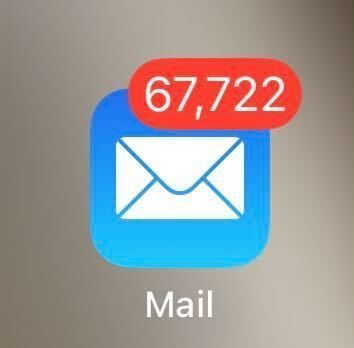
You know us, we are big fans of collaboration, but every now and then, we stumble across a topic that totally derails a meeting. While on a call, we noticed that someone on the team is walking around with over 94 unread texts, 50+ Slack notifications and a whopping 67,722 unread emails. We’re not going to name names though but when I picked myself up from the floor, it sparked a serious debate on our team and we came to the conclusion that there are two kinds of people, those who thrive in notification calm, and those who live for notification chaos - which one are you? In the interest of honesty, I am a firm believer that a clear notification screen is the only way. I avidly unsubscribe from emails I don’t want to see, I mark messages as unread so I can get back to them if needs be but I like to start my day with a clean slate. Our own Emma is a bigger fan of a well managed to-do list in Dropbox Paper, and you can read all about that right here. While it might make some people’s skin crawl, that means she can let her notifications pile up. I’m not convinced, but it works for her! To augment this ever fluid list, she’s a big fan of the Paper roundup emails and Dash to keep her on track with the many docs doing the rounds at any one time. To quote Emma herself on this, “every so often I'll clear them, but I have yet to miss anything with my chaos”. I also like how Drew (the CEO of Dropbox) has an OPP folder, which translates to other people’s priorities (or problems!)) to help manage those email notifications and understand what needs action on his part. You don’t have to take my word for it, check it out here. So, we want to know - how do you manage your notifications? Clear them? Keep them? Outright ignore them? Tell us in the comments below!8.1KViews4likes4CommentsThings you can do with Dropbox Paper
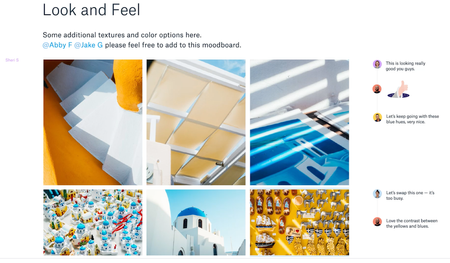
1. Holding brainstorms You’ve likely participated in your fair share of brainstorms, but what happens when your team is scattered across three offices and three time zones? Paper is designed to help you grow ideas with others, even if everyone can’t meet in the same room. Your team can easily add photos and videos, jot down quick thoughts, and add comments in the margins. Collaborators can use emoji and stickers to show how they feel about each idea, making comments feel like conversations. It’s the creative space for a brainstorm in the convenience of a simple doc. 2. Taking meeting notes Sometimes you need a doc with a bit more structure than a free-wheeling brainstorm, like when you’re taking notes for a meeting. Here, Paper makes organization and quick formatting a snap. Start a bulleted or numbered list on the fly, or share the doc with colleagues if you need them to jump in. Easily add headings and subheadings, and Paper will smartly organize each section in a table of contents on the left. When the meeting’s over, you can group the most important items in a table for quick reference, or add highlights to emphasize a few key lines—perfect for co-workers who missed the team sync. Discover more things you can do with Paper on our https://www.dropbox.com/paper/guide!13KViews4likes11CommentsGet ready for school with Dropbox
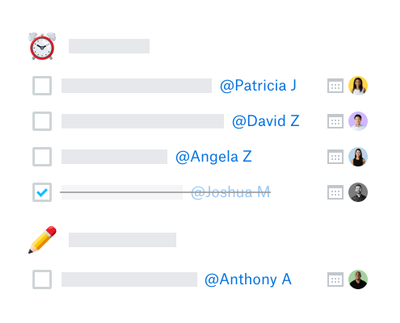
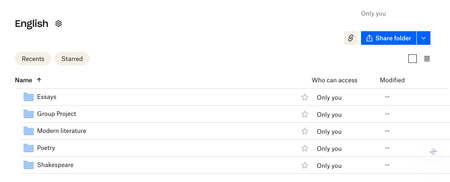
Going to school is a really exciting time, whether you’re starting a brand new course, returning after a break, or taking your first steps in a new career, there’s so much to be enthusiastic about, but also a lot of preparations to make. So, if you’re heading back to school this year, take a moment to read our guide to hitting the ground running with Dropbox. Here’s what’s included; Get organized Access your files when and where you need Collaborate on team projects Get familiar with Dropbox Dash Never miss a beat with Dropbox Capture Save time with Dropbox Replay Get organized If you’re taking classes this fall, or even if you’re teaching them, the best thing you could do is get yourself organized before you start. With Dropbox, this is really simple. First things first, you’re going to have a lot of files to manage so you’ll need to create some sort of folder system. You could start by creating a folder for each class, then in that folder create another subfolder for each topic. Then you can sort things by file type, day of the week, priority or by whatever way makes the most sense to you. This will help you be super organized and able to find all of your important documents at the drop of a mortarboard. Have your files where you need them, when you need them With Dropbox, you can have access to all of your important files wherever and whenever you need them. So, if you’re doing a bit of last-minute cramming on the bus or find yourself needing to make some quick edits to an essay, you can do it all easily with Dropbox. All you need to do, is make all of your most important files online-only and you’ll be able to access them at the touch of a button. This will also mean that these files won’t take up space on your hard drive. Collaborate on team projects Team projects are always a challenge, especially when some members of the team are a little less enthusiastic than others (there’s always at least one). With Dropbox, you can share all of those important files with everyone in your group, so nobody has any excuses for not getting all of the materials they need. You can also use a shared Paper doc, which allows you to create to-do lists with deadlines, meaning everyone always knows exactly what they have to do and when they have to do it. As if all of that wasn’t already enough to keep everyone in line, you can also see everyone's name beside their work and you can check the document’s history to dispel any fears of phantom deletions. You can read more on becoming a Paper pro here. Get familiar with Dropbox Dash There’s a lot to keep track of when you’re studying. With everything from classes and lectures to remembering where you saved your latest set of notes, you could be forgiven for feeling like you need your very own personal assistant. Well, now thanks to Dropbox Dash, our AI powered universal search tool, it’s easier than ever to keep track of everything you’ve got going on. Dash connects with the apps and tools you are using, meaning you can search all of your surfaces from one single place. You can even ask Dash questions and it'll give you answers with information summarized from your relevant files. You’ll also be able to create Stacks, which are bundles of information. These can include emails, files, articles, presentations, and things that folders or bookmarks normally can’t group together. Never miss a beat with Dropbox Capture Dropbox Capture allows you to record your screen, camera, and microphone. This can be really helpful if you need to create video messages for group projects or any sort of collaborative work. You can also use it the record online lectures or seminars, which you’ll be able to edit, watch back, and easily share with classmates. You can watch the video below to find out more about Capture. You can find out more about Capture here. Save time with Dropbox Replay If you’re studying media or video production, or even if you’ve got some video based projects to work on, Dropbox Replay could seriously help you up your game. If you’re not familiar with Replay, it’s our video, image and audio review tool that allows you to mark up, comment on, and finalize projects with your tutors or classmates, completely streamlining the entire review and approval process. But that’s not all, Replay does so much more, find out more about some of our favorite features. Will you be using Dropbox for school? What’s the one thing that slows you down the most when it comes to assignments, group projects, or organizing your studies? Let us know by leaving a comment below and we’ll see if we can help!4.8KViews3likes1Comment