Our Community is in read-only mode until April 8th, learn more here. You can still search existing threads or get help via Dropbox Support, the Dropbox Help Center, or Learn.
Dropbox Paper
54 TopicsDropbox Basic: Work Outside the Box
If you work with more than one person, you more than likely have needed to share a document or file to work simultaneously or receive feedback. With your Dropbox Basic account, you collaborate with friends and family and work outside of the box. Even if they do not have an account, you can still collaborate with them! Dropbox has made it easy to share files with friends and collaborate on projects. Share files with friends and family I recently learned that you can share files from Dropbox with friends or family that do not have an account. When you share a file or folder using Dropbox, the recipient receives an email with a link to the file or folder. The recipient does not need a Dropbox account to view or edit it though. Just this past week, I shared a Paper document with my sorority sister, and she was able to view and edit the file without any issue. On the file was a to-do list for the both of us and we worked together on the document. Learn more about how to add to-do list to your paper document. You can also control whether people can edit or view your files and folders when you share them and even after you share them. Edits and comments that’s made to a shared file or folder are updated live for everyone they’ve been shared with. This allows for any changes to projects to be implemented right away and ensures everyone is on the same page. Ways to Collaborate Sharing files is usually top priority when working with others. With Dropbox apps and integrations, sharing, syncing and collaboration is made easy. Whether you are sharing a school project, presentation, bachelor trip details, or planning your 30th birthday party, it is likely that you will pass the file along to someone else for their input. As sad as this may seem, Summer vacation for students and teachers will be ending in about 1 month. The time will come during the school year where you will have to participate in the good ol’ school project. The conversation of how you will collaborate to ensure everyone is working together always comes up, and you can suggest using Dropbox. With your Dropbox account, you can collaborate with your school project team members that do not have a Dropbox account. You can use word processing applications such as G-Suite and Microsoft Office Online. Learn more about how to use these integrations. This will allow for an automatic sync after each team member contributes to the project. Your Dropbox account allows you to collaborate with multiple team members from multiple locations at one time. It’s a big year for celebrating! Gathering in large groups has finally become a norm since 2020. People have planned large parties and events to celebrate weddings and birthdays. To do this, you will likely collaborate with friends and family virtually. Don’t forget that you can use Dropbox Paper to create a guest-list, or a to-do list where you can tag the other party hosts. You can even create the invites with Dropbox’s Canva integration. The beauty of using your Dropbox account for tasks like this is that you can use 3 different applications and all users can access files in one place. Things to know when collaborating When collaborating on a file, Dropbox has features that allows the file to be shared and protected when multiple people are editing. Dropbox has collaboration tools for sharing work, and guards old documents by locking the file or creating a conflicted copy. Here are some tips and tricks you can use to collaborate. Create link: Create a link with Dropbox that allows you to easily share the files with friends and teammates. To create a link: Open the Dropbox folder in File Explorer (Windows) or Finder (Mac). Right-click or command-click the file or folder you'd like to share. Click Share…. If a link hasn't been created, click Create link. The link is copied to your clipboard. Create a to-do list: When saving, sharing and collaborating on files and folders, you can add a checkbox that becomes tasks for the people you are working with. When you or someone else with permission click a checkbox, the line of text next to it is crossed out with a strikethrough. Mention someone: To notify collaborators, click the @ icon. This allows you to insert the email address or name of someone in your Dropbox contacts. The person is notified by email and their Dropbox account shows that they have been tagged in a folder. This is a helpful and easy way to communicate asynchronously. Your Dropbox Basic account is a great way to work with family and friends. Leave a comment and tell us how you use Dropbox to collaborate with family and friends!2.5KViews0likes0CommentsImportant Information about Dropbox Paper: Moving to Web Only Access.
We’re making an important change to how you can access Paper. Starting October 9, 2025 the iOS and Android mobile and beta desktop apps will no longer available for download. Why the change? We’re focusing on giving you the very best Paper experience on the web, making it easier, faster and more seamless than ever. Here’s what you can expect: All your Paper documents will continue to be securely stored. You’ll be able to access your documents anywhere and at any time from paper.dropbox.com. You’ll no longer be able to download the Paper desktop app from the app stores. With the easy-to-use Paper on web, you can: Work anywhere with seamless access across devices and browsers. Enjoy the latest features and improvements thanks to automatic updates. Write, edit, and comment just like before. To get started, simply log in at paper.dropbox.com on your favorite browser. We’ve also created this guide to walk you through this change. And of course, if you have questions, you can reply here or reach out to our support team - we’re happy to help. Thank you for your understanding and support as we make this transition and for being part of our Paper community. We’re excited to continue serving you on the web.396Views0likes2CommentsHow I Use Dropbox as a Community Manager 👩💻
Hi everyone, it’s Theresa here, and I’m sure you’ve seen me bopping around the Community. I am one of the Community Managers here at Dropbox, and I’d love to share how I use Dropbox on a daily basis. Now, I’m not just saying this… I have relied on Dropbox long before I worked here, but more about that later. Here are some of the ways I use Dropbox to do my job. One of my favourite tools is, of course, Dropbox Paper. It’s amazing for pulling together documents in real time. Whether I’m creating content or helping choose our Community Member of the Month, it’s truly one of the best tools for collaboration. I can easily invite teammates to jump in, edit, and leave comments directly in the document. My favourite feature has to be the ability to tag and create new documents right within the one I’m working on. As a creative, ideas can come to me suddenly - and just as quickly disappear. By simply typing “+” and adding my idea, a new document link is created instantly, so I can capture the thought and return to flesh it out later. The built-in Dropbox Screenshot tool is an absolute lifesaver for sharing visuals. I use it all the time to grab screenshots of Community feedback, social media buzz, or highlights from recent events. It adds a real spark to my reports and presentations, making it much easier for everyone to see the impact of what we’re doing. And because I share them straight from Dropbox, there’s no messing about with endless email threads or bulky attachments. Setting it up is so so easy: just head to your Dropbox preferences, go to the Backups tab, and tick the option to “Save screenshots to your Dropbox.” From then on, every time you press Command + Shift + 4 (or Print Screen on Windows), your screenshot will be saved and ready to share in seconds. Outside of work, I'm a musician. I have been using Dropbox to keep my music projects organised for so many years, it is second nature. So, I am based in Ireland, but the rest of my band are over in the Netherlands, so having a shared space where we can all work together is a massive help. I keep a folder for each song with everything we need - lyrics, demo recordings, MIDI files, staging images, and notes on the music. It means we’re all on the same page, even from different countries. By the time we get to rehearsals, we’ve already done most of the groundwork, so we can hit the ground running. The fact that we can leave comments directly on files by opening a file in Dropbox and clicking the speech bubble icon is an amazing way to keep the conversation, give feedback, or suggest changes in the one place rather than going back in forth in emails/messages. (Handy when the group chat is mostly GIFs and Memes). I hope this inspires others on using Dropbox in their work life (and also their outside work life). It for sure relieves some stress to keep that life/work balance in check.174Views0likes0CommentsIntegrating Dropbox Paper with Dropbox
Paper is a Dropbox product, but what's the relationship between Paper and Dropbox itself? We're here to tell you! Here are the basics... Can I access my Paper docs from Dropbox? You can access Paper by clicking the Paper tab on dropbox.com or by navigating to paper.dropbox.com. If you don't see a link for Paper and you use Dropbox Business, your team admin may have disabled Paper. Contact your admin to discuss access to Paper. Can I access my Dropbox files in Paper? While you can’t directly access your Dropbox files in Paper, you can link or embed a file from your Dropbox directly in a doc (for example, an image or media file): 1. Click an empty line in your doc 2. Click the Dropbox icon 3. In the pop-up window, select the file you'd like to add to the doc. Do I need to be signed in to Dropbox to access Paper? Yes, you must be signed in to Dropbox to access Paper. If you aren’t signed in to Dropbox, you are prompted to sign in when you visit the Paper homepage. Learn more about using Paper and Dropbox together here. How do you integrate Paper and Dropbox? Do you use both? If yes, how do you leverage both for your own work or to collaborate with your team?20KViews3likes29Comments🌟🤝Community Spirit Badge 🤝🌟
Hey everyone! 🌟 It’s Theresa here. You’ve probably seen me hanging out in the Community, jumping into conversations and joining discussions (if you haven’t seen me before, well, hello 👋). And while doing that, I’ve noticed something pretty great (well, we all have here on the Dropbox Community Team) – so many of you are out here making this Community an amazing place. Whether you're helping others, sharing useful tips, or just bringing good vibes ✨, your contributions really stand out. To recognise and celebrate this, we’ve created a brand-new badge… This badge is all about celebrating the people who make this space feel like home. It’s for those who do more than just answer questions – the ones who offer a helping hand 🤝, share great tips 💡, and keep the good vibes flowing. Whether you're solving tricky problems 🧩, sharing useful resources 📚, or just making the Community a fun place to hang out 😃, we see you and we appreciate you. The Community Spirit Badge is a one-time award 🏆, so if you earn it, you know you're doing something special. It's a little extra recognition for those who truly bring the Community to life. We’re so excited 🎊 to launch this new badge and can’t wait to start recognizing the amazing individuals who truly bring the spirit of this Community to life. And if you spot someone who you think deserves the Community Spirit Badge, don’t hesitate to tag me Theresa within the thread. T 💙 (Dropbox Community Manager)857Views5likes0CommentsHow to Use Dropbox for a Perfect Valentine’s Day
Valentine’s Day is all about showing appreciation for the special people in your life - a partner, a close friend, or a family member 🤗. Whether you’re celebrating together or from a distance, Dropbox can help you make the day a tiny bit more special. Here are some fun ways to share the love 😻. ❤️ Create a Shared Photo Album Gather all those adorable (and maybe slightly embarrassing) photos and videos from throughout the year into a shared Dropbox folder. Organise them into a digital scrapbook so you can relive your greatest moments 💞. 💌 Plan a Virtual Date If you are in a long distance relationship or perhaps have pals who live far away, Dropbox can help you organise a virtual hang out. Share a playlist , a movie file or even a special dinner recipe so you can enjoy the same experience together, whether it’s a romantic date or a fun night with your besties 🤗. 🎶 Create a Romantic Rewind Playlist Music sets the mood, so why not create the ultimate playlist that reflects your relationship? You can link your favourite songs on Paper and relive the moments you heard them. Whether it's slow ballads, your favorite road trip tunes, or that one song that always makes you both laugh, it’ll be a soundtrack to remember 💗. 🎥 Gift a Personalized Slideshow Make your favourite memories shine by creating a slideshow of your best moments together. Add music, captions, and maybe even some inside jokes, because nothing makes you laugh or brings you closer than a perfectly timed meme in the middle of your sentimental montage 🤓. This Valentine’s Day, use Dropbox to share love, laughter, and and a little extra joy (or romance) with the people who matter most to you. ❤️ Do you have any fun or creative ways to use Dropbox for Valentine’s Day? Let us know below 💬193Views0likes0CommentsGet ready for school with Dropbox
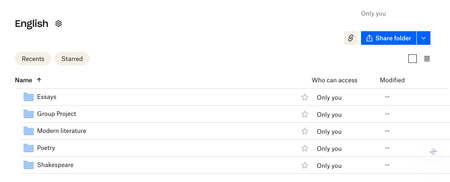
Going to school is a really exciting time, whether you’re starting a brand new course, returning after a break, or taking your first steps in a new career, there’s so much to be enthusiastic about, but also a lot of preparations to make. So, if you’re heading back to school this year, take a moment to read our guide to hitting the ground running with Dropbox. Here’s what’s included; Get organized Access your files when and where you need Collaborate on team projects Get familiar with Dropbox Dash Never miss a beat with Dropbox Capture Save time with Dropbox Replay Get organized If you’re taking classes this fall, or even if you’re teaching them, the best thing you could do is get yourself organized before you start. With Dropbox, this is really simple. First things first, you’re going to have a lot of files to manage so you’ll need to create some sort of folder system. You could start by creating a folder for each class, then in that folder create another subfolder for each topic. Then you can sort things by file type, day of the week, priority or by whatever way makes the most sense to you. This will help you be super organized and able to find all of your important documents at the drop of a mortarboard. Have your files where you need them, when you need them With Dropbox, you can have access to all of your important files wherever and whenever you need them. So, if you’re doing a bit of last-minute cramming on the bus or find yourself needing to make some quick edits to an essay, you can do it all easily with Dropbox. All you need to do, is make all of your most important files online-only and you’ll be able to access them at the touch of a button. This will also mean that these files won’t take up space on your hard drive. Collaborate on team projects Team projects are always a challenge, especially when some members of the team are a little less enthusiastic than others (there’s always at least one). With Dropbox, you can share all of those important files with everyone in your group, so nobody has any excuses for not getting all of the materials they need. You can also use a shared Paper doc, which allows you to create to-do lists with deadlines, meaning everyone always knows exactly what they have to do and when they have to do it. As if all of that wasn’t already enough to keep everyone in line, you can also see everyone's name beside their work and you can check the document’s history to dispel any fears of phantom deletions. You can read more on becoming a Paper pro here. Get familiar with Dropbox Dash There’s a lot to keep track of when you’re studying. With everything from classes and lectures to remembering where you saved your latest set of notes, you could be forgiven for feeling like you need your very own personal assistant. Well, now thanks to Dropbox Dash, our AI powered universal search tool, it’s easier than ever to keep track of everything you’ve got going on. Dash connects with the apps and tools you are using, meaning you can search all of your surfaces from one single place. You can even ask Dash questions and it'll give you answers with information summarized from your relevant files. You’ll also be able to create Stacks, which are bundles of information. These can include emails, files, articles, presentations, and things that folders or bookmarks normally can’t group together. Never miss a beat with Dropbox Capture Dropbox Capture allows you to record your screen, camera, and microphone. This can be really helpful if you need to create video messages for group projects or any sort of collaborative work. You can also use it the record online lectures or seminars, which you’ll be able to edit, watch back, and easily share with classmates. You can watch the video below to find out more about Capture. You can find out more about Capture here. Save time with Dropbox Replay If you’re studying media or video production, or even if you’ve got some video based projects to work on, Dropbox Replay could seriously help you up your game. If you’re not familiar with Replay, it’s our video, image and audio review tool that allows you to mark up, comment on, and finalize projects with your tutors or classmates, completely streamlining the entire review and approval process. But that’s not all, Replay does so much more, find out more about some of our favorite features. Will you be using Dropbox for school? What’s the one thing that slows you down the most when it comes to assignments, group projects, or organizing your studies? Let us know by leaving a comment below and we’ll see if we can help!4.8KViews3likes1CommentIntroducing:: Dark mode for Paper
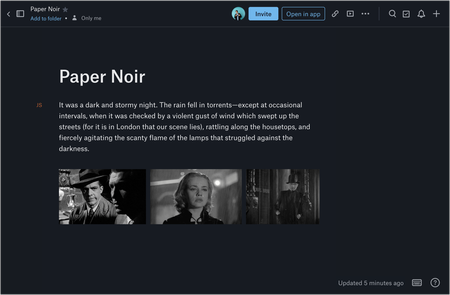
Overview Dark mode has been one of Paper’s most requested features from our users. We are now very happy to say that dark mode for Paper is now available! Audience This feature is available to all Dropbox Paper users, including our Basic, Pro and Plus subscriptions, not just those on a team subscription. How do I get it If you haven’t seen dark mode yet, you can flip it on from the “?” menu on the bottom-right of any Paper doc. You can also turn on dark mode from your computer’s system preferences. This is available on desktop, so get on there and start using it now! More ideas If you have more ideas on how we can improve our product then check out our Paper ideation board here, or our Dropbox Business ideation board here. Request improvements, suggest ideas, we’ll review them all! Thank you for helping to improve our product.56KViews6likes2CommentsConquer 2023 - here's how Dropbox can help you kickstart your year
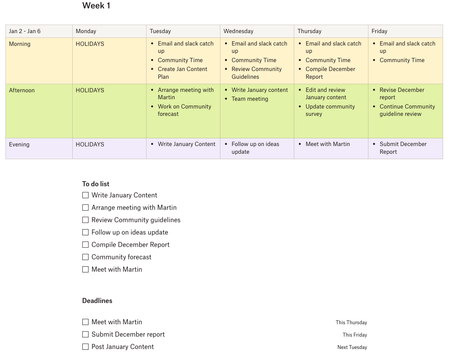
Now that the dust has settled on the holidays, it’s time to start thinking about the year ahead. We’re big fans of January here on the Dropbox Community Forum, it’s a great time for change, new beginnings, thinking big and getting excited for the upcoming year! We’re sure most of you already have some sort of New Year’s plans in place — whether it’s a simple resolution, a big lifetime event, goals that you’ve set, or a plan for full global domination. Whatever way you plan to grab 2023 by the horns, we’re pretty sure you’ll be able to use Dropbox to help keep your plans organized and on-track. Here are a few ways you could kickstart your year with Dropbox. Get more organized in work Personally, I want to try to organize my work day a little better and keep on top of all of my to-dos with military precision this year. I’ll be using Dropbox Paper to help me with this. Every week, I’ll create a new grid, with a column for every day of the week. Each of these columns will then have 3 rows, one for morning, one for afternoon and one for evening. Here, I’ll be making lists of everything I’ll be working on throughout the day and arranging it, depending on priority, into different days and times. This will allow me to organize my weekly workflow and make sure I keep on top of everything, from the mundane daily tasks to the big important projects. Below my weekly grid, I’ll have 2 lists, my to-dos and my deadlines. The to-dos will be for actions I take away from meetings or anything else that pops up that’s not in my normal workflow and could otherwise go under the radar. My deadlines will be for anything at all that’s time dependent, whether it’s attending a meeting, submitting a report or finishing up a project. Then, at the end of the week, I can collapse it down and move onto the next week, leaving me with a pretty substantial record of what I’ve been working on at any given time. Moving house Moving house is a pretty stressful experience at the best of times, add a really competitive rental market and record high rent prices (like we’re currently experiencing here in Dublin) into the mix and it gets even worse. One way to try and make this a little easier is by renting a property with a couple of housemates, but to do this takes a lot of cooperation and synchronization. If you see a house you want, you need to be ready to move on it straight away and there are a lot of documents you need to have at hand to help get ahead of the competition. You’ll need passports, payslips, references, contact details and anything else a landlord may ask for. A shared folder on Dropbox means that you and all your potential housemates can have all of these things saved in one place, with easy access, so you’re always ready to make the first move after a property viewing. You can see more of how Amy, our very own Community legend, used Dropbox when moving a couple of years ago here. Get your study on If you’re a student or planning to return to education in 2023, having all your files, study notes and assignments saved in a secure and accessible place is really important. It will make your student life a whole lot easier if you know you can pull up a document, save some notes or get a reading done on the go, no matter whether you have your PC, laptop, tablet or phone. Group projects are another challenging part of life as a student. With shared Paper docs you can make sure your entire team have access to the exact same information at all times, so there’s no excuse for the lazy one, and there’s always one. Document history will even ensure you never need to worry about anyone “accidentally” deleting their work. Find out more about how our very own Alex used Dropbox in school here. Plan a trip For me, part of the beauty of January is planning a trip. Whether it’s a short city break or a longer trip somewhere sunny (we don’t see too much of the sun in Dublin), I always organize a trip away at the start of the year. It gives me something to look forward to and can be great motivation for some of the other goals I set myself. There are a million ways to use Dropbox when planning a trip, whether it’s a list of what to pack, making an itinerary or documenting all the photos you take, you can do it all with Dropbox. If you’re planning a trip with a group, a shared Paper doc is an ideal way to make sure everyone has all the information they need. Flight times, hotel name, restaurant recommendations, anything that’s important, simply add it to the doc and everyone will be able to find it when they need it. You’ll enjoy yourself a lot more, when you know everyone’s on the same page. See how Dropbox’s @Susan meticulously plans her trips here. Whatever your plans for the year ahead may be, we really hope you get everything done and smash your goals. If you plan to use Dropbox to help, or if you’ve found it helpful with any plans you’ve made before, we’d love to hear about them so please let us know below!3.8KViews3likes5Comments