Your workflow is unique 👨💻 - tell us how you use Dropbox here.
Dropbox Paper
253 Topics
Got thrown out of my Paper Document. Can't reopen it now.
Device Macbook Pro M1 Pro Operating System/Browser (if using the web) macOS12.6 Question or Issue I was working inside of a Paper document I had created. Mid typing I was thrown out of my document. A popup appeared that I lost connection. After restarting my wifi I'm still not able to get back in to the document. I tried a different browsers, private mode, VPN. I also tried opening it on my phone through the Dropbox app. No luck. Tried sharing the document with a friend and still get the same error. Is there any way the progress was atleast saved somewhere so I can acces this and make a backup?53Views0likes3Comments
Dropbox Paper - images don't load on the web
Similiar to 3 months ago I again have a dropbox paper file that doesn't show pictures that have been uploaded. When I click on the file I get an access denied notification. Very weird as I uploaded the pictures via copy pace. The same issue occured 4 months ago documented in the following community ticket. Dropbox Paper images aren't loaded on the web | The Dropbox Community I am really wondering if dropbox paper is still a service should use if this happens again and again - maybe its better to switch to a more reliable solution such as notion. Access Denied You don't have permission to access "http://media.licdn.com/dms/image/v2/D5622AQG1WaxHAI0r0w/feedshare-shrink_2048_1536/B56Zj3q93DG4Aw-/0/1756501896665?" on this server. Reference #18.d10d3c17.1769541929.18c150ee https://errors.edgesuite.net/18.d10d3c17.1769541929.18c150ee https://media.licdn.com/dms/image/v2/D5622AQG1WaxHAI0r0w/feedshare-shrink_2048_1536/B56Zj3q93DG4Aw-/0/1756501896665?e=1765411200&v=beta&t=QwvuNFF_QW9Nco8WqWPyz1DYw_bGgUJb-jutavjE0Rs80Views0likes4Comments
How can I remove a user from a Paper document that I shared with them via link?
Hello, I've a personal Dropbox account. I shared the link to someone. He opened it in his work account, instead of his personal account. Now the paper shows his work account as 'opened'. How to remove that? He doesn't want other people who is viewing the Paper to notice his work email address. Please help me.189Views0likes8Comments
Text highlighting not visible when exporting to Word
When I highlight text in a Paper document in my browser and then export it to MS Word, the highlighting gets lost. Bold, italics, underlined instead are all working as expected and are retained. I tried a few tips, but none of them worked: - copying text from the browser and pasting into the Word doc directly - using incognito mode - viewing the Word document online or in the desktop app makes no difference either - exporting to pdf first and then converting to Word doc (pdf has highlights but they get misplaced when converting to Word) Devices: Macbook Air (M4), Sequoia 26.2, tried both on Firefox(146.0.1) and Safari(Version 26.2 (21623.1.14.11.9)). Dropbox Version is 239.3.8100 but as I use the browser it might not matter. Dell Pro 13 Plus Windows 11 Enterprise (24H2) Edge Browser (143.0.3650.96)146Views0likes4Comments
I'm getting an error when loading Paper documents on the Dropbox site
Is anyone else having trouble opening documents in Paper? I just wanted to review a couple to determine if I was scrapping the associated projects or saving them, but the site keeps giving me errors when I try to open them. :/ I know the general... everything around Paper has been declining over the last couple years, but this is a new one for me. The error states: "How embarrassing… We experienced an error trying to load the current page." I've already emailed support, but curious how widespread it is and if it's just one more sign to abandon ship.80Views0likes2Comments
Thoughts and feedback on the new release of Dropbox Paper
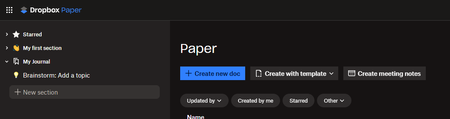
This idea was already suggested many years ago and closed for inactivity. The old Dropbox Paper was easy to use, simple and was "what you see is what you get". The new Dropbox Paper introduces lots of new concepts that don't necessarily align I think with how many people have used Dropbox Paper in the past. It could just be me, but seems unlikely. Paper was a useful tool for me to organize my thoughts, write notes, journal ideas, etc... I don't usually like tools in general that try to push me to organize my life into someone else's perspective of how one should operate. I realize that other users may like that, I don't. I don't want "to-dos", "alerts", "notifications", "channels", etc... I like the "sharing" capability, and perhaps some very basic "collaboration", but to turn Dropbox Paper into a complete "Team" solution for ideating is way way beyond what I want to use it for, and I feel a little like the new version of Paper is intended to force users into a way of journaling and writing that maybe isn't what or how they are comfortable operating. Maybe these features could be useful, but on an as-needed basis, without taking away the simplicity that existed prior. It would be great if we could just have something that gives us the old Paper capabilities, with the advantage of treating a "Paper" document just like a dropbox document (which is what I thought the new implementation was all about and I was excited for). Here's the new Dropbox Paper UI. How is this intuitive? "Sections" on the left. "Create new doc" on the main page. Shouldn't I be navigating documents on the left, and each document have sections? Where am I right now? Where are all my paper documents? How do I get to them? What is a section? When I click on "My first section", nothing happens, it doesn't go anywhere. "Brainstorm: Add a topic". What's a topic? I don't brainstorm in Dropbox paper, why is that important? How would you then browse topics? Or is topics part of brainstorming? Is that a document or a "thing" thing in the new Paper application. Do the icons mean each thing on the left is a type of thing, or is it just a clever emoji you can prefix your titles with. What is "Starred" for? If I have 1000 paper documents, why am I starring them like that? Or should it just be maybe "Recent documents". Is "Starred" going to be a new virtual directory tree or a list of starred documents. I feel like it's a bit of a mess of ideas and concepts and terminology. Besides "Create new doc", nothing else makes sense to me. Maybe I am the wrong user. Maybe it was never intended to be used as a simple repository of notes, journals, etc... What's the grand old vision for Paper? Where is it heading and trying to take us as users? I really don't know how to suggest a better idea without a better understanding of what Dropbox Paper is meant to accomplish for users going forward. Is it for the enterprise going forward? Who is Dropbox Paper trying to compete with, because I thought it was pretty unique before in its simplicity. I noticed there's a slack integration? Is the product management group for the application taking their cues from businesses, or are this going to also still be for regular retail-ish consumers. Maybe that can be explained clearly. And then I can decide if it's for me or not, but as-is, I'm not sure how this is going to work for me.2.2KViews4likes20Comments