Our Community is in read-only mode until April 8th, learn more here. You can still search existing threads or get help via Dropbox Support, the Dropbox Help Center, or Learn.
Dropbox Paper
51 TopicsIntegrating Dropbox Paper with Dropbox
Paper is a Dropbox product, but what's the relationship between Paper and Dropbox itself? We're here to tell you! Here are the basics... Can I access my Paper docs from Dropbox? You can access Paper by clicking the Paper tab on dropbox.com or by navigating to paper.dropbox.com. If you don't see a link for Paper and you use Dropbox Business, your team admin may have disabled Paper. Contact your admin to discuss access to Paper. Can I access my Dropbox files in Paper? While you can’t directly access your Dropbox files in Paper, you can link or embed a file from your Dropbox directly in a doc (for example, an image or media file): 1. Click an empty line in your doc 2. Click the Dropbox icon 3. In the pop-up window, select the file you'd like to add to the doc. Do I need to be signed in to Dropbox to access Paper? Yes, you must be signed in to Dropbox to access Paper. If you aren’t signed in to Dropbox, you are prompted to sign in when you visit the Paper homepage. Learn more about using Paper and Dropbox together here. How do you integrate Paper and Dropbox? Do you use both? If yes, how do you leverage both for your own work or to collaborate with your team?20KViews3likes29CommentsThings you can do with Dropbox Paper
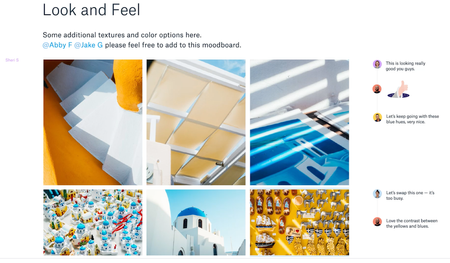
1. Holding brainstorms You’ve likely participated in your fair share of brainstorms, but what happens when your team is scattered across three offices and three time zones? Paper is designed to help you grow ideas with others, even if everyone can’t meet in the same room. Your team can easily add photos and videos, jot down quick thoughts, and add comments in the margins. Collaborators can use emoji and stickers to show how they feel about each idea, making comments feel like conversations. It’s the creative space for a brainstorm in the convenience of a simple doc. 2. Taking meeting notes Sometimes you need a doc with a bit more structure than a free-wheeling brainstorm, like when you’re taking notes for a meeting. Here, Paper makes organization and quick formatting a snap. Start a bulleted or numbered list on the fly, or share the doc with colleagues if you need them to jump in. Easily add headings and subheadings, and Paper will smartly organize each section in a table of contents on the left. When the meeting’s over, you can group the most important items in a table for quick reference, or add highlights to emphasize a few key lines—perfect for co-workers who missed the team sync. Discover more things you can do with Paper on our https://www.dropbox.com/paper/guide!13KViews4likes11CommentsImages: Dropbox Paper link tips to help you get started
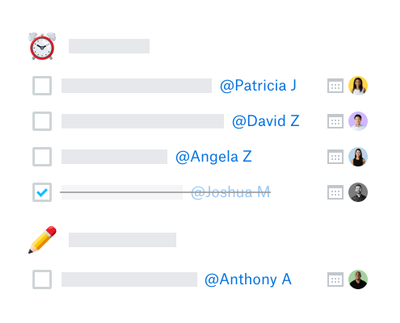
Dropbox Paper has a ton of handy features to take the work out of work, and help you and your team stay in touch and get things done. Here are just a few helpful tips to get you started. Eliminate the need for messy email threads full of feedback. With Paper, you’ll always get notified when someone’s left a comment. Need to add a link? Just paste a URL directly over text, and Paper will automatically hyperlink the words…no need to complete a form or click to insert. And if you want to add a link to another Paper doc? Don’t worry that’s easy too. Type +, then search for the title of an existing doc to link to it. Keep up to date with who’s doing what on the team easily, with to-do lists, deadlines and by simply tagging the right people for each task. Is your team using Paper yet? What are some of your favorite features?13KViews5likes0Comments
'Work Processing' in Dropbox Paper
Paper is today's best example of 'work processing' -- managing the state and particulars of on-going work activities -- within the context of documents, as opposed to traditional task management or project management tools. The term is taken from 'word processing', and intentional suggests a new day for documents. The flexibility and fluidity of Paper's approach to managing native information, embedding content in various media from outside sources, and the rich task model provided by Paper represents the next generation of how individuals, teams, and organizations will stay on top of work. There's more to build out, but Paper is a giant step forward from the early days of cloud documents and file-sync-and-share. #Paperusecase9.8KViews2likes7CommentsGet summer ready with Dropbox Basic
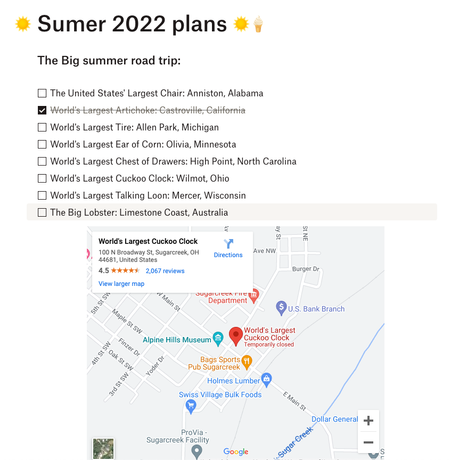
It’s getting a little warmer, there are flowers blooming and buds on the trees, and as nice as spring is, it means summer is just around the corner. We all know that summer is as good as you make it, so putting the work in now means you can enjoy every minute. We’re not talking about putting in hours at the gym, we’re talking about getting organized so you can relax and enjoy. Your Dropbox Basic account might be more powerful than you think for making your summer unforgettable. Use Dropbox for your Travel documents: If you are travelling this summer, one thing we know that can help take the stress out of planning is having digital copies of all of your documents. Whether it’s your passport, your booking confirmation for a car or hotel, tickets to events - your info can be as mobile as you are. Check out how to use Dropbox on your mobile devices here. And don’t worry, if you don’t have a digital copy you can use the Dropbox Scanner App to copy in your physical copies too. Create To-do lists with Dropbox Paper: Dropbox Paper files take up very minimal space in your Dropbox Basic account, so make Paper work for you. If you have a list of attractions, places or events you want to get to this summer, make a to-do list with links and info in advance. And if you’re really organized, you can even link the maps to some of those spots too. And, don’t forget, Paper is a collaborative tool so you can make joint planning docs for you and your friends - so you don’t have to be in charge of every details, but you know things will get done. Make the most of Dropbox Passwords: We’re here to sing the praises of Dropbox Passwords once again, because nothing is more annoying than setting up a movie night with friends and forgetting the logins for all your streaming services. Dropbox Passwords allows you to seamlessly sign in to websites and apps by storing your passwords securely. It safely stores your usernames and passwords on all your devices — so you don’t have to keep them all in your head. Everything is seamless with Dropbox Passwords: Create secure, strong passwords that sync across your devices Lock the Passwords app automatically after inactivity or whenever your device is locked Unlock the Passwords app with Face ID or Touch ID on your iOS devices or fingerprint scanner on your Android device Summer project progress photos: It’s easy to get so busy that you can lose track of time, and forget to take a moment to appreciate your work. So if you’re planning some summer projects, why not take a weekly photo and upload it to a Dropbox folder to track your progress? ConF2_0, a Community member mentioned here that she used Dropbox to save photos of her garden to track how well her plants and crops were growing, which I now do myself! So, whether it’s a DIY project, a garden, or even a new pet that’s growing rapidly, you can track the progress, remember the early days and see how far you’ve come. So - how are you going to use Dropbox to make your summer amazing?9.7KViews3likes0CommentsHow have you used Dropbox lately?
So you might have seen our little exploration into how Dropboxers use Dropbox, from the small stuff like online games and to do lists, right up to the big stuff, like buying a home and sharing baby photos. In fact, I’ll be back soon to share how I recently used Dropbox to take the pain out of planning a wedding (tips and tricks incoming). Great and all as it is to hear how we use Dropbox, we want to know how you use it! Day to day, big projects, sharing files with friends and family - we want to know about it. Share in the comments below, and if your tips are truly inspiring, who knows, you might even earn the Mighty Badge and the extra space that comes with it!9KViews1like4CommentsDropbox Basic: Learn the Basics
If you are reading this, chances are you are new to Dropbox. Welcome! Many of us begin our Dropbox journey with a Basic Account, which has so many perks, and of course, it is free! The basics of your Basic account: Users and Space The Dropbox Basic account allows for 1 user. This means you are the only person that can use this account. But don’t worry, one user doesn’t just mean one device - you can have 3 different devices connected to your Dropbox account. I connected my dropbox account to my phone, tablet, and laptop. When I was in Ghana, I was able to access all of my files from my phone, and to upload some photos. Want to learn more about connecting your mobile devices? Discover how to make the most of your mobile access to Dropbox. Using your Dropbox Basic account: So to get started, you can upload almost any file type to your Dropbox account and keep your important files safe! Whether it’s music files, pictures, media, documents, simply upload and you can access your files anytime, anywhere! With a Dropbox Basic plan you have 2GB of space to use. And of course, we keep your files safe! Dropbox uses multi-factor authentication to ensure that all of your files are secure. Check out how Dropbox uses encryption to provide security for your files. When I received my first multi-factor message I said to myself, “Come on Safety”. Dropbox Basic tools you might not know about: The tools within Dropbox are the real secret sauce. Here are some Dropbox features and products you might not know about, check them out below and find out if they can help you to make plans, organize files and save time! Dropbox Paper is a collaboration tool with endless possibilities! Charts, headings and formatting is made easy with one click, LITERALLY. This program is great for creating proposals, project plans and just quickly taking notes. The best part of it is that it takes up very little space in your Dropbox account. Trust me, I make paper docs for all of my todo lists, to plan family trips and to organize any personal projects. Paper has truly become one of my favorite products to use. HelloSign allows you to send 3 documents for eSignature per month. In the digital world we live in, this is a perfect way to get a signature from someone you may not see in person. Explore HelloSign, a simple and easy way to get documents signed securely online. I recently needed a contractor to sign a document that I drafted to fix my home and the document was signed and sent back to me within minutes. And of course, the signed docs are safe and secure too! Dropbox Capture is a tool used to Capture the attention of the person you‘re chatting to. With Capture you can share your thoughts with screenshots, GIFs, or simple videos recorded right on your screen. The upside is that you can clearly say what you mean without scheduling another meeting. Learn more about how to use Dropbox Capture. Having a Dropbox Basic account is more than just a space to store your information. Use Dropbox to manage and organize your files, whether it’s for a project, sharing memories or connecting with others. 😁 Will you use these tips to make the most of your Dropbox Basic account?8.9KViews6likes1Comment
Dropbox Paper Use Case (after two years of using Paper)
My compnay is a custom, made to order, high-end ornamental architectural metals company. Two years ago, we needed a solution to allow our email interactions with potential clients, suppliers, architects, etc. to be available for everyone on our team. We needed the solution to be available both at our desktops in the office, and mobile-through iOS. We developed a format using Dropbox paper that we called "narratives". Each potential project got its own narrative, and an associated folder structure within the standard Dropbox structure which we linked together in Paper through the use of hyperlinks. We set up a few additional Dropbox Paper documents which were basically a series of lists to identify where in our workflow each narrative was (think Prospect, Bid, Job, Archived, etc.). These narratives were shared with our team members using the integrated permissions rules within Paper. Each team member was then trained to update their narratives as they had any type of interaction with the outside contacts. Updates were also made relative to internal discussions and progress. In this way, anyone within our team that was interested, and had the appropriate permissions could come up-to-speed on any narrative with relative ease. As time went on, we learned include images, video, comments, contact information, etc, all linked to specific documents in our standard Dropbox folder structure. AND Paper itself was made better and better, allowing addtional formatting, linking, etc. We also learned to make "Client Facing" versions of our narratives to share with our clients. Within our organization, we update these client-facing documents inline with progress on their particular job. We include links to documents, invoices, pictures, videos, progress statements, etc. as we complete the work. The client can, whenever they want to follow the progress of their work, ask questions, make comments, etc. They absolutely love it. Recently, we expanded our use of Paper to include taking the meeting minutes for the partners of our company. Each week's minutes are contained in their own Paper documents, and other paper documenent that detail certain sections of our business are maintained by those that have the rights to do so. In this way, any partner can check in on whichever part of the business that they want to whenever they want, be it in the office or in the field. We also use Paper to plan our social media presence. The timeline feature of Paper is particularly helpful for this as it is easy to see that all aspects of our business that we want to cover are represented frequently. Each social media post has its own development page within Paper, and the Social Media manager can review each post's stub and offer comments and guidance as the Social media developer gets each post ready to publish. There are seamingly countless ways that we use Paper, and I'm sure to have missed some of the highlights here...but at least this is a start for others to see how truely powerful the tool is. Feel free to ask me if you have any questions on how we use Paper. Cheers. #Paperusecase8.4KViews6likes5CommentsNotifications: calm or chaos? Tell us how you prefer to manage them
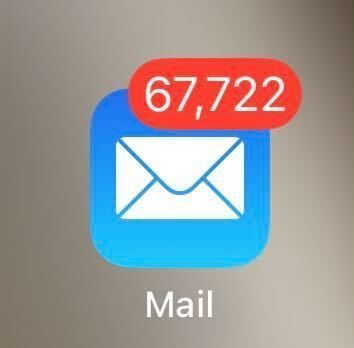
You know us, we are big fans of collaboration, but every now and then, we stumble across a topic that totally derails a meeting. While on a call, we noticed that someone on the team is walking around with over 94 unread texts, 50+ Slack notifications and a whopping 67,722 unread emails. We’re not going to name names though but when I picked myself up from the floor, it sparked a serious debate on our team and we came to the conclusion that there are two kinds of people, those who thrive in notification calm, and those who live for notification chaos - which one are you? In the interest of honesty, I am a firm believer that a clear notification screen is the only way. I avidly unsubscribe from emails I don’t want to see, I mark messages as unread so I can get back to them if needs be but I like to start my day with a clean slate. Our own Emma is a bigger fan of a well managed to-do list in Dropbox Paper, and you can read all about that right here. While it might make some people’s skin crawl, that means she can let her notifications pile up. I’m not convinced, but it works for her! To augment this ever fluid list, she’s a big fan of the Paper roundup emails and Dash to keep her on track with the many docs doing the rounds at any one time. To quote Emma herself on this, “every so often I'll clear them, but I have yet to miss anything with my chaos”. I also like how Drew (the CEO of Dropbox) has an OPP folder, which translates to other people’s priorities (or problems!)) to help manage those email notifications and understand what needs action on his part. You don’t have to take my word for it, check it out here. So, we want to know - how do you manage your notifications? Clear them? Keep them? Outright ignore them? Tell us in the comments below!8.1KViews4likes4CommentsCLOSED | Use Dropbox Paper? Post your Paper workflow to win a Dropbox t-shirt and tote bag!
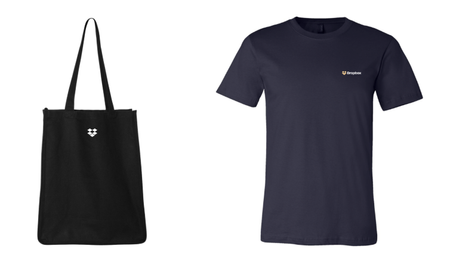
Update: this contest has been extended to March 15th! You all have shown us that there are so many ways to use Dropbox Paper, from meeting agendas, to music video production, and so much more. Each Paper use case brings a new set of questions, challenges, and opportunities to learn. So, we want to hear how you use Dropbox Paper! Start a discussion in the Paper section of the community forum to tell us how you use Dropbox Paper and use the tag #Paperusecase to officially enter your post in this contest. The three most-viewed #Paperusecase posts on March 15th will win a Dropbox tote bag and t-shirt! When you post your #Paperusecase, please include some or all of the following information: Your role, team, industry Problems you were facing that brought you to Dropbox Paper, how these problems reduced your efficiency How you use Dropbox Paper independently and/or with a team Specific workflows you’ve set up with Dropbox Paper Other tools or integrations you’ve used with Paper Advice you’d share with other people like you Photos and/or video that help tell your story and grab your reader’s attention. You might share screenshots that demo your Paper instance, or you could even tell your story as a video recording! Remember, the more helpful and compelling info you share, the more views you’re likely to get! Feel free to share your post with your teammates and your social networks to get more pageviews, as well! Contest details Note: By posting your #Paperusecase, you agree to the Official Rules. Add the #Paperusecase tag using the tagging box below your post. Entry Period: February 1, 2019 at 8:00am PST - March 15, 2019 at 11:59pm PST Note: the top three posts with the highest number of views on March 15th will be selected as winners. Winners will be notified via a reply on their winning post and also via email. Where to submit your Paper use case: Submit your story here: https://www.dropboxforum.com/t5/Discuss-Paper/bd-p/101007B1 Requirements to be selected as a winner: Post must be tagged with #Paperusecase in the Paper section of the community forum Post must be one of the top three most-viewed with the #Paperusecase tag in the Paper section of the community forum Prize Dropbox Tee, Dropbox Tote (Actual Retail Value $20) How you’ll be notified if you’re a winner If you are selected as a winner, the Dropbox Community team will notify you via email at the email affiliated with your Dropbox community login. We may also contact you to follow up on your story or to share opportunities to get more involved with the Dropbox community. NO PURCHASE NECESSARY. Void in Brazil, Italy, Vietnam, Quebec and where restricted or prohibited. Must be at least 18 years of age. Must enter by the date listed on the promotion page or in the promotion email. See Official Rules for odds, judging criteria, and additional details. Questions? Leave a comment here!7.1KViews0likes6Comments