Our Community is in read-only mode until April 8th, learn more here. You can still search existing threads or get help via Dropbox Support, the Dropbox Help Center, or Learn.
GUI
54 Topics
How to expand left sidebar width on the website?
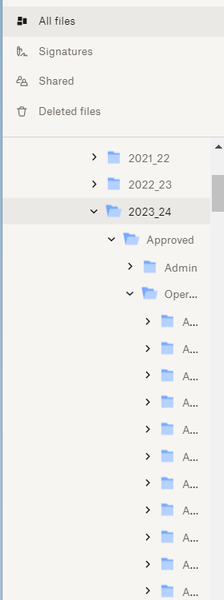
How can I expand the left sidebar width. I have many levels of files and I can not see the names of folders that I want to move files into. As you can see below, all I can see is the first letter of the folder "A" and there are several of them. I want to be able to expand the left sidebar so I can see the names of those folders and not just the first letter. I was able to do it before, but not now for some reason. Thanks!2.5KViews8likes14Comments
Duplicate Dropbox Options in Context (Right Click) Menu - Windows 11
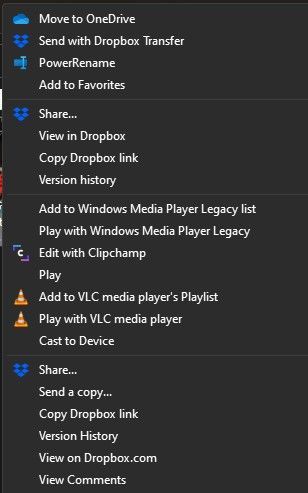
Title pretty much sums it up. When I right click a file in dropbox or Winblows explorer tree, there are 2 sets of Dropbox options. With other installed apps and options I've enabled, right click menu is quite long, (full menu no shown below). How do I consolidate these 2 Dropbox option trees into 1? ThanxSolved9.8KViews8likes43Comments
How can I start the actual dropbox app in Windows 10 / not launching
I have the latest version of dropbox, and I have a dropbox folder on my Windows 10 PC. It is syncing normally. However, I want to access the actual dropbox app in order to change the sync folder location. The problem is I cannot find a way to actually launch the app. There is a dropbox icon on my taskbar, but when I click it, it simply opens my dropbox sync folder on my PC (in Windows Explorer). Same thing when I try launching dropbox from the start menu. It just opens the folder. Dropbox is syncing the files just fine, but I want to actually access the app interface not the folder in explorer. I know the general instructions say to click on the icon then click on your avatar and select preferences, but no such thing happens when I click on the icon in my taskbar (or in the start menu) - it simply opens Windows file explorer with my dropbox directory selected.Solved8.3KViews6likes19CommentsFeedback on Context Menu Issues - Current design
Folks: I've been using Dropbox since it was invite-only way back in the day. I love many things about this app. I went pro for a while when my needs required it, and have been free for a bit. Was considering going pro again as my needs are growing, but the biggest thing stopping me from wanting to give you money is your anti-user design. Some context: I'm a power user. I keep a manicured classic start menu so I can keyboard shortcut to anything on my computer. I curate my context menus to work for me and not have clutter. The problem: Every year, you make it harder to customize our user interface in Windows Explorer and our Start Menu. Once upon a time, I could just Move, Rename, or Remove start menu entries I didn't want after installation. You changed it so that the update process reinstalls any I've changed. I can't even hide them, because you overwrite that too. Fine, I made a script that I run after every update now to clean up that garbage. But you shouldn't be forcing this. If you really feel like you have to to help your completely unexpert users, then let us toggle it with a setting or disable it with a registry entry. But even more insane is the context menu. Every good app I use lets me choose whether to add it to the context menu. Most of them only have one entry anyways, or (like WinRar) put them in a submenu item. What you do is force *six* context menu entries, with no way to disable them, and not under a submenu in the menu. Now, back in the day, I dealt wih it the same way. There were various registry edits we could use to clean this up, and I built a script to do it after install. You put them back after every update? I ran the script after every install. But a little while back, you broke that so that even rooting out your registry entries doesn't stop it. Fine, I manually clean them out with ShellExView. And now that doesn't even work. Despite disabling the context menu items there, they're persisting. I can no longer reclaim my context menu for my own. None of the known workarounds work. And you refuse to offer any option to turn that **bleep** off. Now let me explain exactly how stupid and annoying that is. You're taking up 1/3 of my context menu. You hijack the "D" keyboard shortcut in the context menu so I can no longer right click and hit my D key to delete an item. Because now that jumps to "View on Dropbox.com" which I literally *NEVER* want to do. I can't right click an item and "create a shortcut" by using the S key because you've hijacked that to "Share with dropbox" dialogue. The minor issue with this is that you've implemented your context menu badly by overriding default Windows behaviors because you didn't specify currently-unused keys and that you didn't put them in a submenu item. The MAJOR issue with this is that your anti-user behavior of refusing to allow us to customize these items like every good app does AND your intentional breaking of every workaround that users come up with to circumvent your dark pattern design. This goes from "bad choices" to "malevolent choices". Stop trying to take over my explorer window. Let me customize what goes in my own context menu. And when we find workarounds to fix your shoddy design, don't make it worse by intentionally breaking the fixes.1.2KViews5likes5CommentsCan I remove the "your activity" files?
It seem impossible to imagine but apparently Dropbox has decided that recent activity/files in recent activity are now permanently viewable until replaced by more recent activity. Really? I hope I'm wrong. Dropbox started out as uniquely user friendly and easy to use. I've watched that disappear over the years. It's becoming every bit the arrogant, controlling, short sighted and customer unfriendly type of site that it once stood out from. Again, if anyone has different information, please share. I'm truly hoping I'm wrong.1KViews3likes8Comments
The Dropbox folder icon appears as a blank page on my newly-installed Windows 11.
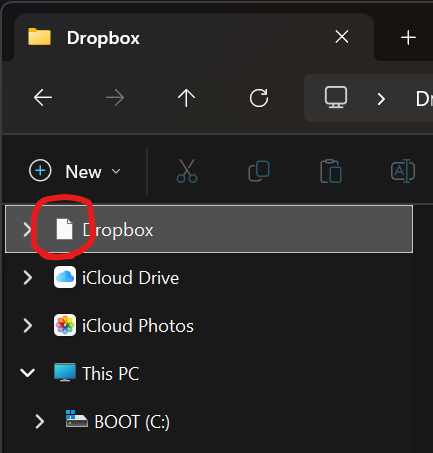
Application Affected Dropbox (Microsoft Store version) Device Windows 11 Custom Build PC Operating System/Browser (if using the web) Windows 11 Pro 24H2 and now 25H2 Dropbox App Version (if using the app) 234.4.5591 Question or Issue On my new PC I have installed Dropbox via the Microsoft Store. It is all working, except the Dropbox icon itself is wrong in Explorer for my Dropbox folder. It is just showing a plain white piece of paper. Again this is a brand new system with a brand new install of Windows 11 Pro that I did myself - nothing weird, I didn't use any of the means to "debloat" - it is just a default Microsoft Windows 11 24H2 install. I had the problems on 24H2 and it upgraded to 25H2 the other day and that has not changed the issue. It is more of an annoyance than anything because my eyes are used to looking for the dropbox icon appearance to find it and the plain white paper doesn't stand out so much.Solved761Views2likes13Comments
How to remove the Dropbox Icon from Menubar
I recently installed dropbox on my macbook and there is a dropbox icon on the menu bar on top always. The only way to remove it seems to be be to completely quit the stop which will stop the app from syncing in real time. Does dropbox provide an option to hide this icon from the menu bar in someway. I personally feel its quite annoyingSolved4KViews2likes4CommentsI can't change the Dropbox web column headers
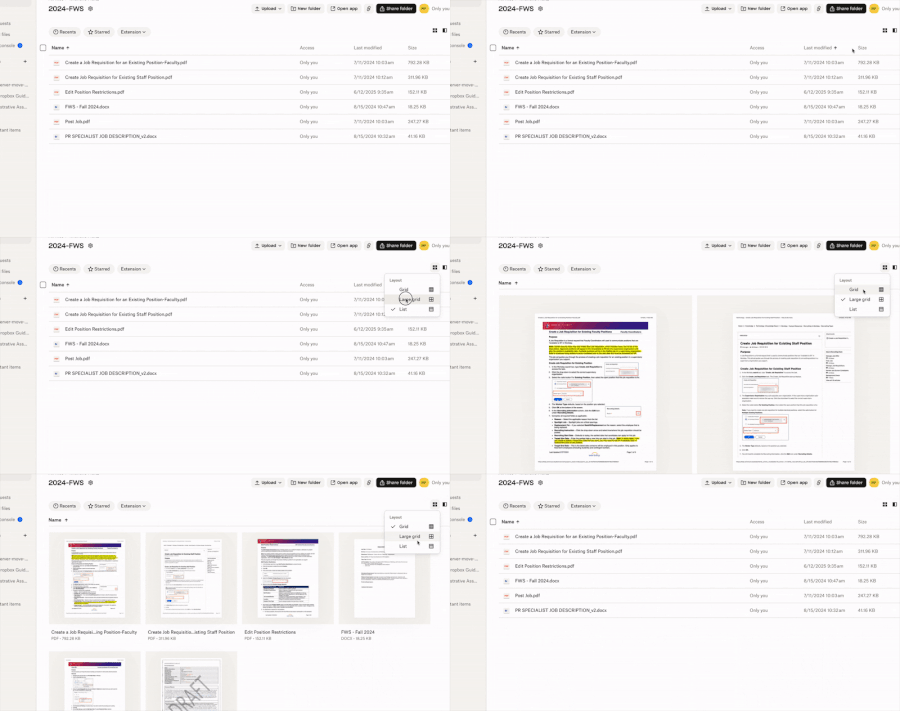
I was able to add Size header to my columns on Dropbox website last year sometime. But now when I go there to switch my List view column headers, I no longer get the inverted caret. However, I get it with Grid view and Large Grid view. Where did it go? It's the same in Safari as in Chrome. Application Affected Dropbox website Device MacBook Pro Operating System/Browser (if using the web) macOS Sequoia 15.7.4 Dropbox App Version (if using the app) NA110Views1like5Comments
The redesigned menu bar window always opens in the first Space on Mac OS
Application Affected Dropbox for Mac desktop app Device MacBook Pro 15" M1 Operating System macOS Sequoia 15.7.2 Dropbox App Version 241.4.4795 Question or Issue Clicking the menu bar icon to open the Dropbox popup window (recently synced files, etc.) always switches me back to the first space before opening. Toggling off "Use redesigned Dropbox menu bar" restores functionality of the popup opening in my current space. For additional context: I do not have "Automatically rearrange Spaces based on most recent usage" enabled I do not have "When switching to an application, switch to a Space with open windows for the application" enabledSolved141Views1like4Comments