Our Community is in read-only mode until April 8th, learn more here. You can still search existing threads or get help via Dropbox Support, the Dropbox Help Center, or Learn.
Share
33 TopicsHow we use Dropbox: Project management
When we hear about how other people use Dropbox, I have to say we scan for tips and advice that we can carry through to our own workflows and projects, from planning a wedding to organizing family photos. With that in mind, we loved hearing about how Project Manager extraordinaire, Libby, uses Dropbox to keep her projects, and more importably, the team, on track. Check it out below and let us know if you will take some of these tips forward 😁 The key to a successful project is good planning and organization. Duh, but here is what I do to start off on the right foot there. Step 1: Create a shell of folders to start a project I create all of the folders to help manage the different stages of a project, which include: Ideation Planning Execution and closure And to go even deeper, within these folders we can have sub folders for different levels of approval. At this stage, I add everyone involved in the projects - and I BEG them to create their documentation within these folders. There is nothing worse than people creating rogue docs and forgetting to link it back so starting off in the right place makes it easy to keep us all in contact. Step 2: Create a Project plan I then create a Project Plan Paper doc, and this outlines the goals of the project, and this outlines the goals of the project, milestones, results and more. Now, this can seem daunting to begin with but luckily, we have a template to get you started right here. Within this doc, I can also tag people, create and add to-dos, link to other docs and of course, adding tables and images seamlessly. The perfect one pager, if you ask me. Step 3: Track the progress In theory, now everyone can get to work on their own sections of the project, and I get to observe, check in and remove any blockers. So I get notified when changes are made, I get tagged, I receive Capture updates. Whatever works for the team works for me! Step 4: Reporting and sharing wider Once the project has finished, and undoubtedly been a resounding success, it’s time to report back. So the results folder can contain Exel sheets of data, screenshots, and docs summarising the impact of the project. It’s great because everyone can contribute to this section as the results often come from varying sources. Once docs are ready for sharing wider, there are executive one pagers that can get workshopped internally and then a shared folder is created for the wider team. I enjoy how logical this process is, and as someone who can feel daunted about documentation, this seems really achievable. I also asked Libby for her best project management tip and this was her sage advice: Be flexible and work how your project team works. What works for one team won’t work for another. How do you manage projects? Do you have a different process you want to share?14KViews3likes1CommentDropbox Basic: Work Outside the Box
If you work with more than one person, you more than likely have needed to share a document or file to work simultaneously or receive feedback. With your Dropbox Basic account, you collaborate with friends and family and work outside of the box. Even if they do not have an account, you can still collaborate with them! Dropbox has made it easy to share files with friends and collaborate on projects. Share files with friends and family I recently learned that you can share files from Dropbox with friends or family that do not have an account. When you share a file or folder using Dropbox, the recipient receives an email with a link to the file or folder. The recipient does not need a Dropbox account to view or edit it though. Just this past week, I shared a Paper document with my sorority sister, and she was able to view and edit the file without any issue. On the file was a to-do list for the both of us and we worked together on the document. Learn more about how to add to-do list to your paper document. You can also control whether people can edit or view your files and folders when you share them and even after you share them. Edits and comments that’s made to a shared file or folder are updated live for everyone they’ve been shared with. This allows for any changes to projects to be implemented right away and ensures everyone is on the same page. Ways to Collaborate Sharing files is usually top priority when working with others. With Dropbox apps and integrations, sharing, syncing and collaboration is made easy. Whether you are sharing a school project, presentation, bachelor trip details, or planning your 30th birthday party, it is likely that you will pass the file along to someone else for their input. As sad as this may seem, Summer vacation for students and teachers will be ending in about 1 month. The time will come during the school year where you will have to participate in the good ol’ school project. The conversation of how you will collaborate to ensure everyone is working together always comes up, and you can suggest using Dropbox. With your Dropbox account, you can collaborate with your school project team members that do not have a Dropbox account. You can use word processing applications such as G-Suite and Microsoft Office Online. Learn more about how to use these integrations. This will allow for an automatic sync after each team member contributes to the project. Your Dropbox account allows you to collaborate with multiple team members from multiple locations at one time. It’s a big year for celebrating! Gathering in large groups has finally become a norm since 2020. People have planned large parties and events to celebrate weddings and birthdays. To do this, you will likely collaborate with friends and family virtually. Don’t forget that you can use Dropbox Paper to create a guest-list, or a to-do list where you can tag the other party hosts. You can even create the invites with Dropbox’s Canva integration. The beauty of using your Dropbox account for tasks like this is that you can use 3 different applications and all users can access files in one place. Things to know when collaborating When collaborating on a file, Dropbox has features that allows the file to be shared and protected when multiple people are editing. Dropbox has collaboration tools for sharing work, and guards old documents by locking the file or creating a conflicted copy. Here are some tips and tricks you can use to collaborate. Create link: Create a link with Dropbox that allows you to easily share the files with friends and teammates. To create a link: Open the Dropbox folder in File Explorer (Windows) or Finder (Mac). Right-click or command-click the file or folder you'd like to share. Click Share…. If a link hasn't been created, click Create link. The link is copied to your clipboard. Create a to-do list: When saving, sharing and collaborating on files and folders, you can add a checkbox that becomes tasks for the people you are working with. When you or someone else with permission click a checkbox, the line of text next to it is crossed out with a strikethrough. Mention someone: To notify collaborators, click the @ icon. This allows you to insert the email address or name of someone in your Dropbox contacts. The person is notified by email and their Dropbox account shows that they have been tagged in a folder. This is a helpful and easy way to communicate asynchronously. Your Dropbox Basic account is a great way to work with family and friends. Leave a comment and tell us how you use Dropbox to collaborate with family and friends!2.5KViews0likes0CommentsHow to request a Dropbox file
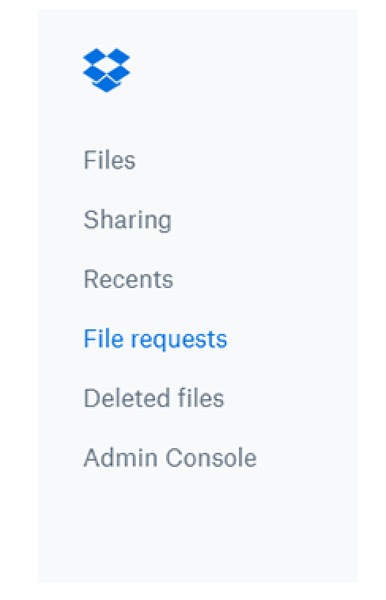
Dropbox is amazing as a collaborative tool - and collaboration goes both ways, so while you might be great at sharing files with your team, not everyone is. Don’t worry though, that doesn’t mean you’re stuck without your files - you can just request access and carry on! You might have seen us sharing tips on how to share your files with others here, well now we are going to flip that, and explain how you can request someone else’s files. Why would I need to request a Dropbox file? Let’s say that you discuss a file with a teammate in a meeting, and they promise to share the file with you. The next day, you notice you don’t have access yet. Looks like your teammate got pulled into a meeting right after you spoke and completely forgot to add you to the file. No problem, you can use Dropbox file requests to eliminate stress for you, and for them! Some other reasons you might want to use file requests: Anyone can send you a file you've requested, whether they have a Dropbox account or not. All the files you collect are automatically organized into a Dropbox folder you choose. People who upload files to your file request cannot access your Dropbox account. Only you can view files uploaded by others, unless you decide to share them. How do I request a Dropbox file? That all sounds good, so how do I request the files I need? Easy, just follow the steps below. Sign in to dropbox.com. Click File requests in the left sidebar. Click New request above the list of file requests. Under Title, enter a name for your request. Under Description, add details about the request, if you’d like. Choose the folder where uploaded files will go. You’ll see a default folder path. f you want to change it, click Change folder and pick a different destination.  (Optional) Set a deadline for submissions (available on some plans).  Click Create. Invite people to upload files: Type the email or name of the person (or people) you want to request files from - they’ll receive an email invitation. Or click Copy link to copy the upload link and share it wherever you want.  If you already know the exact link of the file you want access you can simply add it to the request: To copy a link instead, click Copy next to Share a link instead. You can paste the link into an email, message, or wherever you’d like people to access it. Click Share. You’ll receive an email confirmation, and an email notification when files are uploaded to your file request. Now you can get access to your files in no time! And if that wasn’t enough info, you can learn even more here. Tell us how you collaborate with your team in the comments below.2KViews0likes1CommentHow To Check If Your Space Is Being Used By A Shared Folder and How To Leave A Shared Folder
Shared folders are one of the easiest ways to collaborate with others while using Dropbox. Having a shared space makes everything simpler when you’re working on a project, sharing family photos or keeping your teams files all organised. But you might be wondering: Does this shared folder take up space in my Dropbox account? And what if I no longer need access - how do I leave it? Does a Shared Dropbox Folder Count Toward My Storage? It depends on how the folder was share with you and what level of access you have. Here’s how to check: Sign in to dropbox.com and click All files. Look for folders with a two-person icon 👥 - these are shared folders. Hover over the folder name and click the “…” (More) menu. Choose Share → then Settings. You’ll see one of these options: Can edit → the folders contents do take up space in your Dropbox account Can view → the folders contents don’t count toward your space Tip: You can also check shared folders directly from the Dropbox desktop app - the 2 person icon works the same way there too. How to Leave a Shared Dropbox Folder I No Longer Need If you see “Can edit” and you no longer need access, it’s really easy to remove yourself from the folder. Here’s how: Go to dropbox.com and sign in. Click Shared in the left sidebar. Find the folder you want to leave. Click the “…” (More) button next to it. Select Leave folder → and confirm. Once you leave: The shared folder and its files are removed from your Dropbox. They’ll no longer count toward your storage. Other members will still have access as usual. If you originally created the shared folder, you’ll need to transfer ownership before leaving. To do that: Open the folder’s Share settings. Click the dropdown beside another member’s name. Select Make owner → then leave the folder. That way, everyone who needs it still has access and the ownership transfers smoothly. And that’s it! Keeping your Dropbox account organised is a simple way to make more room for what matters most - your ideas, projects and memories. If you ever change your mind and want back into a folder in the future, just ask the owner to share it with you again. Got questions about shared folders? Drop them in the comments below or visit our shared folders FAQs. How do you organise and manage your shared folders? Join the conversation and let us know!1.4KViews5likes0CommentsHey Creatives! How Do You Make the Most of Dropbox?
Hey Dropbox Community, I wanted to share a delightful story that really highlights the creative ways people use Dropbox in their everyday lives, and it’s all about a business called Pound Cake Makeup💄. Imagine turning your passion into a thriving business, all while juggling the chaos of life. That’s exactly what the founder of Pound Cake Makeup, Camille Bell, did. Using Dropbox, she keeps her business organized - from managing product photos to sharing marketing materials and collaborating with her team, all seamlessly and from anywhere 🌍. It’s a perfect example of how Dropbox is a tool that empowers creativity and entrepreneurship 💡, no matter the size of your venture. Read more about Camille’s Dropbox Story here. What really struck me about this story is how technology can be a game-changer for small businesses and creatives. It’s not just about storage - it’s about connection, flexibility, and making sure your ideas and hard work can flow smoothly, even when life gets hectic. I’d love to hear from you all: 💬 How has Dropbox helped you bring your creative projects or side hustles to life? 💡 What unexpected ways have you found to use Dropbox that made your work or personal life easier? ✨ If you could add one feature to Dropbox to better support your creative or business needs, what would it be? Let’s get the conversation going and inspire each other with the many ways Dropbox can support our passions and projects 🎨🚀. Looking forward to hearing your stories and ideas.341Views2likes0CommentsCommunity Member of the Month - July 2025
We blinked and July was over! 🎉 But before we get too far into August, it’s time to celebrate someone who’s been making waves in the Dropbox Community. 🌟 Say hello to our Community Member of the Month for July … Shelladmin 👋 This month, Shelladmin stood out in a big way. As only a new member, they’ve set the bar high with their thoughtful and clear use of our brand new thread templates (you may have seen them when you are going to post something within our Help section). ✨ Their super helpful thread How can I see every folder in my Dropbox account in my macOS Finder? really grabbed our attention. Not only did they break down a tricky issue with clarity and care, but I know this thread will for sure help a bunch of future users tackle the same challenge with confidence. 💡📂 Thank you, Shelladmin! 😁 We’ve got a little surprise for you! Just reply to this message and we’ll make sure your well-earned token of appreciation is on its way 🎁🚀. Think someone else deserves the spotlight next month? Drop their name in the comments below 💬 Want to be our next Community Member of the Month? Get involved, share what you know, start a convo, and spread the love with likes and comments ❤️ You never know... you could be next! 😎116Views0likes0CommentsCommunity Member of the Month - June 2025
We’re halfway through 2025 (how did that happen?!), and it's the perfect time to shine a spotlight on someone who's been absolutely rocking it in the Dropbox Community 🎉 Say hello to our Community Member of the Month for June... DoctorBashir 🤩👏! Since joining us two years ago, DoctorBashir has been a friendly, knowledgeable, and all-around awesome presence in the Community. With 18 posts and 3 accepted solutions under their belt, they’ve been quietly (and consistently!) helping others and spreading good vibes. June, however, was a standout month. From sharing crystal-clear tips to troubleshoot pesky problems, to offering invaluable advice - DoctorBashir has been on fire 🔥. One of their most helpful contributions was a super insightful post on stopping the Dropbox folder from opening on startup. Not only did they break down the fix in simple steps, but they also added thoughtful feedback that helps make Dropbox even better💡. Their passion for Dropbox and helping others really shone through and that’s exactly why they’re our star of the month 🌟 Thank you, DoctorBashir, for being such a rockstar in the Dropbox Community! Your time, wisdom, and kindness truly make a difference 🙏 🎁 We’ve got a little surprise for you! Just reply to this message and we’ll make sure your well-earned token of appreciation is on its way 🚀 Think someone else deserves the spotlight next month? Drop their name in the comments below 💬 Want to be our next Community Member of the Month? Get involved, share what you know, start a convo, and spread the love with likes and comments ❤️ You never know... you could be next! 🎯160Views0likes0Comments
Updates Coming to the Folder Link Sharing Experience
Dropbox is moving to an updated shared link architecture where links are based on the content being shared rather than on the user doing the sharing. This new content-based link architecture is already in place for edit access links to folders and newly created links to files, and can be identified by the presence of an ‘rlkey’ parameter in the URL. Over the next few months, we’ll round out the shared link portfolio by bringing this new architecture to newly created view-only access folder links, or view folder links for short. With this transition we’re maintaining all the core functionality our users love about sharing with links, while making it even easier for content owners, collaborators, and team admins to manage their shared content easily and with confidence. Updates to Link Sharing Only Two Centralized Links per Item Securing your content and managing your shared links is now easier and simpler than ever. Basing links on the content being shared means there will never be more than one single edit and one single view link for each file or folder. Changing the settings on these links will universally apply to everyone with link access to that content. Because all collaborators on a piece of content share the same link, a change is that only content members with edit access are able to modify shared link settings or delete a shared link. URL Format Change Part of the new link architecture is the addition of an rlkey parameter. Query parameters are anything following “?” in a URL. It is this rlkey parameter which grants access to the content, and removing it will require visitors to sign in and request access. Visit this forum to read more about the new format, or this Help Center Article for details on forced downloads. Third Party Application Dependencies Due to the change in URL format you may notice some third party applications, websites, and custom programs that rely on pasting in a Dropbox link no longer function as expected. We have limited insight or influence on these third party use cases, but if you do experience issues, please contact Dropbox support or visit this community forum thread on this subject. Enhancing the Link Sharing Experience Quick, simple, stress-free file sharing is core to the Dropbox experience. Content-based links makes it even easier to share files securely and effortlessly in real-time, and we are excited to bring these benefits to all users across our full portfolio of shared links. If you have more questions, or find yourself needing support during this transition, please visit our Community Forums, reference our Help Center, or contact Dropbox Support.8.5KViews7likes8CommentsStorage nightmares to avoid this Halloween
The Spooky season has officially arrived and we want to make sure the only fright you get this year comes in the shape of some awesomely dressed trick or treaters rapping, rapping at your door. We’ve noticed a few headaches pop up in the Community over the last year so we’ve gone all Frankenstein and built a monstrous list of Storage Nightmares and how to avoid them his Halloween. Shared folders got you howling at the Moon Shared Folders are a really great way to share your work and collaborate with others. They’re like an inter-dimensional portal that allows you to look directly into someone else’s content, kind of! While there are so many positives, there is also the risk of a potential storage nightmare by overloading your account with more information than your plan allows. When someone shares a folder with you, you don’t actually get access to their space on Dropbox, instead you get a synced copy of the folder in your own Dropbox. If you don’t have enough space left on your plan to fit a shared folder, it will fill your Dropbox quicker than a gang of flesh-hungry zombies swarming around brains and you won’t be able to access any of the files. There are a couple of ways to get around this. You could always ask the person who sent it to re-send it as ‘read only’, this won’t require any space in your Dropbox. If you do need ‘editing’ access, the folder could be sent via a Shared Link and you’ll be able to open the folder on Dropbox.com without taking up any of your own space. Gremlins in your laptop We’ve all been there, once PCs and laptops get a few years old they inevitably develop s a couple of Gremlins in the works and need to be replaced. This might be a good time to sell or pass your current machine to a friend or family member. The only problem is, you’ve got all of this information saved in your Dropbox and you don’t want to lose any of it or allow anyone else to access it. Here‘s a very simple guide to doing this without having to worry about eating after midnight! If you have any kind of Dropbox plan, once you save something in Dropbox, it’s synced and saved in Dropbox. Whether your files are actually saved on your device or not, depends on whether you have them set to ‘online only’ or ‘available offline’, you can read more about this here. So, once you log into Dropbox on another device, you should automatically have access to all of your files. Once you’re sure everything is saved there, you can open up your new device and login to Dropbox.com and check that you have everything you need. When you’re happy that everything is stored safely in Dropbox, you can then go back to your old laptop and uninstall the desktop app and delete all the Dropbox folders. It’s a bit like an exorcism, only instead of casting demons aside, you’ll be casting unneeded folders aside. Run for your life, not out of space Much like a Ghostbuster’s Proton Pack quickly fills up with scary apparitions, a Dropbox account can quite easily become full too. If you want to avoid running out of space there are a couple of pretty simple space saving measures you can take. If you’re using Dropbox to save lots of images, you could take a look at your image formatting. JPEG or PNG files are much smaller than bulky files like TIFF or BMP and could save you some very valuable space. Likewise, if you’re using Dropbox to save lots of videos, you could try compressing these files before saving them, this will definitely free up some much needed megabytes. If these space saving tricks don’t really cut it and you’re still running out of room, you could also try to earn some free space by referring som friends or family to Dropbox or, if all else fails, you could always upgrade to a plan with a bigger storage allowance.1.3KViews0likes0Comments