Our Community is in read-only mode until April 8th, learn more here. You can still search existing threads or get help via Dropbox Support, the Dropbox Help Center, or Learn.
Web
14 TopicsTell Us How You Use Dropbox
No two people use Dropbox in exactly the same way. Some of you rely on it every day for work, others for school, creative projects, or keeping life organized - and we love that. We’d love to hear how you’re using Dropbox today - is it something you use once in a while, is it part of your day to day, are there any features you can’t live without? What workflows have you built that save time or reduce friction? And where do you see opportunities for us to do better? Your tips, ideas, and honest feedback really help us to make sure we can share useful tips, and they help other community members discover new ways to get more out of Dropbox too. Share your experience, favorite features, or suggestions in the comments below. Your voice truly helps shape the future of the Dropbox community 😁 The Dropbox Community Team3.9KViews4likes14Comments
Small tip if you want to print a list of files in a Dropbox folder!
I've been trying to figure out if there is a way to print a list of files in a Dropbox folder. Turns out there is no such printing option. However, if you select all files with Ctrl + A, all subfolders and files will be selected. Then using Ctrl + C, copy to the clipboard. Next open a new blank Word document and paste (Ctrl +V) to the Word page. All text should appear from the Dropbox webpage. Delete whatever text is not relevant and you'll be left with a list of folders and files.12KViews2likes12CommentsEdit Photos and PDFs with Dropbox
Want to hear about one of the handiest Dropbox features I use regularly? Check out how easy it is to upload, edit, send, and sign PDFs in one place. No technical wizardry, no back-and-forth file conversions, and no additional software to install. PDF editing features let you add text and more Not all PDFs are ready to go, there's usually some info you need to add or edit, and now, editing them is as easy as click, click, click. There are tools on our PDF editing feature so you can do more without changing programs. Within Dropbox, you can: Add text to documents: Insert descriptions, dates, notes etc., anywhere on a PDF and modify text font, color, size, and emphasis Page zoom: Adjust the page view for easier navigation These features are useful for managing work-related and personal documents. Our own team makes the most of editing PDFs to organize and consolidate receipts at home. Learn how to get started editing PDFs now. Edit PDFs on-the-go Need to make changes when you'er away from your desk? No worries, you can edit PDFs directly on your iPhone or Android device. Edit PDFs on iOS: Add text or a signature to PDFs on your iPhone with the Dropbox mobile app. Edit PDFs on Android: The Dropbox smartphone app makes it easy to edit PDFs on your Samsung Galaxy, Google Pixel, or any other Android device. Work from wherever you are, without needing to switch between devices or apps to get things done. Automatically add watermarks to multiple files No one likes to have their work passed off as someone else’s - and now you can make sure it doesn’t happen to you with a few simple steps. Save time, ensure confidentiality, and protect your brand by applying a watermark automation to a new or existing folder. Then, every PDF and image added to the folder will be automatically watermarked. We’re big fans of automations that truly make life easier, and this one makes us very happy! To create an automation and learn more about watermarking, visit our automations page. I’d love to know how you make the most of these PDF editing features - tell us below!36KViews7likes0Comments
Did you know... you can search for images using just text?
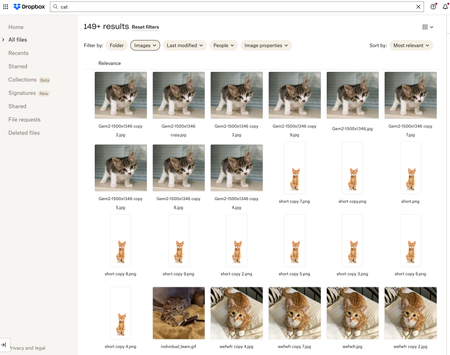
Hello Dropbox Community! My name is Lainie and I'm a Product Manager at Dropbox. Every now and again, I am going to post a "Did you know..." to 1) keep you informed of all of the cool technology that exists at Dropbox and 2) gather your feedback on how the features are performing. In today's, "Did you know..." I'll be talking about Image Search! Image search is allows you to use the Search Bar to search for the contents of the image using words to describe the image. For example, if you search for "cat" your search results will show files that 1) contain the word "cat" in the file name or body, AND 2) files that contain images of cat. No mention of the word "cat" is necessary! Pretty cool! If you haven't yet, I recommend that you check it out. Please respond to this thread and let me know... A) Did you know this feature existed? Do you use it? B) How can we make this even more useful for you? Have a great day! Lainie For more information, check out our Help Center Article on Image Search!9.5KViews9likes3Comments
Wix Dropbox App going end of life?
Good afternoon, It would appear that Wix has chosen to drop the Dropbox App that allows visibility/access to specific Dropbox folders directly from a Wix site. Are there any alternatives that anyone is aware of that could support a real-time peering between a Wix website and a specific Dropbox folder to upload and download files? Thank you,455Views2likes1Comment
Chat support -- how can I access it?
I have dropbox plus. and it says I have chat support. 9-5. do you know what time zone? is today holiday? will I be able to ask for support later? is that access thru support option? I don't even see the support email. It says I can also have email or chat support!746Views0likes6Comments
Cookie settings - restricting live chat options
Hi there, Need some help. I have no idea what I have done, but somehow I have changed my cookie settings to prevent live chat. I have Chrome as a search engine and reset to default settings on all cookies. Not sure what to do. Please help. Thanks .Solved825Views0likes3CommentsWant to get started with Dropbox Dash?
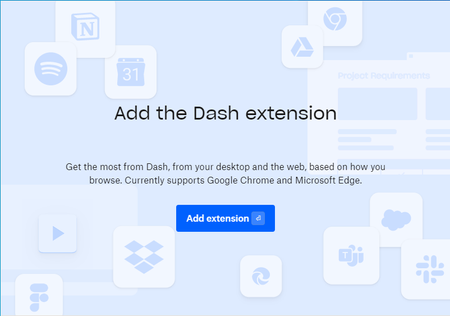
You might have heard us mentioning the new and fantastic Dash, and if not, you can learn about it here. But just so you know what’s going on, Dropbox Dash is AI-powered universal search that connects all of your tools, content, and apps in a single search bar. We want to make sure folks can sign up for the Dropbox Dash beta and try it out. With that in mind, we chatted to our in house Dash expert James, and he shared how to make sure your set up is perfect first time around. The Dash extension is helpful when you use it on Chrome or Microsoft Edge, but some folks have been getting a little stuck here: I can’t add the Dash browser extension. How can I solve this? If you’re seeing this screen and clicking ‘add extension’ isn’t working, it might be because you don’t have Chrome set as your default browser. This isn’t to say you can’t have multiple browsers in use on your computer, but to finish the installation you will need to: Ensure that Chrome is your default browser Force quit the installation and restart the computer Run installation again Now you can set whatever you want as your default browser but whenever you use Chrome you will have access to Dash, and all of the very helpful AI abilities that come with it. And if you need any help, you can head to dropbox.com/support/email and select Dropbox Dash from the dropdown menu. Let us know how you get on!6KViews3likes4CommentsSurprising fix to linux account-linking problem: login via pure text terminal, rather than X desktop
Dear Dropbox folks, I was having difficulty getting Dropbox to work on Linux (Ubuntux 18.04), and had removed and reinstalled the dropbox client without success. Even when I reinstalled the daemon with dropbox start -i, I still never was able to get the message: Starting... To link this computer to a Dropbox account, visit the following url: https://www.dropbox.com/cli_link_nonce?nonce=[some string] I had unlinked the Linux box via the web interface, and I had expected that completely deleting my Dropbox installation, folder, .dropbox and .dropbox-dist dirs would remove any linking info locally on my computer, hence prompting dropbox newly to set up linking to this machine when I started the daemon. However, that didn't happen. That was when I was logged in via a standard graphical desktop, which was a detail that I didn't think was relevant. However, when I logged in remotely to the Linux box via a purely text-based ssh-window, and ran dropbox start from there, suddenly I did get the long sought after "To link this computer" message, along with the link, and that link worked. It seems that somehow the dropbox client is better at asking for machine-linking via a text-only client than when it is run as part of a graphical X Windows desktop? This seems weird, but it appears to be what happened. Anyway, I figured I'd post this, in case anyone else is having similar problems. Raj2.5KViews0likes2CommentsUse Movebot to transfer files from one Dropbox account to another
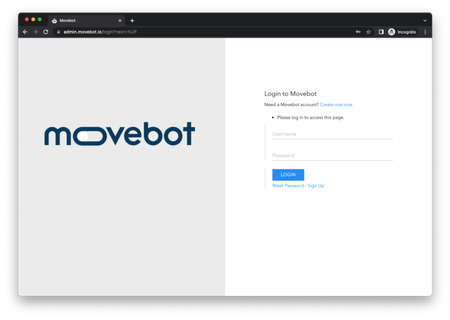
Moving files from one place to another can be time consuming, but it doesn’t have to be. We mentioned before how you can use Movebot to transfer from a file storage tool over to Dropbox, and well, we realise you might need to transfer from one Dropbox account to another, without worrying about any files being forgotten in the process. Well, the good news is, Movebot can make that easy too! Migrating files from one Dropbox account to another: Migrating between Dropbox accounts is the same process as migrating from another tool to Dropbox, or from an on-premises file server to Dropbox, only difference is Dropbox will be both the source and destination platform in the migration. You can also migrate between Dropbox Personal accounts and Dropbox Business accounts. How to start the migration: If running a simple user to user migration, then Movebot’s simple migration wizard is perfect. You will just need to configure Dropbox and the source and destination, select your source folders and where you want to migrate them to on the destination and then kick it off. Don’t worry, we have the steps outlined below. First things first, you need to get set up. Navigate to admin.movebot.io and create an account, on completion you will be taken into Movebot’s dashboard. Create a new simple migration From the dropdown select Dropbox Personal or Dropbox Business from the list. You should receive a pop-up to provide Couchdrop access (Movebot’s parent company). Once it has successfully connected Save and Configure Destination. You can now map what folders you wish to migrate from your source to destination and where you would like to migrate these folders to in the destination. Once you’re happy with your selection then Save and Finalize. You can now provide the migration a name (optional) and then start the migration by selecting Save and Kickoff and you’re set! The migration will start and vary in time depending on how much data there is to transfer, but once it’s finished, you will receive an email or if you are following the migration as it happens, you will see a screen similar to the below showing that status of the migration. There you have it, a simple way to transfer all your files from one Dropbox account to another. We would love to hear how this would help you - tell us in the comments below how you use Dropbox, and any other tips you might want to know about.1.3KViews0likes0Comments