Your workflow is unique 👨💻 - tell us how you use Dropbox here.
dropbox business
37 TopicsTell Us How You Use Dropbox
No two people use Dropbox in exactly the same way. Some of you rely on it every day for work, others for school, creative projects, or keeping life organized - and we love that. We’d love to hear how you’re using Dropbox today - is it something you use once in a while, is it part of your day to day, are there any features you can’t live without? What workflows have you built that save time or reduce friction? And where do you see opportunities for us to do better? Your tips, ideas, and honest feedback really help us to make sure we can share useful tips, and they help other community members discover new ways to get more out of Dropbox too. Share your experience, favorite features, or suggestions in the comments below. Your voice truly helps shape the future of the Dropbox community 😁 The Dropbox Community Team2.4KViews3likes11CommentsGet your Team Started with Dropbox
Getting your team on board is an important part of setting yourself up for success with Dropbox. It might be a daunting process to some, but don't worry - you're not alone! Dropbox has a few suggestions for getting your team started. Take a look at this help article to see how to invite team members through the admin console, a reminder email, and SSO invites. Now it’s your turn: how would you invite others to join your Dropbox workspace? 💬 Share your approach in the comments below and tell us what worked best when getting your team started with Dropbox!2.6KViews0likes0Comments
Any system, tool, or tip for bulk-creating structured folders efficiently?
Hi all, I’m currently trying to improve how I handle client onboarding, specifically, the folder structures we set up in Dropbox. Right now, I’ve been creating folders manually for each new client, with subfolders for contracts, reports, communications, etc. But as the volume increases, it’s becoming really time-consuming and prone to inconsistencies. I’m wondering if anyone has a system, tool, or tip for bulk-creating structured folders efficiently? Ideally something that works with Dropbox. I recently came across a tool called EZFolders that lets you generate folder structures using AI, either by typing a command or uploading a CSV. It also has an AI assistant that helps guide you if you’re not sure how to format things. Seems like it could help, but I’m curious if anyone here has used it or knows more about it before I dive in. Would love to hear what others are doing to save time with this kind of task!399Views1like3Comments
Tricks for exporting file names to an Excel spreadsheet as index.
I have tried Zappier and other automations for exporting folders, subfolders, and even the files names to an excel spreadsheet to create an index or guide, even with the link for an easier access. Can anyone share a way to do such export or copy paste hack?1.3KViews1like4Comments
How do admins of orgs using Dropbox for Business support end users with syncing issues?
This is a general question for admins in organizations using Dropbox for Business. How do you support users who are having Dropbox syncing issues on Windows endpoints? I have been creating a screen sharing session where I can investigate syncing issues on the endpoint. It seems to me that Dropbox for Business is missing some kind of telemetry from endpoints that gives status on sync health back to the admin console. Something that reported back every 15 mins would be better than flying blind. I would even take a log file saved into the AppData folder that logged sync status when it wasn't "finished". It seems like a reasonable feature.1.7KViews0likes6CommentsHow we use Dropbox to edit PDFs: Lauren
You might not know this but us Dropboxers get just as excited about new Dropbox features as anyone. In fact, Lauren, an unstoppable member of our social team, shared how the new PDF editing update has factored in to her life. How we use Dropbox to edit PDFs: Lauren One of my new favorite Dropbox features is PDF editing. It's been so helpful for consolidating receipts and organizing documents - whatever about how helpful it is at work, it has helped me to keep my life on track. For example, my auto mechanic prints out a receipt every time I need to get my car serviced. Instead of stuffing all the paper receipts in my car, and losing them to the blackhole of my glovebox, I use Dropbox Scanner app to scan receipts on the go, then consolidate my digital receipts into specific categories. If I have to get a new set of tires, I add that receipt to an existing PDF called “Ongoing Maintenance.” If I get an oil change, I add that new receipt to an existing PDF called “Oil Changes.” This enables me to easily access and keep track of all the work I’ve had done on my car. These documents are also saved in my Family Room folder that’s part of my Dropbox Family account, which enables my husband to easily access these documents whenever needed. It also means I can look back on the documents regularly and know what’s up to date on the car and what needs attention. The plan now is to expand this to more than just my car, so any home updates are tracked, and general life admin are all managed with just a few simple clicks. I know I say this every time we share how the Dropbox team use Dropbox, but I really will have to start doing this myself. I don’t need to wait for the dash to light up like a Christmas tree - and Lauren certainly makes it sound easy. Don’t forget, we have more tips on PDFs available here too. Do you use Dropbox to keep your personal life organized? Tell us how in the comments below!1.9KViews0likes0Comments
How to Sync Two Business Accounts on the Same Computer
Requires two local users to be configured on the computer While logged in to the first local user, log in to business account #1 on the Dropbox app. Choose a shared location for the files to sync to. Log in to the second local user, then log in to business account #2 on the Dropbox app. Choose the same root folder for the files to sync to as you did in the first step. Ensure that both of the folders are shared to all local users and all local users have read/write permissions.1.2KViews1like1CommentDo people back-up their Dropbox files?
Hi all, A recent cyber audit in our organisation recommended we back-up our entire Dropbox. We are an organisation of approx 50 employees. We use MFA for Dropbox access and use Dropbox exclusively for filing across the entire business. Does anyone else choose to back their Dropbox files up and why? The research I've done of Dropbox shows it to be pretty robust. I get a non-committal, politicians-style answer from the auditors, as to whether they think this is business essential or a nice-to-have, and am interested in what others opinions are. Thank you.1.3KViews0likes3CommentsMassive Data Upload and Sync Process - 20TB
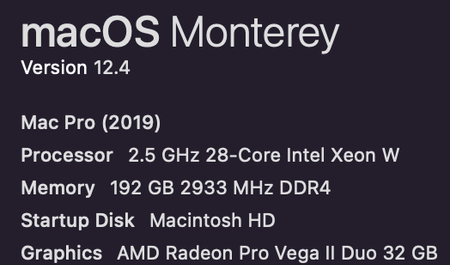
Hi everyone, I am writing here to explain the process of our most recent data upload of 20TB to Dropbox via a 2019 Mac Pro connected to a 10Gbps Fiber line. The goal is to help those understand some of the issues we experienced as well as setting expectations to those who plan on uploading massive amounts of data at once. Below are the steps: Procure a 10Gb fiber PCIe card for the 2019 Mac Pro - Solo10G SFP+ 10GbE PCIe Card with SFP+ Module - after working closely with our Apple business rep, we found the this card which would work for our requirements. Yes, the 2019 Mac Pro has 10Gb ethernet ports, but we only had Fiber lines in our setup, not Ethernet. Not to mention adapters usually have 1Gb limits so this was not an acceptable solution either. We wanted to experience max speeds so we opted for a dedicated 10GbE fiber card. Speed Tests - we conducted speed tests after card installation and confirmed the speeds were around 4.5Gbps to 5Gbps upload and download. We could not figure out if the 50% falloff was on the 2019 Mac Pro side or on the ISP side. Still however, 5Gbps is no joke so we continued onward. (PS: We could not conduct speed tests via the Speedtest.net when on 4GB+ fiber. We had to download software to the PC/Mac to get true internet speeds.) Upload - We already had 20TB on the Dropbox Folder moved and was paused & ready to sync. We simply turned the computer on, ensured it had a good connection, and then turned Sync on via the Dropbox for Mac application. Thats it. The data automatically began to upload just as it would any other sync. Realized Speeds - Even with the 4.5 to 5Gbps up|down speeds, we only saw between 600Mbps to 900Mbps being uploaded to the Dropbox cloud. We hoped to see at least 2Gbps or 3Gbps being sent to Dropbox but this was not the case unfortunately. Still however, the ~750Mbps speed was enough to upload the 20TB in about three days which we were ok with. Note: At the beginning of the sync, the speeds were extremely slow which we contributed to the initial file indexing. About 3 hours in to the main sync is when the speeds started to get to their highest levels. Also, we checked our ISP speeds twice per day and at its LOWEST point we saw internet speeds of 3.5Gbps. Online-Only (Spoiler Warning - massive bottleneck!) - After about 70 hours of upload time, the full 20TB was on the cloud. Our Dropbox account confirmed the newly uploaded data storage amount. Our next step was to get this 20TB off of our 2019 Mac Pro external RAID (Pegasus R4i). Again, the process was just like any other file(s). We simply highlighted thew newly uploaded files and right-clicked, then selected "Make online-only". Simple right? Yeah, not so much. This is where we noticed lots of issues with our system. Essentially this 20TB "indexing?" caused us to essentially have to run Dropbox completely via the browser. There was no possibility of doing other things like downloading files via the Dropbox Mac application or Double clicking and a small JPEG opening up. The application simply said, "NO" and only had one task in mind, get these 20TB worth of files OFF of this hard drive. The good news? It did so, only taking a whopping 500 hours to remove these files off of the drive. A few notes: We were able to pause syncing during the "file-removal" / online-only process), restart the computer, resume syncing all without any error messages which was very impressive. I expected the application to crash, hang up, etc. Not at all. Note: We did NOT pause syncing during the main 20TB upload. Why did it take so long? I am not a software engineer but clearly it did not enjoy this task and it could be due to a number of reasons. Maybe simply the application was not built to handle 20TB? Maybe our computer did not have the power? Maybe it was due to the main Dropbox drive being on a RAID array? Who knows. Thats about all I wanted to say here. Again, the purpose of this small write up is to show how the software/cloud performed under extreme tasking. I would say overall very well considering. Hopefully this helps someone out there who's considering uploading massive amounts of data at once. TLDR: Uploading massive amounts of data via fiber internet = quick and easy. Removing this data off the drive / Making files "Online-only" = very time-consuming and not for the faint of heart. 2019 Mac Pro specs:4.5KViews0likes3Comments