We're making some changes to the Dropbox Community 👩💻 - Find out more here.
dropbox
36 TopicsHow to Link your Calendars to Dropbox
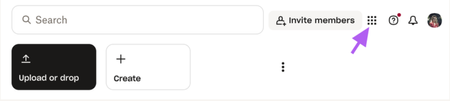
As we step into 2025, integrating tools and apps has become essential for seamless workflows 💪. Our lives revolve around our schedules and calendars so linking your Dropbox account with your Google or Outlook calendar not only saves time but also boosts productivity by centralizing your tasks, files, and appointments in one place 👨💻. Here’s a step-by-step guide to linking Dropbox with your calendar and contacts for ultimate productivity: Log in to Dropbox.com via the web browser Click the grid in the left-hand corner Select App Centre to find what you wish to link. Search Calendar within the search bar to find your desired calendar application. Select connect on your desired calendar linkage. Follow the on-screen instructions to grant Dropbox access to your calendar and contacts. For Google Calendar, you may need to log in to your Google account and confirm permissions. For Outlook, log in to your Microsoft account and complete the authorization. Linking Dropbox with your Google or Outlook calendar and contacts is a simple way to stay organized and save time 💌. It keeps your files, schedules, and contacts connected, making it easier to manage meetings, deadlines, and teamwork 🤝💬. Give it a try and see how it can simplify your workflow and boost your productivity.2.7KViews7likes0CommentsHow To Check If Your Space Is Being Used By A Shared Folder and How To Leave A Shared Folder
Shared folders are one of the easiest ways to collaborate with others while using Dropbox. Having a shared space makes everything simpler when you’re working on a project, sharing family photos or keeping your teams files all organised. But you might be wondering: Does this shared folder take up space in my Dropbox account? And what if I no longer need access - how do I leave it? Does a Shared Dropbox Folder Count Toward My Storage? It depends on how the folder was share with you and what level of access you have. Here’s how to check: Sign in to dropbox.com and click All files. Look for folders with a two-person icon 👥 - these are shared folders. Hover over the folder name and click the “…” (More) menu. Choose Share → then Settings. You’ll see one of these options: Can edit → the folders contents do take up space in your Dropbox account Can view → the folders contents don’t count toward your space Tip: You can also check shared folders directly from the Dropbox desktop app - the 2 person icon works the same way there too. How to Leave a Shared Dropbox Folder I No Longer Need If you see “Can edit” and you no longer need access, it’s really easy to remove yourself from the folder. Here’s how: Go to dropbox.com and sign in. Click Shared in the left sidebar. Find the folder you want to leave. Click the “…” (More) button next to it. Select Leave folder → and confirm. Once you leave: The shared folder and its files are removed from your Dropbox. They’ll no longer count toward your storage. Other members will still have access as usual. If you originally created the shared folder, you’ll need to transfer ownership before leaving. To do that: Open the folder’s Share settings. Click the dropdown beside another member’s name. Select Make owner → then leave the folder. That way, everyone who needs it still has access and the ownership transfers smoothly. And that’s it! Keeping your Dropbox account organised is a simple way to make more room for what matters most - your ideas, projects and memories. If you ever change your mind and want back into a folder in the future, just ask the owner to share it with you again. Got questions about shared folders? Drop them in the comments below or visit our shared folders FAQs. How do you organise and manage your shared folders? Join the conversation and let us know!1.4KViews5likes0CommentsCommunity Member of the Month - April 2025
April has come and gone, and as we ease into the longer, brighter days of summer ☀️, it's of course that time to shine a light on our Community Member of the Month for April. Just like springtime, our Community has been blooming 🌼 with support and good vibes ✨. This month was so brilliant, we've decided to celebrate not one, but two Community Members of the Month 🎉. Please join us in congratulating itahoki and mcmeloni 🙌 These two have gone above and beyond, showing what true Community spirit looks like 💙. Their kindness, insight, and eagerness to help others haven’t gone unnoticed 👏. itahoki shared thoughtful advice and steady encouragement throughout April. Always positive and engaged, their contributions have made a real difference. Just have a look at this helpful post from the 4th of April: mcmeloni jumped into a conversation and shared their experiences and how they fixed an issue. This interaction was also top-tier Community spirit and vibes: We’ve got a special surprise for the both of you! 🎁 Simply reply to this message and we’ll make sure your token of appreciation is on its way to you ASAP 🚀. Think someone else deserves to be next month’s Community Member of the Month? 🌟 Let us know in the comments below ⬇️. And if you want to snag the spotlight yourself, jump into the fun, share your knowledge, start conversations, and spread the love by liking and commenting 💙.99Views5likes0CommentsTell Us How You Use Dropbox
No two people use Dropbox in exactly the same way. Some of you rely on it every day for work, others for school, creative projects, or keeping life organized - and we love that. We’d love to hear how you’re using Dropbox today - is it something you use once in a while, is it part of your day to day, are there any features you can’t live without? What workflows have you built that save time or reduce friction? And where do you see opportunities for us to do better? Your tips, ideas, and honest feedback really help us to make sure we can share useful tips, and they help other community members discover new ways to get more out of Dropbox too. Share your experience, favorite features, or suggestions in the comments below. Your voice truly helps shape the future of the Dropbox community 😁 The Dropbox Community Team3.9KViews4likes14CommentsA Year of Conversations: 2025 Community Wrap-Up
Hey everyone! What a year! I’ve loved chatting with you all throughout 2025 - hearing your favourite Dropbox features, clever hacks and the all the ways you use Dropbox to keep life running smoothly. This community is really pure magic. Every week, you jumped in to help each other, share tips and celebrate wins. We had loads of Community Members of the Month, plenty of Mighty Answer badges and so many “aha!” moments. And the stories! From photographers sharing galleries, to coders syncing across Windows and Linux, to the person who who said syncing across threes computers and two homes was “beautiful” - you all really kept the forums lively, helpful and fun! One iPhone user was especially happy with the 2025 Live Photos update, which finally let them migrate their whole collection smoothly. It was made even sweeter knowing the feature came directly from an idea shared right here in the community. And, I adored hearing how Dropbox helps in everyday life, like the member who said: We’ve had our fair share of community adventures this year, but we made it through together and every time I got to say “I am glad to see your issue was resolved”, it honestly made my day. Last year we gave the Community a fresh new look and glow-up, and we really appreciate everyone’s patience with the changes throughout 2025. It’s amazing to see how far we’ve come, and we’re even more excited for what’s ahead. There are some fab new updates and improvements coming in 2026… so stay tuned! A huge, heartfelt thank you to everyone who got involved in conversations this year. Those who asked questions, those who answered them, and those who felt comfortable sharing ideas, frustrations, clever workarounds, and even honest feelings about Dropbox. And of course, a special shout-out to our amazing Super Users …you’re absolute stars and this community wouldn’t be the same without you. So that’s it from us for 2025! Have a safe and happy time over the holiday period, and I’ll see you all in 2026858Views3likes0CommentsCommunity Member of the Month - October 2025
The leaves are turning, the air is crisp, and it’s time to celebrate another shining star in the Dropbox Community! 🍂⭐ Say hello to our October Community Member of the Month… ccjc4sub This month, ccjc4sub stood out for their incredibly detailed and thoughtful response in the discussion about Dropbox icon overlays in File Explorer. Their explanation was so clear and easy to follow that it’s sure to help countless users in the future who come across the same issue. What really makes ccjc4sub a true community champion is their dedication - they didn’t just find a solution; they came back to share that their issue was resolved, ensuring others could benefit from the full story. That’s the kind of generosity and follow-through that keeps our Community thriving! Thank you, ccjc4sub for your time, clarity, and commitment to helping others. You make the Dropbox Community a better, more supportive space for everyone. We’ve got a little surprise for you! Just reply to this message and we’ll make sure your well-earned token of appreciation is on its way 🎁��. Think someone else deserves the spotlight next month? Drop their name in the comments below 💬 Want to be our next Community Member of the Month? Get involved, share what you know, start a convo, and spread the love with likes and comments ❤️ You never know... you could be next! 😎68Views2likes0CommentsWhat Do You Want to See on the Community?
Hey everyone, my name is Emmet and I’m in charge of the Experience for our users on the Dropbox Community. The Community Team is working on improvements to the Community and your voices are important to this conversation. We want to know what you think we’re doing well and what you feel we could be doing better. When giving feedback, please be as detailed as possible. The more information we have the better. Your experience can be about any part of the Community experience from creating an account, posting a thread, receiving emails etc. Please feel free to let us know what you think about all our sections and any features/areas of the Community you would like to see in the future. Also, while we do work closely with other areas of the support experience, this thread is specifically about the Dropbox Community. We pass on feedback about other areas of support to those teams as we receive them, but the focus of this thread is on the Community experience.1.8KViews2likes4Comments
Wix Dropbox App going end of life?
Good afternoon, It would appear that Wix has chosen to drop the Dropbox App that allows visibility/access to specific Dropbox folders directly from a Wix site. Are there any alternatives that anyone is aware of that could support a real-time peering between a Wix website and a specific Dropbox folder to upload and download files? Thank you,454Views2likes1CommentSpring Clean your Desktop with Dropbox 🌸
🌸 Spring isn’t just for cleaning your home, it’s the perfect excuse to give your digital space a fresh start too 💻✨. If your desktop looks like a chaotic mess of random files and folders 📂, it may be slowing you down (and let’s be honest, stressing you out 😵💫). But don’t worry, with Dropbox, tidying up your digital messiness is easier than ever. Here’s how to get organised and bring some Springtime zen 🧘♂️🌿 to your workspace. Move Files to the Cloud – Transfer important documents photos and work files to Dropbox. This keeps them safe and accessible from any device while clearing up space on your desktop 💻 . Create Folders and Subfolders – Organise your files by category project or date. A clear folder structure makes it easier to locate what you need without searching through endless icons 📂. Use Selective Sync – With Dropbox Selective Sync you can access files from your desktop without taking up space on your hard drive. Mark files as online-only to free up even more room. Check out Amy’s article on Dropbox Selective Sync here. Delete or Move Old Files – If you no longer need certain files consider deleting or moving them to online only within Dropbox. Keeping only what you use regularly helps maintain a clean and efficient workspace 📤. Set Up Automated Backups – Use Dropbox Backup to ensure your desktop files are always protected. In case of accidental deletion or device failure you can easily restore your data ✨. A tidy desktop means less digital clutter and more focus on what really matters. Say goodbye to the endless hunt for lost files and hello to a smoother workflow. Plus, who doesn’t love a fresh start? 🤗 🌟 We want to hear from you! What’s your secret to a clutter-free digital life? Drop your best decluttering tips below ⬇️ 💙358Views1like0Comments