Your workflow is unique 👨💻 - tell us how you use Dropbox here.
dropbox
4 TopicsTell Us How You Use Dropbox
No two people use Dropbox in exactly the same way. Some of you rely on it every day for work, others for school, creative projects, or keeping life organized - and we love that. We’d love to hear how you’re using Dropbox today - is it something you use once in a while, is it part of your day to day, are there any features you can’t live without? What workflows have you built that save time or reduce friction? And where do you see opportunities for us to do better? Your tips, ideas, and honest feedback really help us to make sure we can share useful tips, and they help other community members discover new ways to get more out of Dropbox too. Share your experience, favorite features, or suggestions in the comments below. Your voice truly helps shape the future of the Dropbox community 😁 The Dropbox Community Team2.1KViews3likes11Comments
Wix Dropbox App going end of life?
Good afternoon, It would appear that Wix has chosen to drop the Dropbox App that allows visibility/access to specific Dropbox folders directly from a Wix site. Are there any alternatives that anyone is aware of that could support a real-time peering between a Wix website and a specific Dropbox folder to upload and download files? Thank you,423Views2likes1CommentSpring Clean your Desktop with Dropbox 🌸
🌸 Spring isn’t just for cleaning your home, it’s the perfect excuse to give your digital space a fresh start too 💻✨. If your desktop looks like a chaotic mess of random files and folders 📂, it may be slowing you down (and let’s be honest, stressing you out 😵💫). But don’t worry, with Dropbox, tidying up your digital messiness is easier than ever. Here’s how to get organised and bring some Springtime zen 🧘♂️🌿 to your workspace. Move Files to the Cloud – Transfer important documents photos and work files to Dropbox. This keeps them safe and accessible from any device while clearing up space on your desktop 💻 . Create Folders and Subfolders – Organise your files by category project or date. A clear folder structure makes it easier to locate what you need without searching through endless icons 📂. Use Selective Sync – With Dropbox Selective Sync you can access files from your desktop without taking up space on your hard drive. Mark files as online-only to free up even more room. Check out Amy’s article on Dropbox Selective Sync here. Delete or Move Old Files – If you no longer need certain files consider deleting or moving them to online only within Dropbox. Keeping only what you use regularly helps maintain a clean and efficient workspace 📤. Set Up Automated Backups – Use Dropbox Backup to ensure your desktop files are always protected. In case of accidental deletion or device failure you can easily restore your data ✨. A tidy desktop means less digital clutter and more focus on what really matters. Say goodbye to the endless hunt for lost files and hello to a smoother workflow. Plus, who doesn’t love a fresh start? 🤗 🌟 We want to hear from you! What’s your secret to a clutter-free digital life? Drop your best decluttering tips below ⬇️ 💙338Views1like0CommentsHow to Link your Calendars to Dropbox
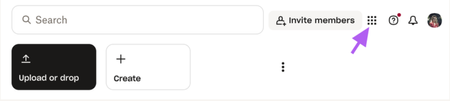
As we step into 2025, integrating tools and apps has become essential for seamless workflows 💪. Our lives revolve around our schedules and calendars so linking your Dropbox account with your Google or Outlook calendar not only saves time but also boosts productivity by centralizing your tasks, files, and appointments in one place 👨💻. Here’s a step-by-step guide to linking Dropbox with your calendar and contacts for ultimate productivity: Log in to Dropbox.com via the web browser Click the grid in the left-hand corner Select App Centre to find what you wish to link. Search Calendar within the search bar to find your desired calendar application. Select connect on your desired calendar linkage. Follow the on-screen instructions to grant Dropbox access to your calendar and contacts. For Google Calendar, you may need to log in to your Google account and confirm permissions. For Outlook, log in to your Microsoft account and complete the authorization. Linking Dropbox with your Google or Outlook calendar and contacts is a simple way to stay organized and save time 💌. It keeps your files, schedules, and contacts connected, making it easier to manage meetings, deadlines, and teamwork 🤝💬. Give it a try and see how it can simplify your workflow and boost your productivity.2.7KViews7likes0Comments