Your workflow is unique 👨💻 - tell us how you use Dropbox here.
mac
1635 Topics
How to sync to an external Thunderbolt 3 SSD Drive on Mac?
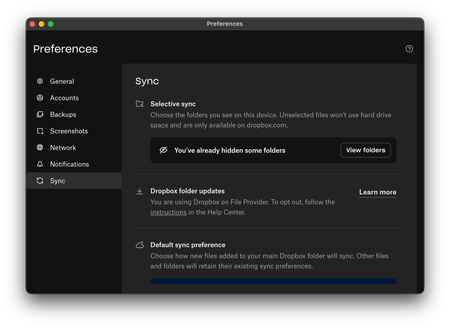
Device Mac Studio M1 Max Operating System/Browser (if using the web) macOS Tahoe 26.2 Dropbox App Version (if using the app) (240.4.8609) Dropbox Plan (Plus) Question or Issue I have purchased a 2TB Thunderbolt 3 SSD to use as an external drive for Dropbox as I am running out of space on my 1TB drive in the Mac Studio. For the life of me, I cannot figure out a way in Preferences to point it to the external TB3 SSD drive. It says I am using Dropbox on File Provider and I cannot see the option that will allow me to point it to the external drive. I had previously done so in the past with no problems, till the update to macOS Tahoe when suddenly the link to the external USB-C drive was severed. It worked for a while as I have sufficient space on my 1TB and I did selective sync. Now, I am running out of storage space, I appreciate guidance.37Views0likes2Comments
The redesigned menu bar window always opens in the first Space on Mac OS
Application Affected Dropbox for Mac desktop app Device MacBook Pro 15" M1 Operating System macOS Sequoia 15.7.2 Dropbox App Version 241.4.4795 Question or Issue Clicking the menu bar icon to open the Dropbox popup window (recently synced files, etc.) always switches me back to the first space before opening. Toggling off "Use redesigned Dropbox menu bar" restores functionality of the popup opening in my current space. For additional context: I do not have "Automatically rearrange Spaces based on most recent usage" enabled I do not have "When switching to an application, switch to a Space with open windows for the application" enabled14Views0likes1Comment
QuickLook is flickering on Mac OS
Integration Affected Finder Device MacBook Air, M3, 16GB RAM Operating System/Browser (if using the web) macOS Tahoe 26.2 Dropbox App Version (if using the app) 242.3.5699 Question or Issue I have been having the same issue as described in this thread for at least 1 month. It makes Quick Look (and therefore Finder) really awful to use. If you try to QuickLook or preview a pdf, image, etc. the quicklook state resets and refreshes. For example, I navigate in Finder to a pdf in my dropbox. I press SPACE to quicklook the item. I scroll down the PDF. The QuickLook resets/refreshes and I lose my place in the document. There is a huge impact on everyday tasks. Troubleshooting efforts: I viewed this topic and followed the suggestions there. It did not help. If I quit the Dropbox app, the issue persists. I found something really interesting. If I look at the Path Bar at the bottom of Finder, the folder icons keep changing several times per second (matching the flickering in QuickLook). Sometimes the icons in the Path Bar show as blank gray squares with dashed outlines or Green folders with check marks. It appears that these mini icons are constantly changing. If I disable the Path Bar, then the flickering stops in the quicklook. Again this happens in the Dropbox section of Finder, and not elsewhere. I've shown an example of the two options I see flicker on the Path Bar. Again the file previews and quicklooks flicker also, which is more problematic. I point out the Path Bar as a potentially useful piece of information to determine the problem. Thank you!16Views0likes1Comment
I can't make files available offline on Mac OS
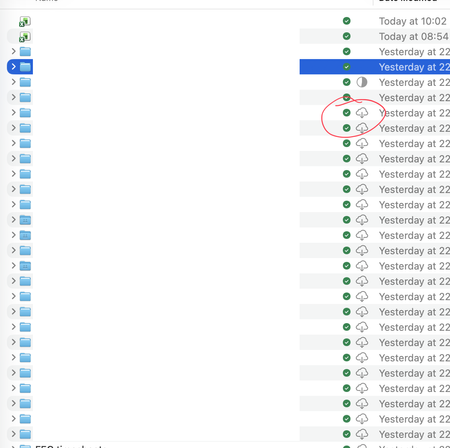
Application Affected Dropbox Device Mac Studio Operating System/Browser (if using the web) macOS 26.2 (25C56) Dropbox App Version (if using the app)241.4.4795 Question or Issue Setting up a new Mac. I've a Dropbox with a few 100 GBs worth of stuff, I want 99% available offline at all times (not short of storage on the new Mac). Selective sync set up to exclude a few folders. Using Dropbox on File Provider. Default sync behaviour is "available offline". However things are NOT synced to be available offline. I've gone to ~/Library/CloudStorage, right clicked the Dropbox and said "Make Available Offline". But I now have a weird hybrid of the green "available offline" Dropbox logo but also the cloud macOS icon saying it needs to be downloaded! I've tried downloading en masse but no option to do that. There must be a way of resolving this? Thanks!Solved37Views0likes8CommentsSyncing icons are missing on Mac OS
Application Affected Dropbox desktop app / newest update as of 2/3/2026 Device M3 iMac Operating System/Browser (if using the web) Sequoia Dropbox App Version (if using the app) 241.4.4795 Question or Issue DB auto updated the other day. I am running the desktop app on 2 machines, an M3 and M4. Both the same OS. After the update, the M3 lost the BLUE Sync icon when syncing and then the GREEN icon when synced. Nothing has changed on the machine other than DB update. Now the M4 machine is running fine. No issues with the BLUE or GREEN icons. I did some research and it was suggested to remove any apps like ONE-DRIVE so I did remove it on the M3 but that didn't help. I also have ONE-DRIVE on the M4. So I need this fixed as I work off of DB all the time and need to know what it synced, what is being synced. So if anyone has a fix - that would be awesome. If there is a way to install the previous DB app that did work and turn off auto-update, that would be great. It is a little concerning that DB automatically updates its app without my permission and if there is a glitch that can corrupt or erase all my files, that could be a major issue. Glad this glitch is only the icons but it could be worse so I don't think DB should do auto-update. THANK YOU!107Views0likes21Comments
Have DropBoxPlus plan, but installation on New Mac doesn't see it
I'm setting up a new-to-me iMac 24", 2021, M1 chip, which came pre-loaded w/ Tahoe 26.2. I'm trying to install DB on it, and bring over all the files from my DB Plus plan, which has resided on several older Macs for decades. I've DL'ed DB app numerous times now, but it keeps insisting on setting me up with a new Basic plan, which uses a Gmail acc't of mine. I suspect it got this email from Chrome, but of course I'm trying to link the new DB installation to the same email I've used for decades on my other Macs. I've tried deleting that new Basic acc't each time on the iMac, hoping I'll then be given the option of specifying my email for my Plus plan, but can't figure out how to do it. I realize this should be basic and easy, but I'm afraid I'm stumped! I'm completely at a standstill in my workflow until I can figure out this basic snag. Help DEEPLY appreciated!16Views0likes1CommentOpt out of File Provider doesn't work, and it keeps trying to update
Application Affected - Dropbox Desktop for Mac Device - Macbook Air Operating System/Browser (if using the web) - Mac OSx Tahoe 26.2 Dropbox App Version (if using the app) - whatever the latest version is on the website as this is a new install Question or Issue I'm very new with this, can anybody explain to me how I can beta build? I can see that I have already posted this in my Follows section of My Settings of Dropbox Forum but when I click on the post I get an error message telling me that the post does not exist. I apologize for any duplicate posts. I have a new Macbook Air so I started this Dropbox installation from scratch. I made sure I still had an available device on my plan. I do. I install Dropbox desktop for Mac from the Dropbox website. I click the box ‘Save files as online only’ Underneath the Dropbox on File Provider header, I click the Opt Out box. Click Done. Within 30 minutes I get a pop up that shows 'Dropbox Update in Progress'. I click the Learn More or Got It buttons – neither option stops the update Within seconds the pop-up changes to Update Complete – here’s what changed It forces me back into File Provider even though I have clearly opted out I have followed the steps outlined on Dropbox website but I cannot stop my Mac from updating to File Provider - https://help.dropbox.com/installs/dropbox-for-macos-support How do I get my Opt Out of File Provider to stick?151Views1like21Comments
Dropbox only opens the Dropbox folder in finder - not the app.
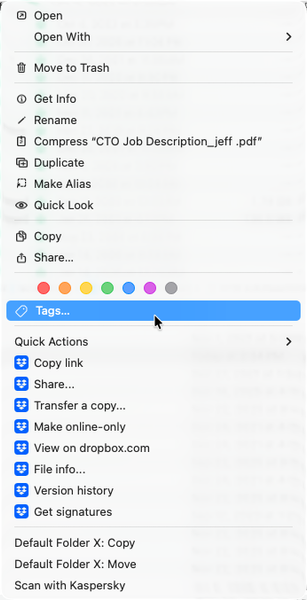
Any help would be appreciated - thank you! (I can't seem to find anything that can help...) Application Affected Dropbox Device Apple MacBook Pro M1 Max, 64Gb of RAM, 2Tb SDD Operating System/Browser (if using the web) MacOS Tahoe 26.2 Dropbox App Version (if using the app) 240.4.8493 (I got this from the "Get Info" in the finder) Question or Issue 1) Whenever I double-click the dropbox app, it opens the dropbox FOLDER in the finder. How do I open the app? 2) The menu bar icon, which previously would show sync status, sync issues, and provides access to preferences, is not shown. I have a 36" screen, and it isn't a case of "hidden" menu items. 3) I know that the app is (mostly?) running. Control-Clicking on a file shows the dropbox commands within the context menu. (See image below.) I also know its running because the various apps are shown in "Activity Monitor" (image below.) Steps I've done to try to solve the problem: Uninstall Dropbox Reinstall Dropbox Restart the computer. I don't feel comfortable doing the "Advanced Install", as it appears that doing so means losing all of my "selective sync" settings, which I've been setting up for years. (And since I can't get into the app's "prefs", I can't super easily see what is selectively synced or not. I'm at the point where I'm ready to toss the program out and move everything to Google, but I REALLY LOVE the program, and am hoping that I'm simply missing something simple, and there there is a quick fix. Thanks - Randall127Views0likes4Comments
Files only saving to Dropbox folder and not online
Question or Issue I think all my files are being saved locally on my Macbook in the Dropbox folder and not being uploaded/synced to my account. I need to free up space on my Macbook and want these files to be online-only. There are no icons (grey cloud or green tick) by any of my files & I think I've been wasting my subscription fee by simply duplicating copies on my laptop but not securing any copies online. Please advise.18Views0likes1CommentI have two Dropbox folders with identical names and paths but with different files in them
Application Affected (Dropbox) Device (iMac M4) Operating System/Browser (if using the web) (macOS 15.7.3) Dropbox App Version (if using the app) (241.4.4796) Question or Issue I recently upgraded my iMac from an older intel to a new M4 chip. I thought I cloned all my settings, but now my dropbox no longer syncs my files among my other computers (M1 powerbook, old intel iMac) even though there are no sync problems identified by the dropbox app. The more urgent problem (although both are major and I think related) is that I now have two file folders with identical names (which I can only see when I open or save a file from word or other application), and they seem to have the same pathways but they do not have the same files in them. One of the folders has older files, while the other has all my recent saved files. If I go to the finder, I can only see one of them in my Finder window (the one with the older files). I can access and open my recent files by selecting open in the app, but if I am in the Finder, I only see the older files. One thing I think may be causing the problem is that when I set up my new computer I somehow opted to have all my files in the cloud, whereas on my older computer only selected files were on the web. Could having different options on how to store files be causing my problem? Any solutions to get me back to normal?69Views0likes6Comments