Our Community is in read-only mode until April 8th, learn more here. You can still search existing threads or get help via Dropbox Support, the Dropbox Help Center, or Learn.
sync
49 Topics
Mapping sync'd folders as drive letters/mapped drives?
Hi. So we use various software that relys on linked external files to be loaded in from other drives - think video editting loading footage, or a CAD software loading in other cad files as an assembly, for example we might reference files from a specific folder on F:\ drive, as well as W:\ drive. And we're working on a d:\ drive. Currently we have been using Boxifier to sync the 3 local drives with folders/files on each between 2 locations, so that both locations can open their local file on their D:\ and the linked files on W and F still link and open correctly. Worked well till recently! With the recent Boxifier "issues" (more likely DB changes that broke it, and its taking an age to fix) I was thinking - Make 3 folders in the root of the Dropbox sync folder (whereever you have set that up), F_Drive, W_Drive and D_Drive. You can then map these drives in both locations to the matching drive letter and put your files on them. You then work/open files from the mapped drives (and never the Dropbox folder), which means any files being referenced load in from the mapped drives - but all the files are really in the Dropbox folder still and syncing as normal. Can anyone see an issue with this? Has anyone found a good solution to this issue? Someone suggested this and said it worked, but I just want to check with the wider community before we drop Boxifer and change over! Thanks, Mark99Views0likes3Comments
Fix: Dropbox Finder Extension (Smart Sync / Right-Click Menu) Permanently Disabled on macOS
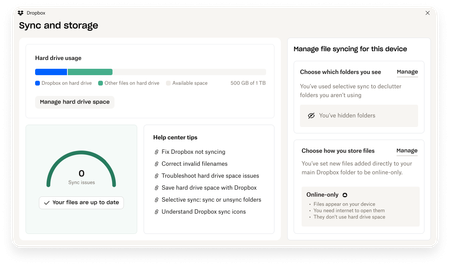
Hey all, I've been beating my head against the wall for a week now trying to figure out why my Dropbox Finder extension wasn't working. I don't have File Provider and really didn't want to set it up, plus I'm apparently not a candidate. I'm not sure exactly what caused this state. It was either a recent update or some aborted FileProvider migration. What I do know after much troubleshooting (thanks Claude Code, who wrote the breakdown below which I edited) is what the broken state looks like and how to fix it. Follow these instructions at your own peril. The Problem The Dropbox Finder extension stops working and can't be re-enabled: No sync status badges (green checkmarks, blue sync icons) in Finder No right-click context menu options ("Make Available Offline", "Make Online Only", "Copy Dropbox Link", etc.) Smart Sync is unusable — you can't toggle files/folders between online-only and local The extension toggle in System Settings > Login Items & Extensions keeps turning itself off immediately after you enable it Running pluginkit -e use -i com.getdropbox.dropbox.garcon (even with sudo) doesn't stick Reinstalling Dropbox doesn't fix it You may also see "Dropbox Finder Extension" listed as a File Provider extension in System Settings, which is wrong — it should be a Finder Sync extension The Broken State A ghost FileProvider domain registration gets stuck in ~/Library/Application Support/FileProvider/. You can confirm this is your issue: # Check if garcon is disabled pluginkit -mDAD -p com.apple.FinderSync 2>/dev/null | grep dropbox # Shows: - com.getdropbox.dropbox.garcon (the - means disabled) # Check if a ghost FileProvider domain exists plutil -p ~/Library/Application\ Support/FileProvider/com.getdropbox.dropbox.fileprovider/Domains.plist 2>/dev/null If the Domains.plist exists and shows something like: "Disconnected" => true "DisconnectionReason" => "This is an unlinked Dropbox" "Path" => "FPFS_SHOULD_NOT_BE_USED" "Enabled" => true ...then you have a ghost domain. It's registered and "Enabled" but completely non-functional. What this causes: When Dropbox starts, it sees a FileProvider domain is registered and enabled. It assumes FileProvider is handling Finder integration, so it deliberately disables garcon (the Finder Sync extension). But the FileProvider domain is broken/disconnected, so neither system works. You get no Finder integration at all. Why reinstalling doesn't fix it: This directory is managed by macOS, not by Dropbox. Uninstalling and reinstalling Dropbox — even Dropbox's "advanced reinstall" that removes ~/.dropbox, ~/Library/DropboxHelperTools, etc. — does not touch this directory. The ghost domain persists, and the next Dropbox install sees it and disables garcon again. You may also see ghost mounts appearing in ~/Library/CloudStorage/ (e.g., Dropbox-YourTeam or conflicted copies with timestamps in the name). These reappear even after deletion because the FileProvider domain is still registered. The Fix Make sure Dropbox is completely quit before starting. # 1. Quit Dropbox osascript -e 'tell application "Dropbox" to quit' 2>/dev/null sleep 2 pkill -f Dropbox sleep 2 # 2. Remove the ghost FileProvider domain registration # This is the key step that a normal reinstall misses rm -rf ~/Library/Application\ Support/FileProvider/com.getdropbox.dropbox.fileprovider/ # 3. Kill the FileProvider daemon so macOS picks up the change sudo killall fileproviderd # 4. Disable the FileProvider plugin, enable garcon sudo pluginkit -e ignore -i com.getdropbox.dropbox.fileprovider sudo pluginkit -e use -i com.getdropbox.dropbox.garcon # 5. Optionally clean up ghost CloudStorage mounts # (replace "Dropbox-YourTeam" with your actual mount name) sudo rm -rf ~/Library/CloudStorage/Dropbox-YourTeam*/ # 6. Start Dropbox open /Applications/Dropbox.app Verify after ~30 seconds: pluginkit -mDAD 2>/dev/null | grep dropbox Expected output: + com.getdropbox.dropbox.garcon(...) # + means ENABLED - com.getdropbox.dropbox.fileprovider(...) # - means disabled (what we want) + com.getdropbox.dropbox.TransferExtension(...) Your right-click Smart Sync options and sync badges should be back, and should survive Dropbox restarts. How We Figured This Out I had Claude compare the plugin state between two Macs — one where Dropbox Finder integration worked and one where it didn't: Working Mac: garcon + (enabled), fileprovider registered but not active, no FileProvider domain in Application Support, no CloudStorage ghost mounts Broken Mac: garcon - (disabled), fileprovider + (active), FileProvider domain present showing "Disconnected" and "unlinked Dropbox", ghost CloudStorage mounts that kept reappearing The working Mac had Dropbox syncing to an external drive, where FileProvider can't operate. So no FileProvider domain was ever created, and garcon worked fine. The broken Mac had Dropbox on the internal drive, and at some point a FileProvider domain was registered. Even though it was in a broken/disconnected state, its mere existence caused Dropbox to disable garcon on every startup. Removing the ghost domain registration was the fix. This is something a normal Dropbox reinstall (or even Dropbox's "advanced reinstall") does not do. Notes This keeps Dropbox in "legacy" mode (syncing to a folder in your home directory rather than through ~/Library/CloudStorage/). This is preferable for workflows that need files to stay reliably local — for example, video editing with Premiere Pro, where FileProvider can silently evict media files and cause "media offline" errors. If Dropbox attempts another FileProvider migration in the future, the ghost domain could return. If garcon stops working again, check ~/Library/Application Support/FileProvider/com.getdropbox.dropbox.fileprovider/ first. Tested on macOS Tahoe 26.x with Dropbox Business v244.4.6580 on Apple Silicon, but the issue isn't version-specific — the ghost domain mechanism has been the same since macOS introduced FileProvider.113Views0likes2CommentsExciting news — we’ve launched the new Sync & Storage Dashboard in the Dropbox desktop app!
This dashboard makes it easier than ever to keep your files organized and your computer running smoothly. With just a click, you can: Get a real-time view of your sync status Quickly spot and resolve any syncing issues Monitor and manage how much disk space your Dropbox files are using Adjust your selective sync and storage preferences To open the dashboard, click the Dropbox icon in your taskbar (Windows) or menu bar (Mac), then select your avatar and choose Sync & storage. We’re excited for you to try it out! Please let us know your thoughts and how we can make it even better!9KViews6likes14Comments
Qr code to have others directly upload photos to my Dropbox account.
Maybe an idea would be to offer a qr code to upload pictures to a set drive drive. So like at a wedding the guests could scan the code and upload the photos they have took that day/evening. Then maybe within your dropbox you could team up with a photo printing company like FreePrints and get prints straight away quoit the need of downloading photos and uploading to their site Just an idea Chris14KViews4likes1CommentiPad Files app not showing Dropbox folders and how I managed to solve this.
In working with a new iPad, I discovered that the Files app was not correctly connecting with Dropbox. No Dropbox folders showed up either in the Files app or in any other app with an open feature that would normally have been able to access Dropbox files. Oddly, when I clicked “Dropbox” in the list, there were no folders but I could add a folder and that new folder showed up in Dropbox on other devices (and in the Dropbox app on the iPad)! So there was some connection but not much… This is not an issue I’m experiencing on any of my other Apple devices (Mac or iOS). In talking with Apple support they had me delete the Files app, reboot the iPad, then reinstall “Files.” I did that, but to no effect. They escalated me to a higher level of support but while I was waiting, I also deleted Dropbox and reinstalled it. That solved the problem! So, if you can’t access your Dropbox folders and files in Files or in any of your other iPad apps, just delete and reinstall Dropbox—problem solved (at least for me, this time!)6.5KViews4likes6CommentsDropbox Basic: Work Outside the Box
If you work with more than one person, you more than likely have needed to share a document or file to work simultaneously or receive feedback. With your Dropbox Basic account, you collaborate with friends and family and work outside of the box. Even if they do not have an account, you can still collaborate with them! Dropbox has made it easy to share files with friends and collaborate on projects. Share files with friends and family I recently learned that you can share files from Dropbox with friends or family that do not have an account. When you share a file or folder using Dropbox, the recipient receives an email with a link to the file or folder. The recipient does not need a Dropbox account to view or edit it though. Just this past week, I shared a Paper document with my sorority sister, and she was able to view and edit the file without any issue. On the file was a to-do list for the both of us and we worked together on the document. Learn more about how to add to-do list to your paper document. You can also control whether people can edit or view your files and folders when you share them and even after you share them. Edits and comments that’s made to a shared file or folder are updated live for everyone they’ve been shared with. This allows for any changes to projects to be implemented right away and ensures everyone is on the same page. Ways to Collaborate Sharing files is usually top priority when working with others. With Dropbox apps and integrations, sharing, syncing and collaboration is made easy. Whether you are sharing a school project, presentation, bachelor trip details, or planning your 30th birthday party, it is likely that you will pass the file along to someone else for their input. As sad as this may seem, Summer vacation for students and teachers will be ending in about 1 month. The time will come during the school year where you will have to participate in the good ol’ school project. The conversation of how you will collaborate to ensure everyone is working together always comes up, and you can suggest using Dropbox. With your Dropbox account, you can collaborate with your school project team members that do not have a Dropbox account. You can use word processing applications such as G-Suite and Microsoft Office Online. Learn more about how to use these integrations. This will allow for an automatic sync after each team member contributes to the project. Your Dropbox account allows you to collaborate with multiple team members from multiple locations at one time. It’s a big year for celebrating! Gathering in large groups has finally become a norm since 2020. People have planned large parties and events to celebrate weddings and birthdays. To do this, you will likely collaborate with friends and family virtually. Don’t forget that you can use Dropbox Paper to create a guest-list, or a to-do list where you can tag the other party hosts. You can even create the invites with Dropbox’s Canva integration. The beauty of using your Dropbox account for tasks like this is that you can use 3 different applications and all users can access files in one place. Things to know when collaborating When collaborating on a file, Dropbox has features that allows the file to be shared and protected when multiple people are editing. Dropbox has collaboration tools for sharing work, and guards old documents by locking the file or creating a conflicted copy. Here are some tips and tricks you can use to collaborate. Create link: Create a link with Dropbox that allows you to easily share the files with friends and teammates. To create a link: Open the Dropbox folder in File Explorer (Windows) or Finder (Mac). Right-click or command-click the file or folder you'd like to share. Click Share…. If a link hasn't been created, click Create link. The link is copied to your clipboard. Create a to-do list: When saving, sharing and collaborating on files and folders, you can add a checkbox that becomes tasks for the people you are working with. When you or someone else with permission click a checkbox, the line of text next to it is crossed out with a strikethrough. Mention someone: To notify collaborators, click the @ icon. This allows you to insert the email address or name of someone in your Dropbox contacts. The person is notified by email and their Dropbox account shows that they have been tagged in a folder. This is a helpful and easy way to communicate asynchronously. Your Dropbox Basic account is a great way to work with family and friends. Leave a comment and tell us how you use Dropbox to collaborate with family and friends!2.5KViews0likes0CommentsCreative Ways to Use Dropbox Paper for Photo Shoot Planning and Notes 📸
Hey photographers! With only small windows of opportunity on certain shoots, it helps when everyone is on the same page when it comes to organisation 🌅. Have you ever used Dropbox Paper? 📝✨ It can be a really versatile tool that can enhance your photo shoot planning and note-taking, it also streamlines the correspondence with your client or models by keeping it all within the Dropbox tool. Here are some cool ways to utilise Dropbox Paper to smooth sail through your shoot 🎬🚀. Link a Calendar Event 📆 First things first, integrate your photo shoot schedule by linking calendar events directly within your Dropbox Paper doc. This gives everyone easy access to your schedule and keeps timing clear. An extra tip - if you sync your Google Calendar with ReclaimAI, it can even notify you of the weather, sunrise, sunset, and moonrise… handy for natural light shoots or golden hour planning . Organise Ideas and Inspo ✨ Use Paper as your mood board for inspiration images and notes. You can easily drag and drop images and text to create a visually appealing layout that captures the essence of your future shoot. Best part is, anyone on the doc can get involved 💫. During the shoot, use Dropbox Paper to take notes and document the process. This can include lighting setups, camera settings and any adjustments made on the fly. Having this info recorded can be really valuable for future projects 📓. Make sure you create the checklist for equipment, wardrobe, and to double check waivers are signed etc. You can also assign to-do’s to people on the Paper doc. This ensures nothing is overlooked on the day of the shoot! 📋 Collab in Real Time 🔗 To get everyone on the project to get involved, you can invite people onto the doc and work on it in real time. Think quick... this feature allows instantaneous feedback and adjustments, making it easier to refine and define plans as a team 🖼️. Share with Clients 🌏 After the shoot, share the doc with your clients to provide them with insights into the planning process and the shoots itself. This transparency can enhance client relationships and really show the amount of work that goes into just one photo 🔗 👇👇 Check out below to see a paper photoshoot tasklist in action 📸 So there you have it, hopefully these tips will ensure your photo shoot goes smoothly. 🌟📷 Got your own quirky way of using Paper for planning? 💡 Or is there a question we didn’t cover? 💬 Drop it in the comments!129Views1like0CommentsBoost your Photography Game with Dropbox in 2025
Creating a photography dream board is like crafting your own roadmap to creative success! 🗺️📷 It’s a visual way to collect your ideas, inspirations, and big ambitions - all in one place. With it, you can dream big, set clear goals, and envision the amazing artist and photographer you’re destined to become. At Dropbox, we’ve got your back every step of the way. 🚀 To help you get started, here are some thought-provoking questions to spark your creativity, plus a few expert tips from us to really get the ball rolling. We hope this resource reignites your passion for photography and fuels your creative fire 🔥. Who knows where your camera lens will take you next? And hey, we’d love to hear from you 💬✨. What tips and strategies have helped you grow your photography business online? 📸 How do you use social media platforms to sell your photos or share your passion for photography. Let us know, and let’s continue to inspire one another! 🚀🙌230Views2likes0CommentsFall Photography Tips & Tricks
Fall, or autumn as we call it here in Ireland, is arguably the most photogenic season. Missing out on capturing its beauty would be a shame. Here’s how you can make the most of this vibrant time of year with some simple photography tips. Play with Colour in Your Composition The fall colour palette is so recognisable and it is with no doubt one of the main things that sets your Autumnal photos apart from the rest of the year. With nature slowly turning to beautiful gold, orange, red and brown, it is no wonder the rich autumn colours are so iconic and play to the senses to give a warm feeling to a photo. To emphasize these, you can easily link Photoshop to Dropbox, allowing you to boost the already present colours in post-editing, enhancing the natural vibrancy of the scene. Capture the Magic During Golden Hour To truly make the most of fall’s spectacular display, shoot your landscapes during the golden hour (the hour after sunrise and the hour before sunset). This warm, soft light enhances the already vivid fall colors, casting a romantic glow over your photos. It’s the perfect time to capture the essence of a crisp autumn walk through a forest or along a quiet country road. Want to share a photo of a glorious autumn sunset on your social media? Easily add watermarks to your photos - Nature may be beautiful but, you deserve some credit too! 😉 Explore Fall in the City Fall isn’t just for those in rural areas, cities offer their own unique autumnal charm. Capture the season’s essence with shots of fall fashion, urban wildlife, or maybe you could get really artsy with puddle reflections. The contrast of vibrant leaves against urban landscape can create real visual impact. It can be exciting in the city - we easily get inspired and may take waaay too many photos ( speaking for myself, especially with my weakness for fall fashion). We want to share what we see with family and friends, and Dropbox makes it so easy to share large, high-resolution photographs with sharable links. Stay Safe When you’re out chasing that perfect autumnal shot, safety should always be a priority. Be cautious of slippery surfaces, especially near bodies of water or on hiking trails with fallen leaves and damp ground, wear sturdy shoes with good grip, carry a fully charged phone, and respect wildlife by giving animals their space. Tips from a Photographer One of our talented Community managers, who also happens to be an incredible photographer, shared some valuable fall photography tips with us: “I love capturing leaves falling and love using reflections in my photos, especially during autumn. There is such a panoply of colours that you can capture. I often recommend using trees, windows, etc. to help frame your photos. It helps capture the moment and really draw yourself into the experience” Here are a few examples of Emmet’s amazing photography. As you can see he really can capture that natural mystical radiance found in Ireland during the Autumn months. So what are your top photography tips for fall? Share your thoughts and join the conversation below! Let’s capture the beauty of this incredible season together.1.2KViews7likes2CommentsCommunity Member of the Month - September 2025
Can you believe we’re already in October? Before we dive into cozy Autumn days, it’s time to celebrate another star in the Dropbox Community. ⭐ Say hello to our September Community Member of the Month… calmfrog 👋 This month, calmfrog impressed us with a response that was not only helpful but also a model of clarity and care. Check out this post here about duplicate sync icons. They broke down the issue step by step, making it easy for anyone - whether new to Dropbox or a seasoned user - to follow along if they had the same issue as them ✅ . That kind of thoughtfulness makes the Community a more welcoming, supportive, and valuable space for everyone 🤗 . It’s contributions like calmfrog's that remind us how powerful this Community is when members share knowledge with care. Thank you, calmfrog ! We’ve got a little surprise for you! Just reply to this message and we’ll make sure your well-earned token of appreciation is on its way 🎁🚀. Think someone else deserves the spotlight next month? Drop their name in the comments below 💬 Want to be our next Community Member of the Month? Get involved, share what you know, start a convo, and spread the love with likes and comments ❤️ You never know... you could be next! 😎106Views0likes1Comment