Your workflow is unique 👨💻 - tell us how you use Dropbox here.
Forum Discussion

vadoff
8 years agoHelpful | Level 6
Lost files after enabling Selective Sync
What the **bleep**!?
I just lost tens of thousands of crucial log files because I happened to move a large archive folder into Dropbox, then decided not to sync the log folder.
Why the hell would...
- 8 years ago
Because that is exactly what you told it to do. And what you confirmed it to do when you are given the pop up prompt.
Edit: that said as long as you are quick and reverse that Selective Sync choice via the menu as Dropbox uses an internal cache you may find that the files are restored - even those none uploaded.
- 8 years ago
vadoff wrote:
It shouldn't even be designed in such a way that unsyncing something deletes it from the local computer
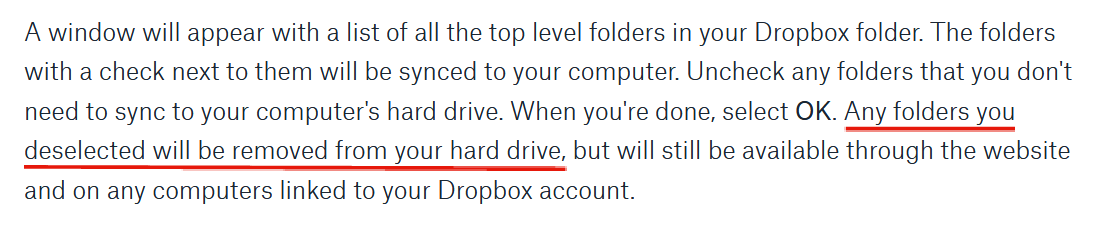
Yes, it should, when the entire purpose of the feature is to remove a folder from the local drive. That's the point of Selective Sync. It's not meant to allow you to store a folder in your local Dropbox folder that doesn't sync. It's meant to REMOVE folders from your local drive to save disk space while keeping those folders stored in your account online.
It clearly states that the folder will be removed; both in the documentation for the feature and in the confirmation that appears.
 7 years ago
You said:
"It's not like it even went into the trash can, which would be annoying but at least acceptable. If it's going to be PERMANENTALLY DELETED, such a warning should be present and made absolutely clear."
The key thing (which I haven' seen any of the previous responses point out) is that the files have not been permanently deleted. If you go into the selective sync box and re-enable syncing for the folder (it will be available there), then it will re-appear on your local computer. It will take downloading of the many gigabytes of the files from the cloud, so do it on a fast network connection, but they have not been deleted if you just did what it seems from context.
Good luck, hope you get your files back!


CR1001
6 years agoHelpful | Level 6
Jay schrieb:Hi everyone, I understand your frustration about how de-selecting folders in selective sync deletes the folder on the computer.
As far as I’m aware, this has always been the default behavior since I began, I even posted about this behavior here later on in a separate thread. I’ll paraphrase my responses here for convenience.
When a folder is unchecked from the selective sync window, it should delete the local copy of the folder, and keep the online copy untouched and not syncing to the machine.
If a local folder isn’t automatically deleted, it can be for various reasons, such as too many files in the folder to delete, permissions issues, or some other unknown factors. This is when you get the grey minus symbol to appear on the folder and files.
The fact that until now it was leaving the local copy of the folder with a grey minus symbol, and not deleting it completely, means that it wasn’t working as it should. You were actually experiencing the desktop app failing to delete the local copy, and that was never the intent of this feature.
The main reason for selective sync is to prevent folders from appearing on your local machine (meaning they wouldn’t sync or take up space), so there should never have been a local copy to begin with, as this could later cause selective sync conflicts.
While I understand your wish to prevent entire folders from syncing to the site, there is a method to do so using the steps here for some users, I just wanted to clarify that from what I know, selective sync should delete the local folder. If it didn’t, then that indicates that there’s an issue with your desktop app.
I appreciate your feedback on this matter, and it has been noted in our system.
The most critical issue is working with heavy application projects in dropbox under windows. I'm a senior user of dropbox since version V2.0!
My project folder is directly created in a dropbox folder pc local and insync with other users.
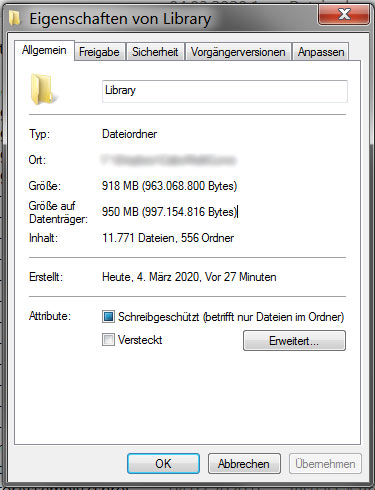
The pojects (not even one) contain currently about 20.000 files. The application creates a /Library Cache folder to have faster access to the files and it contain also .meta information about all files. Currently ~11.000 files.
When the desktop application starts, it updates about 1000-3000 files at start.
Now dropbox whats to synchronize all these changed files for sure, but this is terrible data flow influence also cause locked issues.
To prevent this extreme synchronization data flow, it was possible to select eg. the /Library folder to "not insync". And the files stayed on the local drive, with any touch of dropbox. That was perfect in the past! until version 64.x.
Now dropbox erases all local folders are not snyced. This incude all the Project folders are marked in the past as "do not snyc" silently with the new deletion behavior.
The desktop application tries to load a project and quits with "Data and library files are damaged. Project is unsusable. Fatal Error"
And that happen to all users are synced to any project via dropbox. Periodically backups of the /Projects contains the slilend damaged projects as well.
Can you imagin how terrible this behavior is? I think not.
____________
Note:
Why not packing thousand of small files into one compressed package and upload? Instead of sending them one by one.
CR1001
6 years agoHelpful | Level 6
Here is what happen after starting a project in Dropbox after the first start.
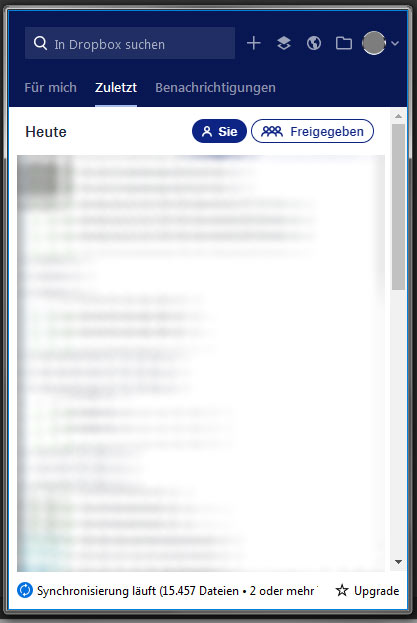
After the first start of the project file the application updated about 15.000 files with about 950.000.000 Bytes. These files are spead over ~50 folders and Dropbox must sync them currently. This is a waste of bandwidth and C0² emission and a climatic pollution, because 10000 user working in the same way and with the same Application.
I hope the money-hungry shareholder behind Dropbox will eventually become aware of the fact that they won't save their $ 10,000 billions to another earth and allow options to be included that will help the users and reducing c02 emission out of the box.
About Delete, Edit, and Organize
Solve issues with deleting, editing, and organizing files and folders in your Dropbox account.
The Dropbox Community team is active from Monday to Friday. We try to respond to you as soon as we can, usually within 2 hours.
If you need more help you can view your support options (expected response time for an email or ticket is 24 hours), or contact us on X, Facebook or Instagram.
For more info on available support options for your Dropbox plan, see this article.
If you found the answer to your question in this Community thread, please 'like' the post to say thanks and to let us know it was useful!


