Your workflow is unique 👨💻 - tell us how you use Dropbox here.
Forum Discussion

RunBear
7 years agoHelpful | Level 5
Can't access system tray preferences menu Windows 10
I am running DropBox desktop v 61.4.95 on Windows 10. If I left or right click the system tray Dropbox icon, I don't get any menu pop up. This means I have no way of accessing my preferences, includi...
- 7 years ago
Try a CTRL-left click to access the legacy menu.

michaelytt
6 years agoExplorer | Level 4
I am afraid that the way I got all my folders to show up was to delete everything from my computer, uninstall the program, reinstall DropBox, and let it all load again.

Jane Dropbox Staff
6 years agoDropbox StaffThanks for clarifying daintria!
Following-up from your last comment, it would be worth noting that you should be able to get going with that once you Add Dropbox as a Place in Microsoft Office.
Please let me how you get on with my advice & I’ll do my best to check back with you soon if you have any follow-up questions!
- daintria6 years agoExplorer | Level 3
thats the root of the problem. i have no ability to right click for the prefrence menue from the dropbox icon on the task tray, so I cant make office a "place"
- michaelytt6 years agoExplorer | Level 4
For whatever reason, I now have full funcionality of the DropBx icon in the task tray. After the right click, one selects the star icon in the upper right hand corner, and preferences is an option down the list.
- daintria6 years agoExplorer | Level 3
i have no star in the corner when I right click in the tray.
i can see a gear box and a star if I actually open the app. no where on any othese though is the option to make a "place"
- Jane6 years agoThanks for clarifying matters for me daintria; let me follow-up a bit closer!So, when you click on the Dropbox icon on your system tray, there should be a pop-up window with your Recents & Notifications.On the top-right hand side that’s next to the Search Bar, please navigate on the three dots next to your profile picture→ Choose “Preferences" & this should automatically land you on the “General” tab on the preferences menu. → There, you should be able to check the box next to Show Dropbox as a save location in Microsoft Office.If you don’t see any of the fields above or the process halts after a certain point, could you include a screenshot of your view in your next message for me if possible (omitting personal info)?Thanks again for staying in touch; I look forward to hearing back from you!
- michaelytt6 years agoExplorer | Level 4
I have lost track of who is helping whom. I do not have an issues with DropBox currently. Everything is working well. Thanks.
- Jane6 years ago
Oh, that’s great to hear & thanks for offering your assistance here michaelytt! :slight_smile:
As I’m also following the discussion, I was trying to help daintria, since it looks like they were facing an issue when trying to carry out the instructions in the relevant help center article I had included in my previous post.
- daintria6 years agoExplorer | Level 3
Hi Jane,
i dont haave a place with three dots on that page and now it wont let me upload the picture of the screen to send you
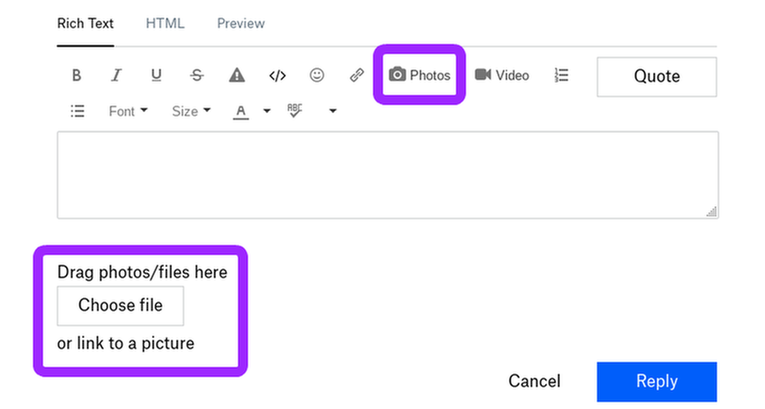
- Jane6 years agoSo, if you’ve already grabbed this screenshot I asked you previously daintria, could you upload it on this thread using either of the options below?If you’re facing any issues with that or you’re getting any error messages along the way, please let me know in your next message!
- Rich6 years ago
Super User II
- daintria6 years agoExplorer | Level 3
Hi Jane,
mine looks nothing like Mikes, i think mine is "S" mode, does that matter?
- daintria6 years agoExplorer | Level 3
my try to upload the screen gives me Error code: Upload Failed in a big maroon box
About Apps and Installations
Have a question about a Dropbox app or installation? Reach out to the Dropbox Community and get solutions, help, and advice from members.
The Dropbox Community team is active from Monday to Friday. We try to respond to you as soon as we can, usually within 2 hours.
If you need more help you can view your support options (expected response time for an email or ticket is 24 hours), or contact us on X, Facebook or Instagram.
For more info on available support options for your Dropbox plan, see this article.
If you found the answer to your question in this Community thread, please 'like' the post to say thanks and to let us know it was useful!


