We're making some changes to the Dropbox Community 👩💻 - Find out more here.
Forum Discussion

Unic0
8 years agoExplorer | Level 3
Unable to access preference menu on linux
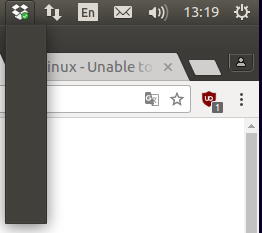
Hello, I just wanted to move the Dropbox folder location through the preference menu but I just can't access the any menu at all. See below : What should I do ? Regards, U
 7 years ago
I found how to fix it. I'm on xubuntu 18.04. There is a new indicator plugin that you have to ask for the task bar. With the new indicator plugin, the dropbox icon works, but not with the default indicator plugin.

bellb300
7 years agoNew member | Level 2
This issue also affects me. I am on ubuntu 18.04.
I have re-installed a few times as well. I am unable to access the preferences center of dropbox due to this issue.

Jane Dropbox Staff
7 years agoDropbox StaffAs this is has been an earlier discussion, we may need to start afresh on a new thread, though I’m interested if any if the comments (or troubleshooting advised above) matches what you’re currently experiencing. Have you had a chance to do a re-installation following the steps I’ve included above incidentally?
Can you let me know whether you’ve fulfilled all the requirements for Linux listed here? I’d like us to focus specifically on the Qt 5.5, since if you have a different version, you’ll have to consult your OS or Qt documentation and then let us know if this discrepancy persists.
Following, it may be worth installing TopIcons as it is called out as a requirement for the app indicator (tray icon).
Let me know of how my suggestions work for you & I’ll do my best to follow-up on this discussion asap!
- cuu5086 years agoNew member | Level 2
There is no "System Tray" in Gnome Shell and so I'm not sure how to access Dropbox Preferences without installing hacky extensions. Is it possible to launch the Preferences window some other way than from the (missing) tray icon?
Ubuntu 19.04
- chinarut6 years agoHelpful | Level 6
ok - glad I'm not the only one with this issue and I might be able to add some interesting insight given I use Dropbox out of a /home partition shared by Ubuntu and Elementary.
just for the record, my tray icon works fine in Ubuntu 18.04.4 32-bit and 64-bit (I have both installed) using Unity. I set up selective sync (originally on 32-bit Ubuntu) using the settings available from the tray icon and my ~/.dropbox directory is still usable by 64-bit Ubuntu (and [spoiler alert] the Dropbox daemon is till able to use the directory in Elementary)
I installed Elementary OS today and was happy to see Dropbox in the AppCenter. I installed it and it looked like it did nothing at first. I installed Dropbox from the command line and same behavior (I also was expecting the tray icon to show up as an indicator it was working). Then I created a file on the web and it showed up in my ~/Dropbox directory. I uninstalled the command line version and re-installed the AppCenter version and sure enough, if I created a file on the web, I got a notification that a file got created in my ~/Dropbox directory. So the daemon is definitely running.
So now, like many here, am missing a means to reconfigure the "selective sync" in Elementary OS. I figure it's not a big issue (for now) because I can boot to Ubuntu to make changes (which is not often).
Has any one experimented with the dropbox "exclude" command from the command line by chance?
exclude ignores/excludes a directory from syncing
EDIT: After reading recent responses, I don't feel this issue is "solved" either...
- Jay6 years ago
Dropbox Community Moderator
Hi chinarut, thanks for joining the Community!
Regarding your query, currently we only official support Ubuntu and Fedora for Linux installations. As per the system requirements, the full desktop app needs the following:
- GNOME shell (may need the TopIcons extension to get the tray icon)
- Unity
- GNOME Classic
- XFCE with the corresponding Nautilus dependencies
If Elementary doesn’t offer these, then it’s possible this is the reason why you’re not seeing the Dropbox icon.
The 'exclude' command should work when running the command line headless installation, along with other functions.
I hope this helps to clarify matters!
- chinarut6 years agoHelpful | Level 6amazing response @jay!
thank you for pointing us to the exclude command line documentation - it looks very promising on first glance.
If anyone in this thread has experience to share re: the exclude command, love to hear what you've discovered 🙏

About Apps and Installations
Have a question about a Dropbox app or installation? Reach out to the Dropbox Community and get solutions, help, and advice from members.
The Dropbox Community team is active from Monday to Friday. We try to respond to you as soon as we can, usually within 2 hours.
If you need more help you can view your support options (expected response time for an email or ticket is 24 hours), or contact us on X, Facebook or Instagram.
For more info on available support options for your Dropbox plan, see this article.
If you found the answer to your question in this Community thread, please 'like' the post to say thanks and to let us know it was useful!


